跳转到主内容
加入维修社区 - 创建账户

此翻译由机器生成,尚未经过人工审核。 会说这种语言吗? 查看评论。

Google Pixel XL 显示屏组件更换

浏览量: 3.3万

浏览统计数据:

过去24小时
4
过去 7 天:
29
过去 30 天:
130
总计
33,394
评论: 32

21 comments on steps, 11 guide comments.

Go to guide comments
已完成: 34

34 人已将本指南标记为“已完成”。你会是下一个完成的人吗?

收藏: 8

8 人已收藏(并订阅)本指南。你会是下一个吗?

所需时间: 30 - 45 分钟
难度: 困难
Google Pixel XL 显示屏组件更换

本维修指南由 iFixit 员工编写,未经 Google 认可。 了解更多关于我们维修指南的信息,请点击此处。

本指南展示了如何拆卸和更换 Google Pixel XL 的显示屏组件,该组件包含屏幕和触摸数字化层。

Pixel XL 未经加固的显示面板非常脆弱,且通过强力粘合剂固定在中框上,这使得维修工作较为困难。损坏显示屏的可能性很大,特别是如果它已经存在微裂纹的情况下。在撬起阶段,请务必充分加热并格外小心。

你所需要的

修复工具包

本套装包含完成指南所需的所有零件和工具。

配件

工具

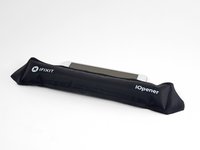
    1. Google Pixel XL 显示屏组件更换, 显示屏组件: 步骤 1 中的图像 1,3 Google Pixel XL 显示屏组件更换, 显示屏组件: 步骤 1 中的图像 2,3 Google Pixel XL 显示屏组件更换, 显示屏组件: 步骤 1 中的图像 3,3
      • 加热iOpener并将其覆盖在显示屏的上边缘两分钟。

      • 您也可以使用吹风机、热风枪或电热板,但要注意不要使手机过热——显示屏和内部电池都易受过热损坏。

      • 在开始撬动屏幕前注意以下区域:

      • 显示面板边缘的细条粘合剂

      • 厚粘合剂

      • 容易损坏的OLED显示面板

      • 撬动过程中可能会受损的显示屏排线

      添加评论

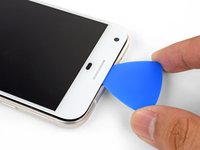
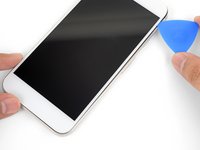
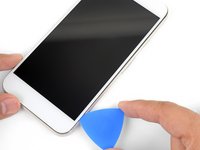
    2. Google Pixel XL 显示屏组件更换: 步骤 2 中的图像 1,3 Google Pixel XL 显示屏组件更换: 步骤 2 中的图像 2,3 Google Pixel XL 显示屏组件更换: 步骤 2 中的图像 3,3
      • 加热边缘后,在屏幕上边框附近使用吸盘

      • 拉起吸盘,并在缝隙中插入一个撬片

      • 不要将撬片插入超过13mm(0.5")的深度,那样可能会损坏屏幕组件

      • 如果你不能创造一个可以插入撬片的缝隙的话,继续加热屏幕并重试

      • 也可以使用扑克牌或吉他拨片来代替撬片,这可以帮助创建最开始的开口

      • 译注:pixel的屏幕胶相当牢固,屏幕却非常脆弱,并且在上边框处有相当大面积的屏幕胶,务必充分加热并且完全切割屏幕胶,不然极易导致屏幕在之后的步骤中破碎。根据实际情况加热时间可能远超2分钟,请根据自己的情况加热完全后再操作,不要在切割时使用过大的力。尤其是处理已经破碎的屏幕的时候,进一步的破碎会造成大量很难处理的碎玻璃,并且屏幕破碎也会让完整地取下屏幕变得更难

      添加评论

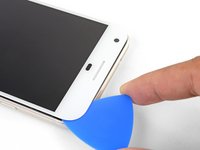
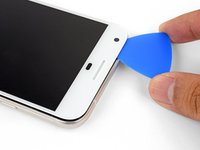
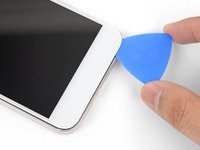
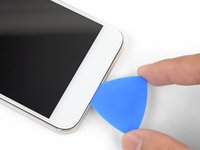
    3. Google Pixel XL 显示屏组件更换: 步骤 3 中的图像 1,3 Google Pixel XL 显示屏组件更换: 步骤 3 中的图像 2,3 Google Pixel XL 显示屏组件更换: 步骤 3 中的图像 3,3
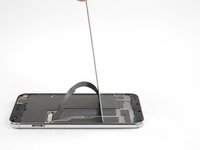
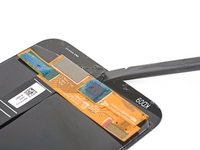
      • 滑动开启撬片穿过上边缘,切开粘合剂。

      • 确保插入深度不超过 13 mm (0.5 英寸),否则会损坏显示屏。

      • 屏幕上边缘的听筒扬声器上方有网罩。如果你没有备用的扬声器网罩,请小心操作,以免损坏或弄丢该组件。

      • 在缝隙中留下一个开启撬片,防止粘合剂重新粘合。

      询问修复机器人

      添加评论

    4. Google Pixel XL 显示屏组件更换: 步骤 4 中的图像 1,3 Google Pixel XL 显示屏组件更换: 步骤 4 中的图像 2,3 Google Pixel XL 显示屏组件更换: 步骤 4 中的图像 3,3
      • 用iOpener加热屏幕一侧边缘约两分钟

      • 在已经打开的缝隙中再插入一个撬片,沿着加热过的边缘小心地从上往下滑动,慢慢切开屏幕胶水

      • 注意不要将撬片插入边缘超过1mm(1/32"),不然可能导致屏幕组件的损坏

      • 在屏幕的另一侧重复以上步骤

      询问修复机器人

      添加评论

    5. Google Pixel XL 显示屏组件更换: 步骤 5 中的图像 1,2 Google Pixel XL 显示屏组件更换: 步骤 5 中的图像 2,2
      • 用iOpener加热屏幕底部约2分钟

      • 在已经切开的边缘处插入一个撬片

      • 小心的将撬片划过转角

      • 将撬片划像另一侧,并切开底部的屏幕胶

      • 不要将撬片插入超过8.5mm(1/3“),否则将有可能损坏屏幕

      • 译注:这部分的屏幕胶比顶部略少,但是依旧很多,根据实际情况,加热时间可能远超2分钟,务必加热完全再进行操作

      询问修复机器人

      添加评论

    6. Google Pixel XL 显示屏组件更换: 步骤 6 中的图像 1,1
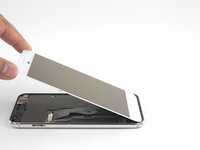
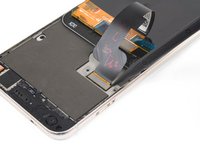
      • 一旦你沿着手机周边切割完毕,请小心地从右侧角落处稍微抬起显示屏组件。

      • 不要试图拆下显示屏组件。它仍然通过一根柔性排线连接着。

      • 使用开启撬片切断剩余的粘合剂。

      添加评论

    7. Google Pixel XL 显示屏组件更换: 步骤 7 中的图像 1,3 Google Pixel XL 显示屏组件更换: 步骤 7 中的图像 2,3 Google Pixel XL 显示屏组件更换: 步骤 7 中的图像 3,3
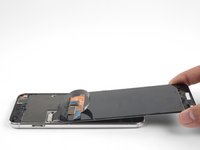
      • 从顶部提起显示屏组件,将其翻转过来,使其倒置在中框上。

      • 翻转组件时请小心,避免拉扯到柔性排线。

      询问修复机器人

      添加评论

    8. Google Pixel XL 显示屏组件更换, 拆卸显示屏排线支架: 步骤 8 中的图像 1,2 Google Pixel XL 显示屏组件更换, 拆卸显示屏排线支架: 步骤 8 中的图像 2,2
      在这个步骤中使用的工具:
      Magnetic Project Mat
      $19.95
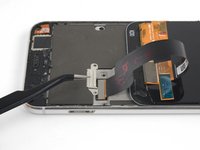
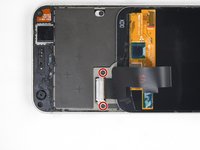
      • 拧下固定显示屏排线的两颗 4 mm T5 螺丝。

      • 在整个维修过程中,请妥善保管好每一颗螺丝,确保它们在重新安装时能回到原来的位置。

      • 取下显示屏排线支架。

      询问修复机器人

      添加评论

    9. Google Pixel XL 显示屏组件更换: 步骤 9 中的图像 1,2 Google Pixel XL 显示屏组件更换: 步骤 9 中的图像 2,2
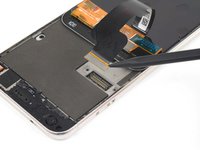
      • 使用撬棒的尖端撬起显示屏排线,并将其从连接器上断开。

      • 若要重新连接像这样的 按压式连接器,请小心对齐并按压一侧,直到它卡入到位,然后在另一侧重复此操作。不要按压中间。如果连接器未对齐,针脚可能会弯曲,从而导致永久性损坏。

      添加评论

    10. Google Pixel XL 显示屏组件更换: 步骤 10 中的图像 1,3 Google Pixel XL 显示屏组件更换: 步骤 10 中的图像 2,3 Google Pixel XL 显示屏组件更换: 步骤 10 中的图像 3,3
      在这个步骤中使用的工具:
      Tweezers
      $4.99
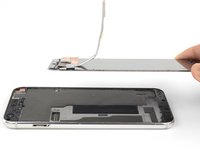
      • 拆下显示屏组件。

      • 关于如何重新安装 Pixel XL 显示屏的完整说明,请查看此指南。

      • 如果你的替换屏幕没有自带扬声器格栅,请使用镊子将旧显示屏上的胶粘格栅小心揭下,并将其转移到替换屏幕上。

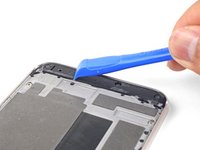
      • 在安装新显示屏之前,请务必清除中框上的所有粘合剂残留。使用撬棒或开启工具将其刮除,并使用高浓度异丙醇去除任何残胶。

      • 如果你要重新安装原来的显示屏组件,请务必在涂抹新粘合剂之前,清除显示面板和中框上的所有粘合剂残留。

      • 在安装新粘合剂并重新密封手机之前,请务必开机测试你的维修是否正常。

      • 重新组装后的首次开机过程中,屏幕会进行自动校准。此过程中请勿触摸屏幕,否则可能导致触摸校准不当,从而引发触摸问题。

      添加评论

结论

将你的新零件与原装零件进行对比。在安装新零件之前,你可能需要迁移剩余的组件或移除新零件上的粘合剂衬垫。

如果你的 Pixel 在更换屏幕后无法开机,可能是因为电池重新连接时手机已悄无声息地开机了。按住电源按钮几秒钟,直到手机震动关机。随后,重新连接屏幕,再试一次。

要重新组装设备,请按相反顺序执行这些说明。

请将电子废弃物送到通过 R2 或 e-Stewards 认证的回收商处进行回收。

维修过程不如预期?查看我们的 Google Pixel XL Answers 社区 以获取故障排除帮助。

取消:我没有完成这个指南。

34等其他人完成本指南。

由衷感谢以下译者:

en zh

100%

Scott_Hsu正在帮助我们修复这个世界! 您也想加入吗?
开始翻译 ›

Arthur Shi

于01/03/18注册

353,164 声望

创作了938篇指南

团队

iFixit iFixit 的会员

Staff

120 名成员

创作了72,955篇指南

11指南评论

I just connected the screen to the phone, but the screen doesn’t start. Do I have to restart in a special way the phone to make it works? All possible button combinations to restart the phone doesn’t work

David Torralbo - 回复 分享
The iFixIt iOpener tool is a complete waste of money. It didn’t loosen up the glue at all. I am requesting a refund on Amazon.com

Drew Hookway - 回复 分享

Hi Drew, sorry to hear that your iOpener didn’t work too well in your repairs. We like to think it’s a pretty valuable and inexpensive tool, but it does have its quirks — namely, not everyone’s microwave is specced to operate at the same temperatures, so not everyone will achieve the most optimal temperature during that heating process.

For what it’s worth, we do put a Lifetime Warranty on the iOpener tools, so our Support team would be happy to replace that one for you, if you’d like. If so, please reach out to them by using the Contact link on the help page: http://help.ifixit.com. Otherwise, you are welcome to request a refund via Amazon and we will oblige.

We wish you all the best in your future repairs.

Kadan Sharpe - 回复 分享

I am sure the iOpener does work, but it probably takes a long time to heat the adhesive enough for screen removal and would require several applications. I got one as part of my screen replacement kit, although I have a heat gun so I didn’t end up using it. That being said my screen took at least four minutes of heating, with some re-heating to remove the broken shards. I would also imagine that adhesives vary from manufacturer, since this is my first screen replacement all I know is that the adhesive on the Pixel XL is really strong!

Dan E - 回复 分享

Don’t forget to transfer the speaker cloth to the new screen. I got it all back together before realizing that there was just an ugly hole.

John-Paul Andrusky - 回复 分享

添加评论

浏览统计数据:

过去 24 小时: 4

过去 7 天: 29

过去 30 天: 130

总计 33,394