简介
Use this guide to replace a broken, cracked, or non‑responsive screen in your iPhone 16 Pro Max.
You'll need replacement screen adhesive to complete this repair.
Note: Since you can't disconnect the battery during this repair, be especially careful not to use metal prying tools or touch any exposed contacts in your iPhone.
After your repair, calibrate an authentic screen using Apple's Repair Assistant.
你所需要的
-
-
Unplug any cables from your iPhone.
-
Hold the power and either volume buttons, and slide to power off your iPhone.
-
-
-
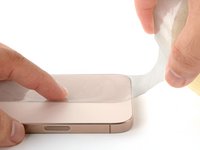
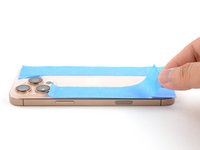
If your screen or back glass is badly cracked, lay overlapping strips of packing tape over the glass to protect yourself and make disassembly easier.
-
-
-
Use a P2 pentalobe driver to remove the two 7.4 mm-long screws on either side of the charge port.
-
-
-
Measure 3 mm from the tip and mark the opening pick with a permanent marker.
-
-
在这个步骤中使用的工具:iOpener$14.99
-
Use a hair dryer or heat gun to heat the bottom edge of the screen until it's hot to the touch.
-
-
-
Two delicate cables connecting the screen to the iPhone—one just above the Action button and the other about halfway along the left edge of the iPhone
-
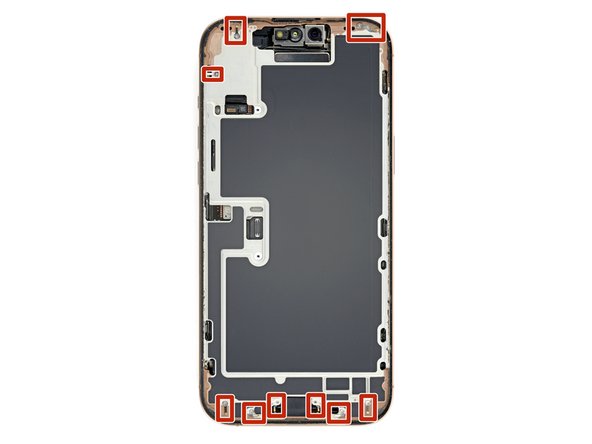
Multiple spring contacts around the perimeter of the iPhone
-
-
-
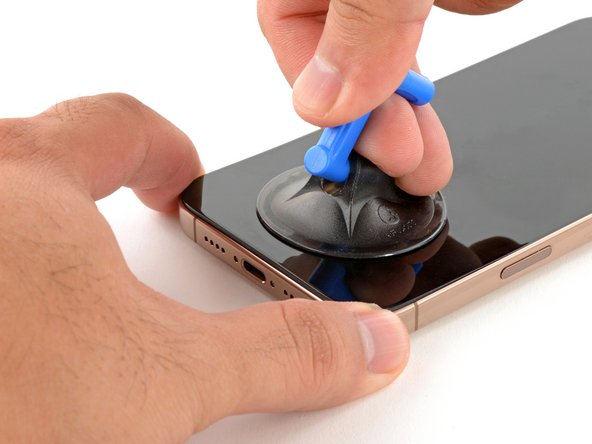
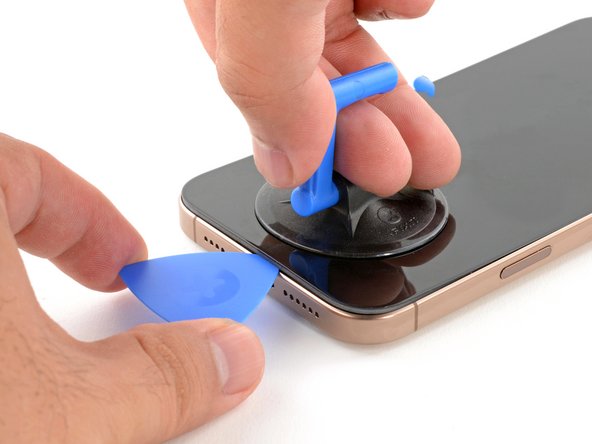
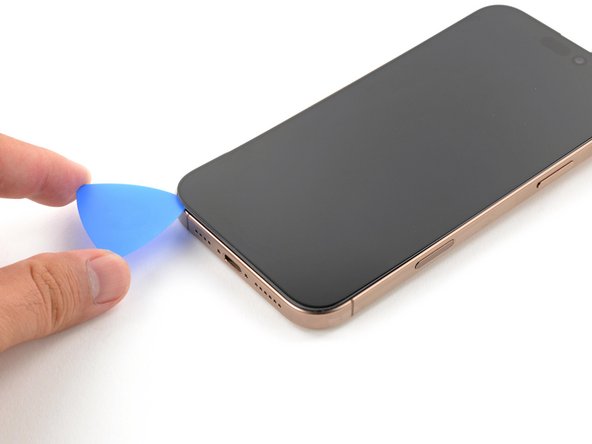
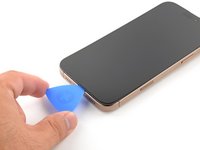
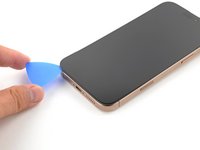
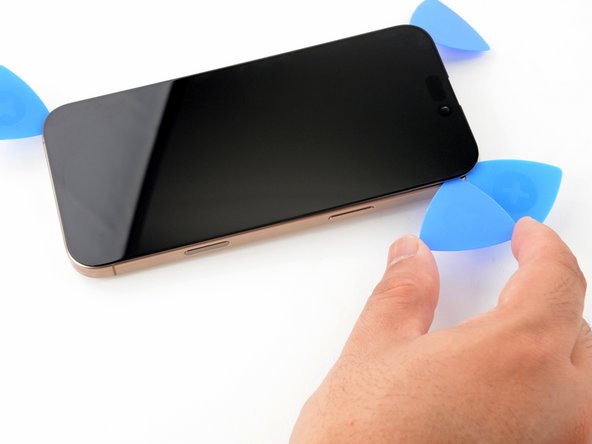
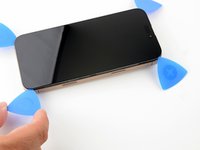
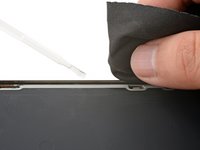
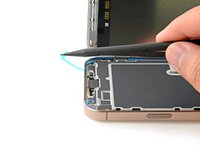
Slide the opening pick along the bottom edge to release the adhesive.
-
Leave the opening pick in the bottom-left corner to prevent the adhesive from resealing.
-
-
-
Use a hair dryer or heat gun to heat the left edge of the screen until it's hot to the touch.
-
-
-
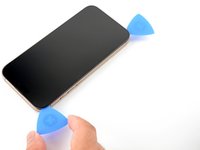
Insert a second opening pick in the bottom-left corner, close to the existing pick.
-
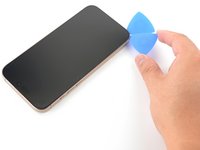
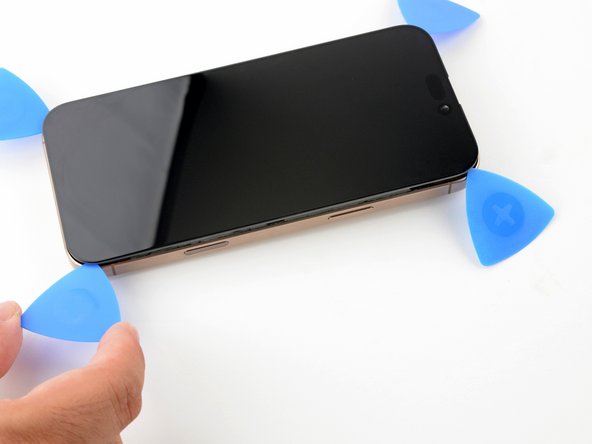
Slide the opening pick along the left edge of the screen to separate the adhesive and release the metal clips.
-
Leave the opening pick in the top-left corner to prevent the adhesive from resealing.
-
-
-
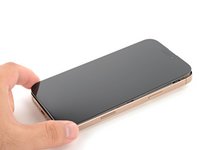
Repeat the heating and slicing procedure along the remaining screen edges.
-
-
-
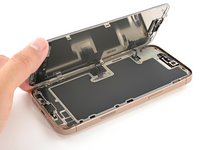
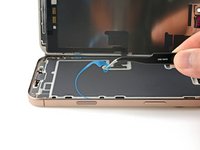
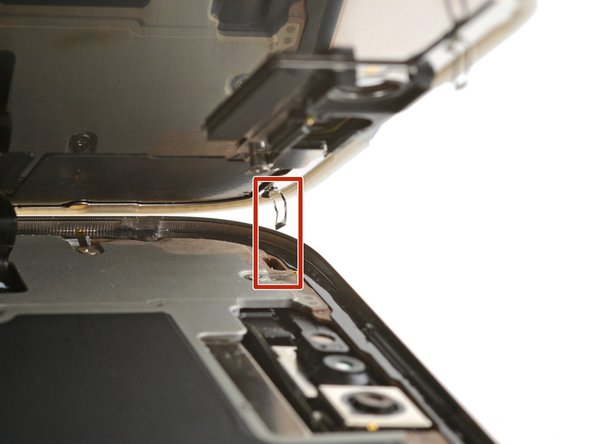
Carefully lift the screen upwards until the clips along the long edges clear the frame.
-
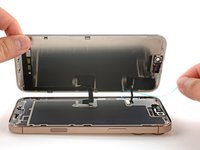
Swing open the screen over the left edge of the iPhone and lay it flat on your work surface.
-
-
-
Use a tri-point Y000 driver to remove the two 1.3 mm‑long screws securing the front sensor and display connector covers.
-
-
-
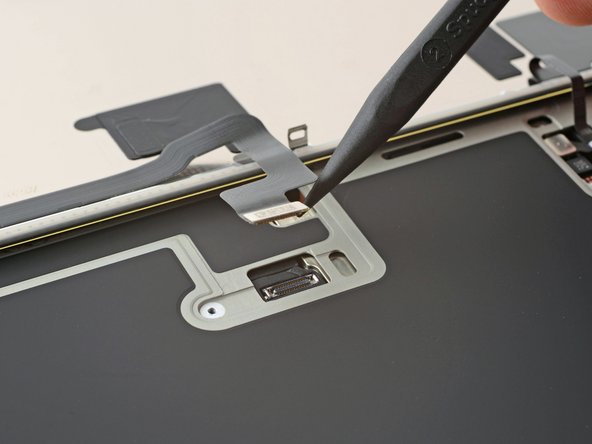
Use the tip of a spudger to pry up and disconnect the display press connector.
-
Repeat for the front sensor press connector.
-
-
-
-
The ambient light sensor is located behind the screen, next to the cut‑out for the Face ID sensors.
-
Check if the replacement screen comes with one installed. If it does, click here to skip the next twelve steps.
-
-
-
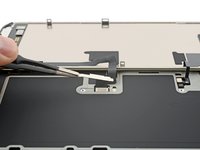
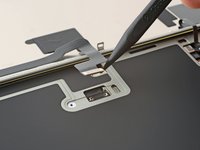
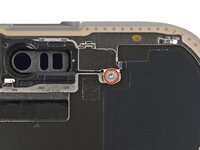
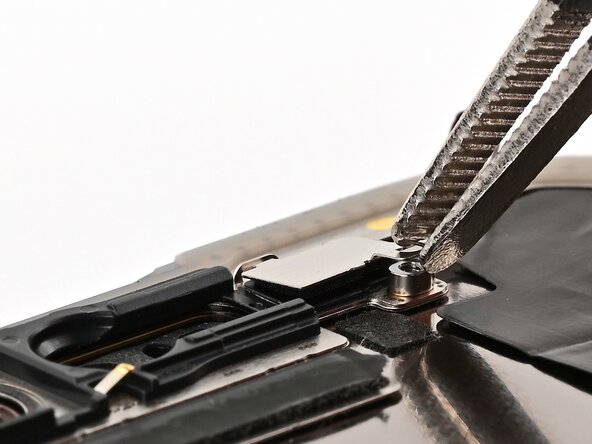
Use a Phillips screwdriver to remove the 1 mm‑long screw securing the bracket on the ambient light sensor.
-
-
-
Use a hair dryer, heat gun, or iOpener to soften the adhesive under the ambient light sensor and ambient light sensor cable.
-
-
-
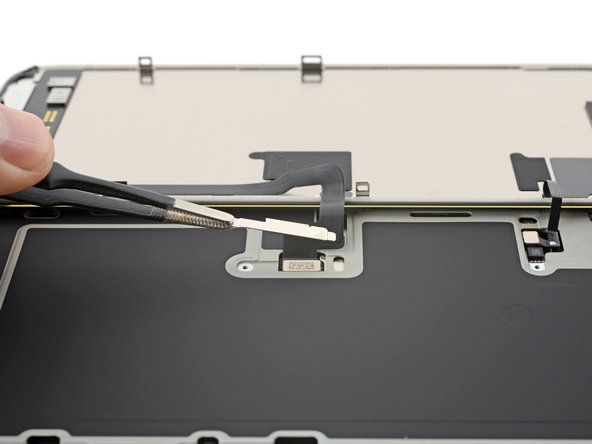
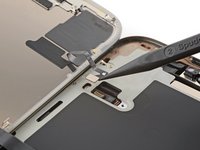
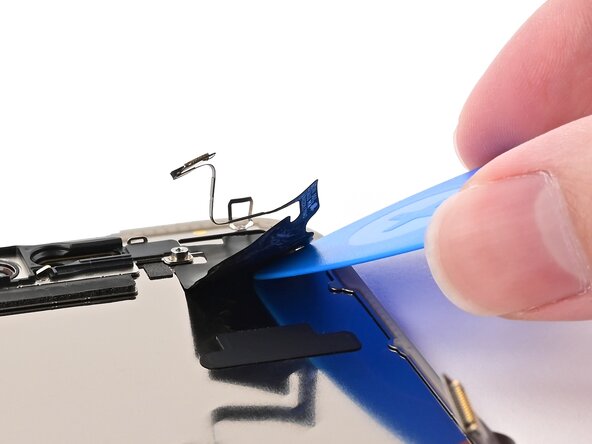
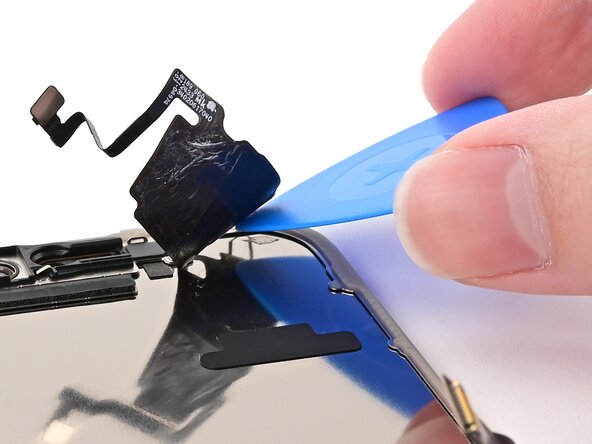
Slowly slide an opening pick under the ambient light sensor cable, starting under the connector at the bottom and working upwards until the cable is free from the screen.
-
-
-
Use a hair dryer, heat gun, or iOpener to soften the adhesive under the ambient light sensor itself.
-
-
-
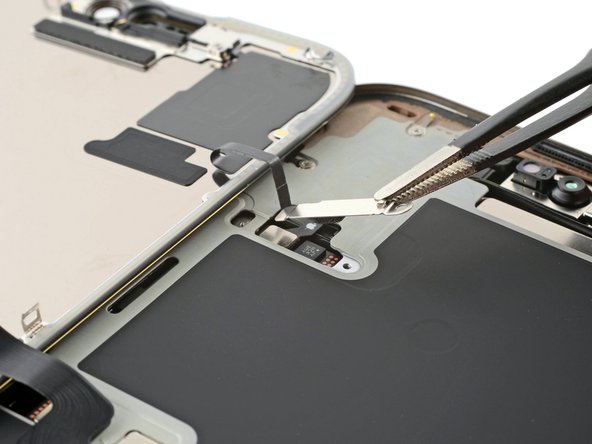
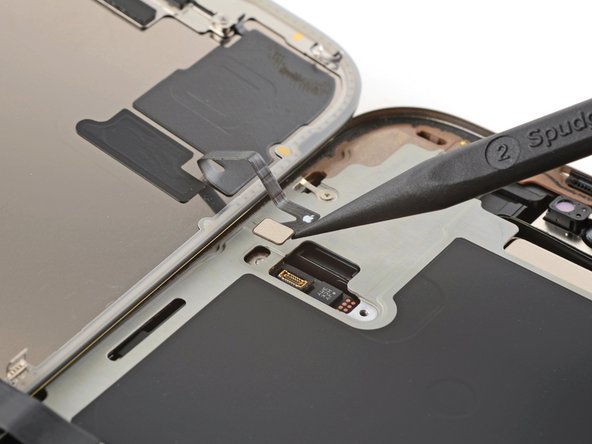
Use the flat end of a spudger to slowly pry up the ambient light sensor from the side with the protruding cable.
-
Remove the ambient light sensor.
-
-
在这个步骤中使用的工具:Tesa 61395 Tape$2.99
-
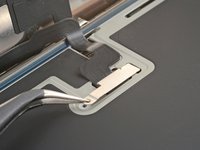
Use tweezers to reposition any adhesive that may have covered the ambient light sensor during removal. The adhesive should form a border around the raised rectangle.
-
-
-
Align the ambient light sensor with its recess in the back of the screen.
-
Use a spudger or your finger to press the ambient light sensor into its recess.
-
-
-
Use a hair dryer, heat gun, or iOpener to soften the adhesive under the ambient light sensor and its cable. It only needs to be warm—not hot.
-
-
在这个步骤中使用的工具:Tesa 61395 Tape$2.99
-
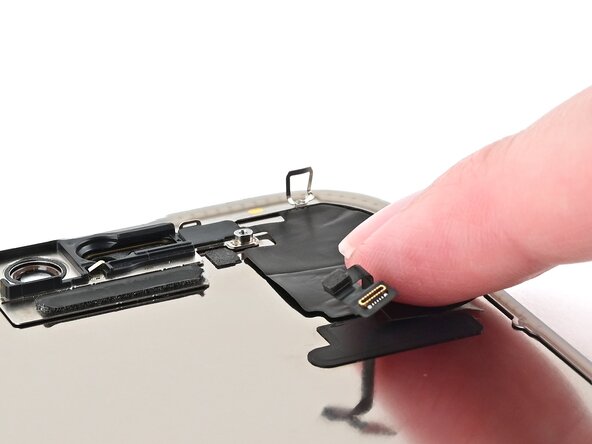
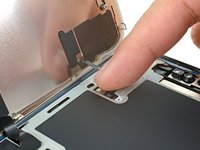
Use your finger to press down the ambient light sensor cable.
-
-
-
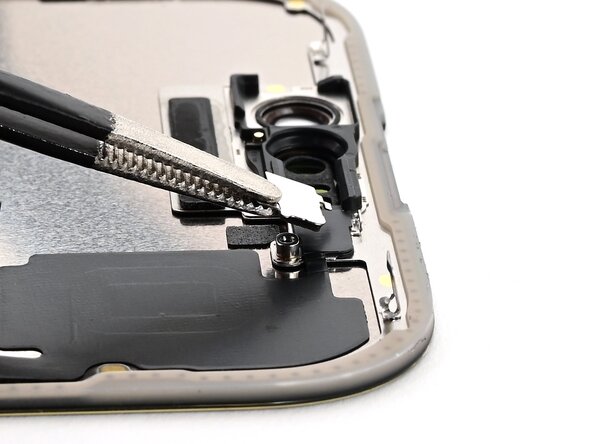
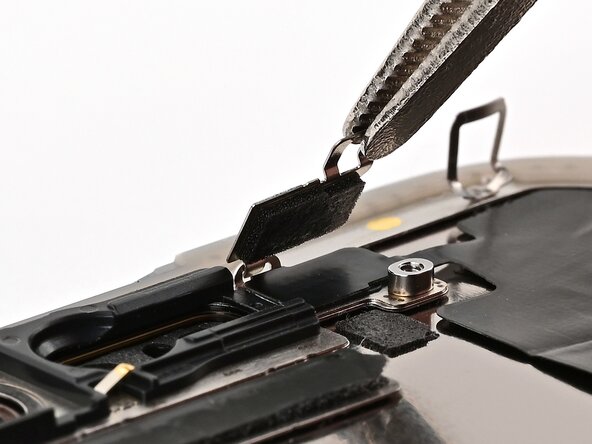
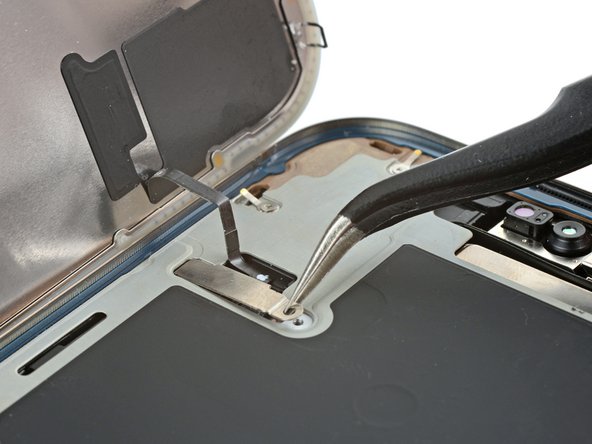
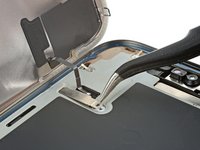
Use tweezers or your fingers to hook the ambient light sensor bracket over the back of the sensor and set it into place.
-
-
-
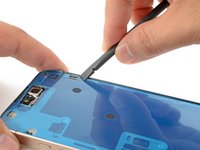
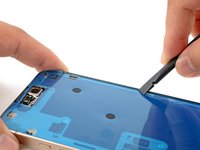
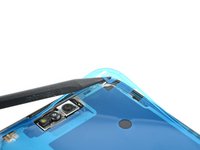
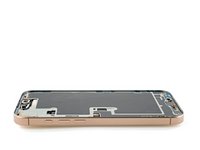
Use a spudger or tweezers to remove the adhesive chunks from the iPhone's frame.
-
-
-
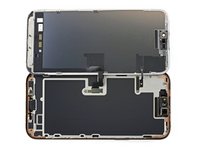
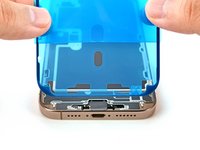
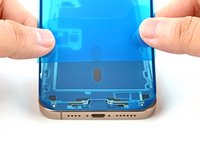
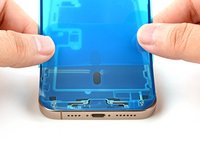
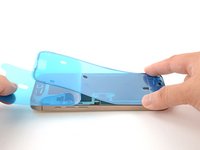
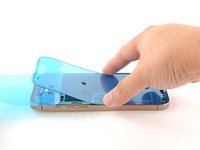
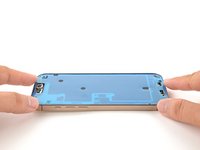
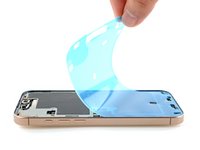
Lay the adhesive sheet over the frame to determine its proper orientation.
-
-
-
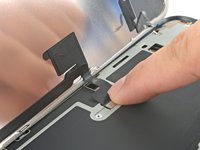
Use your finger to press down and connect the display connector.
-
Press down and connect the front sensor connector.
-
-
-
Tuck the display connector cover's tab into its frame cutout and lay the cover in place.
-
Repeat with the front sensor connector cover.
-
-
-
While supporting the screen, use your fingers or a spudger to peel away all perimeter liners, exposing the adhesive.
-
Check the frame and screen for any stray liners and remove them. There should be no liners remaining.
-
-
-
Carefully align the screen's top clips with their frame cutouts.
-
-
-
Use a hair dryer, heat gun, or an iOpener to heat the screen perimeter until it's slightly too hot to touch.
-
-
-
Use your fingers to firmly squeeze around the perimeter of the iPhone.
-
-
-
Use a P2 pentalobe driver to install the two 7.4 mm-long screws on either side of the charge port.
-









































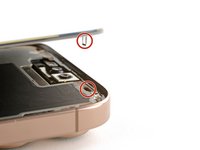
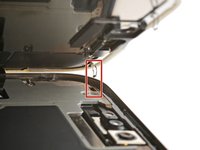

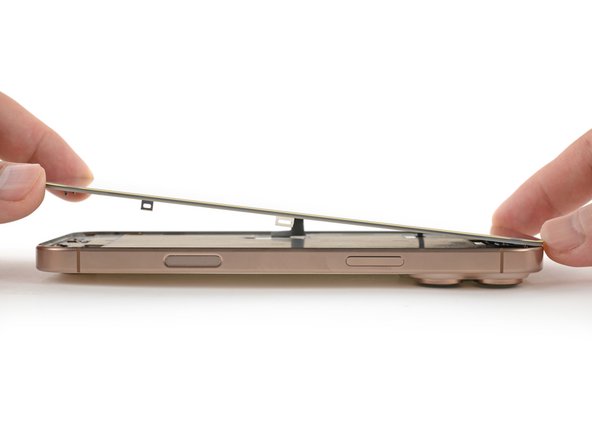
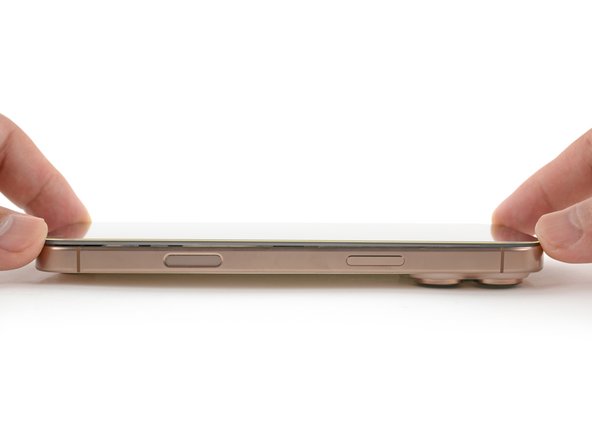
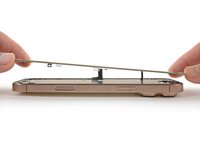
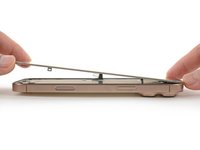
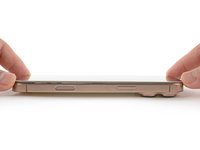


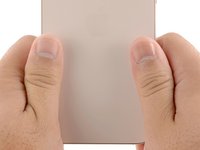






After your repair, calibrate a genuine replacement screen using Apple's Repair Assistant. Navigate to Settings → General → About → Parts & Service History, tap Restart & Finish Repair, and follow the onscreen prompts.
Take your e-waste to an R2 or e-Stewards certified recycler.
Repair didn’t go as planned? Try some basic troubleshooting, or ask our Answers community for help.
11等其他人完成本指南。



5指南评论
Greetings. Is it true that viewing with a magnifying glass under the light of the house ruins the screen? On the iPhone 16 Pro Max
That's a good question! I would say that under normal house lights, you're very unlikely to damage the screen with a magnifying glass.
I haven't tried it, but it's theoretically possible to damage the screen with a magnifying glass if you're in direct sunlight.
Isn’t it necessary to transplant the ambient light sensor on the back of the old screen to the new screen?
If the replacement screen doesn't include one, it'll need to be transferred. Those steps have been added to this guide.
