跳转到主内容
加入维修社区 - 创建账户

此翻译由机器生成,尚未经过人工审核。 会说这种语言吗? 查看评论。

更换 Apple Watch Series 2 电池

你所需要的

视频概述

    1. 更换 Apple Watch Series 2 电池, 关掉你的Apple Watch: 步骤 1 中的图像 1,2 更换 Apple Watch Series 2 电池, 关掉你的Apple Watch: 步骤 1 中的图像 2,2
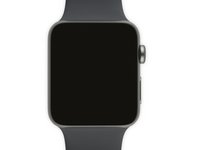
      • 在开始维修之前,请先将手表从充电器上移走并将其关机。

      • 如果触摸屏的损坏让你无法关闭手表,请参照这个教程来关机。

      添加评论

    2. 更换 Apple Watch Series 2 电池, 加热: 步骤 2 中的图像 1,1
      • 准备 iOpener(或者使用吹风机或热风枪),并加热手表的正面,直到它稍微烫手为止。

      • 把 iOpener 放在手表上至少一分钟,以充分加热屏幕并软化将其固定在表壳上的粘胶。

      • 你可能需要重新加热 iOpener,或者在屏幕冷却时将其移动到不同位置,以便将屏幕加热到足以撬开的程度。

      添加评论

    3. 更换 Apple Watch Series 2 电池, 遵守所有警告: 步骤 3 中的图像 1,3 更换 Apple Watch Series 2 电池, 遵守所有警告: 步骤 3 中的图像 2,3 更换 Apple Watch Series 2 电池, 遵守所有警告: 步骤 3 中的图像 3,3
      • 因为屏幕和表壳之间的缝隙太小了,要把它们俩分开需要使用锋利的刀片。所以在操作前请务必认真阅读下面的警告。

      • 让小刀远离你的手以保护你的手指。如果不太放心的话,给另一只手套上厚厚的手套,比如皮革工作手套或者园艺手套。

      • 小心不要施加太大的压力,因为这样有可能会让刀片打滑,划伤你的手,或者损坏手表。

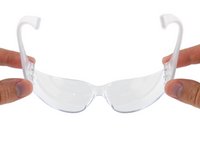
      • 请佩戴 安全眼镜。因为刀片和玻璃都有可能碎裂,产生的碎屑飞散有伤到眼睛的风险。

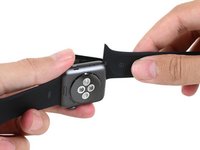
      • 请根据实际情况将表带移除,这样会让你在维修时有更大的操作空间。

      添加评论

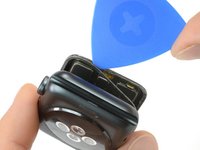
    4. 更换 Apple Watch Series 2 电池, 撬起显示屏: 步骤 4 中的图像 1,3 更换 Apple Watch Series 2 电池, 撬起显示屏: 步骤 4 中的图像 2,3 更换 Apple Watch Series 2 电池, 撬起显示屏: 步骤 4 中的图像 3,3
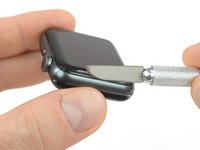
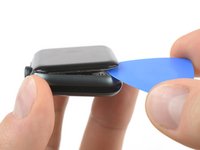
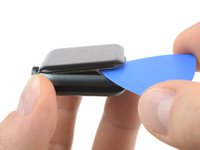
      • 将弯曲刀片的边缘放入显示器和外壳之间的薄间隙中。 从显示屏的短边开始,最靠近数字表冠。

      • 将刀刃垂直向下用力按压进缝隙中。

      • 插入后,倾斜刀片以将显示屏略微撬开。

      • 不要将刀插入1/16英寸(约2毫米)。

      添加评论

    5. 更换 Apple Watch Series 2 电池: 步骤 5 中的图像 1,2 更换 Apple Watch Series 2 电池: 步骤 5 中的图像 2,2
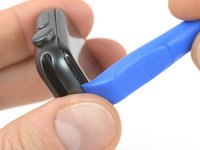
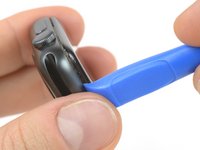
      • 一旦使用刀片打开了小间隙,请移除刀片并将开启工具的较薄边缘插入间隙中。

      • 在此插入翻译将开口工具推入间隙,用拇指作为支点,将显示屏再打开一点。

      • 现在不要试图完全打开或分离显示屏。

      询问修复机器人
      添加评论

    6. 更换 Apple Watch Series 2 电池: 步骤 6 中的图像 1,3 更换 Apple Watch Series 2 电池: 步骤 6 中的图像 2,3 更换 Apple Watch Series 2 电池: 步骤 6 中的图像 3,3
      • 在显示屏下方插入一个开口拨片,小心地将Force Touch垫圈与显示屏分开。

      • iFixit 屏幕和电池维修套件中包含替换用的 Force Touch 密封垫,所以如果你的密封垫损坏了,也不必太过担心。

      • 否则,若想保留 Force Touch 密封垫,请小心地在显示屏边缘下方撬开。如果在抬起显示屏时 Force Touch 密封垫破裂,或者密封垫的层被分开,那么你还需要更换 Force Touch 密封垫本身。

      • 在显示屏周围滑动开启撬片,以分离 Force Touch 密封垫和显示屏之间的粘合剂。

      • 不要将开启撬片插入深度超过 1/16 英寸(约 2 mm)。

      询问修复机器人
      添加评论

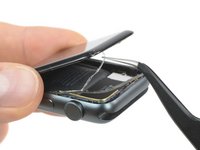
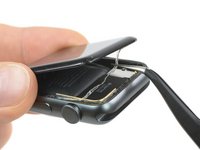
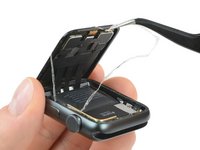
    7. 更换 Apple Watch Series 2 电池: 步骤 7 中的图像 1,3 更换 Apple Watch Series 2 电池: 步骤 7 中的图像 2,3 更换 Apple Watch Series 2 电池: 步骤 7 中的图像 3,3
      在这个步骤中使用的工具:
      Tweezers
      $4.99
      • 为避免损坏显示屏电缆,请勿完全打开显示屏。

      • 将显示屏打开约45°角,然后用镊子剥去显示屏和Force Touch密封垫之间的显示屏粘合剂。

      • 将粘合剂穿过显示屏排线的周围和后面,使其完全脱落。

      添加评论

    1. 更换 Apple Watch Series 2 电池, 断开电池: 步骤 8 中的图像 1,2 更换 Apple Watch Series 2 电池, 断开电池: 步骤 8 中的图像 2,2
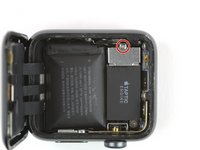
      • 使用 Y000 螺丝刀卸下固定电池连接器金属盖板的螺丝。

      • 取下盖板。

      添加评论

    2. 更换 Apple Watch Series 2 电池: 步骤 9 中的图像 1,2 更换 Apple Watch Series 2 电池: 步骤 9 中的图像 2,2
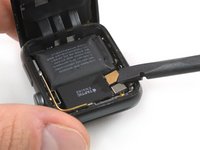
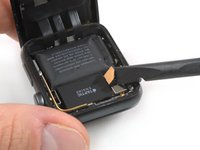
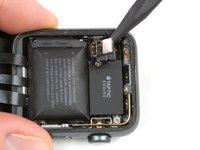
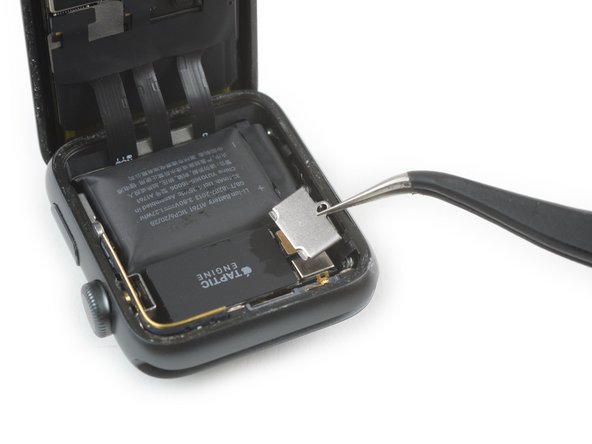
      • 用撬具一角竖直向上撬动电池连接器断开电池。

      • 轻轻地让连接器向上弯,以防意外接触。

      询问修复机器人
      添加评论

    1. 更换 Apple Watch Series 2 电池, 电池: 步骤 10 中的图像 1,3 更换 Apple Watch Series 2 电池, 电池: 步骤 10 中的图像 2,3 更换 Apple Watch Series 2 电池, 电池: 步骤 10 中的图像 3,3
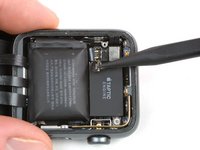
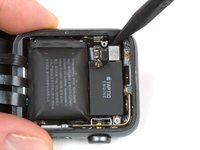
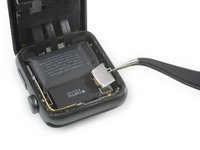
      • 将电池连接器取下后,将撬棒工具的尖端插入电池连接器底板下方,电池连接器底板是电池的一部分。

      • 将电池接口向上提起并从凹槽中取出。

      询问修复机器人

      添加评论

    2. 更换 Apple Watch Series 2 电池: 步骤 11 中的图像 1,3 更换 Apple Watch Series 2 电池: 步骤 11 中的图像 2,3 更换 Apple Watch Series 2 电池: 步骤 11 中的图像 3,3
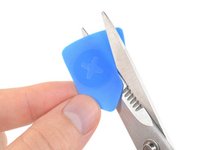
      • 使用剪刀将一枚开启撬片剪至大约电池的宽度。尽量不要留下任何尖角。

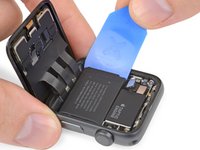
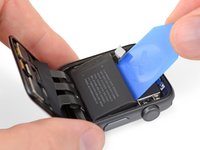
      • 将改造后的开启撬片插入电池边缘和外壳之间,避开数字表冠的那一侧。

      • 持续稳定地施压,缓慢地撬起电池,使其与固定在系统板上的粘合剂分离。

      • 如果需要,你也可以沿着电池顶部边缘,靠着 Taptic Engine 的位置进行安全撬动。

      • 注意显示屏排线,以便在撬出电池时不要损坏它们。

      • 确保不要刺破电池或使电池变形,因为如果电池损坏可能会着火和/或爆炸。

      添加评论

    3. 更换 Apple Watch Series 2 电池: 步骤 12 中的图像 1,1
      在这个步骤中使用的工具:
      Tesa 61395 Tape
      $8.95
      • 取出电池。

      • 在将新电池装入到位之前,请务必撕掉保护膜,露出电池上的粘合剂。

      • 如果需要,可以尝试重复利用现有的粘合剂来固定电池。或者,尝试使用一小段双面胶(如 Tesa 61395),或一点点液体粘合剂(如 E6000)。

      • 如果你使用的是 iFixit 维修套件,请继续查看下方结论中链接的指南,以安装新的 Force Touch 传感器并重新密封你的手表。

      • 或者,如果你只是更换粘合剂而不是传感器,请参阅 粘合剂更换指南 以进行新的粘合剂涂抹并重新组装。

      添加评论

结论

安装好新电池后,请从Force Touch 密封垫指南的第 10 个指南步骤继续操作,以重新密封手表并完成维修。

取消:我没有完成这个指南。

83等其他人完成本指南。

由衷感谢以下译者:

en zh

100%

Yuting Zhao正在帮助我们修复这个世界! 您也想加入吗?
开始翻译 ›

Tobias Isakeit

于03/31/14注册

135,628 声望

创作了189篇指南

团队

Tobias Isakeit - Repairability Engineer Tobias Isakeit - Repairability Engineer 的会员

Business

1 名成员

创作了2,265篇指南

19指南评论

Ordered the kit and replaced the battery, no dice! I believe the components in my watch failed victim to thermal breakdown since the battery got so hot. After the battery replacement my watch acted the same. It got real hot again, so I am not sure what is actually wrong with the watch. I think it is time for a new one.

These directions were easy to follow. The screwdriver in the kit didn’t work at all. luckily I have a good kit with the right tip. If you are confident and able, this procedure should take about 2 hours. Thank you IFIXIT for providing this product an the easy to follow instructions.

Thomas Bole [Abston ES] - 回复 分享

Success! Following this guide and the gasket replacement guide saved having to buy a new watch. Like Thomas mentions in his review, the screwdriver was difficult to use. I eventually got it to turn the tiny screw by holding the watch from the bottom rather than just pressing down with the driver from the top.

A question: should I reset my watch after replacing the battery? Or will whatever throttling WatchOS put in place reverse itself?

dalexgray - 回复 分享

Yay it worked! Was supposed to wait for my boyfriend to do it but got impatient and gave it a go.. easy peasy even with my baby having a hissy fit inbetween ?

Beth Almond - 回复 分享

Thanks ! It worked perfectly in 30 minutes !

Benoit Maillard - 回复 分享

This guide made the repair quite simple. Opening the watch proved to be quite straightforward once it got started. The biggest challenge was actually getting the Force Touch gasket connector aligned and reinserted, but even that wasn’t tough. I’m not sure why this repair is classified as very difficult, unless it’s to discourage people who find everything to be difficult.

I did find that I had to force restart the watch twice after replacing the battery to take care of some strange problems with sluggishness, but after that was taken care of it fixed so many problems and the watch now runs all day without seemingly random shutdowns. Previously if the battery said less than 50% I knew it would probably shut down with a workout. Now it runs like new.

Arle Lommel - 回复 分享

添加评论

浏览统计数据:

过去 24 小时: 19

过去 7 天: 185

过去 30 天: 747

总计 113,664