跳转到主内容
加入维修社区 - 创建账户
Microsoft Surface Pro 11 Front Facing Camera Replacement

你所需要的

  1. Microsoft Surface Pro 11 Front Facing Camera Replacement, Before you begin: 步骤 1 中的图像 1,3 Microsoft Surface Pro 11 Front Facing Camera Replacement, Before you begin: 步骤 1 中的图像 2,3 Microsoft Surface Pro 11 Front Facing Camera Replacement, Before you begin: 步骤 1 中的图像 3,3
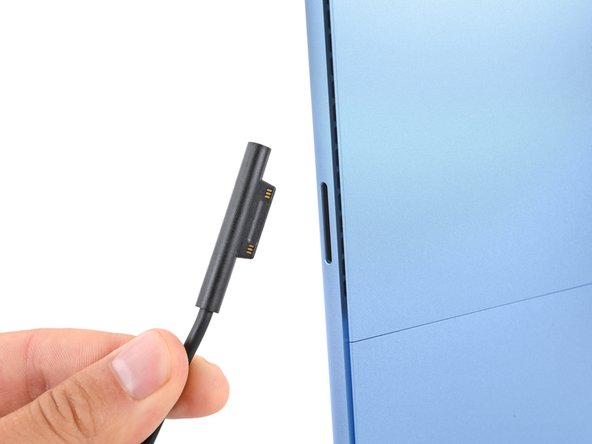
    • Before starting this repair, allow your laptop's battery to drain below 25%. A charged battery may catch fire if damaged.

    • Unplug all cables and fully shut down your laptop.

  2. Microsoft Surface Pro 11 Front Facing Camera Replacement, Open the kickstand: 步骤 2 中的图像 1,3 Microsoft Surface Pro 11 Front Facing Camera Replacement, Open the kickstand: 步骤 2 中的图像 2,3 Microsoft Surface Pro 11 Front Facing Camera Replacement, Open the kickstand: 步骤 2 中的图像 3,3
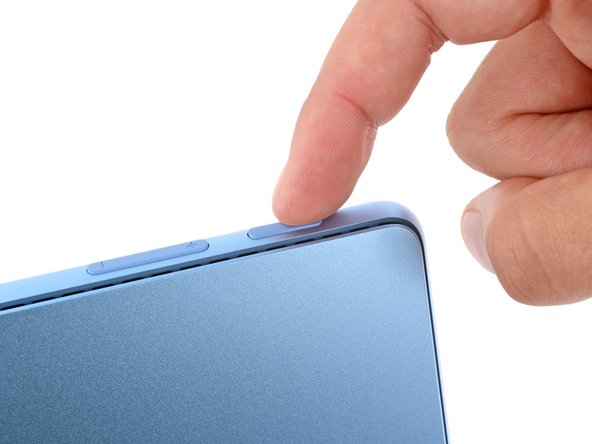
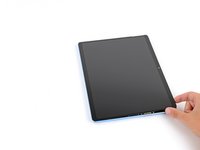
    • Lay your Surface Pro screen side down and open the kickstand to about a 90‑degree angle.

  3. Microsoft Surface Pro 11 Front Facing Camera Replacement, Remove the SSD door: 步骤 3 中的图像 1,3 Microsoft Surface Pro 11 Front Facing Camera Replacement, Remove the SSD door: 步骤 3 中的图像 2,3 Microsoft Surface Pro 11 Front Facing Camera Replacement, Remove the SSD door: 步骤 3 中的图像 3,3
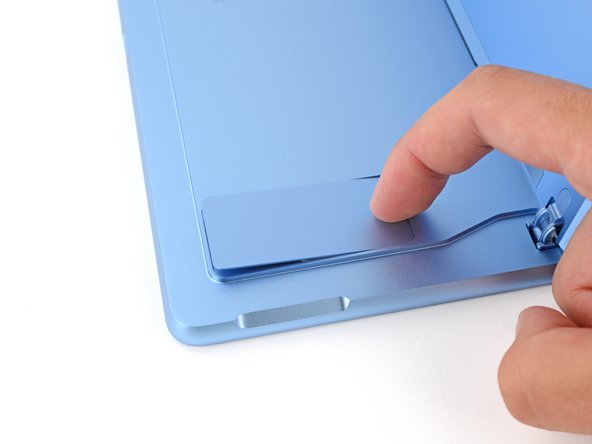
    • Use your finger to firmly press down on the SSD door indent until the door pops up.

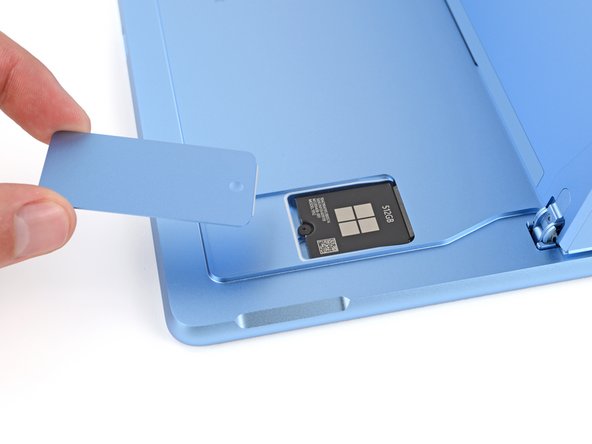
    • Remove the SSD door.

  4. Microsoft Surface Pro 11 Front Facing Camera Replacement, Remove the SSD screw: 步骤 4 中的图像 1,2 Microsoft Surface Pro 11 Front Facing Camera Replacement, Remove the SSD screw: 步骤 4 中的图像 2,2
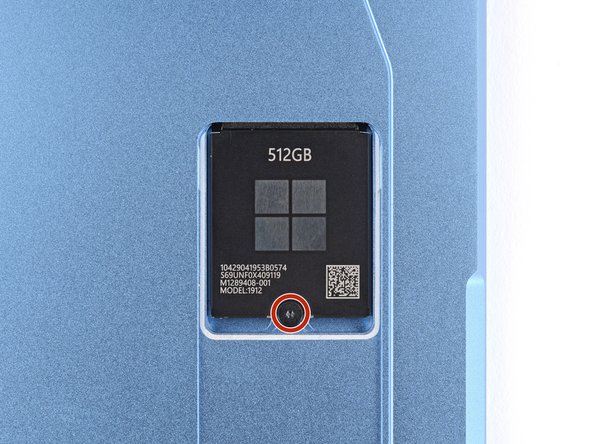
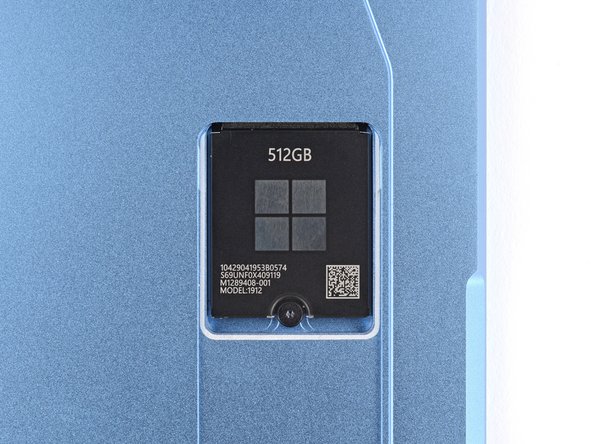
    • Use a Torx Plus 3IP screwdriver to remove the 2.4 mm‑long screw securing the SSD.

    • Removing the SSD also functions as a battery disconnect and should be done before all major repairs.

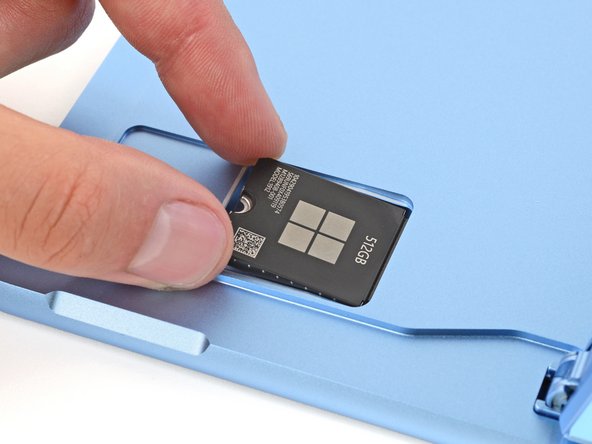
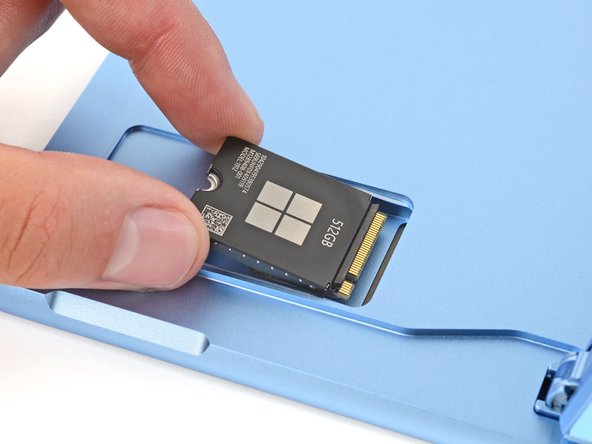
  5. Microsoft Surface Pro 11 Front Facing Camera Replacement, Remove the SSD: 步骤 5 中的图像 1,3 Microsoft Surface Pro 11 Front Facing Camera Replacement, Remove the SSD: 步骤 5 中的图像 2,3 Microsoft Surface Pro 11 Front Facing Camera Replacement, Remove the SSD: 步骤 5 中的图像 3,3
    • Don't pull up at a sharp angle, or you may damage the SSD and its socket.

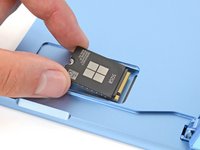
    • Use the flat end of a spudger to gently lift the notched edge of the SSD enough that you can grip the bottom corners with your fingers.

    • Use your fingers or tweezers to pull the SSD straight out of its socket and remove it.

    • During reassembly, getting the SSD fully inserted in its socket can be tricky. If you're having trouble, hold the SSD in place and use the flat end of a spudger to push on the notched edge.

  6. Microsoft Surface Pro 11 Front Facing Camera Replacement, Adhesive information: 步骤 6 中的图像 1,3 Microsoft Surface Pro 11 Front Facing Camera Replacement, Adhesive information: 步骤 6 中的图像 2,3 Microsoft Surface Pro 11 Front Facing Camera Replacement, Adhesive information: 步骤 6 中的图像 3,3
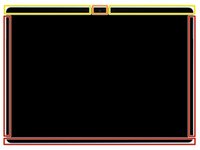
    • When separating the screen from the frame, don't insert your tool more than the following measurements on the given edges. Otherwise, you may damage your device's internals.

    • 2 mm on the left, right, and bottom edges

    • Don't insert your tool at all near the front facing camera on the top edge

    • 8 mm along the top edge (everywhere besides the front facing camera area)

  7. Microsoft Surface Pro 11 Front Facing Camera Replacement, Heat the right edge: 步骤 7 中的图像 1,1
    • Mild adhesive secures the perimeter of the screen to the frame. Heating the screen will soften the adhesive, making it easier to separate.

    • Heat an iOpener and lay it on the right edge of the screen for two minutes to soften the adhesive.

    • Alternatively, you can use a hair dryer or heat gun. But be careful, as the screen and battery are susceptible to heat damage.

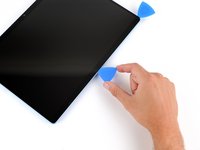
  8. Microsoft Surface Pro 11 Front Facing Camera Replacement, Separate the right edge adhesive: 步骤 8 中的图像 1,3 Microsoft Surface Pro 11 Front Facing Camera Replacement, Separate the right edge adhesive: 步骤 8 中的图像 2,3 Microsoft Surface Pro 11 Front Facing Camera Replacement, Separate the right edge adhesive: 步骤 8 中的图像 3,3
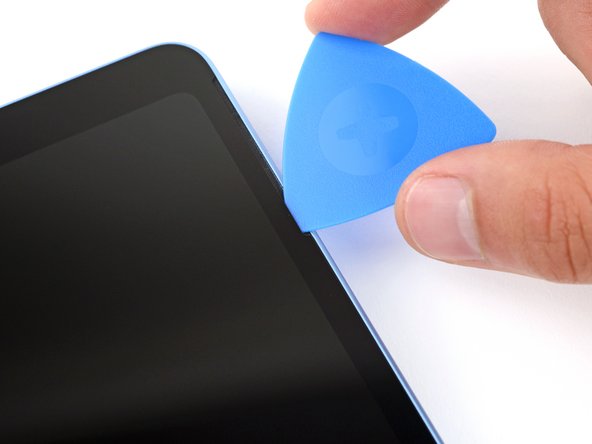
    • Remember not to insert your pick more than 2 mm on the right edge.

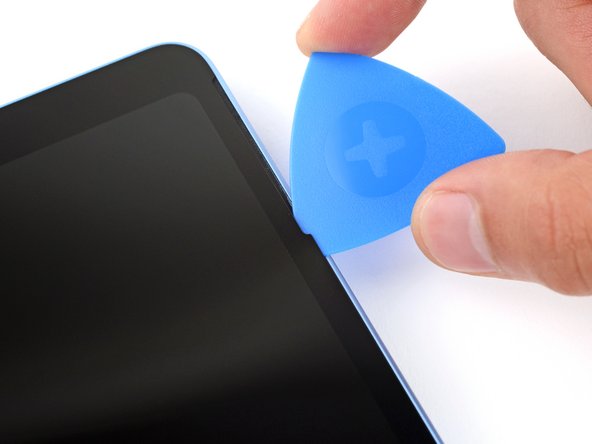
    • Insert the tip of an opening pick under the screen near the bottom of the right speaker cutout.

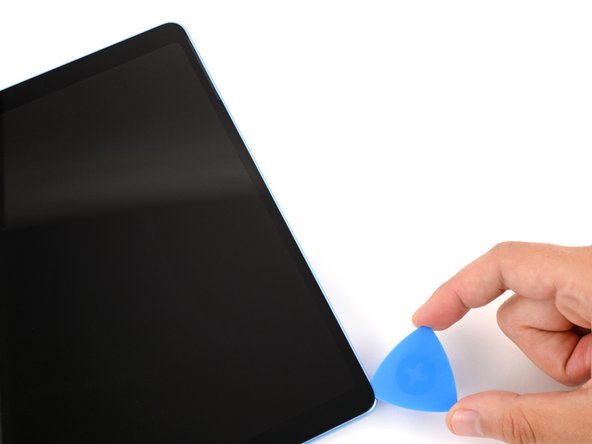
    • Slide your pick towards the bottom edge and slightly rotate it so the tip goes under the notch in the screen.

  9. Microsoft Surface Pro 11 Front Facing Camera Replacement: 步骤 9 中的图像 1,3 Microsoft Surface Pro 11 Front Facing Camera Replacement: 步骤 9 中的图像 2,3 Microsoft Surface Pro 11 Front Facing Camera Replacement: 步骤 9 中的图像 3,3
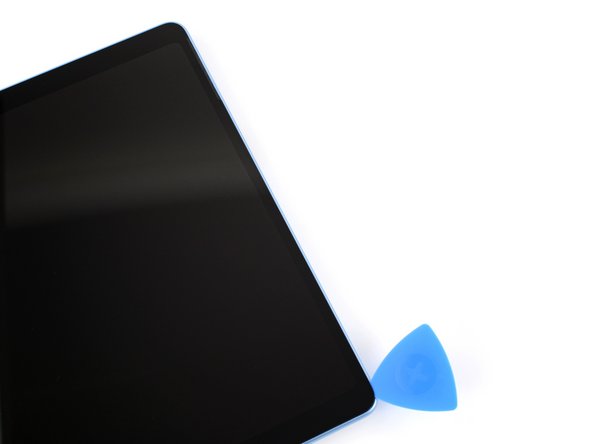
    • Slide your pick down the right edge to separate the adhesive securing it.

    • Leave your pick inserted under the bottom right corner to prevent the adhesive from re‑sealing.

  10. Microsoft Surface Pro 11 Front Facing Camera Replacement, Heat the bottom edge: 步骤 10 中的图像 1,1
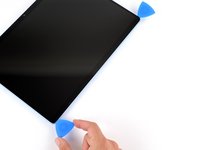
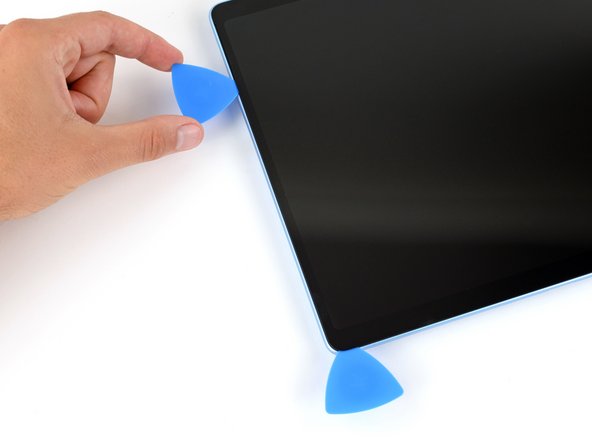
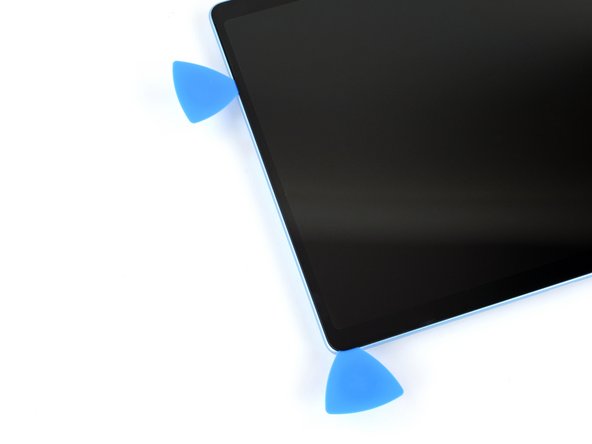
  11. Microsoft Surface Pro 11 Front Facing Camera Replacement, Separate the bottom edge adhesive: 步骤 11 中的图像 1,3 Microsoft Surface Pro 11 Front Facing Camera Replacement, Separate the bottom edge adhesive: 步骤 11 中的图像 2,3 Microsoft Surface Pro 11 Front Facing Camera Replacement, Separate the bottom edge adhesive: 步骤 11 中的图像 3,3
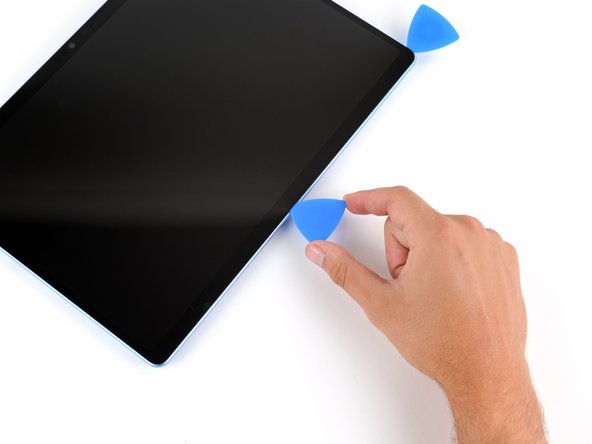
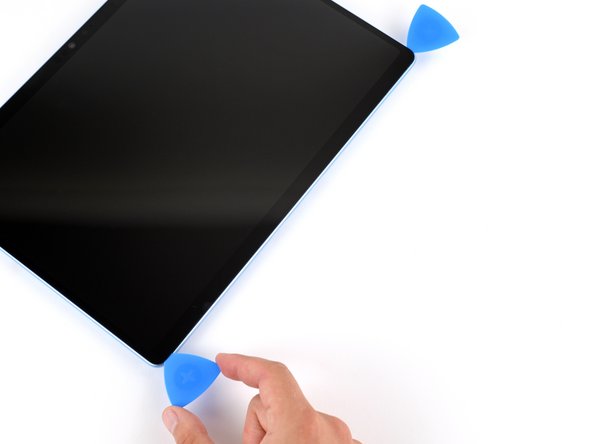
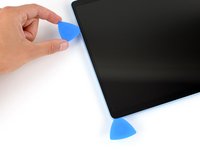
    • Remember not to insert your pick more than 2 mm on the bottom edge.

    • Insert a second pick under the bottom right corner of the screen and slide it along the bottom edge to separate the adhesive.

    • Leave your second pick inserted under the bottom left corner to prevent the adhesive from re‑sealing.

  12. Microsoft Surface Pro 11 Front Facing Camera Replacement, Heat the left edge: 步骤 12 中的图像 1,1
  13. Microsoft Surface Pro 11 Front Facing Camera Replacement, Separate the left edge adhesive: 步骤 13 中的图像 1,3 Microsoft Surface Pro 11 Front Facing Camera Replacement, Separate the left edge adhesive: 步骤 13 中的图像 2,3 Microsoft Surface Pro 11 Front Facing Camera Replacement, Separate the left edge adhesive: 步骤 13 中的图像 3,3
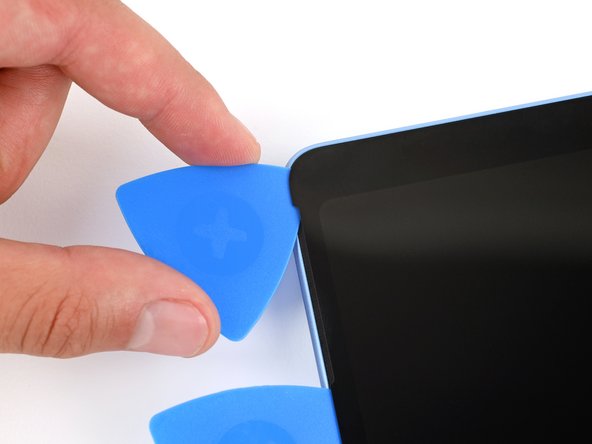
    • Remember not to insert your pick more than 2 mm on the right edge.

    • Insert a third pick under the bottom left corner of the screen and slide it up the left edge, stopping when you get to the bottom of the left speaker cutout.

    • Leave the pick inserted under the screen to prevent the adhesive from re-sealing.

  14. Microsoft Surface Pro 11 Front Facing Camera Replacement, Heat the top edge: 步骤 14 中的图像 1,1
  15. Microsoft Surface Pro 11 Front Facing Camera Replacement: 步骤 15 中的图像 1,3 Microsoft Surface Pro 11 Front Facing Camera Replacement: 步骤 15 中的图像 2,3 Microsoft Surface Pro 11 Front Facing Camera Replacement: 步骤 15 中的图像 3,3
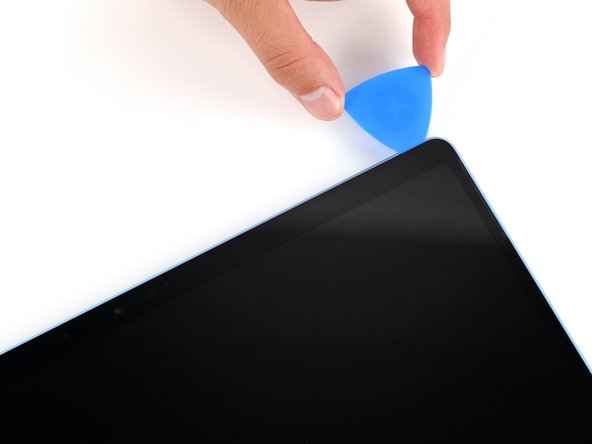
    • Insert a fourth pick under the screen near the top of the left speaker cutout.

    • Slide your pick towards the top edge and slightly rotate it so the tip goes under the notch in the screen.

  16. Microsoft Surface Pro 11 Front Facing Camera Replacement, Separate the top edge adhesive: 步骤 16 中的图像 1,3 Microsoft Surface Pro 11 Front Facing Camera Replacement, Separate the top edge adhesive: 步骤 16 中的图像 2,3 Microsoft Surface Pro 11 Front Facing Camera Replacement, Separate the top edge adhesive: 步骤 16 中的图像 3,3
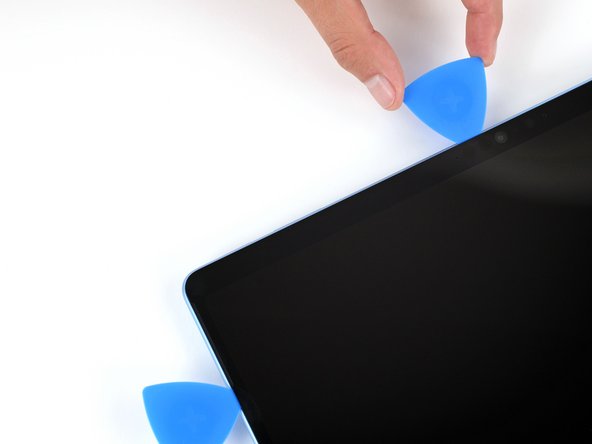
    • Remember not to insert your pick more than 8 mm on the top edge.

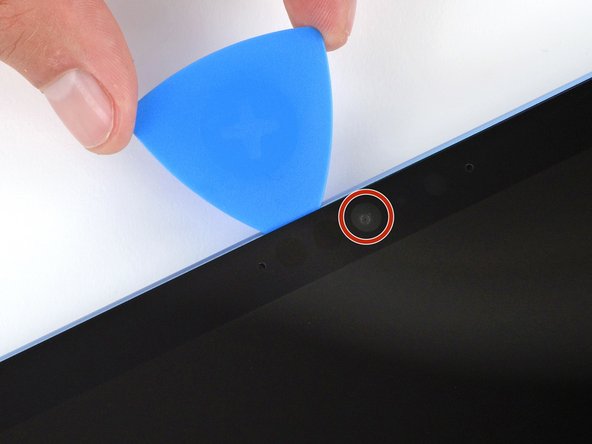
    • Slide the pick along the top edge and stop before you get to the front facing camera.

  17. Microsoft Surface Pro 11 Front Facing Camera Replacement: 步骤 17 中的图像 1,3 Microsoft Surface Pro 11 Front Facing Camera Replacement: 步骤 17 中的图像 2,3 Microsoft Surface Pro 11 Front Facing Camera Replacement: 步骤 17 中的图像 3,3
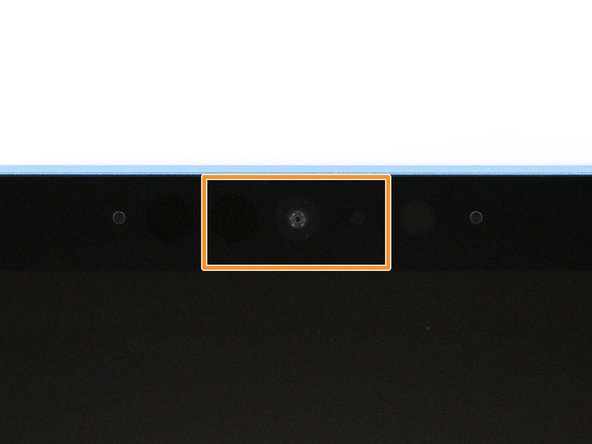
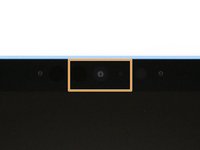
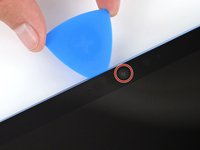
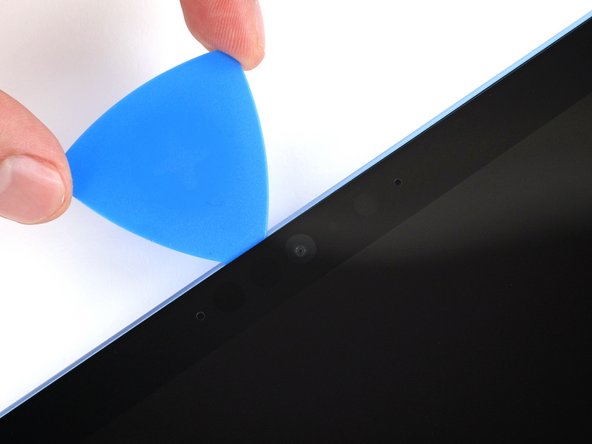
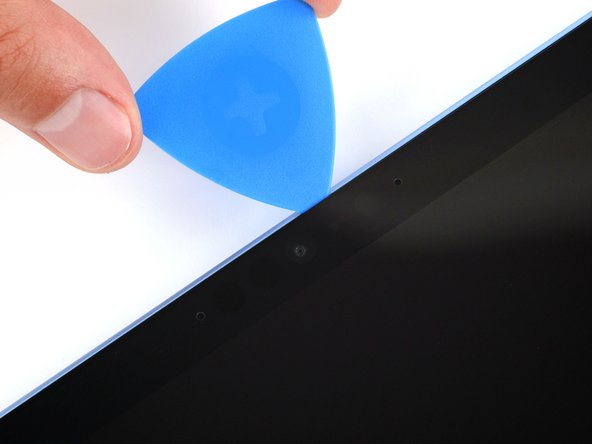
    • Be very careful not to touch the front facing camera lens with your tool.

    • Remove the pick enough that it can pass above the front facing camera.

    • Slide the pick along the top edge until it's past the camera.

  18. Microsoft Surface Pro 11 Front Facing Camera Replacement: 步骤 18 中的图像 1,3 Microsoft Surface Pro 11 Front Facing Camera Replacement: 步骤 18 中的图像 2,3 Microsoft Surface Pro 11 Front Facing Camera Replacement: 步骤 18 中的图像 3,3
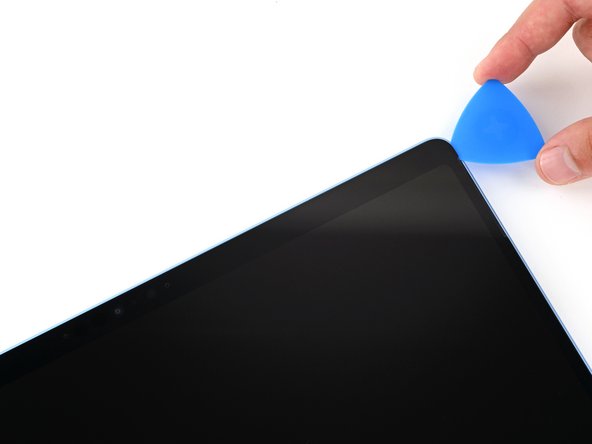
    • Insert your pick 8 mm under the screen and slide it to the top right corner to separate the remaining adhesive.

  19. Microsoft Surface Pro 11 Front Facing Camera Replacement, Separate the screen: 步骤 19 中的图像 1,3 Microsoft Surface Pro 11 Front Facing Camera Replacement, Separate the screen: 步骤 19 中的图像 2,3 Microsoft Surface Pro 11 Front Facing Camera Replacement, Separate the screen: 步骤 19 中的图像 3,3
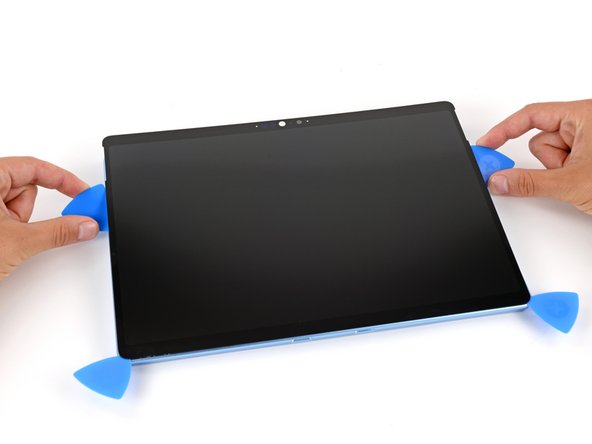
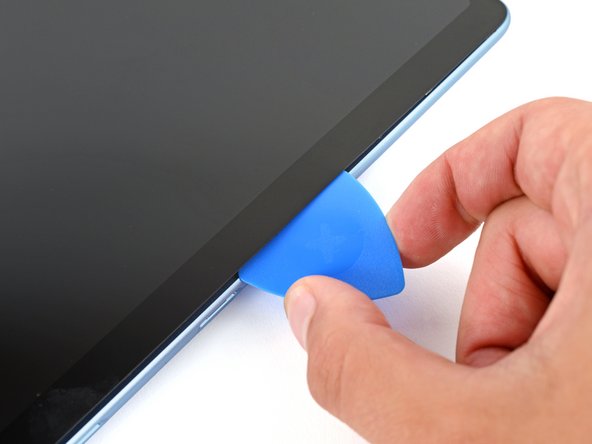
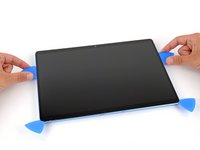
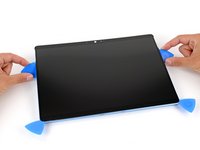
    • Insert the flat edge of two picks under the screen, below the two speaker cutouts.

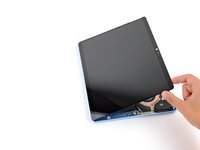
    • Use the picks to gently pry up the screen, fully separating it from the frame.

    • Don't try to remove the screen yet, as a ribbon cable still connects it to your device.

    • If the screen feels stuck anywhere, use your pick to separate the adhesive in that area. Remember not to insert your pick too far under the screen.

  20. Microsoft Surface Pro 11 Front Facing Camera Replacement, Flip the screen over: 步骤 20 中的图像 1,3 Microsoft Surface Pro 11 Front Facing Camera Replacement, Flip the screen over: 步骤 20 中的图像 2,3 Microsoft Surface Pro 11 Front Facing Camera Replacement, Flip the screen over: 步骤 20 中的图像 3,3
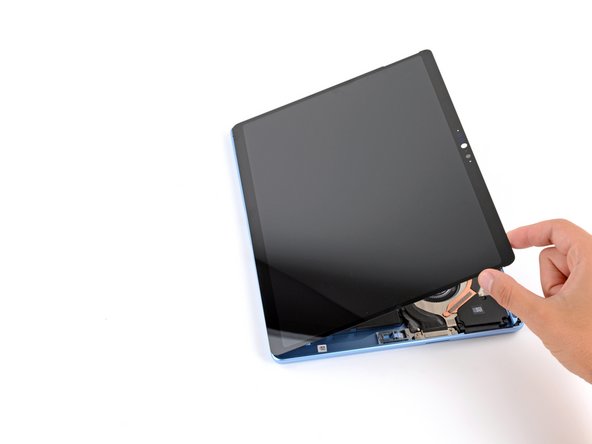
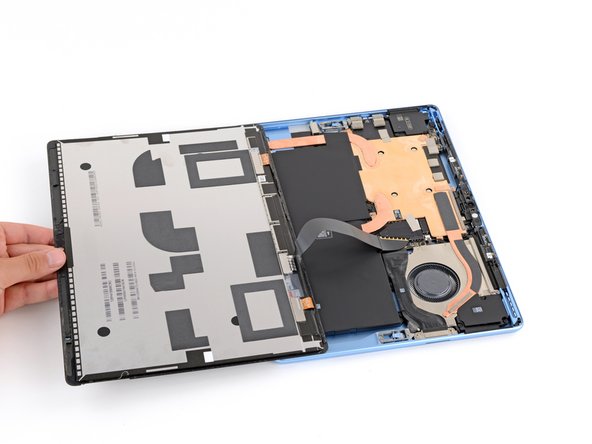
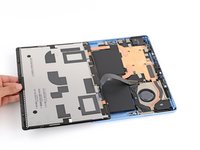
    • Once the screen is fully separated, flip the top edge over the bottom edge and lay the screen down flat, being careful not to strain the ribbon cable.

  21. Microsoft Surface Pro 11 Front Facing Camera Replacement, Remove the screen cable shield: 步骤 21 中的图像 1,3 Microsoft Surface Pro 11 Front Facing Camera Replacement, Remove the screen cable shield: 步骤 21 中的图像 2,3 Microsoft Surface Pro 11 Front Facing Camera Replacement, Remove the screen cable shield: 步骤 21 中的图像 3,3
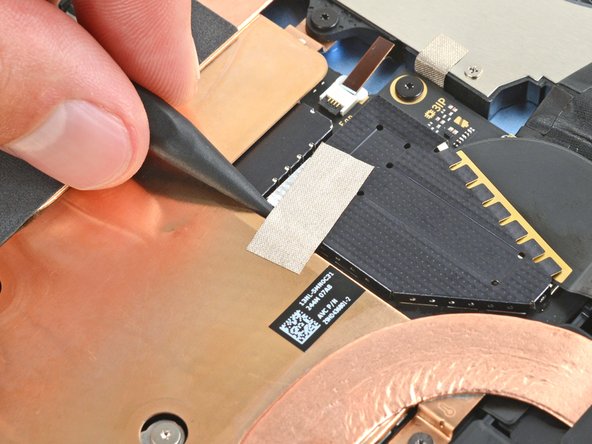
    • Use the tip of a spudger to lift the conductive tape off the copper shield, near the center of your device.

  22. Microsoft Surface Pro 11 Front Facing Camera Replacement: 步骤 22 中的图像 1,3 Microsoft Surface Pro 11 Front Facing Camera Replacement: 步骤 22 中的图像 2,3 Microsoft Surface Pro 11 Front Facing Camera Replacement: 步骤 22 中的图像 3,3
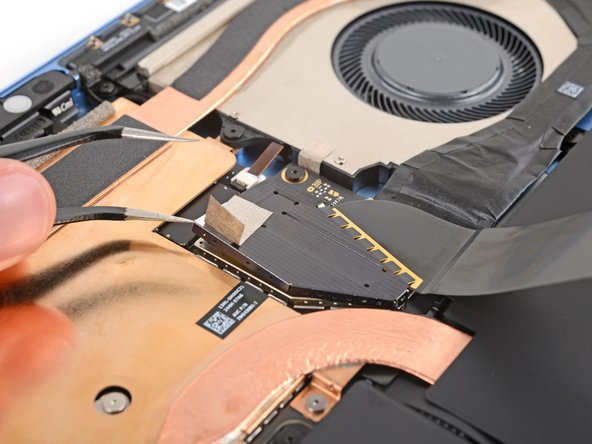
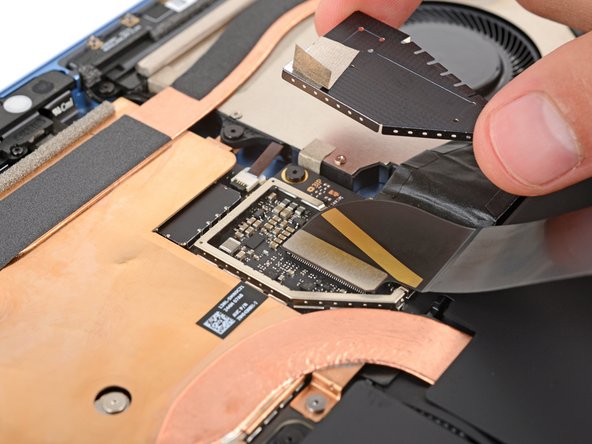
    • Insert an arm of a pair of angled tweezers in one of the gaps on the edge of the screen cable shield.

    • Use your tweezers to gently pry up and remove the shield.

    • Try to deform the shield as little as possible—you'll reuse it during reassembly.

  23. Microsoft Surface Pro 11 Front Facing Camera Replacement, Disconnect the screen: 步骤 23 中的图像 1,3 Microsoft Surface Pro 11 Front Facing Camera Replacement, Disconnect the screen: 步骤 23 中的图像 2,3 Microsoft Surface Pro 11 Front Facing Camera Replacement, Disconnect the screen: 步骤 23 中的图像 3,3
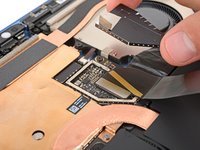
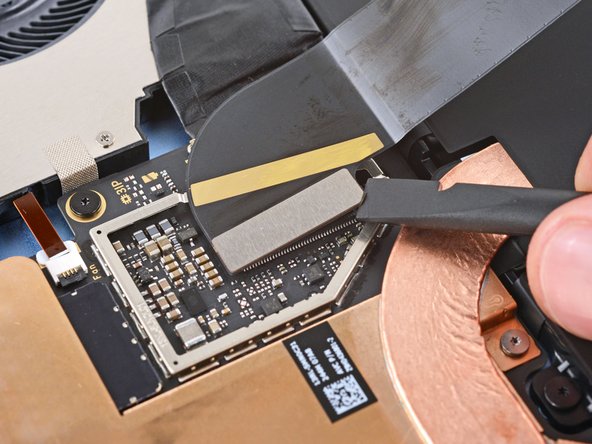
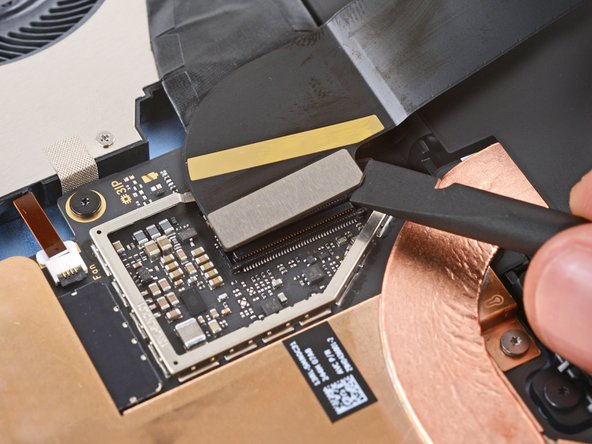
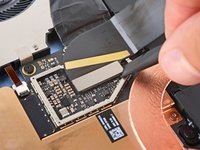
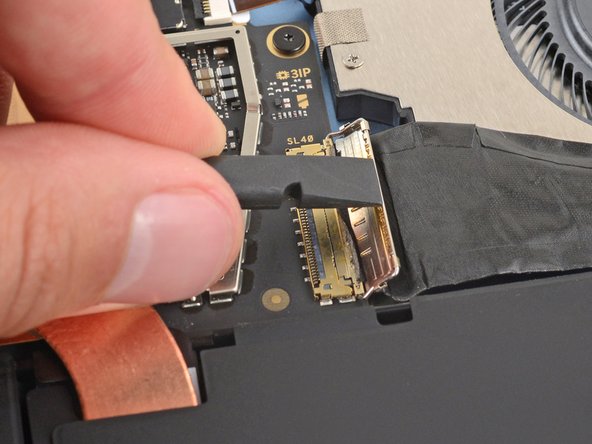
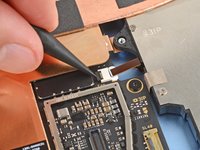
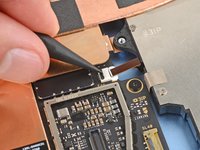
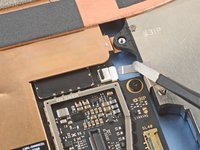
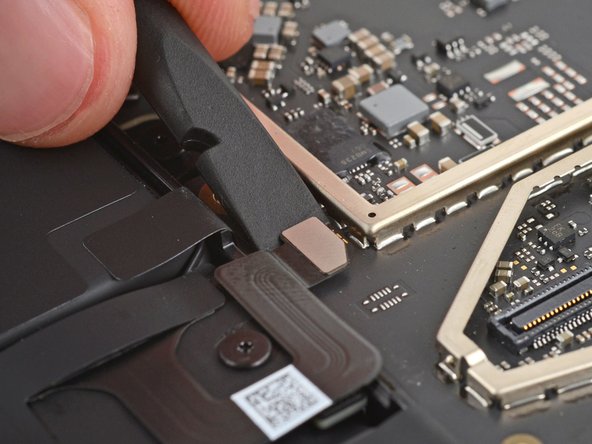
    • Insert the flat end of a spudger under the notched corner of the screen cable press connector and pry up to disconnect it.

  24. Microsoft Surface Pro 11 Front Facing Camera Replacement, Remove the screen: 步骤 24 中的图像 1,1
    • Grip the screen with both hands and remove it.

    • During reassembly, follow this guide to replace the screen adhesive and install your screen.

  25. 注意:步骤 25-30 源自标记为进行中的 指南

    Microsoft Surface Pro 11 Front Facing Camera Replacement, Disconnect the Surface Connect port: 步骤 25 中的图像 1,3 Microsoft Surface Pro 11 Front Facing Camera Replacement, Disconnect the Surface Connect port: 步骤 25 中的图像 2,3 Microsoft Surface Pro 11 Front Facing Camera Replacement, Disconnect the Surface Connect port: 步骤 25 中的图像 3,3
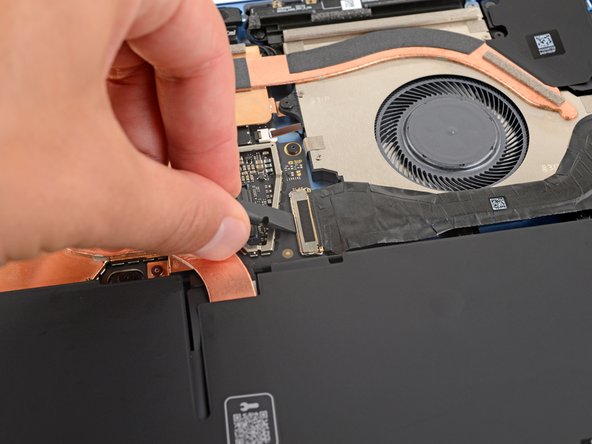
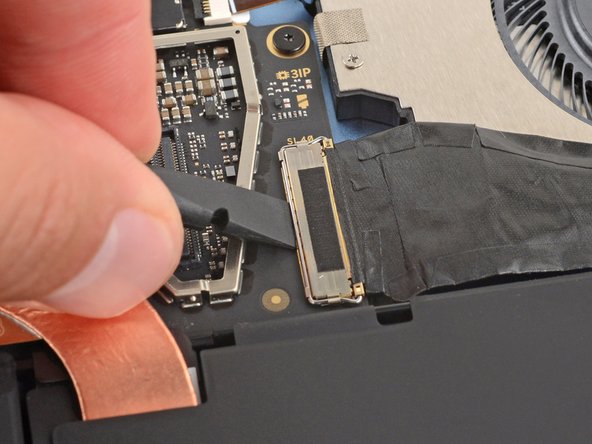
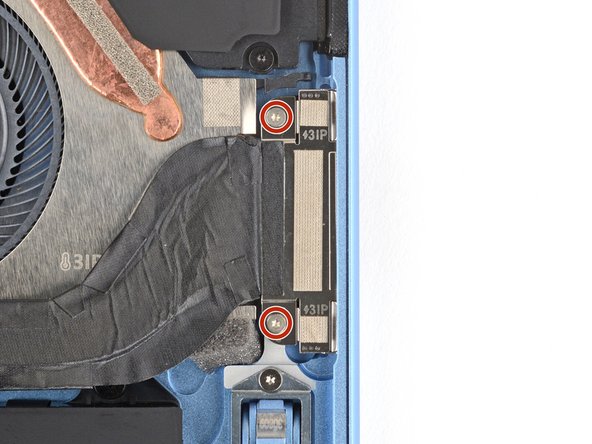
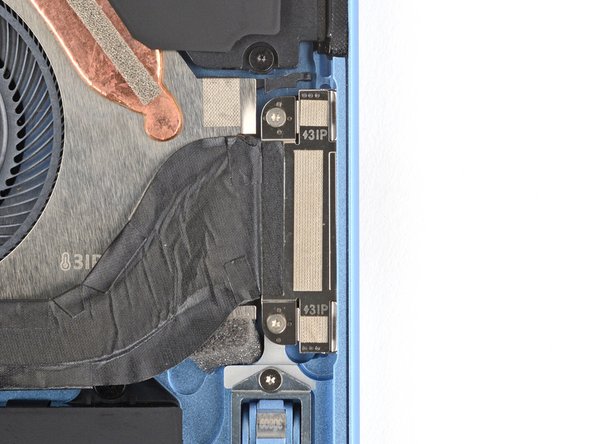
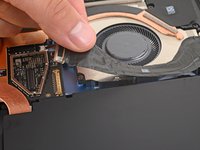
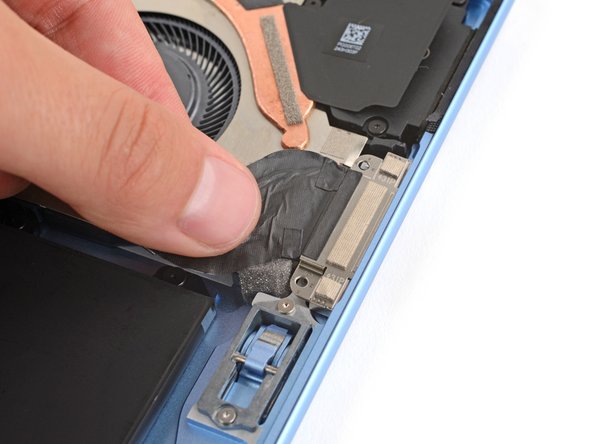
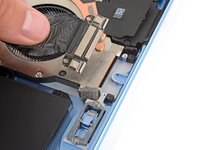
    • Use the flat end of a spudger or a clean fingernail to flip up the metal buckle on the Surface Connect port cable.

  26. Microsoft Surface Pro 11 Front Facing Camera Replacement: 步骤 26 中的图像 1,2 Microsoft Surface Pro 11 Front Facing Camera Replacement: 步骤 26 中的图像 2,2
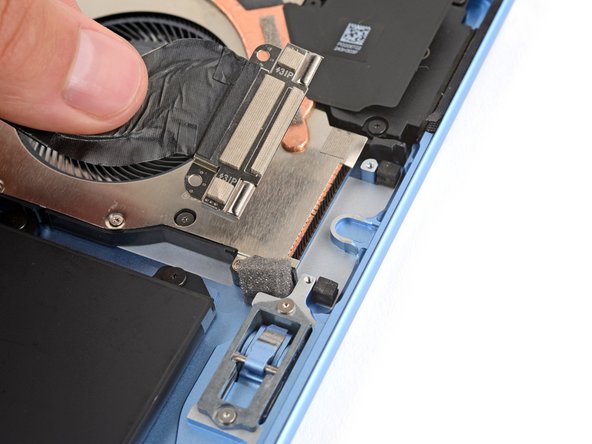
    • Use tweezers or your fingers to firmly grip the Surface Connect port cable close to the connector head and pull it straight out of the socket.

    • During reassembly:

    • Remove any adhesive liners from the Surface Connect port cable or bottom edge of the fan.

    • Use tweezers or your fingers to insert the cable's connector into its socket.

    • Flip the metal buckle over the connector and firmly press around its perimeter until it snaps into place.

    • Firmly press the cable into place on the fan to secure it with the adhesive.

  27. Microsoft Surface Pro 11 Front Facing Camera Replacement, Remove the Surface Connect Port screws: 步骤 27 中的图像 1,2 Microsoft Surface Pro 11 Front Facing Camera Replacement, Remove the Surface Connect Port screws: 步骤 27 中的图像 2,2
    • Use a Torx Plus 3IP screwdriver to remove the two 3.6 mm‑long screws securing the Surface Connect port to the frame.

  28. Microsoft Surface Pro 11 Front Facing Camera Replacement, Separate the Surface Connect port cable: 步骤 28 中的图像 1,1
    • Mild adhesive secures the Surface Connect port cable to the bottom edge of the fan.

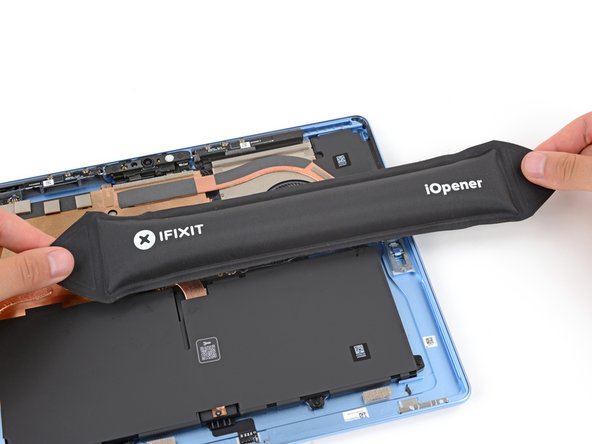
    • Heat an iOpener and lay it on the Surface Connect port cable for two minutes to soften the adhesive.

    • Alternatively, you can use a hair dryer or heat gun to lightly heat the cable. But be careful, as the battery is susceptible to heat damage.

  29. Microsoft Surface Pro 11 Front Facing Camera Replacement: 步骤 29 中的图像 1,2 Microsoft Surface Pro 11 Front Facing Camera Replacement: 步骤 29 中的图像 2,2
    在这个步骤中使用的工具:
    Tesa 61395 Tape
    $2.99
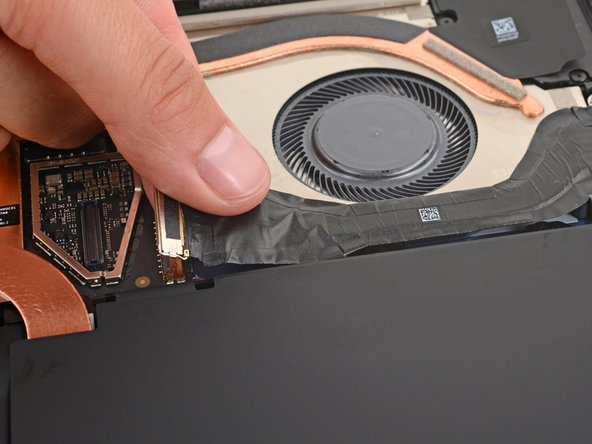
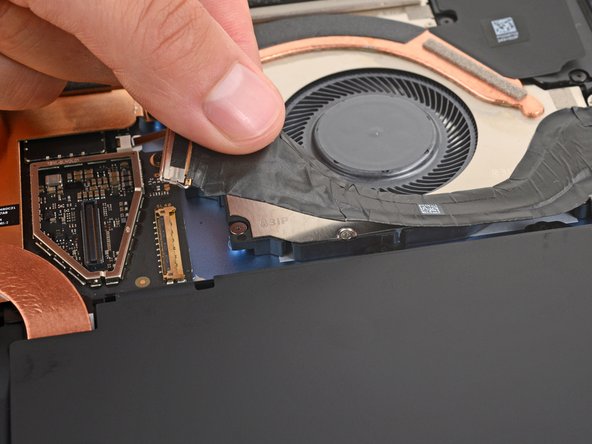
    • Grip the Surface Connect cable by the end with the motherboard connector and peel the cable from the fan.

    • During reassembly:

    • Don't secure the Surface Connect port cable with adhesive yet—wait until you've reconnected it. Otherwise, the cable may not reach its socket if positioned incorrectly.

    • If you're reinstalling the original port, the adhesive should be sticky enough to reuse.

    • If the adhesive isn't sticky enough, or if you're installing a new port and it doesn't come with adhesive pre‑installed, apply a strip of thin, double‑sided tape to the bottom edge of the fan (not the cable). If your tape has a liner on top, don't remove it.

  30. Microsoft Surface Pro 11 Front Facing Camera Replacement, Remove the Surface Connect Port: 步骤 30 中的图像 1,2 Microsoft Surface Pro 11 Front Facing Camera Replacement, Remove the Surface Connect Port: 步骤 30 中的图像 2,2
    • Lift the Surface Connect port out of its recess in the frame and remove it.

    • During reassembly:

    • Put the Surface Connect port into place so its cutouts go over their frame posts. Make sure the port is fully in its cutout—the outer edge should be flush with the frame.

    • Install the two screws that secure the port.

    • The screws will be drawn to the magnet in the port. You may need to use a pair of tweezers to hold them in place.

  31. 注意:步骤 31-37 源自标记为进行中的 指南

    Microsoft Surface Pro 11 Front Facing Camera Replacement, Detach the thermal module tape: 步骤 31 中的图像 1,3 Microsoft Surface Pro 11 Front Facing Camera Replacement, Detach the thermal module tape: 步骤 31 中的图像 2,3 Microsoft Surface Pro 11 Front Facing Camera Replacement, Detach the thermal module tape: 步骤 31 中的图像 3,3
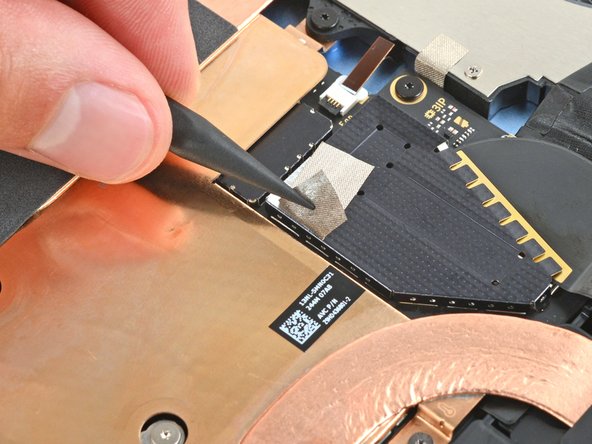
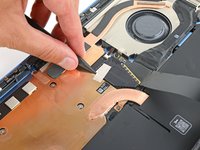
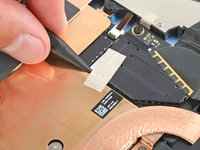
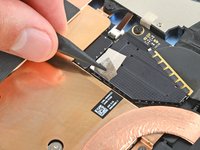
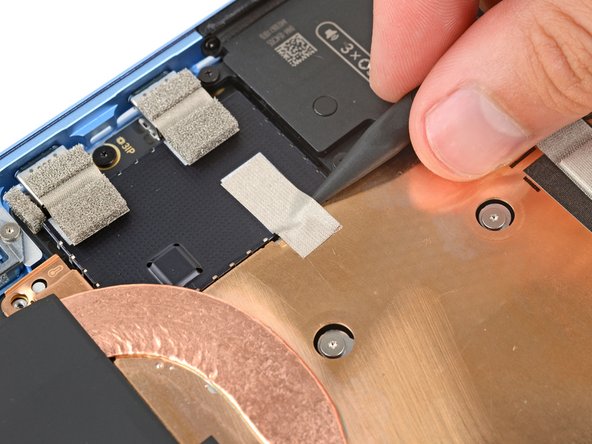
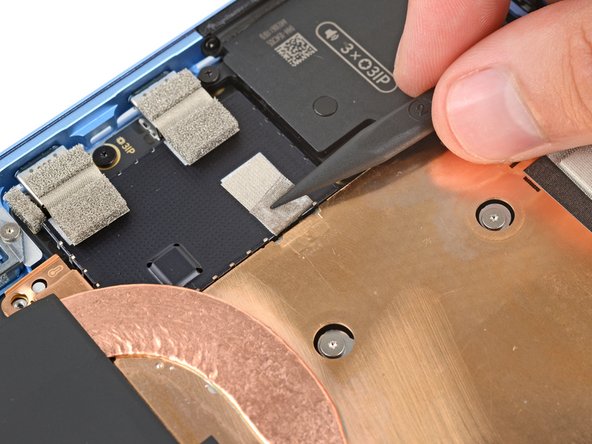
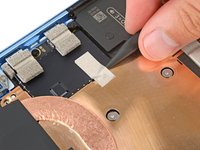
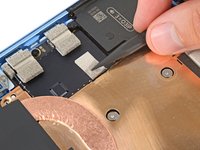
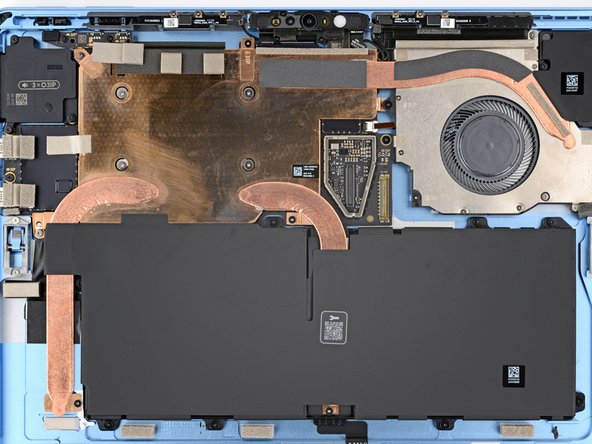
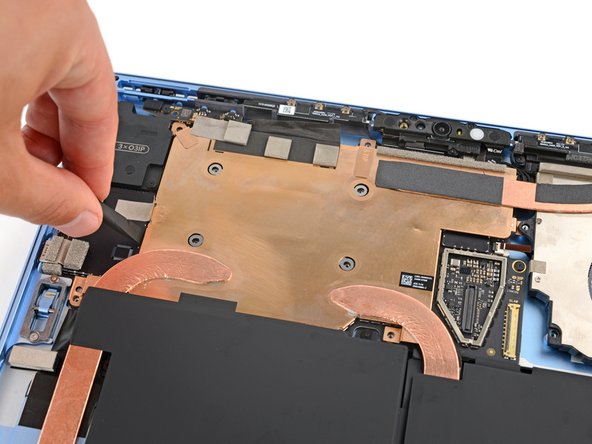
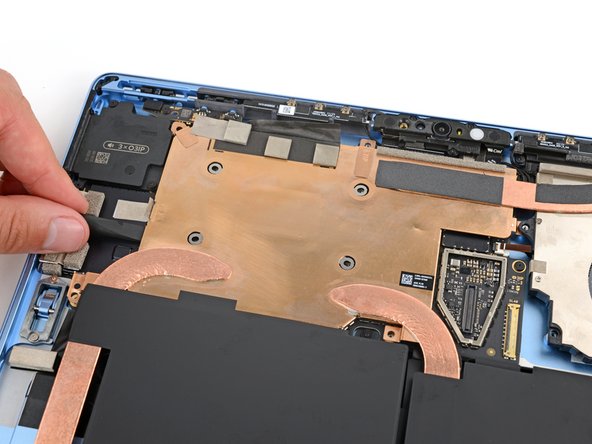
    • Use the point of a spudger to lift the two pieces of silver conductive tape from the top left corner of the thermal module.

  32. Microsoft Surface Pro 11 Front Facing Camera Replacement: 步骤 32 中的图像 1,3 Microsoft Surface Pro 11 Front Facing Camera Replacement: 步骤 32 中的图像 2,3 Microsoft Surface Pro 11 Front Facing Camera Replacement: 步骤 32 中的图像 3,3
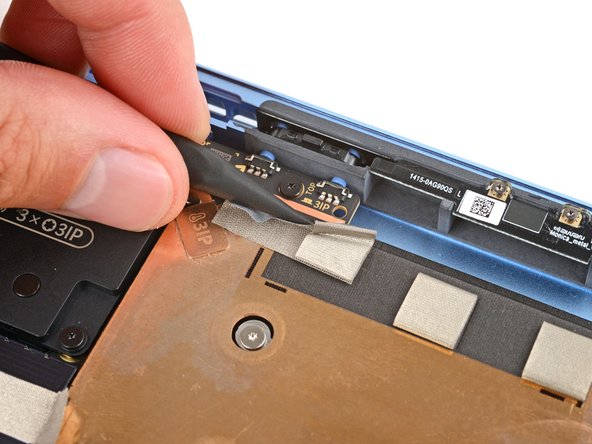
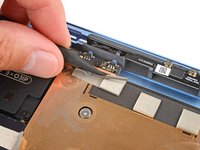
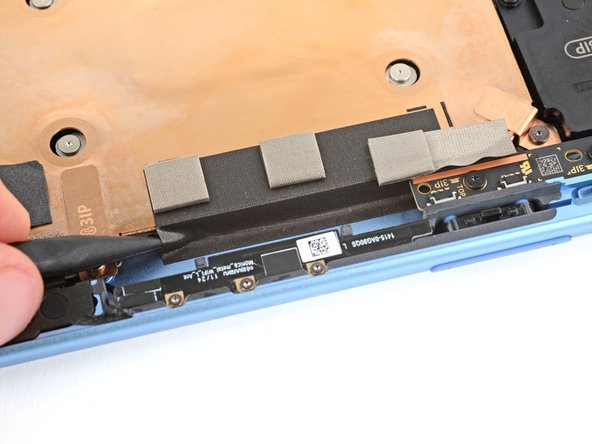
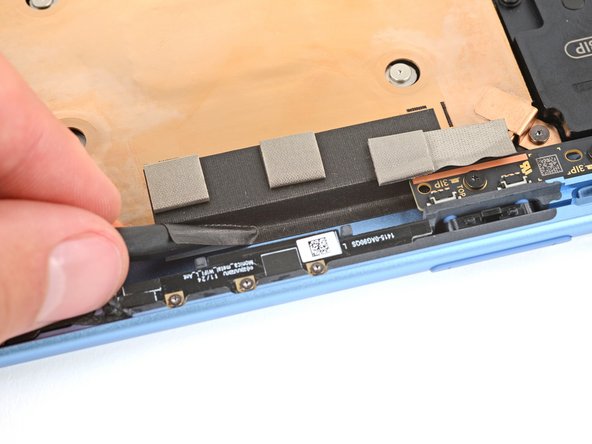
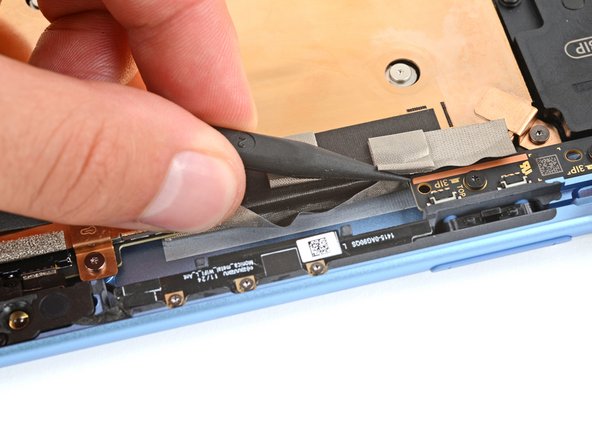
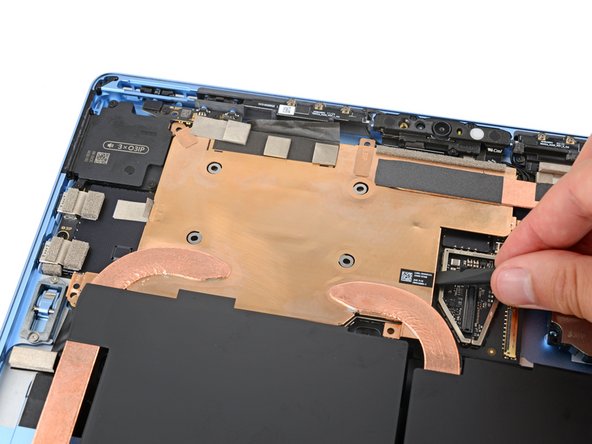
    • Use the point of a spudger to lift the black conductive tape on the thermal module's top edge, detaching it from the frame.

  33. Microsoft Surface Pro 11 Front Facing Camera Replacement, Disconnect the fan: 步骤 33 中的图像 1,3 Microsoft Surface Pro 11 Front Facing Camera Replacement, Disconnect the fan: 步骤 33 中的图像 2,3 Microsoft Surface Pro 11 Front Facing Camera Replacement, Disconnect the fan: 步骤 33 中的图像 3,3
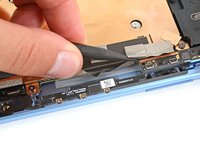
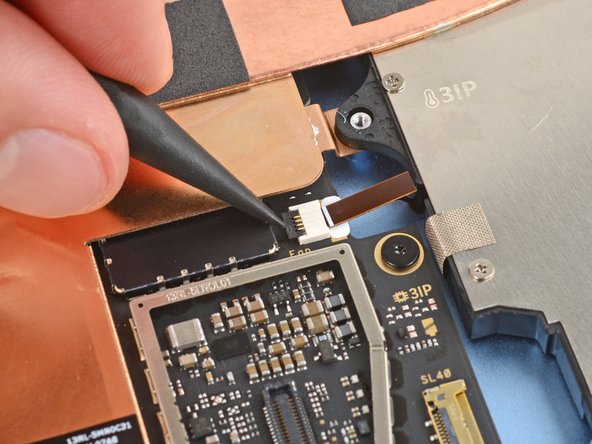
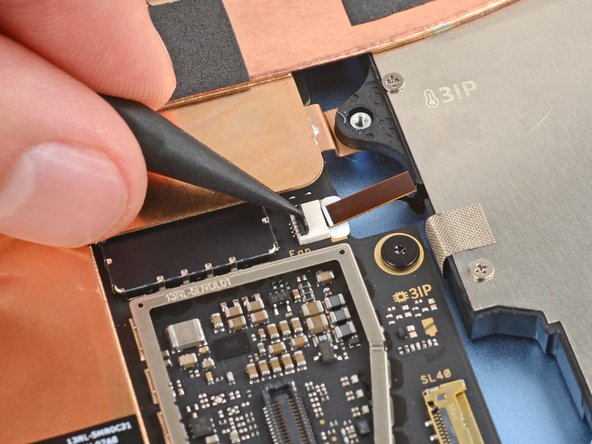
    • Use the point of a spudger to lift the black locking flap on the fan cable ZIF connector, near the center of the fan's left edge.

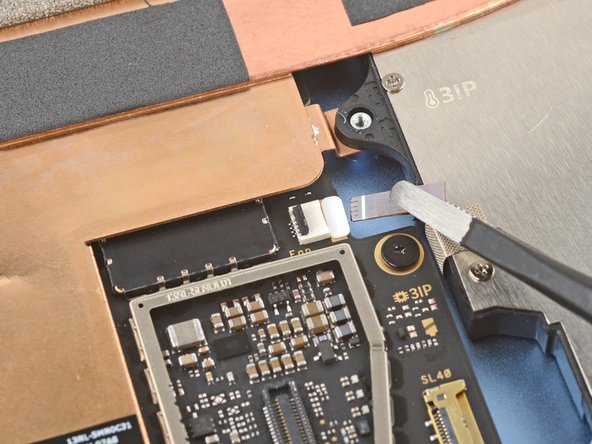
    • Use tweezers to grip the cable's plastic pull tab and gently slide the cable out of its socket.

  34. Microsoft Surface Pro 11 Front Facing Camera Replacement, Remove the thermal module and fan screws: 步骤 34 中的图像 1,2 Microsoft Surface Pro 11 Front Facing Camera Replacement, Remove the thermal module and fan screws: 步骤 34 中的图像 2,2
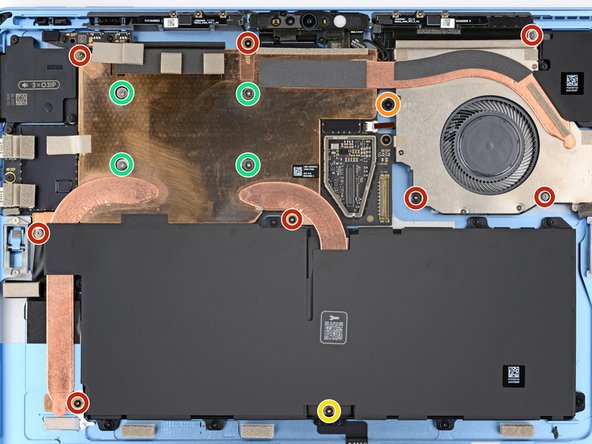
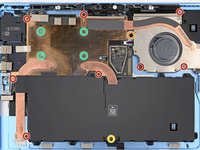
    • Use a Torx Plus 3IP screwdriver to remove the 14 screws securing the thermal module and fan assembly:

    • Eight 2.6 mm‑long screws

    • One 2.8 mm‑long screw near the top of the fan's left edge

    • One 3.7 mm‑long screw near the center of the battery's bottom edge

    • Four 2.4 mm‑long CPU tension screws in the center of the thermal module

    • During reassembly, first install the four CPU tension screws in an "X" pattern. For example: top left, bottom right, top right, bottom left.

  35. Microsoft Surface Pro 11 Front Facing Camera Replacement, Separate the thermal module: 步骤 35 中的图像 1,3 Microsoft Surface Pro 11 Front Facing Camera Replacement, Separate the thermal module: 步骤 35 中的图像 2,3 Microsoft Surface Pro 11 Front Facing Camera Replacement, Separate the thermal module: 步骤 35 中的图像 3,3
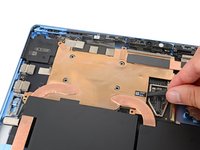
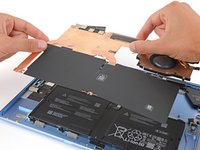
    • Use the flat end of a spudger to pry up the left and right edges of the thermal module, near where the copper heat pipes bend.

    • Thermal paste bonds the thermal module to the motherboard. Depending on the age of your laptop and condition of the paste, this may take some force.

  36. Microsoft Surface Pro 11 Front Facing Camera Replacement: 步骤 36 中的图像 1,2 Microsoft Surface Pro 11 Front Facing Camera Replacement: 步骤 36 中的图像 2,2
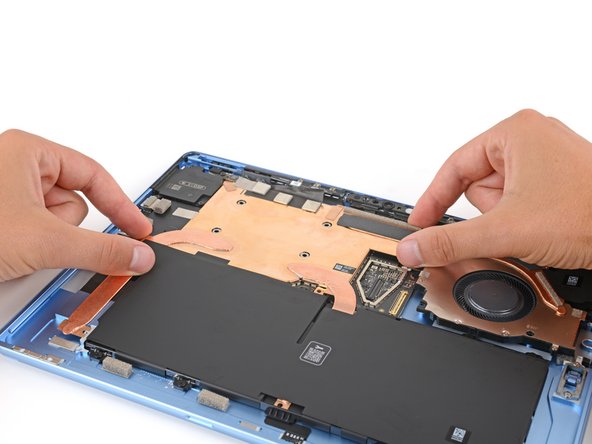
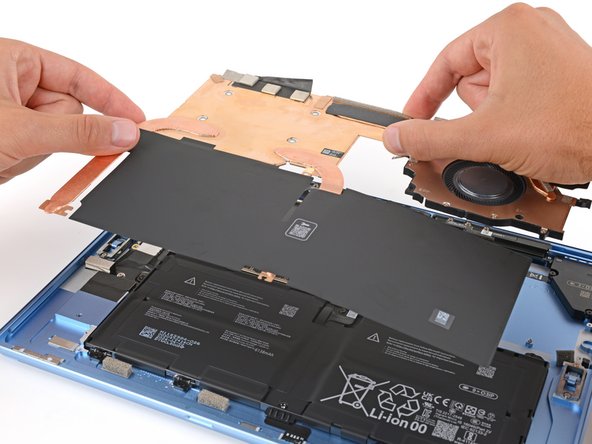
    • Don't lift the assembly by the fan or you risk bending the thermal module.

    • Use two hands to lift the thermal module straight up and remove it.

  37. Microsoft Surface Pro 11 Front Facing Camera Replacement, Thermal paste replacement: 步骤 37 中的图像 1,3 Microsoft Surface Pro 11 Front Facing Camera Replacement, Thermal paste replacement: 步骤 37 中的图像 2,3 Microsoft Surface Pro 11 Front Facing Camera Replacement, Thermal paste replacement: 步骤 37 中的图像 3,3
    在这个步骤中使用的工具:
    iFixit Thermal Paste
    $9.95
    • During reassembly:

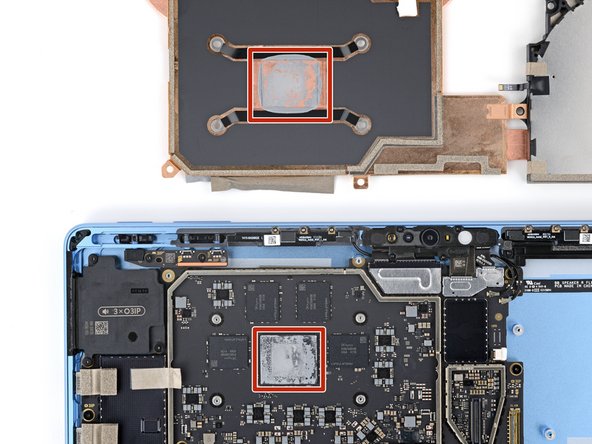
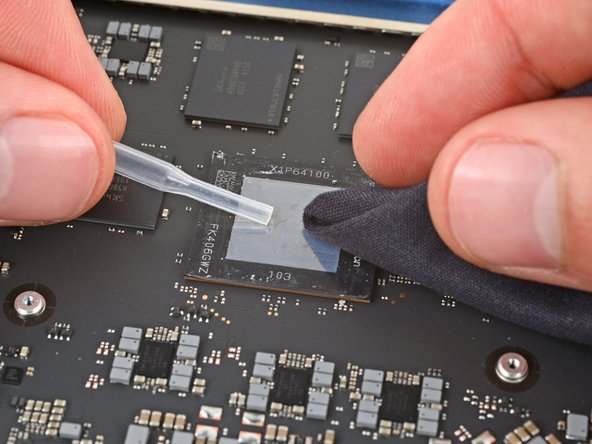
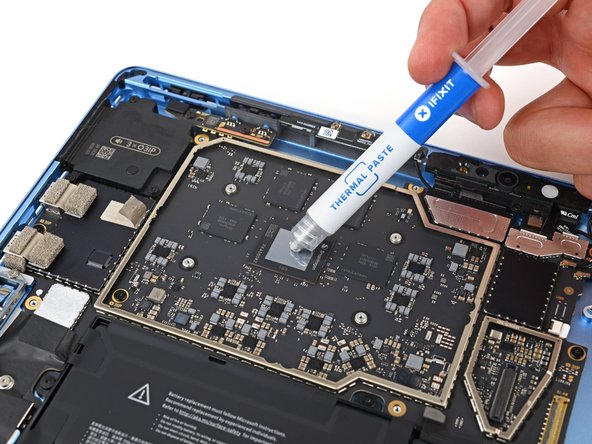
    • If you're installing a new thermal module, check if the bottom has thermal paste pre‑installed. If it does, do not apply thermal paste—you only need to clean the CPU.

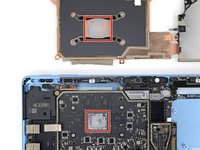
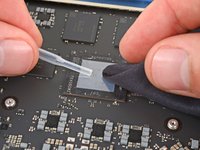
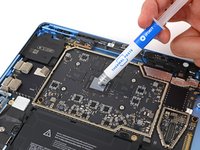
    • Follow this guide to clean the thermal module and CPU and apply thermal paste.

    • If you're installing a new thermal module, you don't need to clean it.

  38. Microsoft Surface Pro 11 Front Facing Camera Replacement, Disconnect the battery: 步骤 38 中的图像 1,3 Microsoft Surface Pro 11 Front Facing Camera Replacement, Disconnect the battery: 步骤 38 中的图像 2,3 Microsoft Surface Pro 11 Front Facing Camera Replacement, Disconnect the battery: 步骤 38 中的图像 3,3
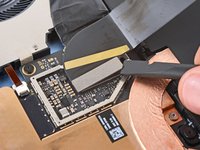
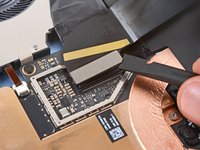
    • Use the flat end of a spudger to pry up the battery press connector from a short edge and disconnect it.

    • Prying from the long edge risks damaging the connector and socket.

  39. Microsoft Surface Pro 11 Front Facing Camera Replacement, Remove the microphone assembly shields: 步骤 39 中的图像 1,3 Microsoft Surface Pro 11 Front Facing Camera Replacement, Remove the microphone assembly shields: 步骤 39 中的图像 2,3 Microsoft Surface Pro 11 Front Facing Camera Replacement, Remove the microphone assembly shields: 步骤 39 中的图像 3,3
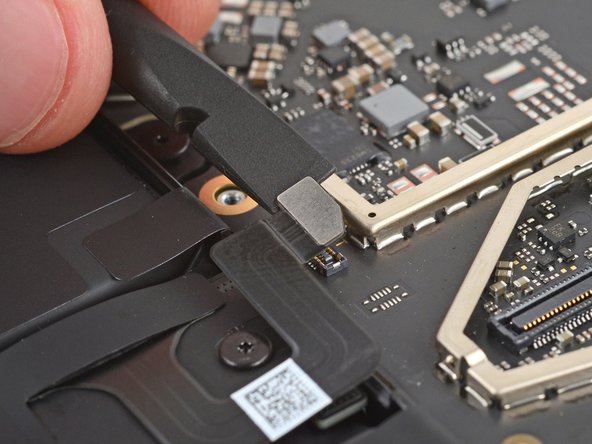
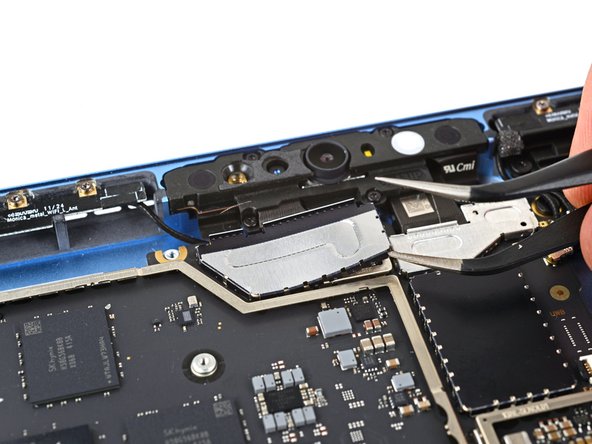
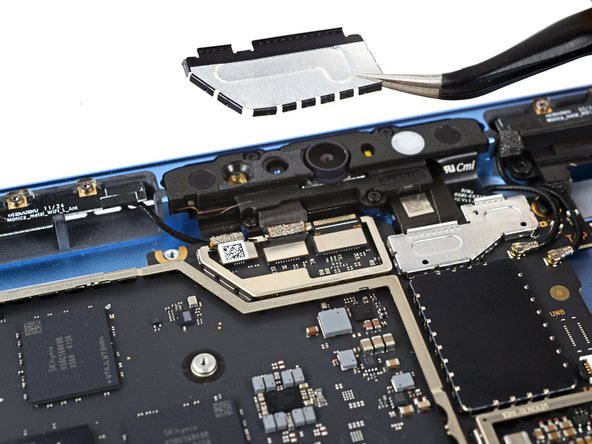
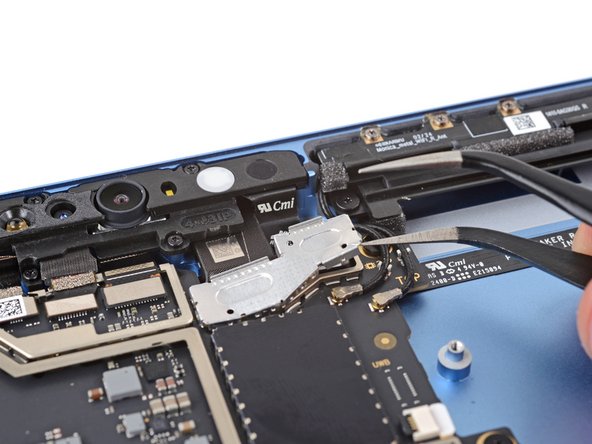
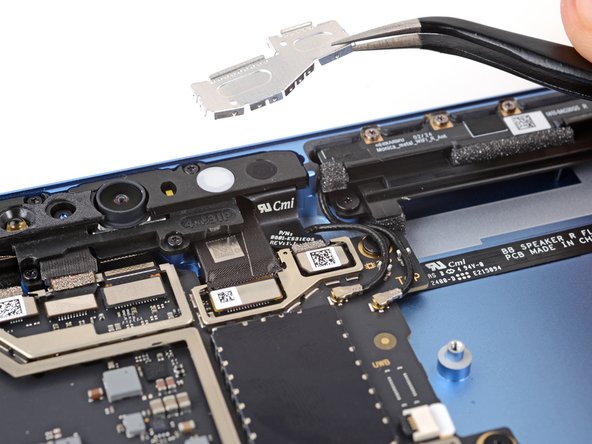
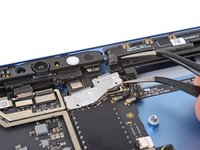
    • Insert an arm of a pair of angled tweezers in one of the gaps on the metal cover below the front camera.

    • Use your tweezers to gently pry up and remove the cover.

    • Try to deform the shield as little as possible. You'll reuse it during reassembly.

  40. Microsoft Surface Pro 11 Front Facing Camera Replacement: 步骤 40 中的图像 1,3 Microsoft Surface Pro 11 Front Facing Camera Replacement: 步骤 40 中的图像 2,3 Microsoft Surface Pro 11 Front Facing Camera Replacement: 步骤 40 中的图像 3,3
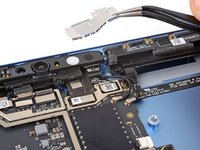
    • Repeat the previous step to remove the metal shield just to the right of the previous one.

  41. Microsoft Surface Pro 11 Front Facing Camera Replacement, Disconnect the front sensor assembly: 步骤 41 中的图像 1,2 Microsoft Surface Pro 11 Front Facing Camera Replacement, Disconnect the front sensor assembly: 步骤 41 中的图像 2,2
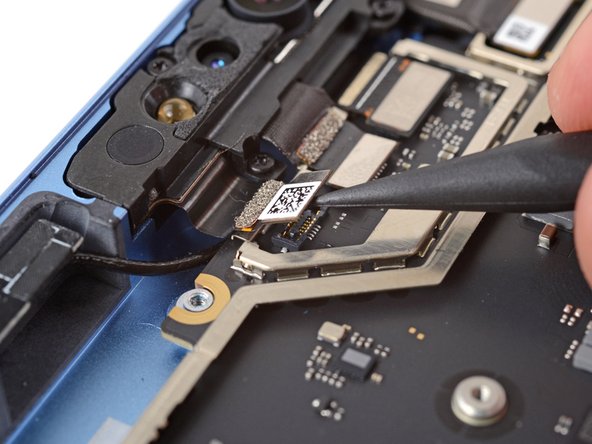
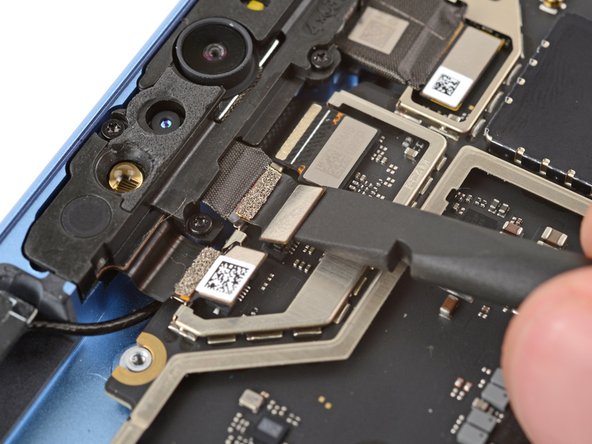
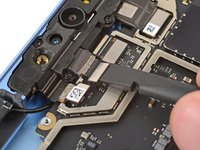
    • Use the point of a spudger to pry up and disconnect the left microphone press connector (the farthest left one below the front camera).

  42. Microsoft Surface Pro 11 Front Facing Camera Replacement: 步骤 42 中的图像 1,3 Microsoft Surface Pro 11 Front Facing Camera Replacement: 步骤 42 中的图像 2,3 Microsoft Surface Pro 11 Front Facing Camera Replacement: 步骤 42 中的图像 3,3
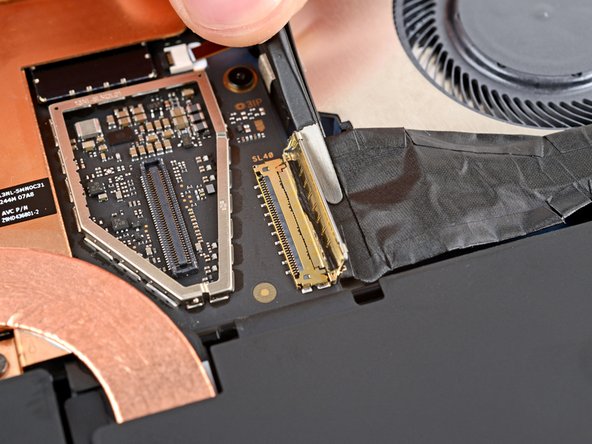
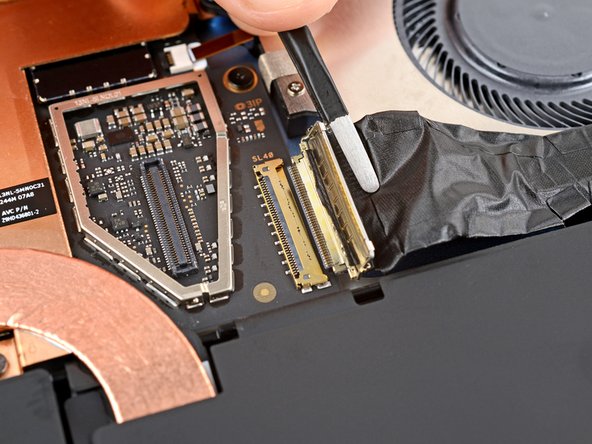
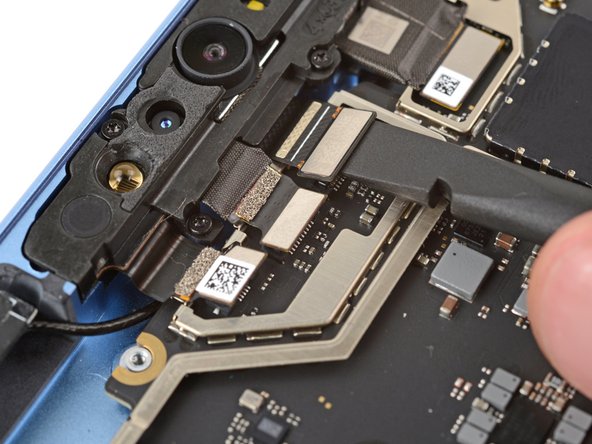
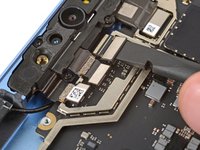
    • Use the flat end of a spudger to pry up the ambient color sensor and front facing camera press connectors, just to the right of the previous one.

  43. Microsoft Surface Pro 11 Front Facing Camera Replacement: 步骤 43 中的图像 1,2 Microsoft Surface Pro 11 Front Facing Camera Replacement: 步骤 43 中的图像 2,2
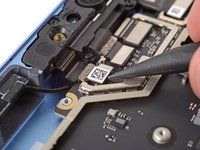
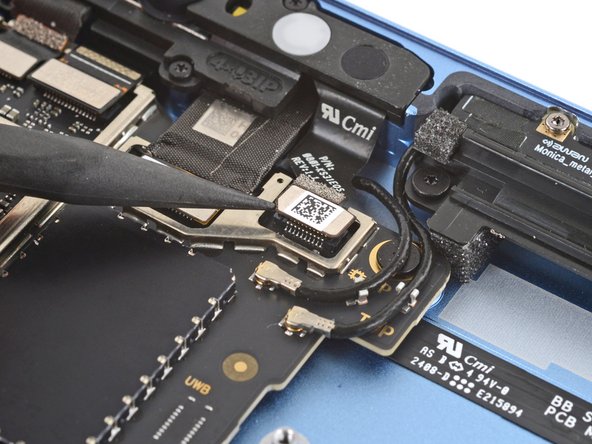
    • Use the point of a spudger to pry up the right microphone press connector (the farthest right one below the front camera) by its notched edge and disconnect it.

  44. Microsoft Surface Pro 11 Front Facing Camera Replacement, Remove the front sensor assembly screws: 步骤 44 中的图像 1,2 Microsoft Surface Pro 11 Front Facing Camera Replacement, Remove the front sensor assembly screws: 步骤 44 中的图像 2,2
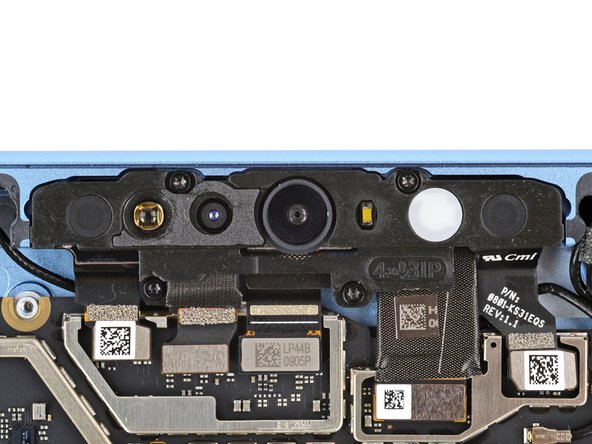
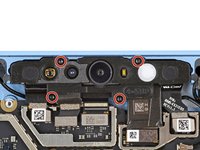
    • Use a Torx Plus 3IP screwdriver to remove the four 3.3 mm‑long screws securing the front sensor assembly.

  45. Microsoft Surface Pro 11 Front Facing Camera Replacement, Remove the front sensor assembly: 步骤 45 中的图像 1,2 Microsoft Surface Pro 11 Front Facing Camera Replacement, Remove the front sensor assembly: 步骤 45 中的图像 2,2
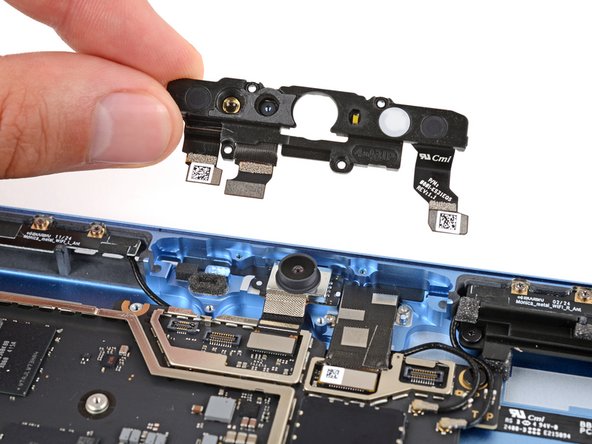
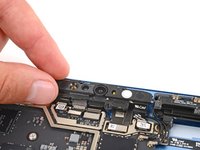
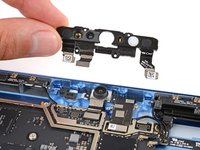
    • Lift the assembly straight up and remove it.

  46. Microsoft Surface Pro 11 Front Facing Camera Replacement, Thermal paste information: 步骤 46 中的图像 1,3 Microsoft Surface Pro 11 Front Facing Camera Replacement, Thermal paste information: 步骤 46 中的图像 2,3 Microsoft Surface Pro 11 Front Facing Camera Replacement, Thermal paste information: 步骤 46 中的图像 3,3
    • During reassembly:

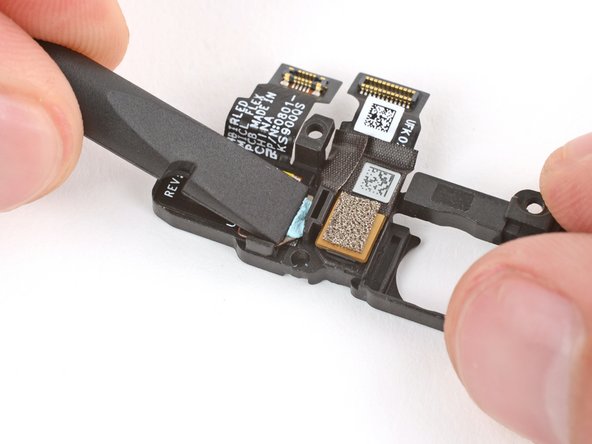
    • Check for any thermal paste on the frame (to the left of the front facing camera) and the corresponding spot on the back of the front sensor assembly.

    • Use the flat end of a spudger to scrape up any large chunks of paste.

    • Apply a few drops of isopropyl alcohol to a lint‑free cloth (or coffee filter) to clean up the area.

    • Allow the isopropyl alcohol to dry completely before continuing.

    • Apply a very small amount of thermal putty or viscous thermal paste where the old paste was on the frame.

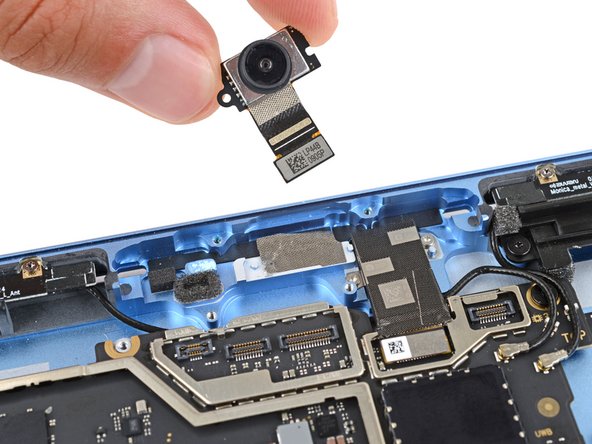
  47. Microsoft Surface Pro 11 Front Facing Camera Replacement, Remove the front facing camera: 步骤 47 中的图像 1,3 Microsoft Surface Pro 11 Front Facing Camera Replacement, Remove the front facing camera: 步骤 47 中的图像 2,3 Microsoft Surface Pro 11 Front Facing Camera Replacement, Remove the front facing camera: 步骤 47 中的图像 3,3
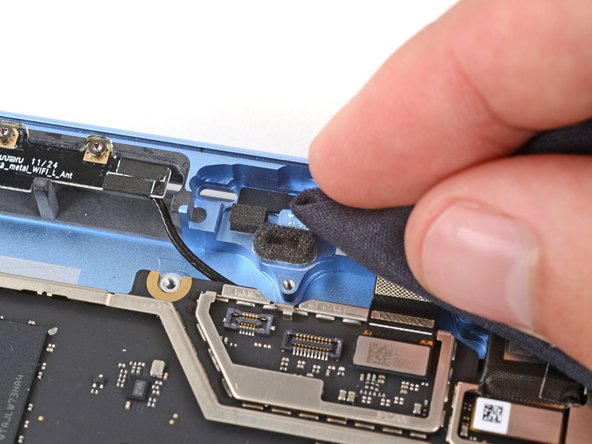
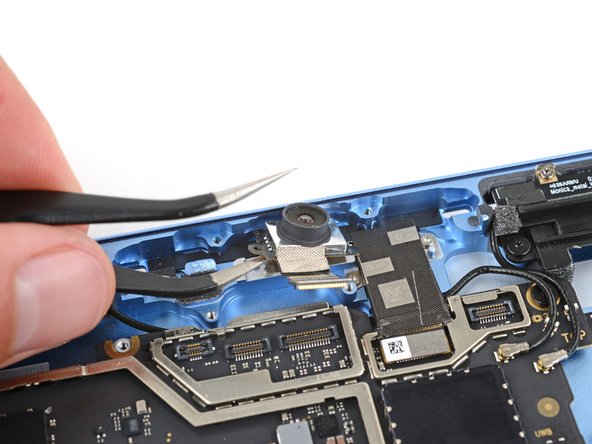
    • Mild adhesive secures the front facing camera to the frame.

    • Slide an arm of your angled tweezers under the front facing camera and pry it up to separate the adhesive.

    • If you're having trouble, you can use an iOpener, hair dryer, or heat gun to lightly heat the camera.

    • Remove the front facing camera.

    • During reassembly:

    • Check your replacement camera for any liners or lens caps. If there are any, remove them.

    • Put the camera into place lens up on the frame, making sure the cutouts on the edges of the camera go over their alignment posts.

结论

To reassemble your device, follow these instructions in reverse order.

Take your e-waste to an R2 or e-Stewards certified recycler.

Repair didn’t go as planned? Try some basic troubleshooting, or ask our Answers community for help.

Spencer Day

于09/14/22注册

160,990 声望

创作了1,045篇指南

团队

iFixit iFixit 的会员

Staff

125 名成员

创作了24,044篇指南

0指南评论

添加评论

浏览统计数据:

过去 24 小时: 0

过去 7 天: 13

过去 30 天: 35

总计 206