简介
This repair guide was authored by the iFixit staff and hasn’t been endorsed by Google. Learn more about our repair guides here.
Use this guide to replace the inner screen assembly in your Google Pixel 10 Pro Fold.
The replacement inner screen assembly comes with the inner screen pre-installed into the frame. Replacing the inner screen requires transferring all of the internals to the new frame.
The inner screen assembly doesn't come with batteries. Do not transfer your old batteries; you'll need to source your own.
Some photos in this guide may contain slight visual discrepancies, but they won't affect the procedure.
你所需要的
-
-
Unplug all cables from your phone and completely power it down.
-
-
-
Apply a suction cup to the back cover, as close to the center of the bottom edge as possible.
-
While securing the phone with one hand, pull up on the suction cup with strong, steady force to create a gap between the back cover and the frame.
-
Insert an opening pick into the gap.
-
-
-
Remove the suction handle from the back cover.
-
Slide the opening pick around the bottom right corner and up the right edge of the back cover to separate the adhesive.
-
-
在这个步骤中使用的工具:FixMat$36.95
-
Use a Torx Plus 3IP driver to remove the three 3.0 mm‑long screws securing the top bracket.
-
-
-
Use the point of a spudger to pry up and disconnect the back cover cable.
-
-
-
Use a Torx Plus 3IP driver to remove the three 3.2 mm‑long screw securing the vibrator.
-
-
-
Use tweezers, or your fingers, to lift the right edge of the vibrator and pull it towards the right edge of the phone to release its clip.
-
Remove the vibrator.
-
-
-
Use the point of a spudger to pry up and disconnect the base battery press connector.
-
-
-
Use the point of a spudger to pry up and disconnect the inner front camera press connector.
-
-
-
Insert the point of a spudger under the inner front camera cable and pry up to separate the adhesive securing the camera.
-
Remove the inner front camera.
-
-
-
Slide an opening pick between the graphite sheet and the bottom speaker to separate the adhesive.
-
-
-
Use a Torx Plus 3IP driver to remove the three screws securing the antenna bracket:
-
One 1.9 mm‑long screw
-
Two 2.8 mm‑long screws
-
-
-
Use the point of a spudger to pry up the antenna bracket and release its two clips from the top and right edges of the frame.
-
-
-
Use the point of a spudger to pry up and disconnect the 5G mmWave antenna press connector.
-
-
-
Insert the point of a spudger under the left edge of the 5G mmWave antenna.
-
Pry up the antenna to separate its adhesive and remove it.
-
-
-
Use the point of a spudger to peel the section of conductive fabric connecting the loudspeaker to the frame.
-
-
-
Use a Torx Plus 3IP driver to remove the 2.4 mm‑long screw securing the loudspeaker.
-
-
-
Use the point of a spudger to pry up the left edge of the loudspeaker to separate the adhesive securing it to the frame.
-
-
-
Use a Torx Plus 3IP driver to remove the two 2.8 mm‑long screws securing the interconnect cable bracket.
-
-
-
Lift the interconnect cable bracket straight up out of its slot in the frame and remove it.
-
-
-
Use the point of a spudger to pry up and disconnect the interconnect cable press connectors.
-
-
-
Use a Torx Plus 3IP driver to remove the 2.8 mm‑long screw securing the inner display connector bracket.
-
-
-
Use the point of a spudger to pry up the inner screen connector bracket and release its plastic clip from the left edge of the frame.
-
-
-
Pull the inner display connector bracket towards the left edge of the phone to release its metal clip.
-
-
-
Use the point of a spudger to pry up and disconnect the inner screen press connector.
-
-
-
Use tweezers, or your fingers, to peel off the yellow tape on the side button cable ZIF connector.
-
-
-
Use a Torx Plus 3IP driver to remove the four 2.8 mm‑long screws securing the logic board.
-
-
-
Insert a spudger under the top edge of the logic board, next to the 5G mmWave antenna cutout.
-
Pry up the logic board enough so you can grip the top edge with your fingers.
-
-
-
Use the flat end of a spudger to scrape off all of the thermal paste from the frame.
-
Apply isopropyl alcohol (>90%) and use a coffee filter or microfiber cloth to clean any thermal paste residue.
-
-
-
Place the back cover on the frame to protect the base battery while working on the flipside of the phone.
-
-
-
Apply a suction cup to the screen, as close to the center of the bottom edge as possible.
-
Pull up on the suction cup with strong, steady force to create a gap between the screen and the frame.
-
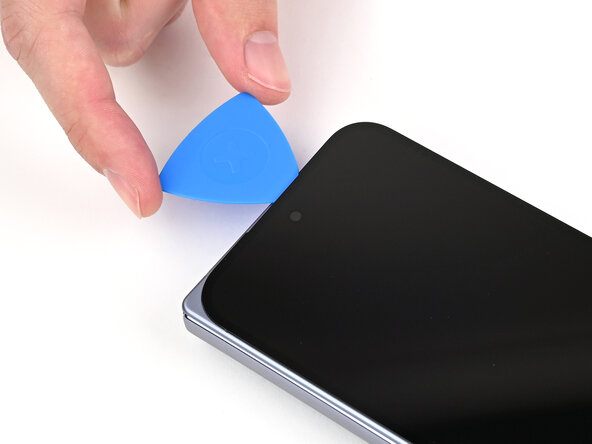
Insert an opening pick into the gap.
-
-
-
Slide the opening pick around the bottom right corner and up the right edge of the screen to separate the adhesive.
-
-
在这个步骤中使用的工具:FixMat$36.95
-
Use a Torx Plus 3IP driver to remove the three screws securing the display cable bracket:
-
One 1.8 mm‑long screw
-
Two 2.5 mm‑long screws
-
-
-
Use the point of a spudger to pry up the display bracket and release its clip from the bottom edge of the frame.
-
Remove the display bracket.
-
-
-
Use the point of a spudger to pry up the display cable press connector.
-
-
-
Use the point of a spudger to pry up and disconnect the flip battery press connector.
-
-
-
Use tweezers to remove the conductive fabric over the interconnect cable bracket.
-
-
-
Use a Torx Plus 3IP driver to remove the two 2.8 mm‑long screws securing the interconnect cable bracket.
-
-
-
Use tweezers to pull the interconnect cable bracket towards the bottom edge of the phone to release its clip.
-
Lift the bracket straight up out of its slot in the frame and remove it.
-
-
-
Use the point of a spudger to pry up and disconnect the interconnect cable press connector from the lower board.
-
-
-
Use tweezers to peel off the rubber spacer along the long edge of the lower board.
-
-
-
Use the point of a spudger to peel off the lower board's conductive fabric enough to grip it with tweezers.
-
-
-
Use the point of a spudger to pry up the bottom right corner of the lower board until it's slightly above the edge of the frame.
-
-
-
Use the point of a spudger to pry up and disconnect the interconnect cable press connector from the upper board.
-
-
-
Use the point of a spudger to pry up and disconnect the antenna press connector from the upper board.
-
-
-
Use tweezers to peel off the rubber spacer along the long edge of the upper board.
-
-
-
Use the point of a spudger to peel off the upper board's conductive fabric enough to grip it with tweezers.
-
-
-
-
Insert a SIM eject tool, bit, or straightened paper clip into the SIM card tray hole and press firmly to eject it.
-
Remove the SIM card tray.
-
-
-
Use a Torx Plus 3IP driver to remove the 2.1 mm‑long screw securing the upper board.
-
-
-
Use the point of a spudger to pry up the upper board and release its plastic clip from the left edge of the frame.
-
-
-
Congratulations on completing disassembly! The remaining steps will show you how to reassemble your device.
-
-
-
Remove any of the white stickers and yellow tape from your replacement inner screen assembly.
-
-
-
Use tweezers to remove the blue liner from the bottom of the black pull tab.
-
Press the pull tab down to adhere it to the frame.
-
-
-
Before removing any liners, check that your flip battery jacket matches the size and shape of the cutout in the frame.
-
-
-
Peel off the flip battery jacket from its clear liner.
-
Align the jacket so it doesn't overlap with the flip battery adhesive.
-
Lay the jacket on the frame.
-
-
-
Align the top edge of the flip battery with the top edge of the battery well.
-
Lay the battery over the frame.
-
-
-
Remove any liners covering the upper board adhesive.
-
Place the upper board into its slot in the frame and press it down so it sits flat.
-
-
-
Use a Torx Plus 3IP driver to install the 2.1 mm‑long screw securing the upper board.
-
-
-
While holding the upper board in place, reinsert the SIM card tray.
-
-
-
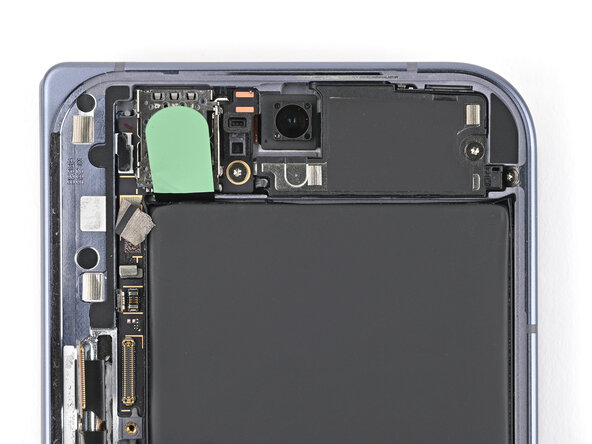
Use a spudger to press the green tab near the SIM card tray against the edge of the flip battery well.
-
Slide the spudger across the green tab to smooth out and adhere it against the SIM card tray.
-
-
-
Use the point of a spudger to press the upper board conductive fabric onto the left edge of the frame.
-
-
-
Place the rubber spacer onto its spot on the upper board, making sure it sits between its gold outlines on the board.
-
-
-
Use the point of a spudger to reconnect the antenna press connector to the upper board.
-
-
-
Reconnect the interconnect cable press connector to the upper board.
-
-
-
Remove any liners covering the lower board adhesive.
-
Place the lower board into its slot on the frame.
-
-
-
Place the rubber spacer onto its spot on the lower board, making sure it sits between its gold outlines on the board.
-
-
-
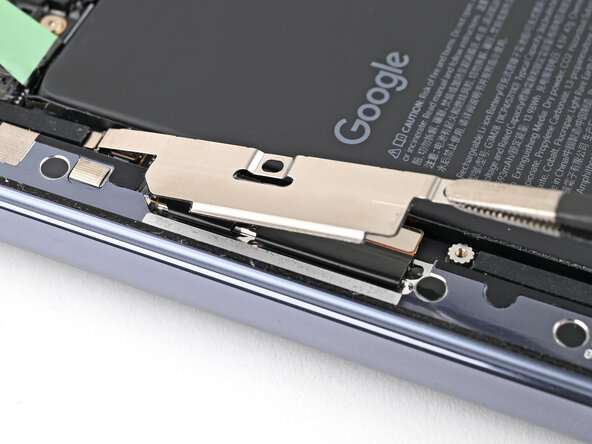
Use tweezers to slide the top of the interconnect cable bracket into its clip.
-
-
-
Use a Torx Plus 3IP driver to install the two 2.8 mm‑long screws securing the interconnect cable bracket.
-
-
-
Before removing any liners, check that both of your conductive fabric matches the size and shape of the interconnect cable bracket.
-
-
-
If there's adhesive residue on the interconnect cable bracket, use isopropyl alcohol (>90%) and a lint-free cloth to remove it.
-
-
-
Peel off the conductive fabric from its clear liner.
-
Align the fabric with the outer edge of the interconnect cable and the white outline on the frame.
-
Press the fabric to the bracket, making sure it overlaps onto the frame.
-
-
-
Use a spudger, or your fingers, to remove the old outer screen adhesive on the frame.
-
Use isopropyl alcohol (>90%) and a coffee filter or a microfiber cloth to remove any adhesive residue.
-
-
-
Before removing any liners, check if the outer screen adhesive matches the frame.
-
-
-
Peel away the top half of the new adhesive strip from its clear liner and keep the liner folded before continuing.
-
-
-
Support the screen with your hand or prop it up on something sturdy.
-
Reconnect the outer screen cable press connector.
-
-
-
Use a Torx Plus 3IP driver to install the three screws securing the display cable bracket:
-
One 1.8 mm‑long screw
-
Two 2.5 mm‑long screws
-
-
-
Use tweezers to grip the pull tab of the secondary liner at the bottom left corner of the phone.
-
-
-
Use tweezers, or your fingers, to remove the old base battery adhesive from the frame.
-
Apply isopropyl alcohol (>90%) and use a coffee filter or microfiber cloth to clean any adhesive residue.
-
-
-
Before removing any liners, check that your base battery adhesive matches the size and shape of the cutout in the frame.
-
-
-
Peel off the adhesive strip from its clear liner.
-
Align the adhesive strip with the top right corner of the base battery recess and press it onto the frame.
-
-
-
Align the new base battery with the top edge of the battery recess and press it to the frame.
-
-
-
Apply thermal paste (seven total) to the motherboard in the same locations as the old thermal paste:
-
Five small beads of thermal paste
-
Two larger, "pea-sized" beads of thermal paste
-
-
-
Place the logic board back into its cutout in the frame, making sure no cables get trapped underneath it.
-
While pushing the logic board toward the bottom edge of the phone, press the logic board into its alignment pegs.
-
-
-
While using one hand to press down the thin vertical section of the logic board, use your other hand to press on the top section of the logic board against the left edge of the frame and engage its grounding clip.
-
Press the logic board straight down to slot it into its alignment peg.
-
-
-
Use a Torx Plus 3IP driver to install the four 2.8 mm‑long screws securing the logic board.
-
-
-
Use angled tweezers to slide the side button cable straight into its slot.
-
-
-
Slide the inner display connector bracket's clip into its slot on the logic board.
-
-
-
Use a Torx Plus 3IP driver to install the 2.8 mm‑long screw securing the inner display connector bracket.
-
-
-
While pressing the bracket to the frame, use a Torx Plus 3IP driver to install the two 2.8 mm‑long screws securing the interconnect cable bracket.
-
-
-
Slide the clip at the top right of the antenna bracket under the frame.
-
Press the bracket flat to the logic board and align its screw holes.
-
-
-
While pressing the bracket against the logic board, slide the top left clip under the frame.
-
-
-
Use a Torx Plus 3IP driver to install the three screws securing the antenna bracket:
-
One 1.9 mm‑long screw
-
Two 2.8 mm‑long screws
-
-
-
Remove any liners covering the inner front camera recess.
-
Place the inner front camera over its slot in the frame and press it down to adhere it.
-
-
-
Insert the loudspeaker at an angle into the bottom of the frame and press down to secure it.
-
-
-
Use a Torx Plus 3IP driver to install the 2.4 mm‑long screw securing the loudspeaker.
-
-
-
Use tweezers or your fingers to peel off the conductive fabric on top of the loudspeaker.
-
-
-
Peel off the clear liner on the top loudspeaker conductive fabric.
-
Place the conductive fabric over its spot on the loudspeaker.
-
-
-
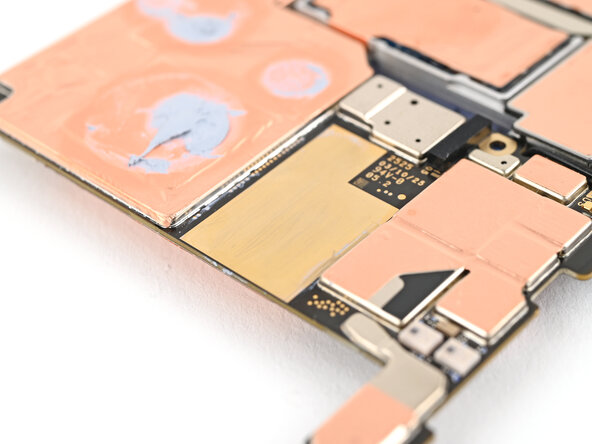
Peel the clear liner off your replacement graphite sheet to expose the adhesive on the upper half.
-
Align the upper half of the graphite sheet over the logic board and lay it down.
-
-
-
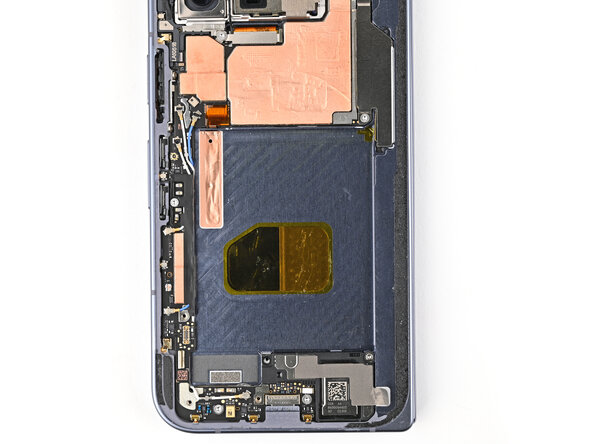
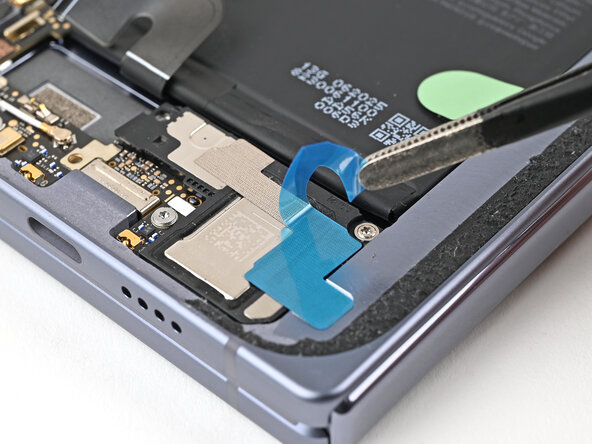
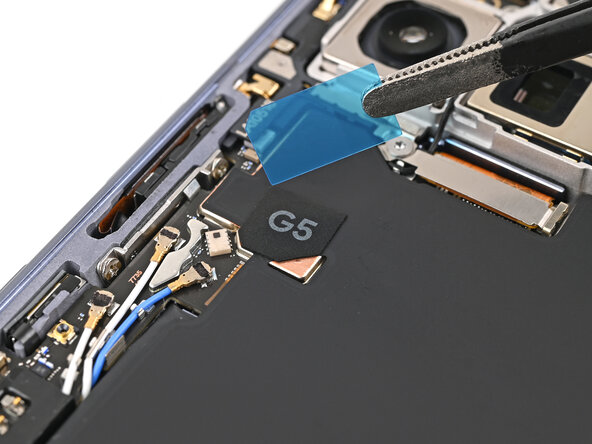
Remove the clear liner from the G5 sticker.
-
Place the G5 sticker over the graphite sheet so its slanted edge lines up with the small copper triangle.
-
Use a spudger or your finger to press down the sticker and adhere it.
-
-
-
Use tweezers to slide the left edge of the vibrator into its clip and rest it in its cutout in the frame.
-
-
-
Use a Torx Plus 3IP driver to install the three 3.2 mm‑long screw securing the vibrator.
-
-
-
Use a spudger and tweezers to remove the old back cover adhesive from the frame.
-
-
-
Before removing any liners, check if the back cover adhesive matches the frame.
-
-
-
Peel away the bottom half of the new adhesive strip from its clear liner and keep it folded before continuing.
-
-
-
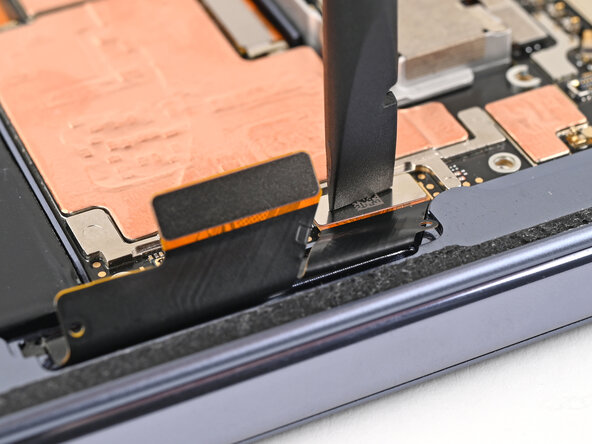
While holding the back cover or propping it up, reconnect the back cover cable.
-
-
-
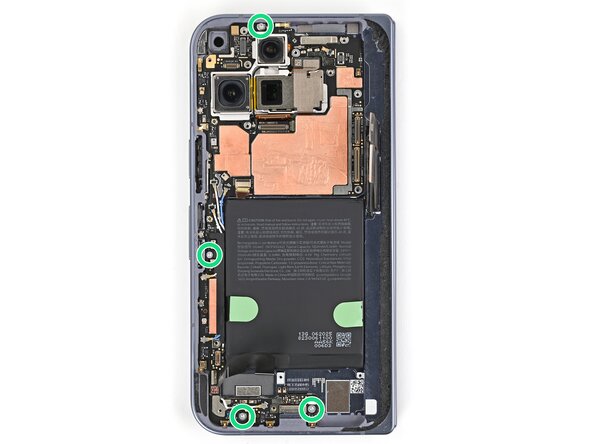
Use a Torx Plus 3IP driver to install the three 3.0 mm‑long screws securing the top bracket.
-
-
-
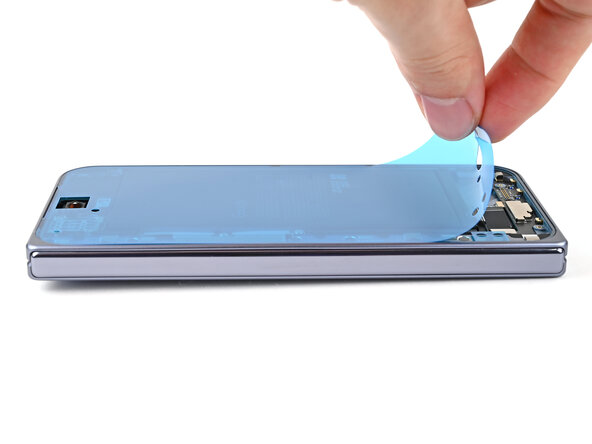
Separate one of the secondary liner's pull tabs at the top right corner.
-























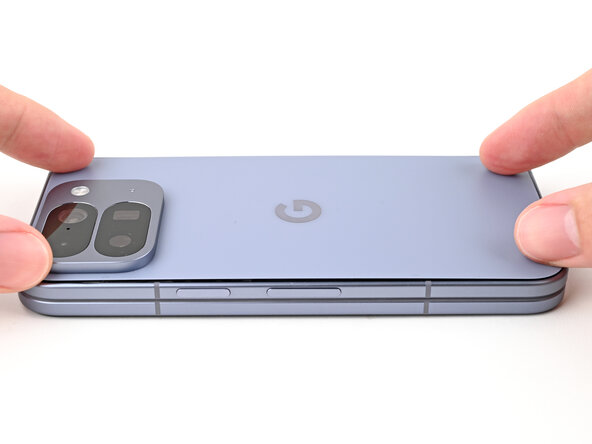


Congratulations on completing your repair!
Calibrate your newly installed batteries after completing this guide.
Take your e-waste to an R2 or e-Stewards certified recycler.
Repair didn’t go as planned? Try some basic troubleshooting, or ask our Google Pixel 10 Pro Fold Answers Community for help.


