跳转到主内容
加入维修社区 - 创建账户

SuperSonic Matrix Mid SC-999 LCD Replacement

你所需要的

  1. SuperSonic Matrix Mid SC-999 LCD Replacement, Back Cover: 步骤 1 中的图像 1,1
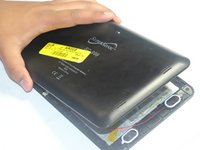
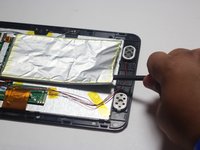
    • Wedge the plastic opening tool between the back cover of the device and the front panel.

    • You will hear a snapping sound as the cover is separated from the body of the device.

    询问修复机器人
  2. SuperSonic Matrix Mid SC-999 LCD Replacement: 步骤 2 中的图像 1,1
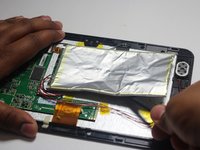
    • Slide the opening tool along the seam between the front panel and the back cover to un-clip the remaining connections around the device.

    • Again, you will hear a snapping sound as the cover is separated from the body of the device.

    询问修复机器人
  3. SuperSonic Matrix Mid SC-999 LCD Replacement: 步骤 3 中的图像 1,2 SuperSonic Matrix Mid SC-999 LCD Replacement: 步骤 3 中的图像 2,2
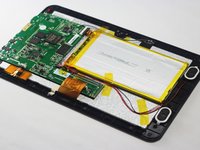
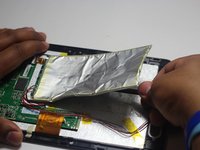
    • Lift the back cover from the body of the device to expose the internal components.

    询问修复机器人
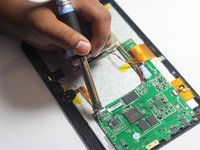
  4. SuperSonic Matrix Mid SC-999 LCD Replacement, Battery: 步骤 4 中的图像 1,3 SuperSonic Matrix Mid SC-999 LCD Replacement, Battery: 步骤 4 中的图像 2,3 SuperSonic Matrix Mid SC-999 LCD Replacement, Battery: 步骤 4 中的图像 3,3
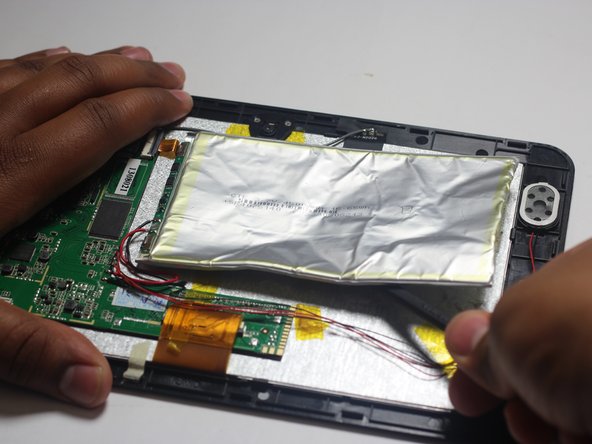
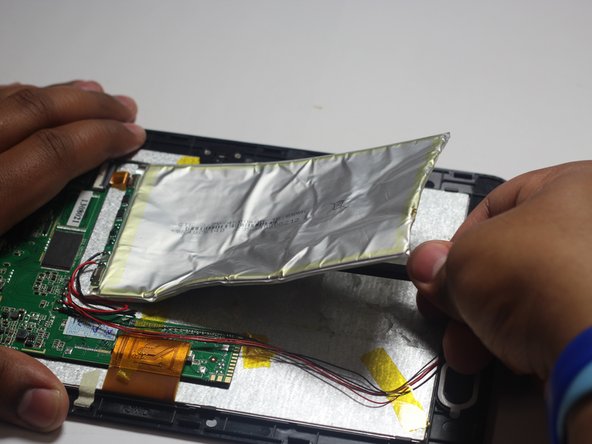
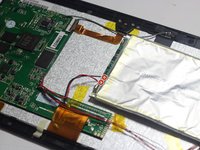
    • Remove the Battery

    • The battery is secured to the back panel with tape and glue.

    • Peel back the tape around the battery and discard it.

    • Tear through the adhesive holding the battery by using the spudger tool.

    询问修复机器人
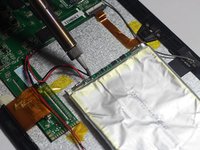
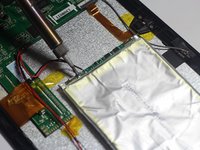
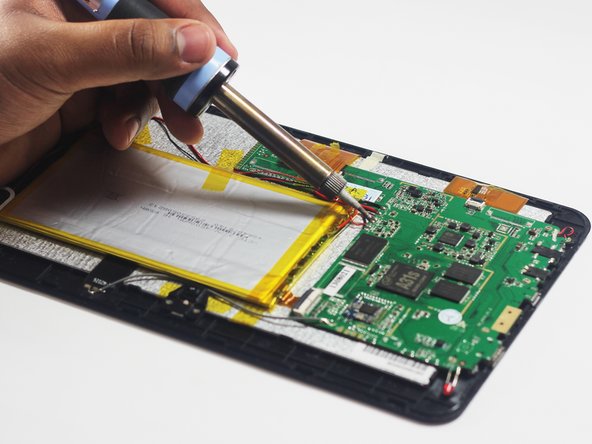
  5. SuperSonic Matrix Mid SC-999 LCD Replacement: 步骤 5 中的图像 1,3 SuperSonic Matrix Mid SC-999 LCD Replacement: 步骤 5 中的图像 2,3 SuperSonic Matrix Mid SC-999 LCD Replacement: 步骤 5 中的图像 3,3
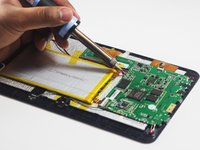
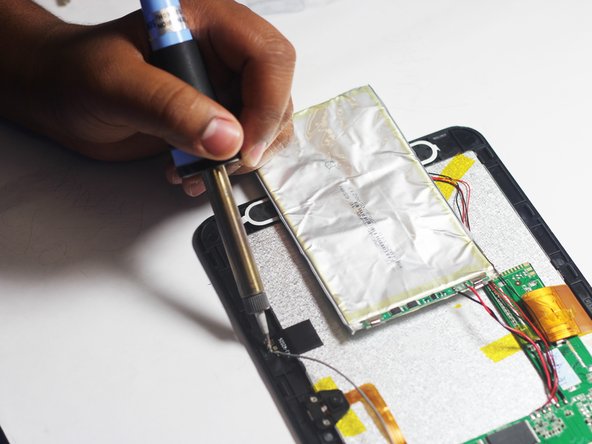
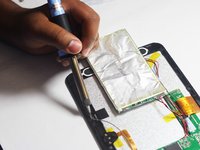
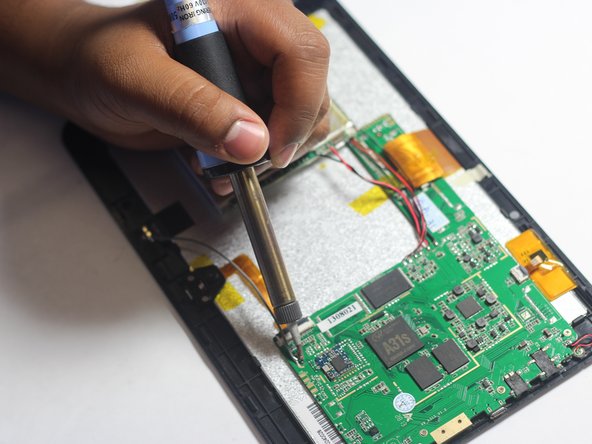
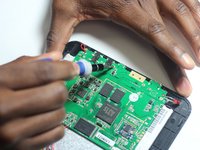
    • Desolder the 2 Battery Wires

    • The Battery has two wires connected to the motherboard (one black and one red).

    • If you're unfamiliar with soldering or desoldering check out this guide.

    • Be sure to wear protective eye wear. The soldering iron will become extremely hot and a potential danger, so make sure you are aware of your surroundings.

  6. SuperSonic Matrix Mid SC-999 LCD Replacement, Speaker: 步骤 6 中的图像 1,1
    在这个步骤中使用的工具:
    Tweezers
    $4.99
    • Remove the Speakers

    • Use the tweezers to remove the speakers from their compartments.

  7. SuperSonic Matrix Mid SC-999 LCD Replacement: 步骤 7 中的图像 1,2 SuperSonic Matrix Mid SC-999 LCD Replacement: 步骤 7 中的图像 2,2
    • Desolder the 4 Speaker Wires

    • These wires connect the speakers to the motherboard. They are the thinnest wires.

    • If you're unfamiliar with soldering or desoldering check out this guide.

    • Be sure to wear protective eye wear. Also, keep in mind that the soldering iron will become extremely hot.

  8. SuperSonic Matrix Mid SC-999 LCD Replacement, Microphone: 步骤 8 中的图像 1,1
    • Remove the microphone from its compartment.

    • The microphone is located toward the bottom left corner of the device (assuming the speakers are located on the right side of you).

    询问修复机器人
  9. SuperSonic Matrix Mid SC-999 LCD Replacement: 步骤 9 中的图像 1,2 SuperSonic Matrix Mid SC-999 LCD Replacement: 步骤 9 中的图像 2,2
    • Use the soldering iron to remove the wires connected to the microphone.

    • If you're unfamiliar with soldering or desoldering, check out this guide.

    • Be sure to wear protective eye wear. Also, keep in mind that the soldering iron will become extremely hot.

    询问修复机器人
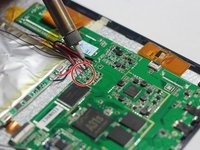
  10. SuperSonic Matrix Mid SC-999 LCD Replacement, FM Antenna: 步骤 10 中的图像 1,2 SuperSonic Matrix Mid SC-999 LCD Replacement, FM Antenna: 步骤 10 中的图像 2,2
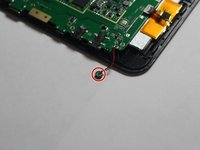
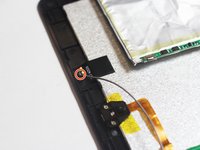
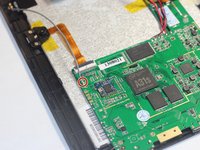
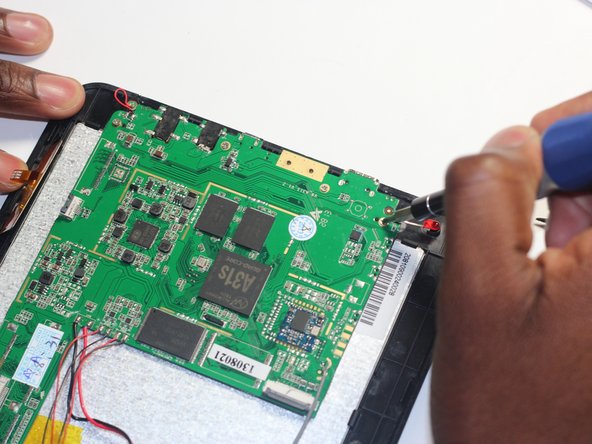
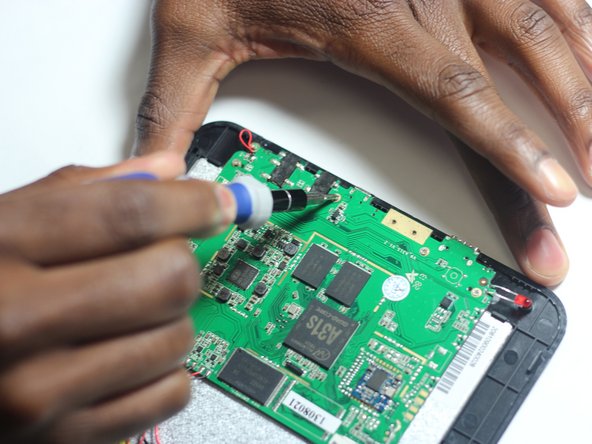
    • Use a soldering iron to desolder the region circled in red.

    • If you're unfamiliar with soldering or desoldering check out this guide.

    • Be sure to wear protective eye wear. The soldering iron will become extremely hot and a potential danger, so be aware of your surroundings.

    询问修复机器人
  11. SuperSonic Matrix Mid SC-999 LCD Replacement: 步骤 11 中的图像 1,2 SuperSonic Matrix Mid SC-999 LCD Replacement: 步骤 11 中的图像 2,2
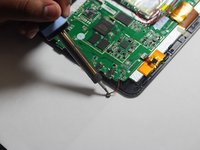
    • Desolder the FM antenna from the motherboard.

    询问修复机器人
  12. SuperSonic Matrix Mid SC-999 LCD Replacement, Motherboard: 步骤 12 中的图像 1,2 SuperSonic Matrix Mid SC-999 LCD Replacement, Motherboard: 步骤 12 中的图像 2,2
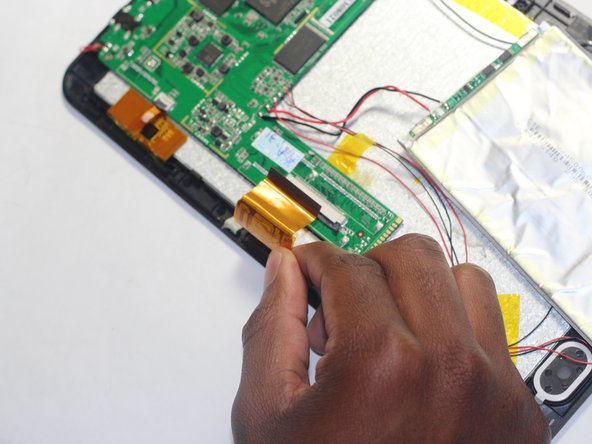
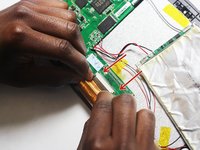
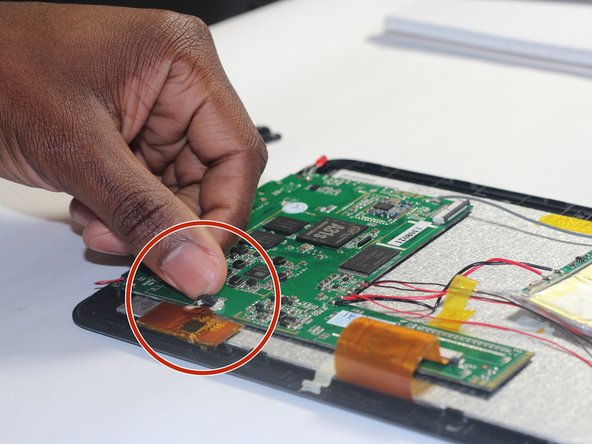
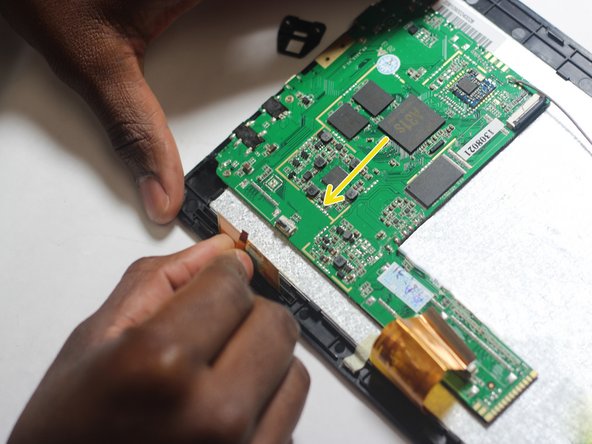
    • Remove the large ribbon cable from the socket that attaches it to the motherboard.

    • Pull down on the dark grey sliders located on both sides of the ribbon cable to release it.

    询问修复机器人
  13. SuperSonic Matrix Mid SC-999 LCD Replacement: 步骤 13 中的图像 1,2 SuperSonic Matrix Mid SC-999 LCD Replacement: 步骤 13 中的图像 2,2
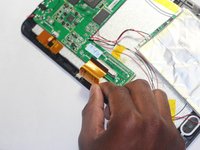
    • Remove the small ribbon cable from the socket that attaches it to the motherboard.

    • Flip the dark grey latch to release the ribbon cable from the motherboard.

    询问修复机器人
  14. SuperSonic Matrix Mid SC-999 LCD Replacement: 步骤 14 中的图像 1,3 SuperSonic Matrix Mid SC-999 LCD Replacement: 步骤 14 中的图像 2,3 SuperSonic Matrix Mid SC-999 LCD Replacement: 步骤 14 中的图像 3,3
    • Remove the four Phillips #00 screws attaching the motherboard to the device.

    询问修复机器人
  15. SuperSonic Matrix Mid SC-999 LCD Replacement, LCD: 步骤 15 中的图像 1,3 SuperSonic Matrix Mid SC-999 LCD Replacement, LCD: 步骤 15 中的图像 2,3 SuperSonic Matrix Mid SC-999 LCD Replacement, LCD: 步骤 15 中的图像 3,3
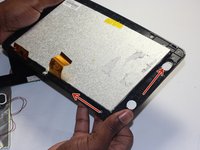
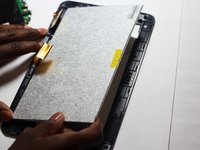
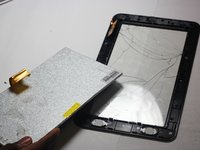
    • Ensure that the motherboard and all other items are off before continuing.

    • Separate the screen and back housing by gently pulling on it.

    询问修复机器人
结论

To reassemble your device, follow these instructions in reverse order.

4等其他人完成本指南。

团队

Dr Shaverz boyz Dr Shaverz boyz 的会员

Community

3 名成员

创作了14篇指南

1指南评论

what is the part number & where can I get a replacement screen for the SC-8809

impaired27 - 回复 分享

添加评论

浏览统计数据:

过去 24 小时: 0

过去 7 天: 3

过去 30 天: 45

总计 1,307