跳转到主内容
加入维修社区 - 创建账户

Petcube Play 2 Camera Replacement

你所需要的

  1. Petcube Play 2 Camera Replacement, Motherboard: 步骤 1 中的图像 1,3 Petcube Play 2 Camera Replacement, Motherboard: 步骤 1 中的图像 2,3 Petcube Play 2 Camera Replacement, Motherboard: 步骤 1 中的图像 3,3
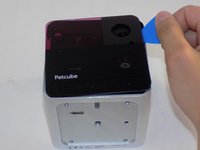
    • Flip over the Petcube so the rubber bottom faces you.

    • Pull up the rubber layer with an iFixit opening pick to expose the screws underneath.

  2. Petcube Play 2 Camera Replacement: 步骤 2 中的图像 1,2 Petcube Play 2 Camera Replacement: 步骤 2 中的图像 2,2
    • Remove the four 3.5mm screws from under the rubber cover using a Phillips #1 screwdriver.

    • The glue may cause slight resistance, but the screws should come out with minimal effort.

  3. Petcube Play 2 Camera Replacement: 步骤 3 中的图像 1,2 Petcube Play 2 Camera Replacement: 步骤 3 中的图像 2,2
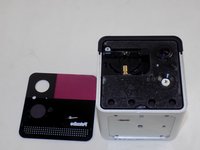
    • Carefully pry off the glass front panel using an opening pick or a spudger.

    • Do not force the front panel off, as it may crack and break.

  4. Petcube Play 2 Camera Replacement: 步骤 4 中的图像 1,3 Petcube Play 2 Camera Replacement: 步骤 4 中的图像 2,3 Petcube Play 2 Camera Replacement: 步骤 4 中的图像 3,3
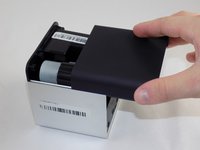
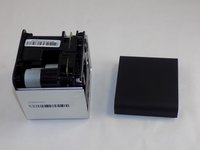
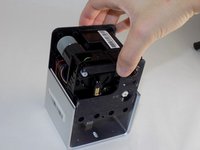
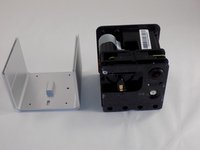
    • Slide off the two covers, starting with the top plastic cover.

    • Slide out the internal assembly from the aluminum casing.

  5. Petcube Play 2 Camera Replacement: 步骤 5 中的图像 1,3 Petcube Play 2 Camera Replacement: 步骤 5 中的图像 2,3 Petcube Play 2 Camera Replacement: 步骤 5 中的图像 3,3
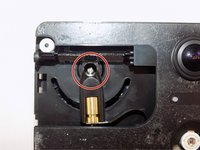
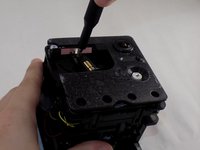
    • Once the internal assembly is removed, a brass cylinder in one corner of the cube's front face will be visible. A screw will be attached to it.

    • Remove the screw with a Phillips #1 screwdriver.

  6. Petcube Play 2 Camera Replacement: 步骤 6 中的图像 1,3 Petcube Play 2 Camera Replacement: 步骤 6 中的图像 2,3 Petcube Play 2 Camera Replacement: 步骤 6 中的图像 3,3
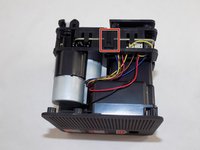
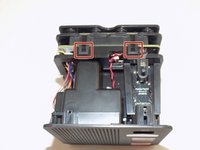
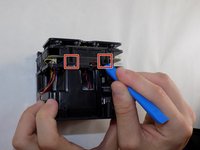
    • Flip the cube onto its side to locate the pull tabs.

    • Using an opening tool, lift each of the five tabs to separate the two halves of the Petcube 2.

  7. Petcube Play 2 Camera Replacement: 步骤 7 中的图像 1,3 Petcube Play 2 Camera Replacement: 步骤 7 中的图像 2,3 Petcube Play 2 Camera Replacement: 步骤 7 中的图像 3,3
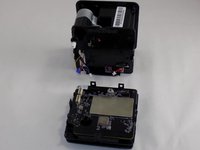
    • Gently disconnect the cable connectors to separate the two halves of the device.

    • Avoid pulling on the wires to prevent damage to the connectors.

  8. Petcube Play 2 Camera Replacement: 步骤 8 中的图像 1,3 Petcube Play 2 Camera Replacement: 步骤 8 中的图像 2,3 Petcube Play 2 Camera Replacement: 步骤 8 中的图像 3,3
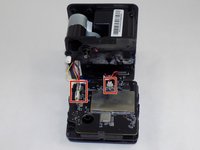
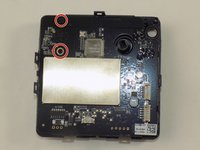
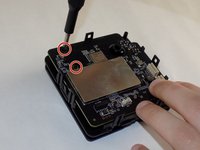
    • Use a Phillips #1 screwdriver to remove the two 1mm screws.

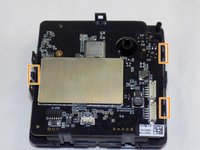
    • Carefully release each of the tabs on the sides of the cube and remove the motherboard.

    • Be gentle with the tabs. They will break under too much pressure.

  9. Petcube Play 2 Camera Replacement, Camera: 步骤 9 中的图像 1,2 Petcube Play 2 Camera Replacement, Camera: 步骤 9 中的图像 2,2
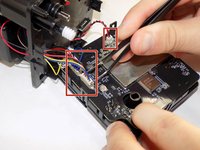
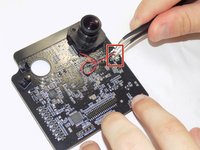
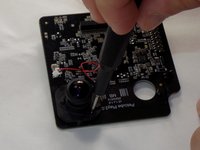
    • Use a pair of tweezers to firmly grip the sides of the connector and pull straight away from the socket. Hold the tweezers closer to the connector to get a better grip.

    • If you're having trouble, try rocking the connector side-to-side to loosen it.

    • You can insert the arms of a pair of sharp tweezers into the cutouts and gently push the connector out of its socket.

    • To reconnect the cable, insert the connector into its socket and push on the edges until it's fully seated.

  10. Petcube Play 2 Camera Replacement: 步骤 10 中的图像 1,3 Petcube Play 2 Camera Replacement: 步骤 10 中的图像 2,3 Petcube Play 2 Camera Replacement: 步骤 10 中的图像 3,3
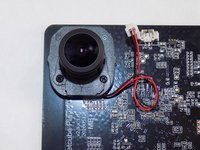
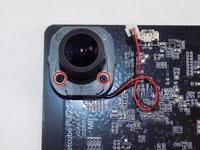
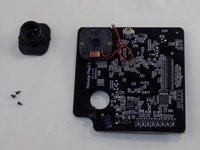
    • Use the Phillips #00 screwdriver to remove the three 1 mm screws securing the camera to the motherboard.

    • Remove the camera from the motherboard.

结论

To reassemble your device, follow these instructions in reverse order. Take your e-waste to an R2 or e-Stewards certified recycler.

JoshBerm

于03/18/24注册

135 声望

撰写一个指南

团队

UMass Dartmouth, Team 1-5, Konn Spring 2024 UMass Dartmouth, Team 1-5, Konn Spring 2024 的会员

UMASSD-KONN-S24S1G5

4 名成员

创作了6篇指南

0指南评论

添加评论

浏览统计数据:

过去 24 小时: 0

过去 7 天: 11

过去 30 天: 41

总计 330