跳转到主内容

Mac Studio 2023 Power Button Replacement

你所需要的

  1. Mac Studio 2023 Power Button Replacement, Prepare your Mac Studio for disassembly: 步骤 1 中的图像 1,3 Mac Studio 2023 Power Button Replacement, Prepare your Mac Studio for disassembly: 步骤 1 中的图像 2,3 Mac Studio 2023 Power Button Replacement, Prepare your Mac Studio for disassembly: 步骤 1 中的图像 3,3
    • Completely shut down your Mac Studio.

    • Unplug all cables from your device.

  2. Mac Studio 2023 Power Button Replacement, Flip your Mac Studio over: 步骤 2 中的图像 1,1
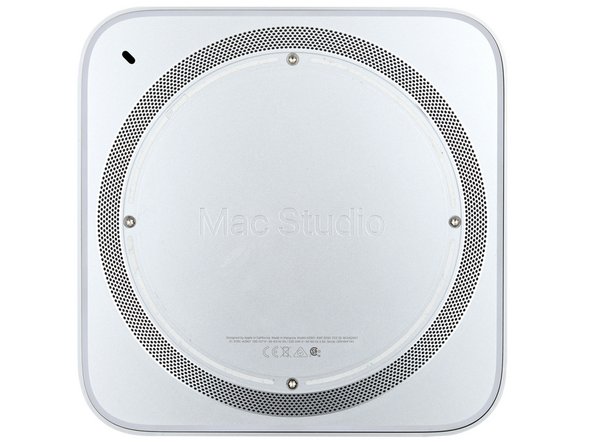
    • Flip your Mac Studio over and lay it down so the bottom faces up and the SD card slot and two front USB‑C ports are facing you.

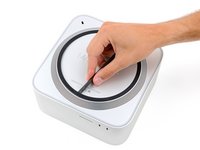
  3. Mac Studio 2023 Power Button Replacement, Heat the bottom cover screw pad: 步骤 3 中的图像 1,3 Mac Studio 2023 Power Button Replacement, Heat the bottom cover screw pad: 步骤 3 中的图像 2,3 Mac Studio 2023 Power Button Replacement, Heat the bottom cover screw pad: 步骤 3 中的图像 3,3
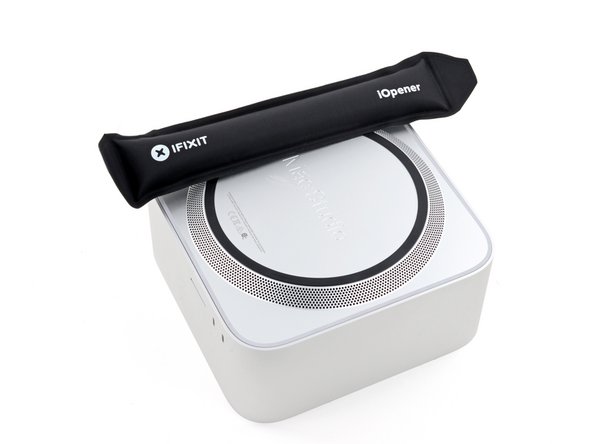
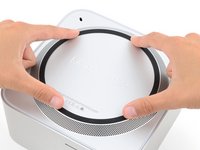
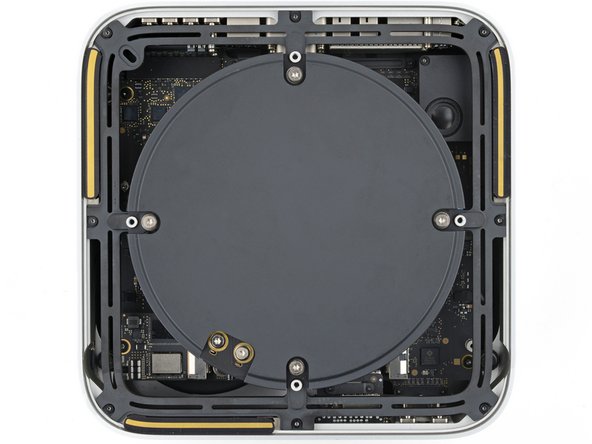
    • Adhesive strips secure the bottom cover screw pad.

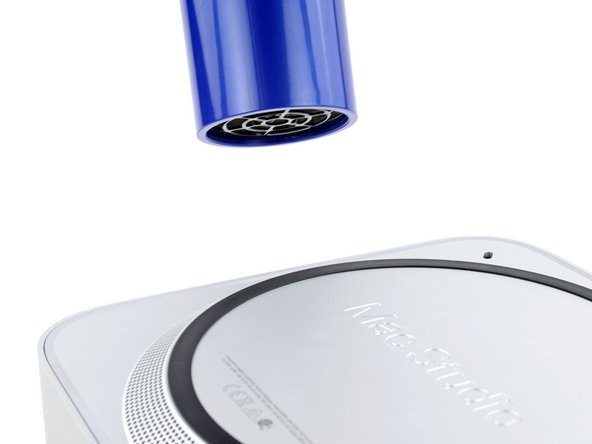
    • Heat an iOpener and lay it over one of the bottom cover screws for two minutes to soften the adhesive near the screw—this is where you'll insert a spudger in the next step.

    • You can also use a hair dryer or heat gun, but be careful as extreme heat will warp the pad.

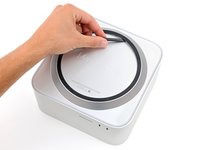
  4. Mac Studio 2023 Power Button Replacement, Lift a section of bottom cover screw pad: 步骤 4 中的图像 1,3 Mac Studio 2023 Power Button Replacement, Lift a section of bottom cover screw pad: 步骤 4 中的图像 2,3 Mac Studio 2023 Power Button Replacement, Lift a section of bottom cover screw pad: 步骤 4 中的图像 3,3
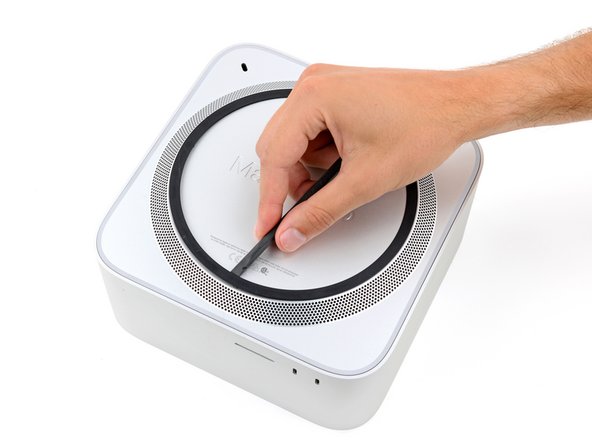
    • Insert the point of a spudger under the pad's inner edge, near the screw you applied heat to in the previous step.

    • This may take some force. If you're having trouble, apply more heat and try again.

    • Use the spudger to lift the pad and separate the adhesive.

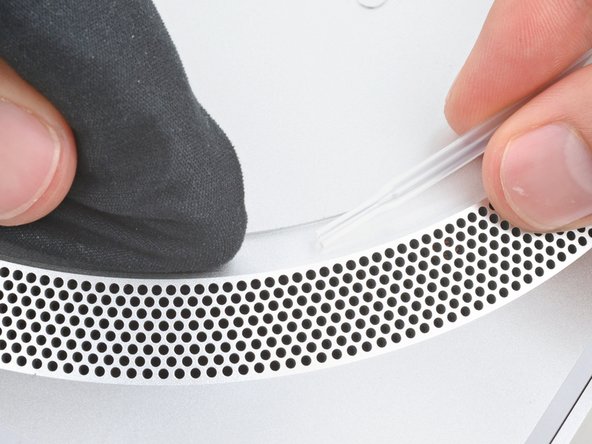
  5. Mac Studio 2023 Power Button Replacement, Separate the remaining adhesive: 步骤 5 中的图像 1,3 Mac Studio 2023 Power Button Replacement, Separate the remaining adhesive: 步骤 5 中的图像 2,3 Mac Studio 2023 Power Button Replacement, Separate the remaining adhesive: 步骤 5 中的图像 3,3
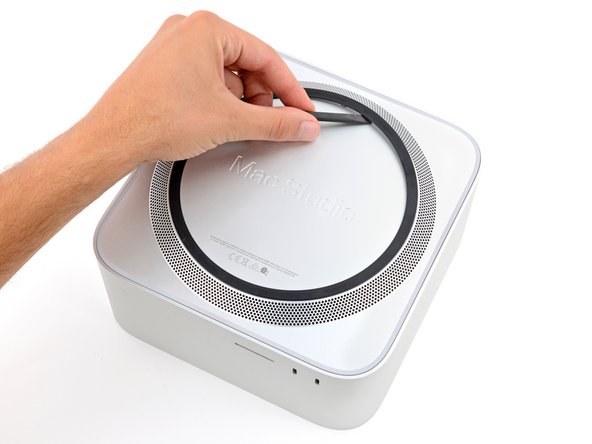
    • Insert the flat end of a spudger under the pad.

    • Slide the spudger under the entire pad to separate the remaining adhesive.

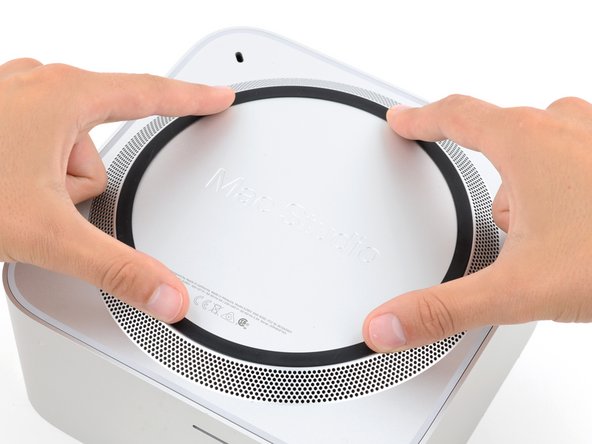
  6. Mac Studio 2023 Power Button Replacement, Remove the bottom cover screw pad: 步骤 6 中的图像 1,1
    • Remove the bottom cover screw pad.

  7. Mac Studio 2023 Power Button Replacement, Reassembly information: 步骤 7 中的图像 1,3 Mac Studio 2023 Power Button Replacement, Reassembly information: 步骤 7 中的图像 2,3 Mac Studio 2023 Power Button Replacement, Reassembly information: 步骤 7 中的图像 3,3
    在这个步骤中使用的工具:
    Tesa 61395 Tape
    $2.99
    • During reassembly:

    • If the adhesive strips are still sticky, you can reuse them.

    • If you're applying new adhesive:

    • Use the flat end of a spudger and your fingers to scrape up and remove the old adhesive strips.

    • Use isopropyl alcohol and a microfiber cloth to remove the old adhesive residue.

    • If you don't have replacement adhesive, you can use strips of thin, double-sided tape 2–3 mm wide.

    • Apply the new adhesive strips to the bottom cover and remove their liners.

    • Firmly press the bottom cover screw pad into its recess to secure it.

  8. Mac Studio 2023 Power Button Replacement, Remove the bottom cover screws: 步骤 8 中的图像 1,2 Mac Studio 2023 Power Button Replacement, Remove the bottom cover screws: 步骤 8 中的图像 2,2
    在这个步骤中使用的工具:
    FixMat
    $36.95
    • While the Mac Studio uses Torx Plus screws, standard Torx bits work. Make sure to apply constant, downward force to prevent stripping.

    • Use a T10 Torx screwdriver to remove the four 8 mm‑long screws securing the bottom cover.

    • Throughout this repair, keep track of each screw and make sure it goes back exactly where it came.

  9. Mac Studio 2023 Power Button Replacement, Remove the bottom cover: 步骤 9 中的图像 1,3 Mac Studio 2023 Power Button Replacement, Remove the bottom cover: 步骤 9 中的图像 2,3 Mac Studio 2023 Power Button Replacement, Remove the bottom cover: 步骤 9 中的图像 3,3
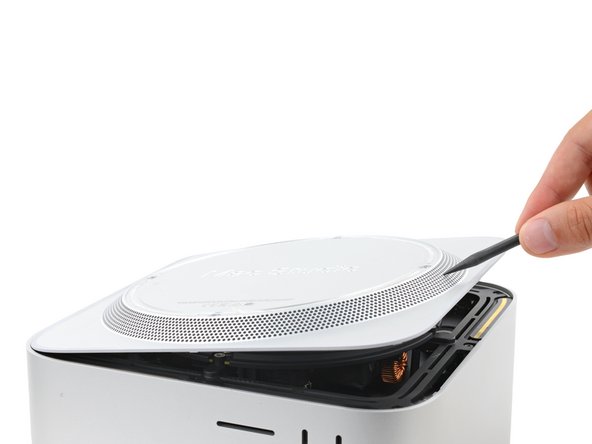
    • Insert the point of a spudger in one of the bottom cover's ventilation holes and lift the cover until you can grab it with your fingers.

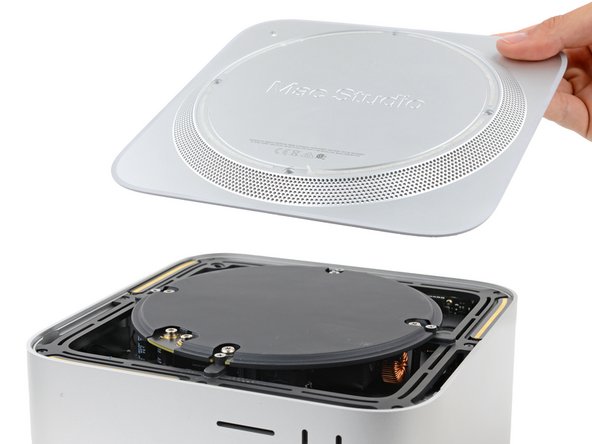
    • Remove the bottom cover.

    • To orient the bottom cover, align the Kensington lock cutout in the top left corner with the corresponding one on the internal frame.

  10. Mac Studio 2023 Power Button Replacement, Remove the power supply screws: 步骤 10 中的图像 1,2 Mac Studio 2023 Power Button Replacement, Remove the power supply screws: 步骤 10 中的图像 2,2
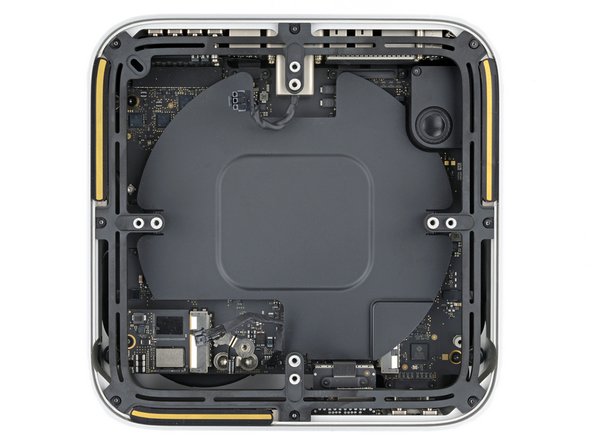
    • Use a T10 Torx screwdriver to remove the six screws securing the power supply:

    • Four 6 mm‑long screws

    • Two 7 mm‑long screws with washers

    • You may need to remove a sticker to access these screws. If you do, save it for reassembly.

  11. Mac Studio 2023 Power Button Replacement, Reposition your Mac Studio: 步骤 11 中的图像 1,1
    • Flip your Mac Studio around so the rear ports are facing you.

  12. Mac Studio 2023 Power Button Replacement, Disconnect the power cord port cable: 步骤 12 中的图像 1,3 Mac Studio 2023 Power Button Replacement, Disconnect the power cord port cable: 步骤 12 中的图像 2,3 Mac Studio 2023 Power Button Replacement, Disconnect the power cord port cable: 步骤 12 中的图像 3,3
    • A tight plastic latch secures the power cord port cable.

    • Firmly hold the power supply with one hand and lift up the edge near the power cord port.

    • With your free hand, pinch the head of the power cord port connector to unclip it and pull straight down to disconnect the cable.

  13. Mac Studio 2023 Power Button Replacement, Tilt up the power supply: 步骤 13 中的图像 1,1
    • Only grab the power supply by its edges. Various power components and capacitors are left exposed.

    • Carefully tilt the power supply away from the power cord port so it's at a 90-degree angle.

    • Be careful not to strain the cable that's still connected to the power supply.

    • Keep the power supply tilted up for the next step.

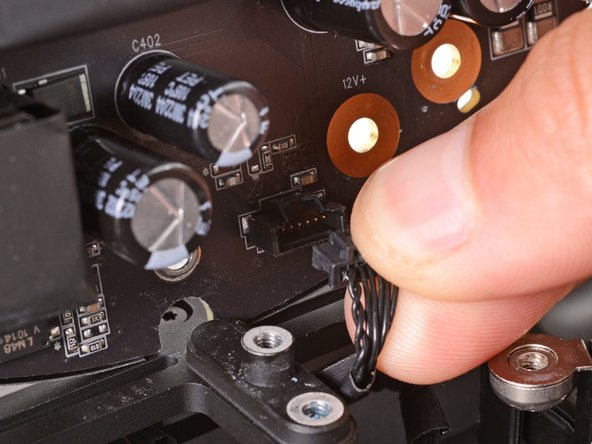
  14. Mac Studio 2023 Power Button Replacement, Disconnect the power supply signal cable: 步骤 14 中的图像 1,3 Mac Studio 2023 Power Button Replacement, Disconnect the power supply signal cable: 步骤 14 中的图像 2,3 Mac Studio 2023 Power Button Replacement, Disconnect the power supply signal cable: 步骤 14 中的图像 3,3
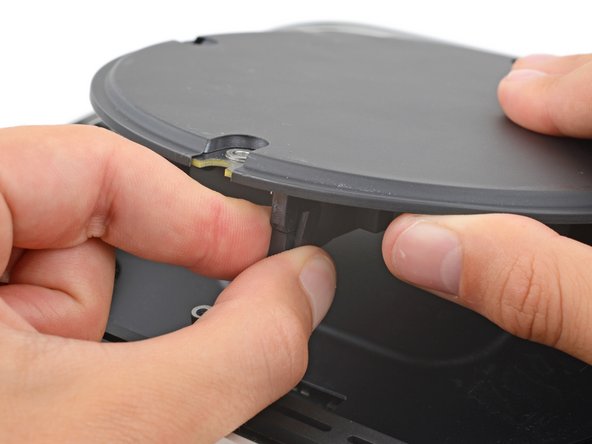
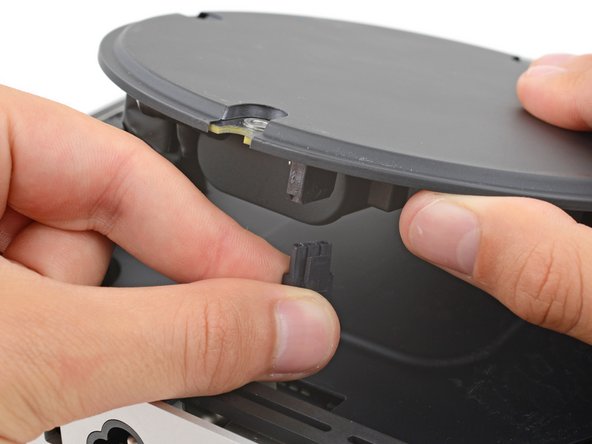
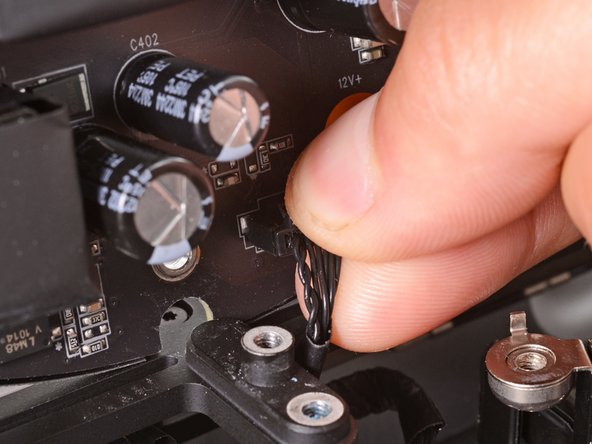
    • A delicate plastic clip secures the power supply signal cable.

    • With your free hand, pinch the head of the power supply connector to unclip it and pull straight away from the socket to disconnect the cable.

  15. Mac Studio 2023 Power Button Replacement, Remove the power supply: 步骤 15 中的图像 1,1
    • Remove the power supply.

  16. Mac Studio 2023 Power Button Replacement, Reposition your Mac Studio: 步骤 16 中的图像 1,1
    • Flip your Mac Studio around so the SD card reader and two front USB‑C ports are facing you.

  17. Mac Studio 2023 Power Button Replacement, Remove the internal frame screws: 步骤 17 中的图像 1,2 Mac Studio 2023 Power Button Replacement, Remove the internal frame screws: 步骤 17 中的图像 2,2
    • Use a T6 Torx screwdriver to remove the eight screws securing the internal frame:

    • Seven 5 mm‑long screws

    • One 4 mm‑long screw

  18. Mac Studio 2023 Power Button Replacement, Remove the internal frame: 步骤 18 中的图像 1,2 Mac Studio 2023 Power Button Replacement, Remove the internal frame: 步骤 18 中的图像 2,2
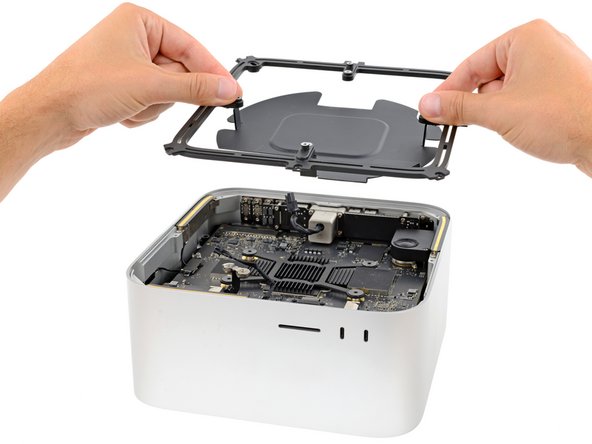
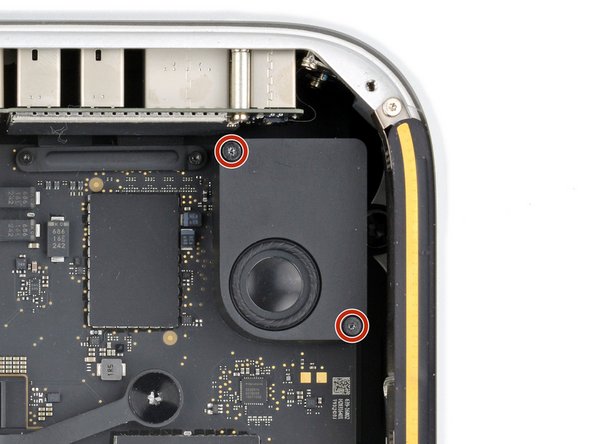
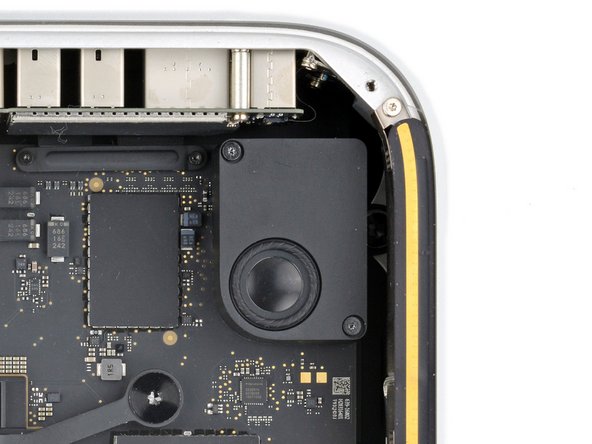
  19. Mac Studio 2023 Power Button Replacement, Remove the speaker screws: 步骤 19 中的图像 1,3 Mac Studio 2023 Power Button Replacement, Remove the speaker screws: 步骤 19 中的图像 2,3 Mac Studio 2023 Power Button Replacement, Remove the speaker screws: 步骤 19 中的图像 3,3
    • Use a T5 Torx screwdriver to remove the two 12 mm‑long screws securing the speaker.

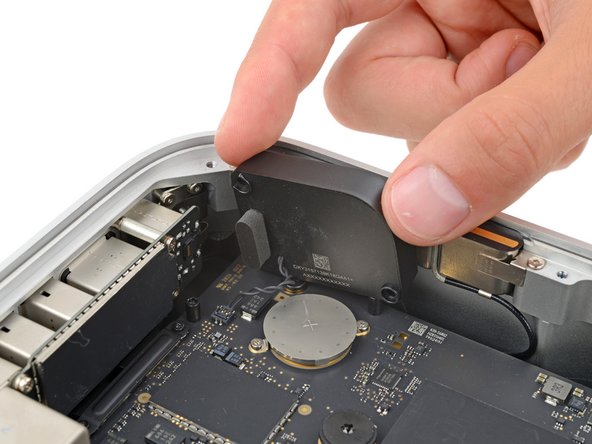
  20. Mac Studio 2023 Power Button Replacement, Reposition the speaker: 步骤 20 中的图像 1,3 Mac Studio 2023 Power Button Replacement, Reposition the speaker: 步骤 20 中的图像 2,3 Mac Studio 2023 Power Button Replacement, Reposition the speaker: 步骤 20 中的图像 3,3
  21. Mac Studio 2023 Power Button Replacement, Disconnect the speaker: 步骤 21 中的图像 1,2 Mac Studio 2023 Power Button Replacement, Disconnect the speaker: 步骤 21 中的图像 2,2
    • Insert the point of a spudger under the speaker connector's plastic head and carefully lift it straight up and out of its socket.

    • Don't lift on the wires themselves, or you may damage them.

    • To reconnect the cable, position the connector head over its socket and press to with the flat end of a spudger—the connector should click into place.

  22. Mac Studio 2023 Power Button Replacement, Remove the speaker: 步骤 22 中的图像 1,1
    • Remove the speaker.

  23. Mac Studio 2023 Power Button Replacement, Remove the cable cover screws: 步骤 23 中的图像 1,2 Mac Studio 2023 Power Button Replacement, Remove the cable cover screws: 步骤 23 中的图像 2,2
    • Use a T3 Torx screwdriver to remove the two 2 mm‑long screws securing the I/O board cable cover.

    • Use a T8 Torx screwdriver to remove the standoff screw just to the right of the cover.

  24. Mac Studio 2023 Power Button Replacement, Remove the cover: 步骤 24 中的图像 1,1
    • Use tweezers or your fingers to remove the I/O board cable cover.

  25. Mac Studio 2023 Power Button Replacement, Disconnect the I/O board: 步骤 25 中的图像 1,3 Mac Studio 2023 Power Button Replacement, Disconnect the I/O board: 步骤 25 中的图像 2,3 Mac Studio 2023 Power Button Replacement, Disconnect the I/O board: 步骤 25 中的图像 3,3
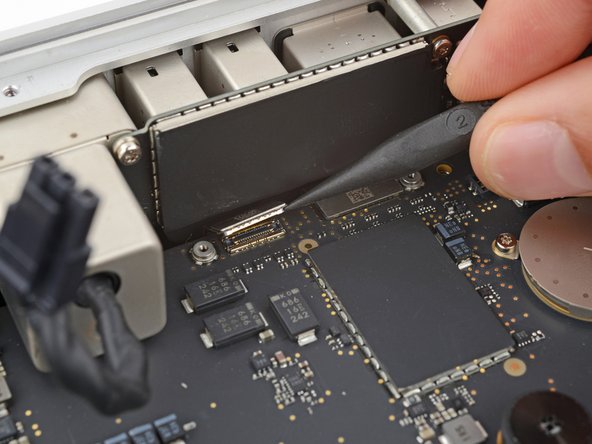
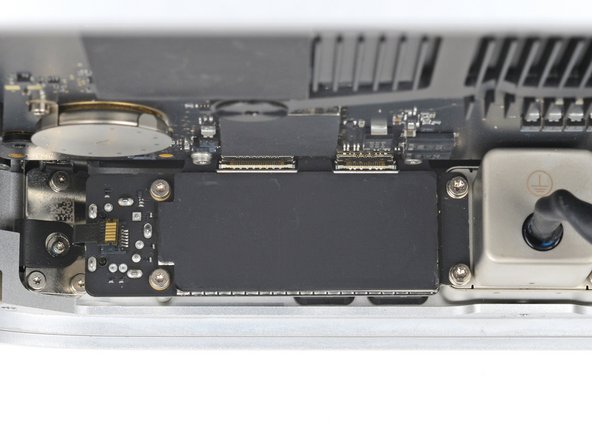
    • Be very careful not to scrape off or damage any surface mounted components during this step.

    • Use a spudger to pry up and disconnect both of the I/O board's press connectors.

    • To reconnect press connectors, carefully align and press down on one side until it clicks into place, then repeat on the other side. Don't press down in the middle. If the connector is misaligned, the pins can bend and cause permanent damage.

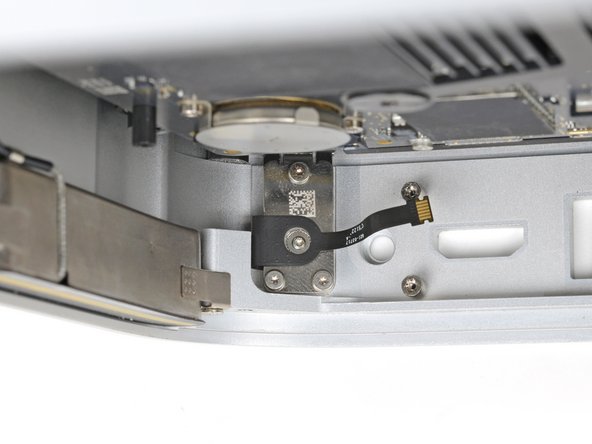
  26. Mac Studio 2023 Power Button Replacement, Disconnect the power button: 步骤 26 中的图像 1,3 Mac Studio 2023 Power Button Replacement, Disconnect the power button: 步骤 26 中的图像 2,3 Mac Studio 2023 Power Button Replacement, Disconnect the power button: 步骤 26 中的图像 3,3
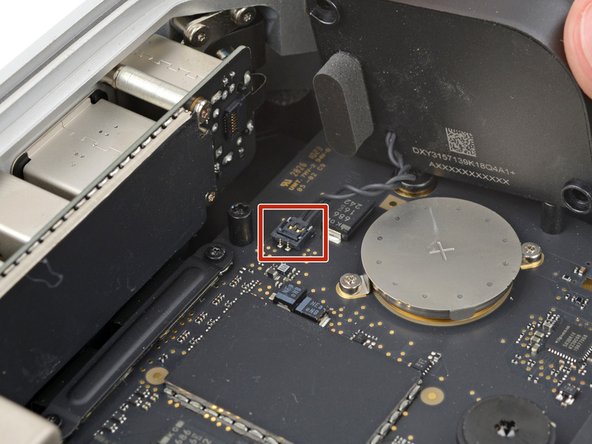
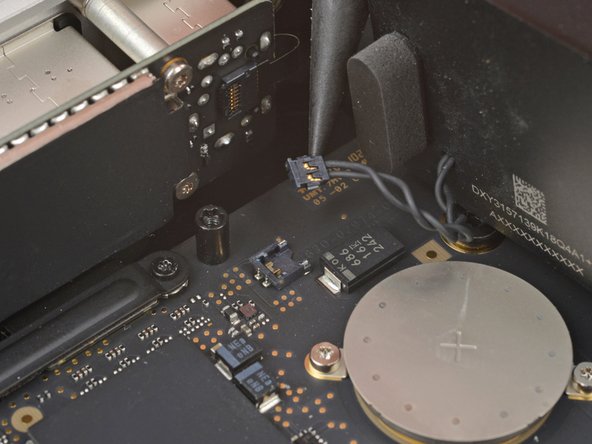
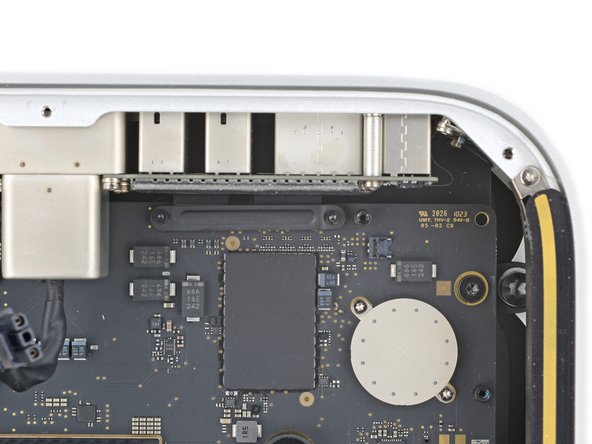
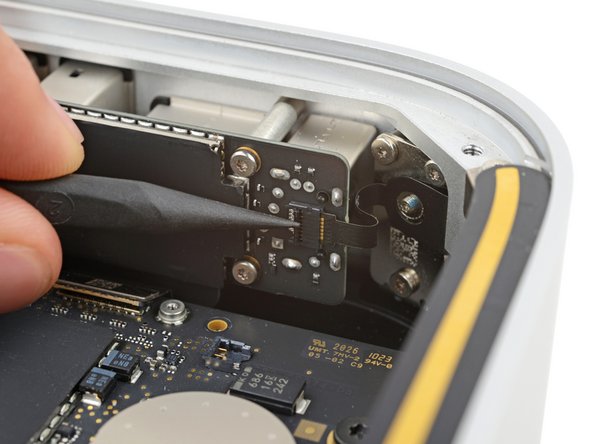
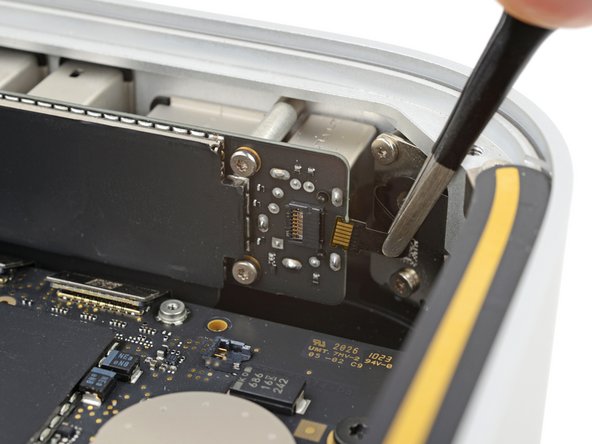
    • Use the point of a spudger or a clean fingernail to flip up the hinged locking flap on the power button cable ZIF connector, located on the outer edge of the I/O board.

    • Use tweezers to gently pull the cable straight out of its socket.

  27. Mac Studio 2023 Power Button Replacement, Reposition your Mac Studio: 步骤 27 中的图像 1,1
    • Carefully stand up your Mac Studio so the SD card reader and two front USB-C ports are facing up.

  28. Mac Studio 2023 Power Button Replacement, Remove the I/O board screws: 步骤 28 中的图像 1,3 Mac Studio 2023 Power Button Replacement, Remove the I/O board screws: 步骤 28 中的图像 2,3 Mac Studio 2023 Power Button Replacement, Remove the I/O board screws: 步骤 28 中的图像 3,3
    在这个步骤中使用的工具:
    Flexible Extension
    $6.99
    • These screws may be hard to access. If you can't insert your screwdriver properly, use a flexible extension to avoid stripping screws or damaging the logic board.

    • Use a T4 Torx screwdriver to remove the two 15.5 mm‑long screws securing the outer edge of the I/O board.

    • Use a T6 Torx screwdriver to remove the two 20 mm‑long screws securing the inner edge of the I/O board.

    • During reassembly:

    • Partially tighten the four screws securing the board.

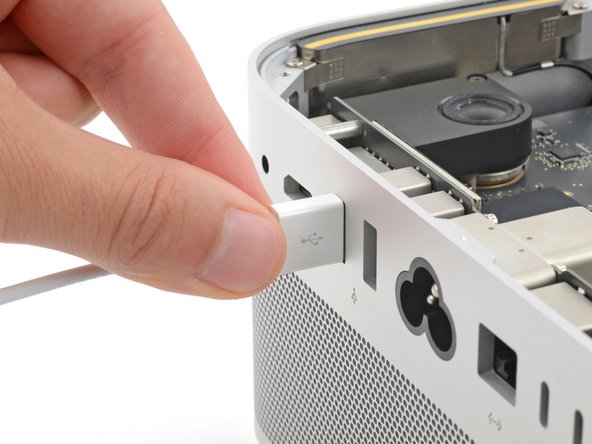
    • Lay your Mac Studio down and plug a cable into one of the ports to ensure proper fit and alignment, adjusting the port as necessary—the cable should be easy to insert and remove.

    • With the cable plugged in and the board in position, fully tighten all four screws.

    • Unplug all cables before continuing.

  29. Mac Studio 2023 Power Button Replacement, Remove the I/O board: 步骤 29 中的图像 1,3 Mac Studio 2023 Power Button Replacement, Remove the I/O board: 步骤 29 中的图像 2,3 Mac Studio 2023 Power Button Replacement, Remove the I/O board: 步骤 29 中的图像 3,3
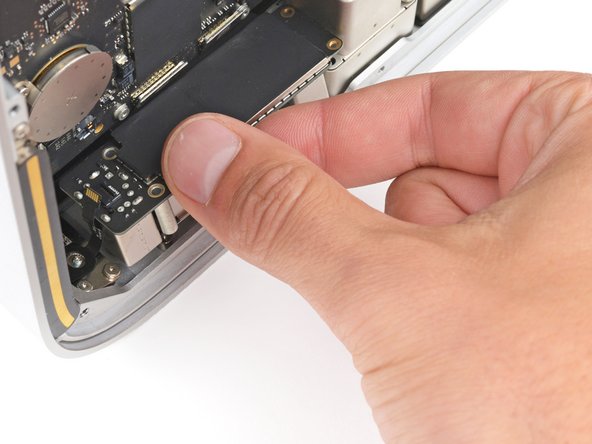
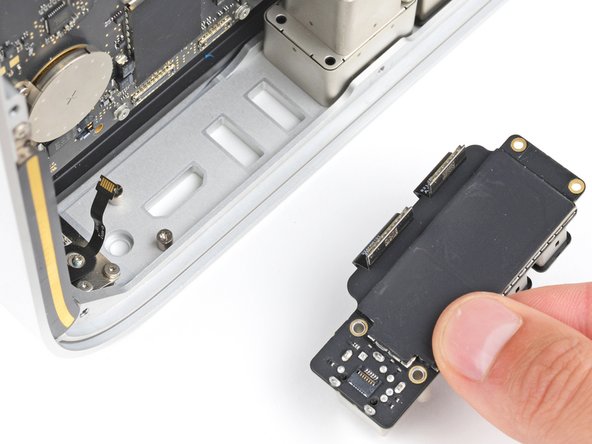
    • Lift the I/O board straight up and out of its recess to remove it.

    • During reassembly, lower the board into its recess, making sure the press connectors don't get trapped under the logic board.

  30. Mac Studio 2023 Power Button Replacement, Remove the power button screws: 步骤 30 中的图像 1,2 Mac Studio 2023 Power Button Replacement, Remove the power button screws: 步骤 30 中的图像 2,2
    在这个步骤中使用的工具:
    Flexible Extension
    $6.99
  31. Mac Studio 2023 Power Button Replacement, Remove the power button: 步骤 31 中的图像 1,1
    • Remove the power button.

结论

To reassemble your device, follow these instructions in reverse order.

Take your e-waste to an R2 or e-Stewards certified recycler.

Repair didn’t go as planned? Try some basic troubleshooting, or ask our Answers community for help.

Spencer Day

于09/14/22注册

149,840 声望

创作了995篇指南

团队

iFixit iFixit 的会员

Staff

123 名成员

创作了23,639篇指南

0指南评论

添加评论

浏览统计数据:

过去 24 小时: 0

过去 7 天: 21

过去 30 天: 52

总计 478