简介
Follow this guide to remove or replace the battery in a Keychron K10 Max Wireless mechanical keyboard.
The battery powers the keyboard during wireless use and allows it to operate without being connected by a USB-C cable. If the keyboard loses charge quickly, will not turn on in wireless mode, shuts off unexpectedly, or has a swollen or damaged battery, the battery may need to be replaced.
Caution: If the battery is extremely hot, swollen, puffy, or emits a strange odor, do not attempt to remove it. Swollen batteries present a higher risk of fire or explosion, and the fumes may be harmful if inhaled. Review the What to Do with a Swollen Battery guide for more information.
Before you begin the repair, turn off the keyboard and unplug any cables. Be careful when handling the battery, and avoid bending, crushing, or puncturing it during removal.
你所需要的
-
-
-
Lay the keyboard face down on the workspace.
-
Use a 2.5 mm hex screwdriver to remove the eight 4.5 mm screws from the back case.
-
Carefully separate the front frame from the keyboard and set it aside.
 询问修复机器人
-
-
-
-
-
Remove the 19 keycaps to access the screws underneath.
-
Use a Phillips #1 screwdriver to remove the thirteen 7.5 mm screws.
-
Carefully lift the number pad side of the keyboard plate
-
-
-
-
Use the wide end of a spudger to push on the connector tab to slide it out of its socket.
-
-
-
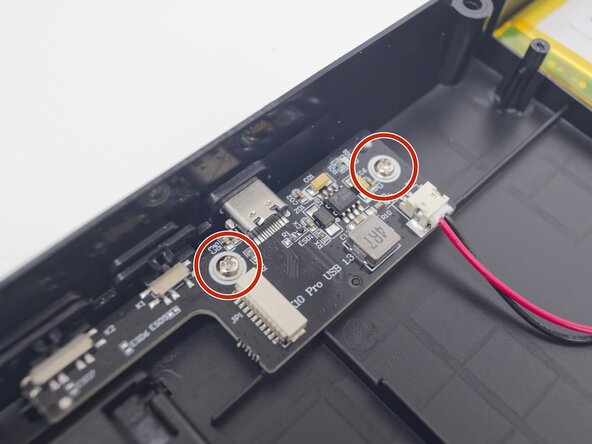
Use the point of a spudger to push on alternating sides of the battery connector to "walk" it out of its socket on the I/O charging board.
-
If that doesn't work, use a pair of tweezers to firmly grip the sides of the connector and pull straight away from the socket. Hold the tweezers closer to the connector to get a better grip.
-
-
-
-
-
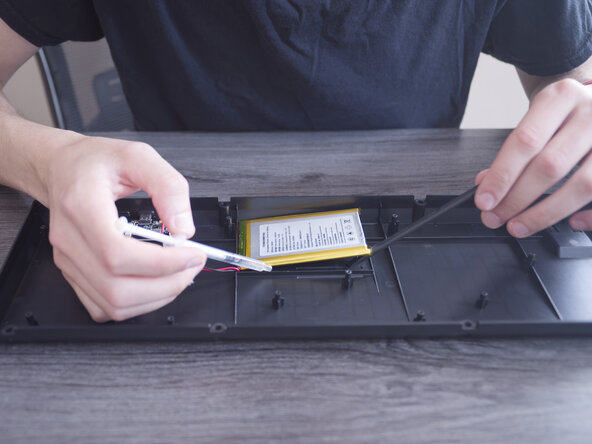
The battery is held down with a simple adhesive that covers the entire bottom of the battery. Use isopropyl alcohol with a syringe to loosen the adhesive.
-
Tilt the frame slightly to help the isopropyl alcohol flow underneath the battery. Once you get an edge lifted off slightly, start applying more isopropyl alcohol under the battery.
-
Once the battery is removed, place it adhesive side up so it does not stick to the work surface
-
-






To reassemble your device, follow these instructions in reverse order. Take your e-waste to an R2 or e-Stewards certified recycler.

团队

Purdue University Northwest, Team 7-8, Dieterle Spring 2026 Purdue University Northwest, Team 7-8, Dieterle Spring 2026 的会员
PNW-DIETERLE-S26S7G8
3 名成员
创作了40篇指南
