跳转到主内容
加入维修社区 - 创建账户
Framework Laptop 12 Hinge (Left) Removal

仅作为前提条件
本指南仅提供前提条件!本指南是另一个程序的一部分,不能单独使用。

你所需要的

  1. Framework Laptop 12 Hinge (Left) Removal, Power down your laptop: 步骤 1 中的图像 1,3 Framework Laptop 12 Hinge (Left) Removal, Power down your laptop: 步骤 1 中的图像 2,3 Framework Laptop 12 Hinge (Left) Removal, Power down your laptop: 步骤 1 中的图像 3,3
    • Before you begin repairs, unplug your laptop and shut it down from the operating system. This ensures that the laptop isn't in standby/suspend mode.

    • The indicator LEDs along the edges should be unlit. The laptop should be silent.

    • If you accidentally turn on the laptop during repair, hold the power button down for 10 seconds to shut it down.

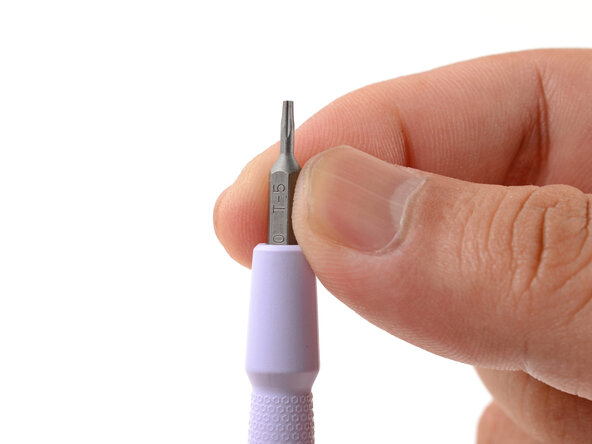
    • Make sure your Framework Screwdriver has the T5 Torx bit (labeled as T-5) facing outwards. If it's not, pull the bit out and flip it.

  2. Framework Laptop 12 Hinge (Left) Removal, Set your laptop down: 步骤 2 中的图像 1,1
    • Set your Framework Laptop face-down on a clean work surface.

  3. Framework Laptop 12 Hinge (Left) Removal, Loosen the bottom screws: 步骤 3 中的图像 1,2 Framework Laptop 12 Hinge (Left) Removal, Loosen the bottom screws: 步骤 3 中的图像 2,2
    • Use your Framework Screwdriver to fully loosen the eight captive T5 Torx screws on the bottom of your laptop.

    • Most screws in your Framework Laptop (including these) are captive—they're designed to stay in place after you loosen them.

  4. Framework Laptop 12 Hinge (Left) Removal, Flip your laptop over: 步骤 4 中的图像 1,1
    • Flip your laptop over so it's face-up on your work surface.

  5. Framework Laptop 12 Hinge (Left) Removal, Open your laptop: 步骤 5 中的图像 1,2 Framework Laptop 12 Hinge (Left) Removal, Open your laptop: 步骤 5 中的图像 2,2
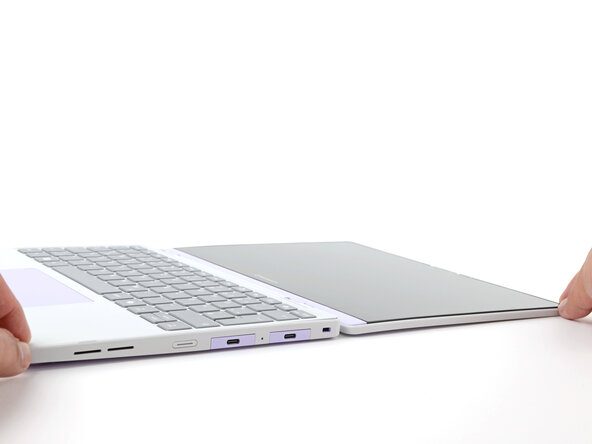
    • Open the laptop lid so that both the screen and the base lie flat on your work surface.

  6. Framework Laptop 12 Hinge (Left) Removal, Remove the Input Cover: 步骤 6 中的图像 1,3 Framework Laptop 12 Hinge (Left) Removal, Remove the Input Cover: 步骤 6 中的图像 2,3 Framework Laptop 12 Hinge (Left) Removal, Remove the Input Cover: 步骤 6 中的图像 3,3
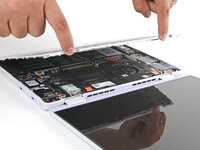
    • Use your fingers to grip the Input Cover in the hinge cutouts.

    • Lift upwards to swing the Input Cover up from the base of the laptop.

    • Magnets hold the Input Cover down, so you'll feel some resistance. If it feels stuck, check that you've fully loosened all the screws on the bottom of your laptop.

    • Remove the Input Cover.

  7. Framework Laptop 12 Hinge (Left) Removal, Loosen the battery screws: 步骤 7 中的图像 1,1
    • Use your Framework Screwdriver to loosen the six captive T5 Torx screws securing the battery.

  8. Framework Laptop 12 Hinge (Left) Removal, Disconnect the battery: 步骤 8 中的图像 1,2 Framework Laptop 12 Hinge (Left) Removal, Disconnect the battery: 步骤 8 中的图像 2,2
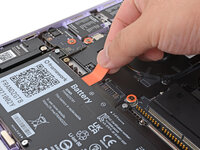
    • Grab the orange battery tab with your fingers and lift straight up to disconnect the battery.

    • The battery connector can be tight, requiring some force. If it feels like part of the battery won't come up, check that the battery screws are fully loosened.

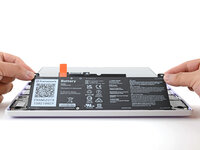
  9. Framework Laptop 12 Hinge (Left) Removal, Remove the battery: 步骤 9 中的图像 1,2 Framework Laptop 12 Hinge (Left) Removal, Remove the battery: 步骤 9 中的图像 2,2
    • Lift and remove the battery from the laptop.

  10. Framework Laptop 12 Hinge (Left) Removal, Loosen the Audio Board screw: 步骤 10 中的图像 1,1
    • Use your Framework Screwdriver to loosen the captive T5 Torx screw securing the Audio Board along the left edge of the laptop.

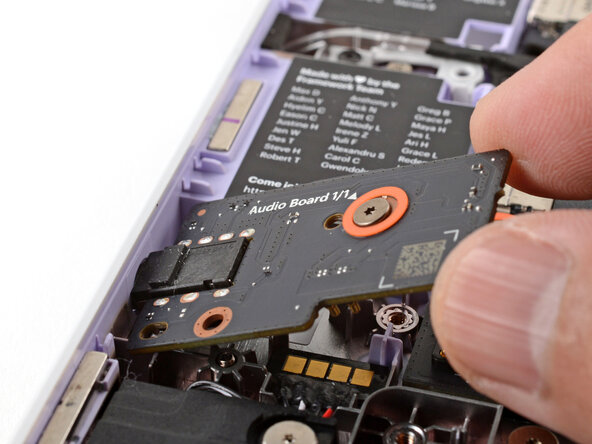
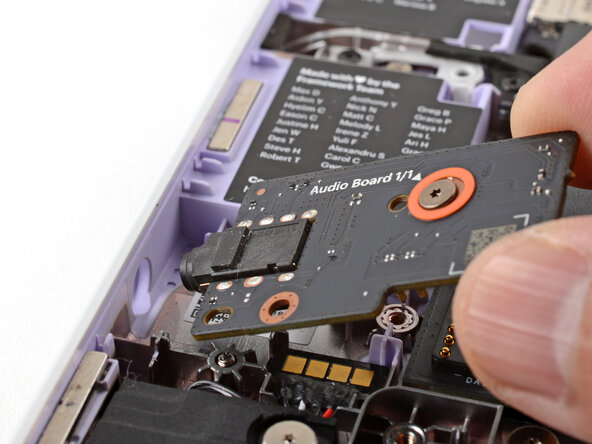
  11. Framework Laptop 12 Hinge (Left) Removal, Remove the Audio Board: 步骤 11 中的图像 1,3 Framework Laptop 12 Hinge (Left) Removal, Remove the Audio Board: 步骤 11 中的图像 2,3 Framework Laptop 12 Hinge (Left) Removal, Remove the Audio Board: 步骤 11 中的图像 3,3
    • Use your fingers to lift the right edge of the Audio Board and pull it out of its recess.

    • Remove the Audio Board.

  12. Framework Laptop 12 Hinge (Left) Removal, Loosen the Power Button Board screw: 步骤 12 中的图像 1,1
    • Use your Framework Screwdriver to loosen the captive T5 Torx screw securing the Power Button Board (labeled "Power Board").

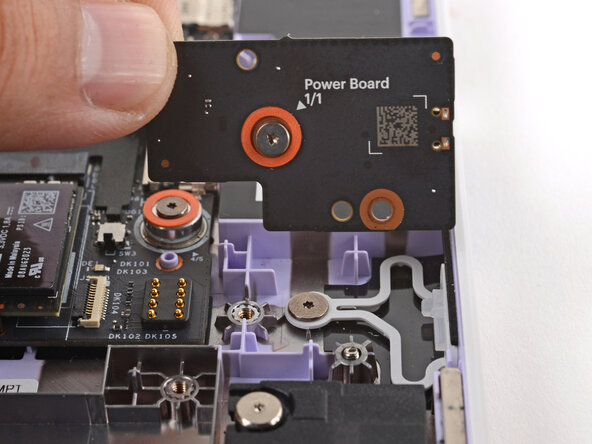
  13. Framework Laptop 12 Hinge (Left) Removal, Remove the Power Button Board: 步骤 13 中的图像 1,2 Framework Laptop 12 Hinge (Left) Removal, Remove the Power Button Board: 步骤 13 中的图像 2,2
    • Use your fingers to lift and remove the Power Button Board.

  14. Framework Laptop 12 Hinge (Left) Removal, Loosen the Wi-Fi card screw: 步骤 14 中的图像 1,1
    • Use your Framework Screwdriver to loosen the captive T5 Torx screw securing the Wi-Fi card bracket.

    • The Wi-Fi card will pop up slightly when you unfasten the bracket.

  15. Framework Laptop 12 Hinge (Left) Removal, Remove the Wi-Fi card bracket: 步骤 15 中的图像 1,2 Framework Laptop 12 Hinge (Left) Removal, Remove the Wi-Fi card bracket: 步骤 15 中的图像 2,2
    • Grab the Wi-Fi card bracket with your fingers and slide it off the top of the Wi-Fi card.

    • Remove the bracket and store it in a safe location for reassembly.

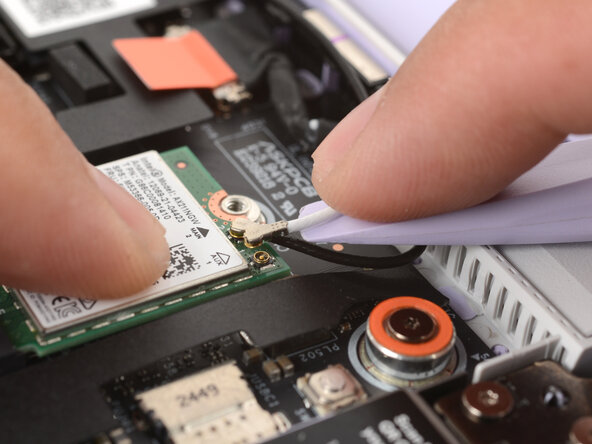
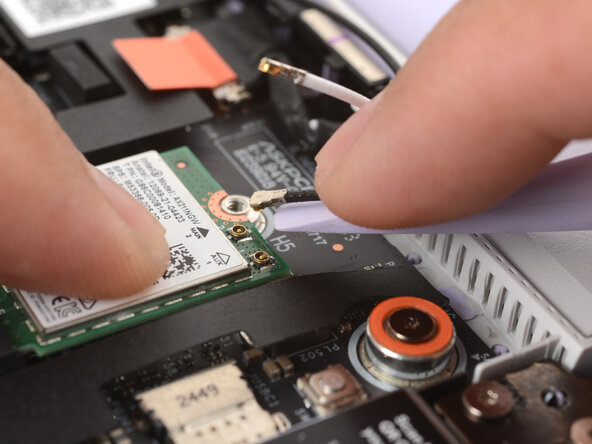
  16. Framework Laptop 12 Hinge (Left) Removal, Disconnect the antenna cables: 步骤 16 中的图像 1,3 Framework Laptop 12 Hinge (Left) Removal, Disconnect the antenna cables: 步骤 16 中的图像 2,3 Framework Laptop 12 Hinge (Left) Removal, Disconnect the antenna cables: 步骤 16 中的图像 3,3
    • The Wi-Fi card has two delicate coaxial cable connectors. Follow this step carefully to avoid damaging them.

    • Press and hold the Wi-Fi card down with your finger.

    • Slide the flat edge of your Framework Screwdriver under the white antenna cable, as close to the metal head as possible.

    • If you have angled tweezers, slide one arm of a pair of tweezers under the antenna connector, as close to the metal head as possible.

    • Gently lift the connector straight up to disconnect the white antenna cable.

    • Repeat the procedure with the black antenna cable.

  17. Framework Laptop 12 Hinge (Left) Removal, Remove the Wi-Fi card: 步骤 17 中的图像 1,2 Framework Laptop 12 Hinge (Left) Removal, Remove the Wi-Fi card: 步骤 17 中的图像 2,2
    • Grab the Wi-Fi card by the edges and pull it out of its socket.

    • Remove the Wi-Fi card.

  18. Framework Laptop 12 Hinge (Left) Removal, Disconnect the fan connector: 步骤 18 中的图像 1,3 Framework Laptop 12 Hinge (Left) Removal, Disconnect the fan connector: 步骤 18 中的图像 2,3 Framework Laptop 12 Hinge (Left) Removal, Disconnect the fan connector: 步骤 18 中的图像 3,3
    • Use the flat end of your Framework Screwdriver to gently push on one of the fan connector's protruding edges, then the other, to loosen the connector out of its socket.

  19. Framework Laptop 12 Hinge (Left) Removal: 步骤 19 中的图像 1,2 Framework Laptop 12 Hinge (Left) Removal: 步骤 19 中的图像 2,2
    • Use your fingers and your Framework Screwdriver to slide the fan connector out of its socket.

  20. Framework Laptop 12 Hinge (Left) Removal, Loosen the fan screws: 步骤 20 中的图像 1,1
    • Use your Framework Screwdriver to loosen the two captive T5 Torx screws securing the fan.

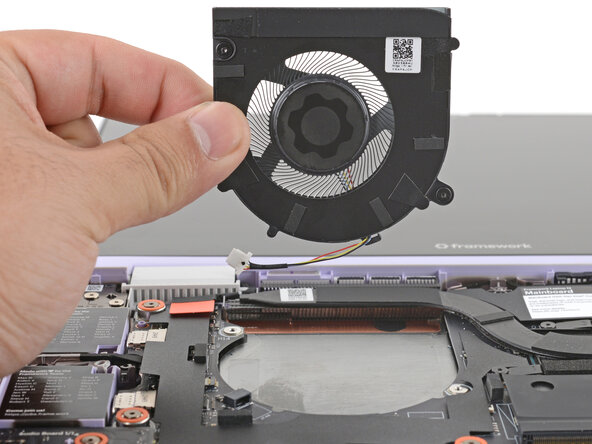
  21. Framework Laptop 12 Hinge (Left) Removal, Remove the fan: 步骤 21 中的图像 1,2 Framework Laptop 12 Hinge (Left) Removal, Remove the fan: 步骤 21 中的图像 2,2
    • Lift and remove the fan.

  22. Framework Laptop 12 Hinge (Left) Removal, Disconnect the webcam cable: 步骤 22 中的图像 1,2 Framework Laptop 12 Hinge (Left) Removal, Disconnect the webcam cable: 步骤 22 中的图像 2,2
    • Use your fingers to grab the orange tab on the webcam cable, located near the left hinge.

    • Lift straight up to disconnect the cable.

  23. Framework Laptop 12 Hinge (Left) Removal, Disconnect the display cable: 步骤 23 中的图像 1,2 Framework Laptop 12 Hinge (Left) Removal, Disconnect the display cable: 步骤 23 中的图像 2,2
    • Use your fingers to grab the orange tab on the display cable, located near the right hinge.

    • Lift straight up to disconnect the cable.

  24. Framework Laptop 12 Hinge (Left) Removal, Loosen the Mainboard screws: 步骤 24 中的图像 1,1
    • Use your Framework Screwdriver to loosen the five captive T5 Torx screws securing the Mainboard.

    • These screws are also physically marked with an orange ring on the Mainboard.

  25. Framework Laptop 12 Hinge (Left) Removal, Remove the Mainboard: 步骤 25 中的图像 1,2 Framework Laptop 12 Hinge (Left) Removal, Remove the Mainboard: 步骤 25 中的图像 2,2
    • Make sure you've removed all Expansion Cards. Installed cards will hold the Mainboard in place.

    • Use your fingers to grab the Mainboard by its edges.

    • Lift and remove the Mainboard.

  26. Framework Laptop 12 Hinge (Left) Removal, Unthread the antenna cable: 步骤 26 中的图像 1,2 Framework Laptop 12 Hinge (Left) Removal, Unthread the antenna cable: 步骤 26 中的图像 2,2
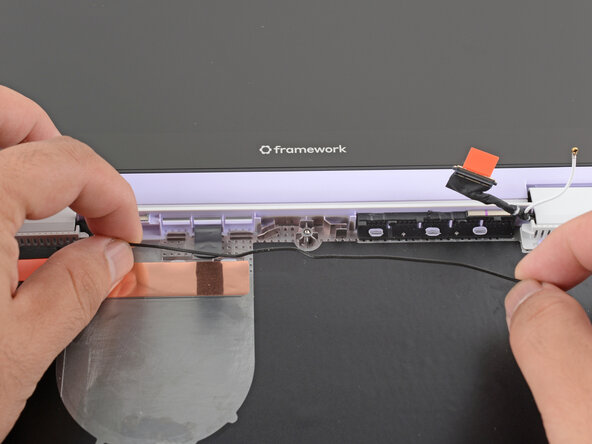
    • Use your fingers to lift the black plastic loop securing the antenna cable, near the heat vents by the left hinge.

  27. Framework Laptop 12 Hinge (Left) Removal: 步骤 27 中的图像 1,2 Framework Laptop 12 Hinge (Left) Removal: 步骤 27 中的图像 2,2
    • Use your fingers to lift and guide the antenna cable out of the frame channel.

  28. Framework Laptop 12 Hinge (Left) Removal, Unthread the webcam cable: 步骤 28 中的图像 1,2 Framework Laptop 12 Hinge (Left) Removal, Unthread the webcam cable: 步骤 28 中的图像 2,2
    • Use your fingers to gently lift the webcam cable out of its plastic channel.

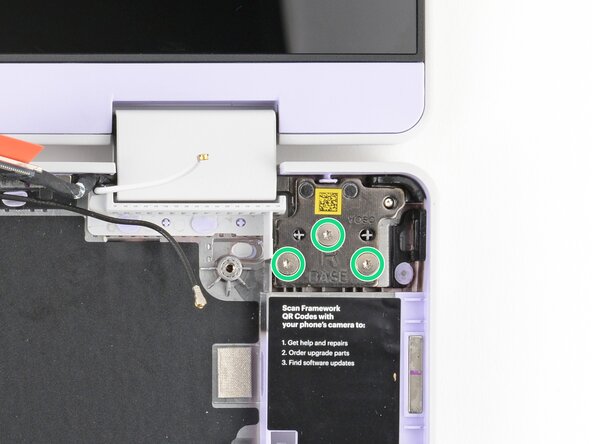
  29. Framework Laptop 12 Hinge (Left) Removal, Disconnect the Top Cover: 步骤 29 中的图像 1,2 Framework Laptop 12 Hinge (Left) Removal, Disconnect the Top Cover: 步骤 29 中的图像 2,2
    • Use your Framework Screwdriver to remove the six (three per hinge) 4.5 mm‑long T5 Torx screws securing the two hinges.

    • These screws are not captive. Store them in a safe location for reassembly.

  30. Framework Laptop 12 Hinge (Left) Removal: 步骤 30 中的图像 1,3 Framework Laptop 12 Hinge (Left) Removal: 步骤 30 中的图像 2,3 Framework Laptop 12 Hinge (Left) Removal: 步骤 30 中的图像 3,3
    • Use your fingers to lift the hinges over the Bottom Cover lip.

    • Separate the Top Cover from the Bottom Cover.

  31. Framework Laptop 12 Hinge (Left) Removal, Remove the Display Cover: 步骤 31 中的图像 1,2 Framework Laptop 12 Hinge (Left) Removal, Remove the Display Cover: 步骤 31 中的图像 2,2
    • The Display Cover is held in place with magnets along its top edge and clips along its remaining edges.

    • Use the flat end of your Framework Screwdriver to pry up the right edge of the Display Cover.

  32. Framework Laptop 12 Hinge (Left) Removal: 步骤 32 中的图像 1,2 Framework Laptop 12 Hinge (Left) Removal: 步骤 32 中的图像 2,2
    • Slide your fingers under the top edge of the Display Cover to release it from the laptop.

  33. Framework Laptop 12 Hinge (Left) Removal: 步骤 33 中的图像 1,1
    • Remove the Display Cover

  34. Framework Laptop 12 Hinge (Left) Removal, Remove the display screws: 步骤 34 中的图像 1,1
    • Use your Framework Screwdriver to remove the four 3.2 mm‑long T5 Torx screws securing the display to the Top Cover.

    • These screws are not captive. Store them in a safe location for reassembly.

  35. Framework Laptop 12 Hinge (Left) Removal, Slide the display down: 步骤 35 中的图像 1,2 Framework Laptop 12 Hinge (Left) Removal, Slide the display down: 步骤 35 中的图像 2,2
    • Use your fingers to hold the bottom edge of the Top Cover in place.

    • Insert the bit end of your Framework Screwdriver into the small hole on the display, below the Framework logo.

    • Slide the display down towards the hinge edge to release the tabs holding the top edge of the display in place.

  36. Framework Laptop 12 Hinge (Left) Removal, Lift the display: 步骤 36 中的图像 1,2 Framework Laptop 12 Hinge (Left) Removal, Lift the display: 步骤 36 中的图像 2,2
    • Use your fingers to lift the top edge of the display from the Top Cover.

  37. Framework Laptop 12 Hinge (Left) Removal, Swing the display out: 步骤 37 中的图像 1,2 Framework Laptop 12 Hinge (Left) Removal, Swing the display out: 步骤 37 中的图像 2,2
    • Use your fingers to grab the top edge of the display.

    • Carefully swing the display over so it lies face-down on your work surface.

    • Be careful not to strain the cables that are still attached to the display.

  38. Framework Laptop 12 Hinge (Left) Removal, Remove the left hinge screws: 步骤 38 中的图像 1,1
    • Use your Framework Screwdriver to remove the two 2.4 mm‑long T5 Torx screws securing the left hinge to the Top Cover.

    • These screws are not captive. Store them in a safe location for reassembly.

  39. Framework Laptop 12 Hinge (Left) Removal, Swing the display back: 步骤 39 中的图像 1,2 Framework Laptop 12 Hinge (Left) Removal, Swing the display back: 步骤 39 中的图像 2,2
    • Carefully swing the display back onto the Top Cover.

  40. Framework Laptop 12 Hinge (Left) Removal, Angle the hinge out: 步骤 40 中的图像 1,3 Framework Laptop 12 Hinge (Left) Removal, Angle the hinge out: 步骤 40 中的图像 2,3 Framework Laptop 12 Hinge (Left) Removal, Angle the hinge out: 步骤 40 中的图像 3,3
    • Use your fingers to lift the hinge over the Top Cover lip and angle it out of the Top Cover.

  41. Framework Laptop 12 Hinge (Left) Removal, Pry out the cable clip: 步骤 41 中的图像 1,2 Framework Laptop 12 Hinge (Left) Removal, Pry out the cable clip: 步骤 41 中的图像 2,2
    • Use the T5 Torx bit on your Framework Screwdriver or a spudger to pry out the black cable clip from within the left hinge.

    • Store the clip in a safe place for reassembly.

  42. Framework Laptop 12 Hinge (Left) Removal, Remove the hinge: 步骤 42 中的图像 1,3 Framework Laptop 12 Hinge (Left) Removal, Remove the hinge: 步骤 42 中的图像 2,3 Framework Laptop 12 Hinge (Left) Removal, Remove the hinge: 步骤 42 中的图像 3,3
    • Slide the cables out of the hinge.

    • Remove the left hinge.

终点

Arthur Shi

于01/03/18注册

324,528 声望

创作了802篇指南

0指南评论

添加评论

浏览统计数据:

过去 24 小时: 0

过去 7 天: 0

过去 30 天: 3

总计 46