跳转到主内容
加入维修社区 - 创建账户

Dell Inspiron 15-7559 SSD Replacement

你所需要的

  1. Dell Inspiron 15-7559 SSD Replacement, Back Panel: 步骤 1 中的图像 1,1
    • Turn off the computer.

    • Disconnect the charging cable from the computer.

    • Failure to turn off the device and disconnect the cable could lead to personal injury or device damage.

    • Flip the computer upside down.

    询问修复机器人

    添加评论

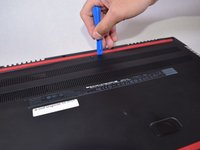
  2. Dell Inspiron 15-7559 SSD Replacement: 步骤 2 中的图像 1,3 Dell Inspiron 15-7559 SSD Replacement: 步骤 2 中的图像 2,3 Dell Inspiron 15-7559 SSD Replacement: 步骤 2 中的图像 3,3
    • Remove the captive screw located on the top section of the back panel, using a Philips #1 screwdriver.

    • Keep in mind that the screw cannot be fully removed from the panel, even when fully loosened.

    询问修复机器人

    添加评论

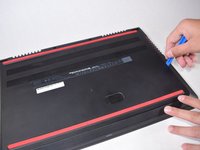
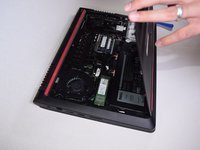
  3. Dell Inspiron 15-7559 SSD Replacement: 步骤 3 中的图像 1,3 Dell Inspiron 15-7559 SSD Replacement: 步骤 3 中的图像 2,3 Dell Inspiron 15-7559 SSD Replacement: 步骤 3 中的图像 3,3
    • Use the blue, plastic opening tool to gently pry a section of the back panel open.

    • Next slide the opening tool around the back panel to disconnect the clips holding the panel in place.

    • After the clips have been disconnected, the back panel can then be easily lifted off the computer.

    询问修复机器人

    添加评论

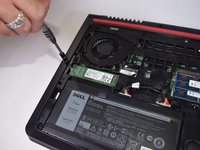
  4. Dell Inspiron 15-7559 SSD Replacement, SSD: 步骤 4 中的图像 1,1
    • Locate the SSD, it is located in the center on the far left.

    询问修复机器人

    添加评论

  5. Dell Inspiron 15-7559 SSD Replacement: 步骤 5 中的图像 1,3 Dell Inspiron 15-7559 SSD Replacement: 步骤 5 中的图像 2,3 Dell Inspiron 15-7559 SSD Replacement: 步骤 5 中的图像 3,3
    • Unscrew the 3mm Philips #1 screw that is holding the SSD in place.

    询问修复机器人

    添加评论

  6. Dell Inspiron 15-7559 SSD Replacement: 步骤 6 中的图像 1,3 Dell Inspiron 15-7559 SSD Replacement: 步骤 6 中的图像 2,3 Dell Inspiron 15-7559 SSD Replacement: 步骤 6 中的图像 3,3
    • Gently pull out the SSD, horizontally along the computer to remove it.

    询问修复机器人

    添加评论

结论

To reassemble your device, follow these instructions in reverse order.

取消:我没有完成这个指南。

5等其他人完成本指南。

团队

UW Tacoma, Team S3-G2, Liner Fall 2017 UW Tacoma, Team S3-G2, Liner Fall 2017 的会员

UWT-LINER-F17S3G2

5 名成员

创作了9篇指南

1指南评论

It would be helpful to know what types of SSD are supported. I’ve looked through the service manuals, and it doesn’t list what type it is. Some comments on other sites have implied it MUST be a SATA drive, not NVME, but more information than that is still hard to get (and I’m not completely certain the fact I list is correct, either…).

Russell Andres - 回复 分享

添加评论

浏览统计数据:

过去 24 小时: 2

过去 7 天: 13

过去 30 天: 67

总计 4,697