跳转到主内容
加入维修社区 - 创建账户

Dell Inspiron 15-7537 Wireless Card Replacement

你所需要的

    1. Dell Inspiron 15-7537 Wireless Card Replacement, Bottom Case: 步骤 1 中的图像 1,1
      • Make sure the display is closed. Then, flip the computer over so that you can see the bottom cover.

      • Loosen the two 5 mm Phillips #0 on the upper edge of the cover.

      • These screws will stay captive to the case.

      询问修复机器人

      添加评论

    2. Dell Inspiron 15-7537 Wireless Card Replacement: 步骤 2 中的图像 1,1
      • Remove the two 5 mm interior screws that connect the cover to the assembly using the same Philips head screwdriver from the previous step.

      询问修复机器人

      添加评论

    3. Dell Inspiron 15-7537 Wireless Card Replacement: 步骤 3 中的图像 1,1
      • Use a spudger to remove the base cover from the rest of bottom cover.

      添加评论

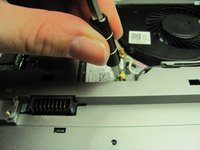
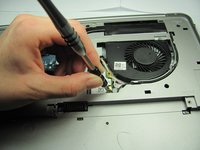
    1. Dell Inspiron 15-7537 Wireless Card Replacement, Remove the WiFi Card: 步骤 4 中的图像 1,2 Dell Inspiron 15-7537 Wireless Card Replacement, Remove the WiFi Card: 步骤 4 中的图像 2,2
      • Completely unscrew the 2 mm screw that connects the WiFi card to the mother board using a Philips head screwdriver.

      添加评论

    2. Dell Inspiron 15-7537 Wireless Card Replacement: 步骤 5 中的图像 1,1
      • Disconnect the two antennas (one black and one white) from the wireless card.

      询问修复机器人

      添加评论

    3. Dell Inspiron 15-7537 Wireless Card Replacement: 步骤 6 中的图像 1,1
      • Remove the WiFi card.

      • To place a new WiFi card, connect the antenna cables to the WiFi card. The white cable goes to the white triangle, and the black cable goes to the black triangle.

      • Avoid damaging the card by not placing any cables underneath the card.

      询问修复机器人

      添加评论

终点

取消:我没有完成这个指南。

另外一个人完成了本指南。

团队

Cal Poly, Team 18-2, Maness Winter 2015 Cal Poly, Team 18-2, Maness Winter 2015 的会员

CPSU-MANESS-W15S18G2

4 名成员

创作了96篇指南

0指南评论

添加评论

浏览统计数据:

过去 24 小时: 9

过去 7 天: 28

过去 30 天: 52

总计 4,193