跳转到主内容
加入维修社区 - 创建账户

Asus ROG G20CB Graphics Card Replacement

你所需要的

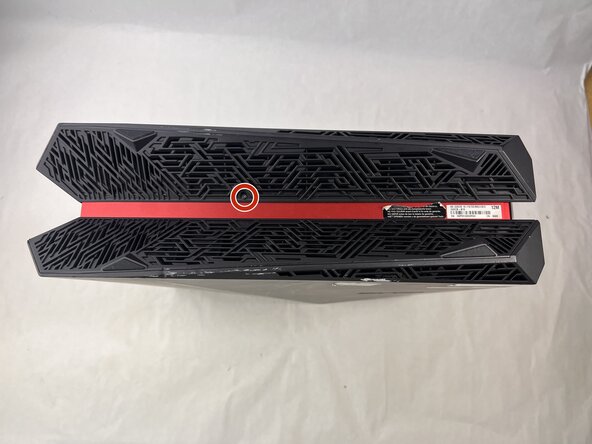
  1. Asus ROG G20CB Graphics Card Replacement, Fan: 步骤 1 中的图像 1,2 Asus ROG G20CB Graphics Card Replacement, Fan: 步骤 1 中的图像 2,2
    • Remove each of the two 4.6 mm Phillips screws on the top and bottom of the tower.

  2. Asus ROG G20CB Graphics Card Replacement: 步骤 2 中的图像 1,1
    • Slide the front panel to the left and lift gently.

    • There is a cable connecting the panel to the computer. Handle it gently and avoid straining the connected panel.

  3. Asus ROG G20CB Graphics Card Replacement: 步骤 3 中的图像 1,1
    • Disconnect the cable carefully by pulling gently on both sides of the connector.

  4. Asus ROG G20CB Graphics Card Replacement: 步骤 4 中的图像 1,1
    • Remove the five 4.6 mm Phillips screws holding down the fan tray and then pull the fan tray out of the system.

    • The fans are connected by a thin cable, be gentle when removing tray.

  5. Asus ROG G20CB Graphics Card Replacement: 步骤 5 中的图像 1,1
    • Carefully unplug the two fan cables from the motherboard by pulling straight up from the base of the connector.

  6. Asus ROG G20CB Graphics Card Replacement: 步骤 6 中的图像 1,1
    • Remove the six 4.6 mm Phillips screws connecting the fans to the fan tray.

  7. Asus ROG G20CB Graphics Card Replacement, Graphics Card: 步骤 7 中的图像 1,1
    • Remove the three 4.6 mm Phillips screws from the graphics card housing.

  8. Asus ROG G20CB Graphics Card Replacement: 步骤 8 中的图像 1,1
    • Pull the graphics card housing out of the case.

    • Be mindful of the 8-pin power cable connected to the graphics card.

  9. Asus ROG G20CB Graphics Card Replacement: 步骤 9 中的图像 1,1
    • Push down the clip on the red cable connector and firmly pull the cable from the graphics card.

  10. Asus ROG G20CB Graphics Card Replacement: 步骤 10 中的图像 1,1
    • Remove the 3.7 mm Phillips screw from the graphics card and its housing.

  11. Asus ROG G20CB Graphics Card Replacement: 步骤 11 中的图像 1,1
    • Slide the graphics card out of the housing.

  12. Asus ROG G20CB Graphics Card Replacement: 步骤 12 中的图像 1,1
    • Use one hand to bend up the PCIE riser clip, then with the other hand push it off the graphics card.

    • This riser will need to be used with the new graphics card in order to be installed in this system.

结论

To reassemble your device, follow the above steps in reverse order.
Take your e-waste to an R2 or e-Stewards certified recycler.
Repair didn’t go as planned? Try some basic troubleshooting or ask our Answers community for help.

AdamGadd

于03/21/25注册

343 声望

创作了2篇指南

团队

UMass Dartmouth, Team 3-3, Botvin Spring 2025 UMass Dartmouth, Team 3-3, Botvin Spring 2025 的会员

UMASSD-BOTVIN-S25S3G3

3 名成员

创作了5篇指南

0指南评论

添加评论

浏览统计数据:

过去 24 小时: 1

过去 7 天: 8

过去 30 天: 41

总计 246