跳转到主内容

罗技 G PRO 无线鼠标电池替换

你所需要的

  1. 罗技 G PRO 无线鼠标电池替换, 关闭 PRO Wireless: 步骤 1 中的图像 1,3 罗技 G PRO 无线鼠标电池替换, 关闭 PRO Wireless: 步骤 1 中的图像 2,3 罗技 G PRO 无线鼠标电池替换, 关闭 PRO Wireless: 步骤 1 中的图像 3,3
    • 将电源开关向下滑动以关闭鼠标(当 PRO Wireless 标签正面朝上时)。

    • 当鼠标关闭时,开关后面的颜色应为红色。

  2. 罗技 G PRO 无线鼠标电池替换, 加热上部鼠标脚垫: 步骤 2 中的图像 1,1
    • 如果你打算重复使用鼠标脚垫,需要加热以松动粘合剂,并在最小弯曲的情况下移除脚垫。

    • 加热 iOpener 并将其应用于上部鼠标脚垫,持续一分钟。

    • 也可以使用吹风机或热风枪,但要小心不要过热鼠标——内部电池容易受到热损害。如果使用吹风机或热风枪,将其调至最低温度并加热 10 秒钟。

  3. 罗技 G PRO 无线鼠标电池替换, 将塑料撬棒插入上部鼠标脚垫下方: 步骤 3 中的图像 1,2 罗技 G PRO 无线鼠标电池替换, 将塑料撬棒插入上部鼠标脚垫下方: 步骤 3 中的图像 2,2
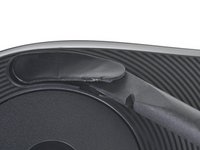
    • 将塑料撬棒的平端插入上部鼠标脚垫下方。

    • 每个鼠标脚垫的凹槽中都有一个间隙,可以用来插入塑料撬棒。

    • 鼠标脚垫由两层组成。确保将塑料撬棒插入底层,以便完全移除脚垫。

  4. 罗技 G PRO 无线鼠标电池替换, 移除上部鼠标脚垫: 步骤 4 中的图像 1,3 罗技 G PRO 无线鼠标电池替换, 移除上部鼠标脚垫: 步骤 4 中的图像 2,3 罗技 G PRO 无线鼠标电池替换, 移除上部鼠标脚垫: 步骤 4 中的图像 3,3
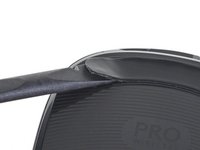
    • 将塑料撬棒滑入上部鼠标脚垫的整个长度,切断粘合剂并将其与鼠标分离。

    • 操作时要慢慢进行,以避免弯曲鼠标脚垫。如果粘合剂变得难以切割,取出塑料撬棒并重新加热。

  5. 罗技 G PRO 无线鼠标电池替换, 加热下部鼠标脚垫: 步骤 5 中的图像 1,1
    • 将 iOpener 应用于下部鼠标脚垫,持续一分钟。

    • 或者,使用吹风机或热风枪加热十秒钟。

  6. 罗技 G PRO 无线鼠标电池替换, 移除下部鼠标脚垫: 步骤 6 中的图像 1,2 罗技 G PRO 无线鼠标电池替换, 移除下部鼠标脚垫: 步骤 6 中的图像 2,2
    • 将塑料撬棒的平端插入左侧下部鼠标脚垫下方。

  7. 罗技 G PRO 无线鼠标电池替换: 步骤 7 中的图像 1,3 罗技 G PRO 无线鼠标电池替换: 步骤 7 中的图像 2,3 罗技 G PRO 无线鼠标电池替换: 步骤 7 中的图像 3,3
    • 将塑料撬棒滑入左侧下部鼠标脚垫的整个长度,切断粘合剂并将其与鼠标分离。

  8. 罗技 G PRO 无线鼠标电池替换: 步骤 8 中的图像 1,2 罗技 G PRO 无线鼠标电池替换: 步骤 8 中的图像 2,2
    • 重复此过程,移除剩下的两个下部鼠标脚垫。

  9. 罗技 G PRO 无线鼠标电池替换, 粘合剂注意事项: 步骤 9 中的图像 1,1
    • 如果要安装更换的鼠标脚垫或涂抹新粘合剂,请使用塑料撬棒的平边去除鼠标脚垫凹槽中的残留粘合剂。

    • 如果有任何粘合剂残留,使用异丙醇和微纤维布擦拭干净。让表面完全干燥。

    • 在重新组装过程中,如果使用预切的粘合剂卡片来固定鼠标脚垫,请按照本指南操作

  10. 罗技 G PRO 无线鼠标电池替换, 拆卸下壳螺丝: 步骤 10 中的图像 1,1
    • 使用十字螺丝刀卸下固定下壳的七颗、长4.4毫米的螺丝。

  11. 罗技 G PRO 无线鼠标电池替换, 抬起下壳底部: 步骤 11 中的图像 1,2 罗技 G PRO 无线鼠标电池替换, 抬起下壳底部: 步骤 11 中的图像 2,2
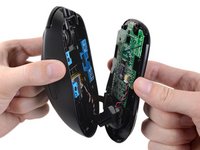
    • 不要急于将下壳从上壳上取下,它们仍然通过电池线缆和输入线缆相连。

    • 将下壳的底部向上壳方向抬起约1厘米。

  12. 罗技 G PRO 无线鼠标电池替换, 向下拉下壳: 步骤 12 中的图像 1,2 罗技 G PRO 无线鼠标电池替换, 向下拉下壳: 步骤 12 中的图像 2,2
    • 下壳的顶部边缘有夹扣,将其固定在上壳上。

    • 向下拉下壳约0.5厘米,使其与上壳分离。

  13. 罗技 G PRO 无线鼠标电池替换, 将下壳向远离上壳的方向摆动: 步骤 13 中的图像 1,3 罗技 G PRO 无线鼠标电池替换, 将下壳向远离上壳的方向摆动: 步骤 13 中的图像 2,3 罗技 G PRO 无线鼠标电池替换, 将下壳向远离上壳的方向摆动: 步骤 13 中的图像 3,3
    • 当PRO Wireless标志朝向你时,电池线缆和输入线缆连接在下壳的右下角。

    • 将下壳从左向右摆动,使其远离上壳。

  14. 罗技 G PRO 无线鼠标电池替换, 将鼠标放在工作台上: 步骤 14 中的图像 1,1
    • 将下壳放在工作台上。

    • 将上壳靠在稳固的物体(例如盒子)上,以防拉紧电缆。

  15. 罗技 G PRO 无线鼠标电池替换, 断开电池: 步骤 15 中的图像 1,2 罗技 G PRO 无线鼠标电池替换, 断开电池: 步骤 15 中的图像 2,2
    • 在此步骤中要小心,因为插座非常脆弱——不要使用过大的力量。

    • 使用一把镊子牢牢夹住连接器的两侧,然后直线将其拉离插座。将镊子靠近连接器握持,以获得更好的抓握力。

    • 如果遇到困难,可以尝试左右轻轻摇动连接器以使其松动。

    • 在重新组装时,请确保将电池连接器以正确的方向插入槽内。红色电线应位于主板上标有正号(+)的一侧。

  16. 罗技 G PRO 无线鼠标电池替换, 断开输入线缆: 步骤 16 中的图像 1,2 罗技 G PRO 无线鼠标电池替换, 断开输入线缆: 步骤 16 中的图像 2,2
    • 使用撬棒的尖端或你的指甲,将输入线缆ZIF连接器上小巧且带有铰链的锁定挡片向上翻起。

  17. 罗技 G PRO 无线鼠标电池替换: 步骤 17 中的图像 1,2 罗技 G PRO 无线鼠标电池替换: 步骤 17 中的图像 2,2
    • 使用一把镊子将输入线缆从其ZIF连接器中拔出。

    • 这条带状电缆上的白线标志着连接区域的边缘。重新安装时,将电缆插入连接器直到白线处,然后合上锁定挡板。如果电缆无法轻松插入到(或非常靠近)白线处,很可能是未对齐,此时需要轻轻拔出并重新调整位置。

  18. 罗技 G PRO 无线鼠标电池替换, 拆除上壳: 步骤 18 中的图像 1,1
    • 将上壳从下壳上取下。

  19. 罗技 G PRO 无线鼠标电池替换, 拆下固定电池挡板的螺丝: 步骤 19 中的图像 1,1
    • 请注意不要刺破或是弯折电池 -被刺破或弯曲了的电池有可能会有有害的化学物质溢出或是起火

    • 用菲利普十字螺丝刀卸下固定电池挡板的 3.5 mm 螺丝。

  20. 罗技 G PRO 无线鼠标电池替换, 分离电池挡板: 步骤 20 中的图像 1,2 罗技 G PRO 无线鼠标电池替换, 分离电池挡板: 步骤 20 中的图像 2,2
    • 电池挡板是粘在电池上的。

    • 使用撬棒的扁平端提起电池挡板上有螺丝孔的一侧并将其与电池分离。

  21. 罗技 G PRO 无线鼠标电池替换, 拆下电池挡板: 步骤 21 中的图像 1,1
    • 从电池上拆下电池挡板

  22. 罗技 G PRO 无线鼠标电池替换, 移除电池: 步骤 22 中的图像 1,3 罗技 G PRO 无线鼠标电池替换, 移除电池: 步骤 22 中的图像 2,3 罗技 G PRO 无线鼠标电池替换, 移除电池: 步骤 22 中的图像 3,3
    • 电池是和鼠标上盖粘在一起的。

    • 将撬棒的扁平端插入电池右下方的空隙里。

    • 提起撬棒以将电池和鼠标上盖分离。

  23. 罗技 G PRO 无线鼠标电池替换: 步骤 23 中的图像 1,3 罗技 G PRO 无线鼠标电池替换: 步骤 23 中的图像 2,3 罗技 G PRO 无线鼠标电池替换: 步骤 23 中的图像 3,3
    • 重复上一步骤以提起电池的左侧。

  24. 罗技 G PRO 无线鼠标电池替换: 步骤 24 中的图像 1,1
    • 从鼠标上盖中取出电池。

    • 请勿重复使用卸下的电池,因为这样做存在安全隐患。请更换新的电池。

    • 如果你的新电池没有背胶,请在电池底部贴上 1 cm x 1 cm 的胶带.

结论

请对比新零件和原始的零件--你可能需要在组装前转移剩余的零件或从新零件上移除背胶。

若要重新组装您的设备,请按照相反的顺序执行这些说明。

请将您的电子垃圾送到[e-waste |R2或e- steward认证的回收商|new_window=true]。

修理遇到困难? 试试 故障排除, 或者访问我们的罗技 G PRO 论坛 寻求帮助.

15等其他人完成本指南。

由衷感谢以下译者:

en zh

100%

Yanqi Wang正在帮助我们修复这个世界! 您也想加入吗?
开始翻译 ›

Kyle Smith

于02/01/21注册

49,184 声望

创作了123篇指南

6指南评论

Worked entirely fine for me. Since I bought replacement sliders/feet as well, I just skipped the warming up steps. The glue still separated very easily and overall took me like 10 seconds to remove all feet

Regarding the battery/flex-cable step, I personally removed the flex cable first as it’s much more fragile and less replaceable than the battery cable

I also removed the logic board to clean the area below, it’s pretty straight-forward. The only thing one has to remember is where the on/off switch colors go again during re-assembly. Answer: the blue side is at the bottom (when the PRO Wireless label is readable and NOT upside-down), you can find a photo in step 10

The symptoms I had before the repair were a bit weird, which is why I initially wasn’t sure if it’s the battery or not. Basically, my mouse wouldn’t charge a lot, but also wouldn’t work for a long time while connected via cable. Both of these appear to be fixed now (I’ll try to remember to update this comment if it turns out to be broken)

For a replacement battery, I managed to find an original battery on eBay that was disassembled from a returned mouse. That way I could be sure I’m not going to receive some potentially dangerous knock-off version, which I didn’t want to risk.

Florian Wendelborn - 回复

The locking flap on the input cable ZIF connector just broke in half when I tried this teardown. Would you happen to know where I can buy a replacement, if there's any?

Just Lurking - 回复

It is absurd how hard it is to replace a battery on such a simple device. It should be a simple turn and lock mechanism and Logitech should sell replacement batteries directly to the consumers. I guess this way is more profitable because most people including me will never do it!

Ronaldo - 回复

Anybody know of a good battery to use as a replacement? I searched a while back and couldn't find a source I was confident in.

Jason Tran - 回复

Note to all - I'm assuming the battery must run in series with the power/data cable. So if you are having battery issues (battery not charging) and waiting for the replacement to arrive, you can remove battery re-assemble and use the mouse plugged in/switched off as if it were wired in the interim!

Acadia - 回复

添加评论

浏览统计数据:

过去 24 小时: 29

过去 7 天: 225

过去 30 天: 1,015

总计 61,959