学生贡献的维基
此维基页面由我们教育项目的学生团队编写。
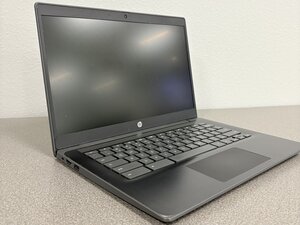
If your HP Chromebook 14 G6 has difficulty connecting to Wi-Fi, follow this page for possible solutions.
Saved Network Conflict
ChromeOS sometimes has issues connecting to a network if your device is automatically assigned an IP address. This issue can be resolved by forgetting the Wi-Fi network and reconnecting.
Click on the Wi-Fi Icon: Click on the Wi-Fi icon in the system tray to open the network list.
Find the Affected Wi-Fi Network: Locate the Wi-Fi network to which your Chromebook is having trouble connecting. Click on the network name to expand the connection options.
Click on "Forget": Once the connection options are expanded, click the "Forget" button next to the network name. This will remove the network from your saved list.
Reconnect to the Network: After forgetting the network, click the Wi-Fi icon again and select the network from the list. Enter the correct password and attempt to connect.
Check Connection: Once connected, check if your Chromebook can access the internet through Wi-Fi.
VPN or Proxy Fault
If you're using a VPN or proxy service, try to disable it temporarily and attempt to connect to Wi-Fi again. In some cases, these can cause a contradiction with your local network configuration or overlap with your network's IP addresses.
The official HP Website offers a solution: HP Chromebook - Connectivity Troubleshooting (Windows)
Issue with Cached Data
If a cached file becomes corrupted, it can cause issues connecting to your network. Clearing the Wi-Fi network data can help resolve issues with saved network settings.
To clear cached data on an HP Chromebook
Open the Chrome browser, click the three-dot menu (top-right)
More tools
Clear browsing data.
Select "Cached images and files" and choose a time range (e.g., "All time").
For connection issues, use the HP Support Assistant to check connectivity.
0条评论