跳转到主内容
加入维修社区 - 创建账户

Xbox One Kinect Colour Camera Replacement

你所需要的

    1. Xbox One Kinect Colour Camera Replacement, Outer Shell: 步骤 1 中的图像 1,1
      • Remove the sticker on the underside of the device.

      • Remove the four 3.1x23.5 mm T10 screws underneath the sticker.

      • While you're at it, remove the four 3.1x7.5 mm T10 screws beneath the sticker. Make note of the sizes and locations of the screws.

      询问修复机器人

      添加评论

    2. Xbox One Kinect Colour Camera Replacement: 步骤 2 中的图像 1,3 Xbox One Kinect Colour Camera Replacement: 步骤 2 中的图像 2,3 Xbox One Kinect Colour Camera Replacement: 步骤 2 中的图像 3,3
      • Remove the back panel.

      • Remove the black panels on either side of the Kinect, and remove the 3.1x7.5mm T10 screws underneath them.

      询问修复机器人

      添加评论

    3. Xbox One Kinect Colour Camera Replacement: 步骤 3 中的图像 1,3 Xbox One Kinect Colour Camera Replacement: 步骤 3 中的图像 2,3 Xbox One Kinect Colour Camera Replacement: 步骤 3 中的图像 3,3
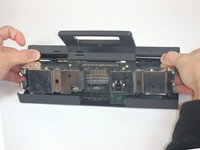
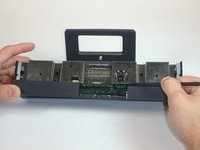
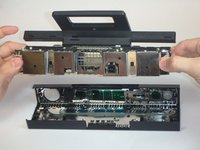
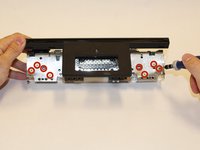
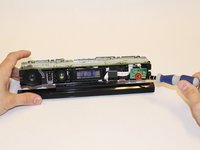
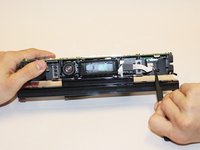
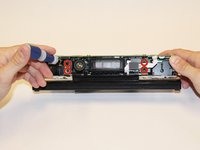
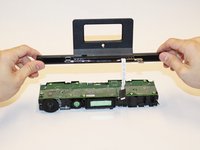
      • Using your thumbs, press firmly against the outer case on either side of the stand. This will disengage the internal assembly.

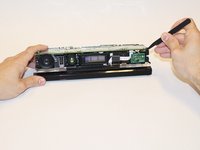
      • Lift the internal assembly with the spudger.

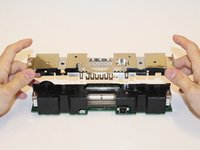
      • Remove the assembly from the case. You now have access to the inner shell of the kinect, along with the heat sink, microphone, and LED sensor.

      询问修复机器人

      添加评论

    1. Xbox One Kinect Colour Camera Replacement, Heat Sink Assembly: 步骤 4 中的图像 1,2 Xbox One Kinect Colour Camera Replacement, Heat Sink Assembly: 步骤 4 中的图像 2,2
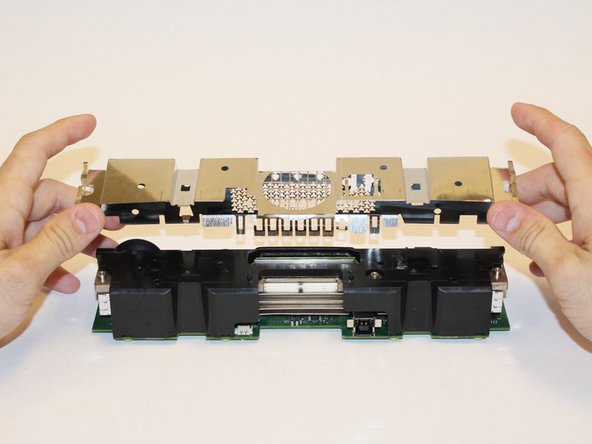
      • Remove the eight 2.9x7.6 mm T9 screws from the rear of the internal case.

      • Lift the internal metal case from the plastic shell enclosing the heat sink assembly.

      询问修复机器人

      添加评论

    2. Xbox One Kinect Colour Camera Replacement: 步骤 5 中的图像 1,3 Xbox One Kinect Colour Camera Replacement: 步骤 5 中的图像 2,3 Xbox One Kinect Colour Camera Replacement: 步骤 5 中的图像 3,3
      • Disconnect the ribbon cable between the sensor driver board and the motherboard.

      • Remove the 3.0x7.5 mm T9 screw holding the sensor driver board to the heat sink.

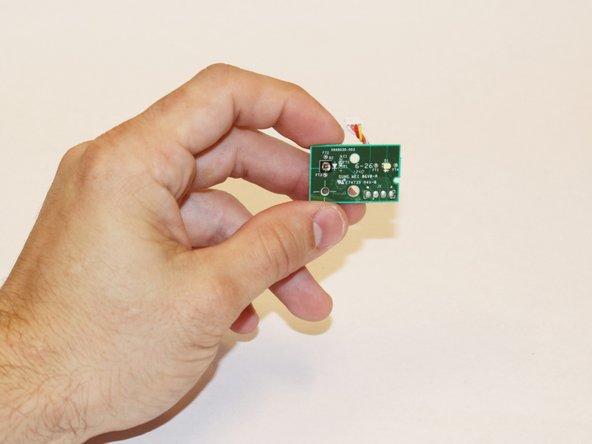
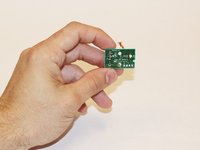
      • Remove the infrared sensor board for the Kinect.

      询问修复机器人

      添加评论

    3. Xbox One Kinect Colour Camera Replacement: 步骤 6 中的图像 1,3 Xbox One Kinect Colour Camera Replacement: 步骤 6 中的图像 2,3 Xbox One Kinect Colour Camera Replacement: 步骤 6 中的图像 3,3
      在这个步骤中使用的工具:
      Tweezers
      $4.99
      • Detach the ribbon cable leading to the microphone with the tweezers.

      • Remove the four 3.1x7.7 mm T9 screws connecting the microphone to the heat sink assembly.

      • Remove the stand.

      询问修复机器人

      添加评论

    4. Xbox One Kinect Colour Camera Replacement: 步骤 7 中的图像 1,3 Xbox One Kinect Colour Camera Replacement: 步骤 7 中的图像 2,3 Xbox One Kinect Colour Camera Replacement: 步骤 7 中的图像 3,3
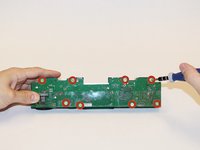
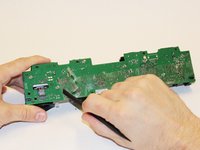
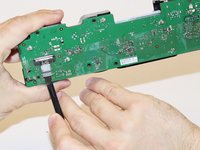
      • Remove the eight 3.0x7.6 mm T9 screws from the motherboard.

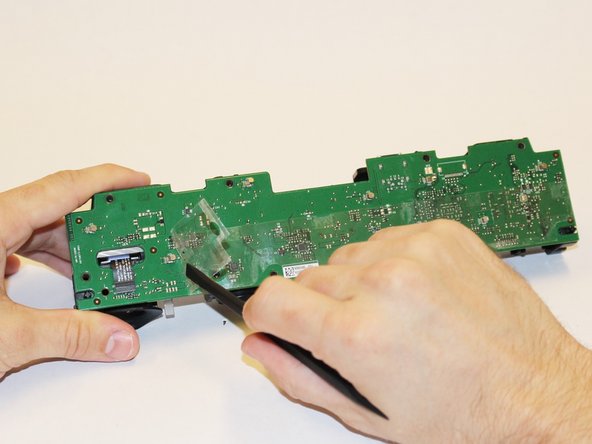
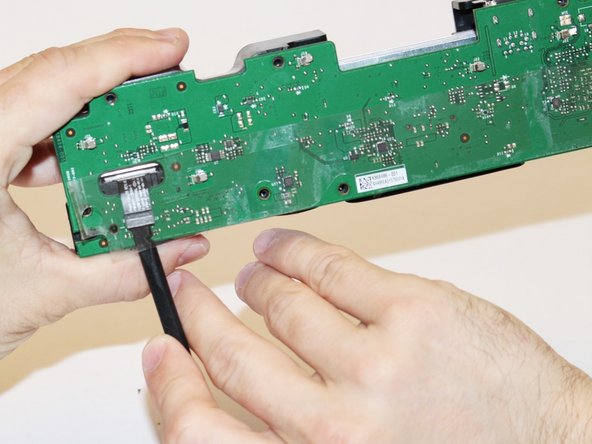
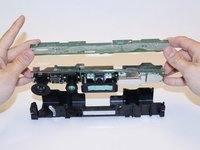
      • Peel away the plastic film from the motherboard using the spudger.

      • Detach the ribbon cable leading to the color camera using the spudger.

      询问修复机器人

      添加评论

    5. Xbox One Kinect Colour Camera Replacement: 步骤 8 中的图像 1,3 Xbox One Kinect Colour Camera Replacement: 步骤 8 中的图像 2,3 Xbox One Kinect Colour Camera Replacement: 步骤 8 中的图像 3,3
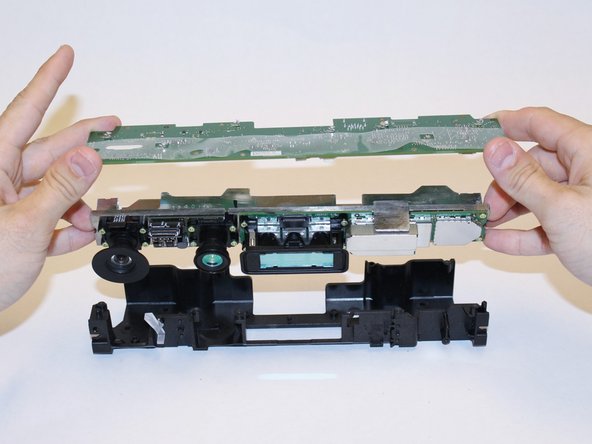
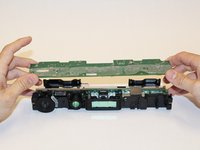
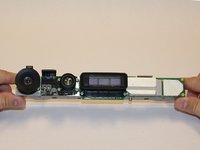
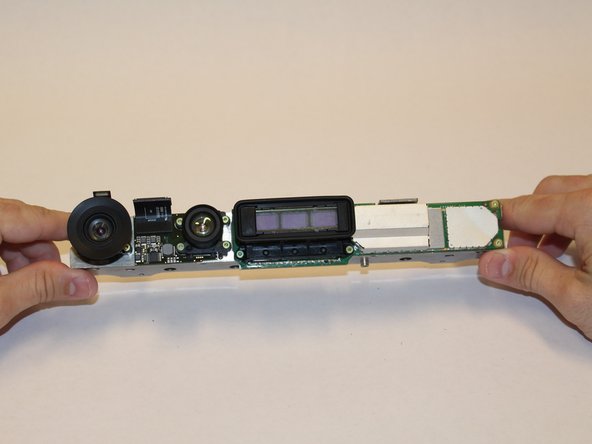
      • Lift the motherboard and the heat sink assembly from the plastic shell. The components attached to the heat sink are now accessible.

      询问修复机器人

      添加评论

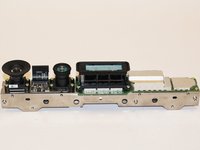
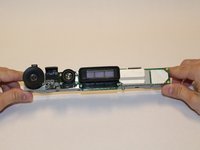
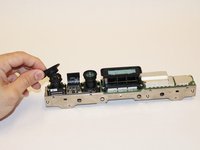
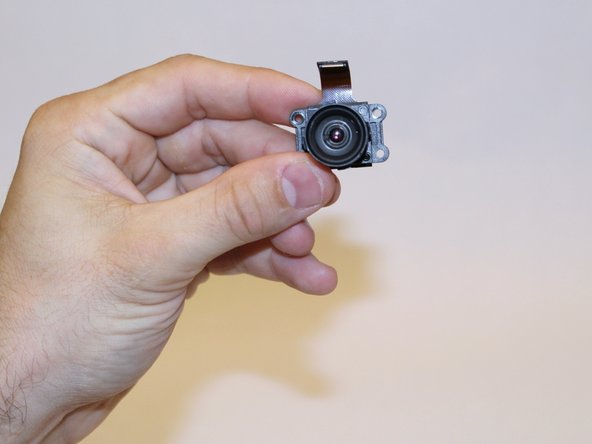
    1. Xbox One Kinect Colour Camera Replacement, Colour Camera: 步骤 9 中的图像 1,3 Xbox One Kinect Colour Camera Replacement, Colour Camera: 步骤 9 中的图像 2,3 Xbox One Kinect Colour Camera Replacement, Colour Camera: 步骤 9 中的图像 3,3
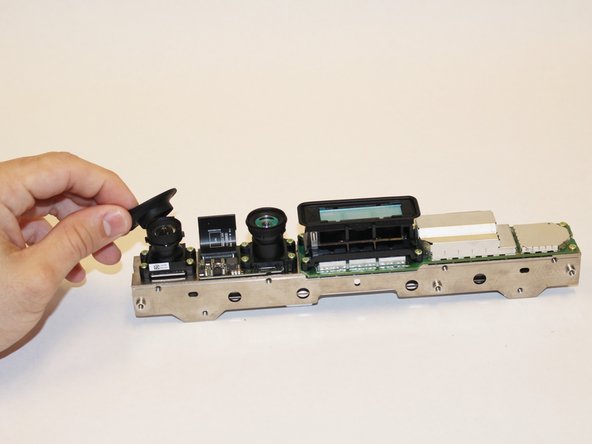
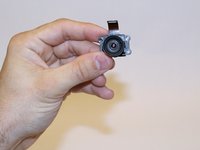
      • Go ahead and start by removing the Colour Camera's lens cap. This way you can remove the Camera without anything in your way.

      询问修复机器人

      添加评论

    2. Xbox One Kinect Colour Camera Replacement: 步骤 10 中的图像 1,2 Xbox One Kinect Colour Camera Replacement: 步骤 10 中的图像 2,2
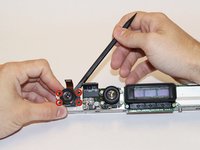
      • Using the T5 screwdriver, remove the four 1.9x10.2 mm screws from the four corners of the camera.

      • With the spudger inserted in between the camera and the metal casing, carefully prop up the camera.

      添加评论

结论

To reassemble your device, follow these instructions in reverse order.

取消:我没有完成这个指南。

另外一个人完成了本指南。

团队

USF Tampa, Team 1-3, Hickman Fall 2014 USF Tampa, Team 1-3, Hickman Fall 2014 的会员

USFT-HICKMAN-F14S1G3

4 名成员

创作了84篇指南

0指南评论

添加评论

浏览统计数据:

过去 24 小时: 1

过去 7 天: 13

过去 30 天: 51

总计 2,341