跳转到主内容
加入维修社区 - 创建账户

OLPC XO-4 Touch Touchpad Controller Replacement

你所需要的

    1. OLPC XO-4 Touch Touchpad Controller Replacement, Battery: 步骤 1 中的图像 1,1
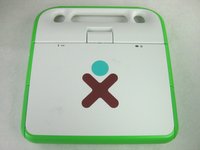
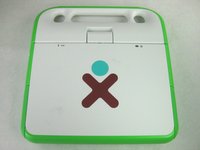
      • Turn the laptop upside-down, with the handle facing away from you.

      询问修复机器人

      添加评论

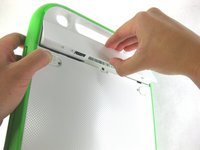
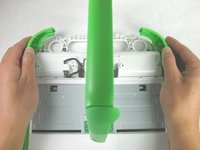
    2. OLPC XO-4 Touch Touchpad Controller Replacement: 步骤 2 中的图像 1,2 OLPC XO-4 Touch Touchpad Controller Replacement: 步骤 2 中的图像 2,2
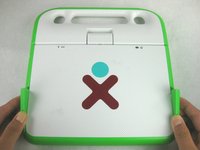
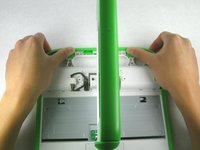
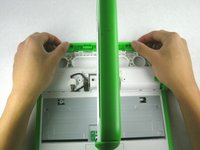
      • Pull the lock tabs towards the green outer edges of the laptop.

      • Hold the left lock tab in the unlock position until the battery is completely removed in the next step.

      询问修复机器人

      添加评论

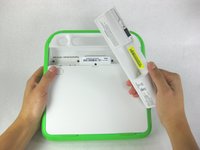
    3. OLPC XO-4 Touch Touchpad Controller Replacement: 步骤 3 中的图像 1,2 OLPC XO-4 Touch Touchpad Controller Replacement: 步骤 3 中的图像 2,2
      • Lift up on the middle of the battery to remove it from the device.

      询问修复机器人
      添加评论

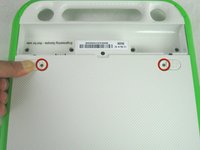
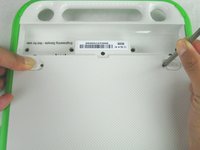
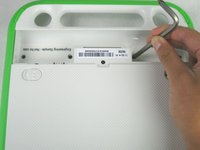
    1. OLPC XO-4 Touch Touchpad Controller Replacement, Keyboard: 步骤 4 中的图像 1,2 OLPC XO-4 Touch Touchpad Controller Replacement, Keyboard: 步骤 4 中的图像 2,2
      • Remove the two 2mm Phillips #1 screws from beneath the battery lock tabs.

      询问修复机器人
      添加评论

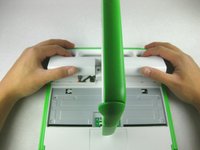
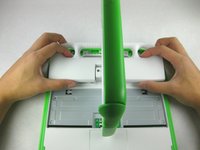
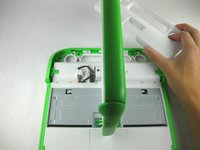
    2. OLPC XO-4 Touch Touchpad Controller Replacement: 步骤 5 中的图像 1,3 OLPC XO-4 Touch Touchpad Controller Replacement: 步骤 5 中的图像 2,3 OLPC XO-4 Touch Touchpad Controller Replacement: 步骤 5 中的图像 3,3
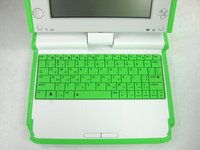
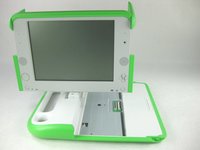
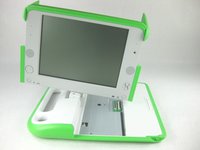
      • Flip the laptop over to its normal position.

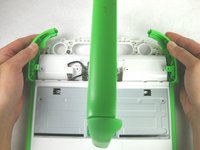
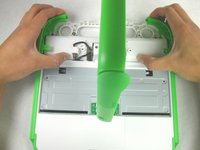
      • Lift the two antennas on both sides to unlock the screen.

      • Open the laptop.

      询问修复机器人
      添加评论

    3. OLPC XO-4 Touch Touchpad Controller Replacement: 步骤 6 中的图像 1,2 OLPC XO-4 Touch Touchpad Controller Replacement: 步骤 6 中的图像 2,2
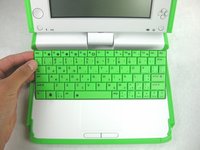
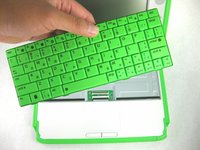
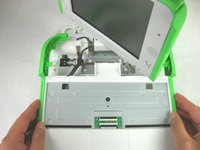
      • Be careful not to pull the keyboard too far because there is still a ribbon cable attached to the bottom.

      • Gently lift up on the back of the keyboard.

      • Pull the keyboard up far enough to expose the ribbon cable.

      询问修复机器人

      添加评论

    4. OLPC XO-4 Touch Touchpad Controller Replacement: 步骤 7 中的图像 1,2 OLPC XO-4 Touch Touchpad Controller Replacement: 步骤 7 中的图像 2,2
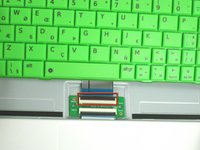
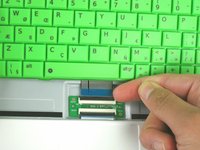
      • Gently lift up on the black connector to release the ribbon cable.

      • Gently pull the blue plastic tab up and away from the black connector.

      • Remove the keyboard from the laptop.

      询问修复机器人

      添加评论

    1. OLPC XO-4 Touch Touchpad Controller Replacement, Lower Case: 步骤 8 中的图像 1,2 OLPC XO-4 Touch Touchpad Controller Replacement, Lower Case: 步骤 8 中的图像 2,2
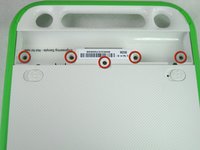
      • Close and flip the laptop over so you are looking at the battery compartment

      • Remove the five 4mm Phillips #1 screws from inside the battery compartment

      询问修复机器人

      添加评论

    2. OLPC XO-4 Touch Touchpad Controller Replacement: 步骤 9 中的图像 1,3 OLPC XO-4 Touch Touchpad Controller Replacement: 步骤 9 中的图像 2,3 OLPC XO-4 Touch Touchpad Controller Replacement: 步骤 9 中的图像 3,3
      • Flip the laptop over, showing the top of the device.

      • Open the laptop and rotate the screen ninety degrees.

      • Tilt the screen so the lower right corner of the screen is closer to the lower case.

      询问修复机器人

      添加评论

    3. OLPC XO-4 Touch Touchpad Controller Replacement: 步骤 10 中的图像 1,3 OLPC XO-4 Touch Touchpad Controller Replacement: 步骤 10 中的图像 2,3 OLPC XO-4 Touch Touchpad Controller Replacement: 步骤 10 中的图像 3,3
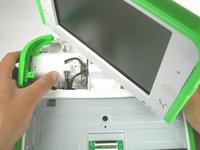
      • Push in and lift up on the keyboard edge of the white handle piece.

      • Pull the piece towards yourself to remove it from the laptop.

      询问修复机器人

      添加评论

    4. OLPC XO-4 Touch Touchpad Controller Replacement: 步骤 11 中的图像 1,1
      • Remove the four 4mm Phillips #1 screws attaching the green trim to the body of the computer.

      询问修复机器人

      添加评论

    5. OLPC XO-4 Touch Touchpad Controller Replacement: 步骤 12 中的图像 1,2 OLPC XO-4 Touch Touchpad Controller Replacement: 步骤 12 中的图像 2,2
      • Pry off the rear green trim piece.

      询问修复机器人

      添加评论

    6. OLPC XO-4 Touch Touchpad Controller Replacement: 步骤 13 中的图像 1,3 OLPC XO-4 Touch Touchpad Controller Replacement: 步骤 13 中的图像 2,3 OLPC XO-4 Touch Touchpad Controller Replacement: 步骤 13 中的图像 3,3
      • Be careful not to pull the bottom portion of the laptop completely off, as there is a cable connecting it to the laptop.

      • Slide the green trim pieces away from the screen.

      • This should release the entire bottom portion of the laptop.

      询问修复机器人

      添加评论

    7. OLPC XO-4 Touch Touchpad Controller Replacement: 步骤 14 中的图像 1,3 OLPC XO-4 Touch Touchpad Controller Replacement: 步骤 14 中的图像 2,3 OLPC XO-4 Touch Touchpad Controller Replacement: 步骤 14 中的图像 3,3
      • Unplug the cable from the mouse buttons controller to completely remove the lower frame from the device.

      询问修复机器人

      添加评论

    8. OLPC XO-4 Touch Touchpad Controller Replacement: 步骤 15 中的图像 1,2 OLPC XO-4 Touch Touchpad Controller Replacement: 步骤 15 中的图像 2,2
      • Rotate the entire lower assembly up slightly, and pull it away from the screen to free it from the screen hinge.

      • There may be some adhesive holding the cable to the metal plate. Gently pull the cable off of the plate if it is stuck.

      询问修复机器人

      添加评论

    1. OLPC XO-4 Touch Touchpad Controller Replacement, Mouse Buttons Controller: 步骤 16 中的图像 1,3 OLPC XO-4 Touch Touchpad Controller Replacement, Mouse Buttons Controller: 步骤 16 中的图像 2,3 OLPC XO-4 Touch Touchpad Controller Replacement, Mouse Buttons Controller: 步骤 16 中的图像 3,3
      • You should now be looking at the bottom of the lower case.

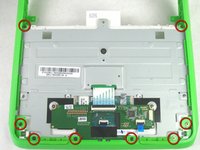
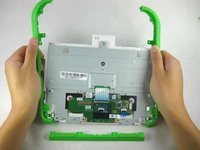
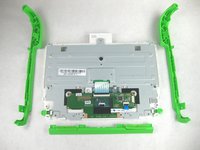
      • Remove the eight 4mm Phillips #1 screws attaching the green trim pieces to the lower frame.

      • Pry off the front and side trim pieces.

      询问修复机器人

      添加评论

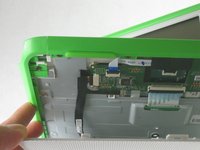
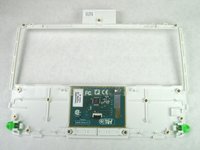
    2. OLPC XO-4 Touch Touchpad Controller Replacement: 步骤 17 中的图像 1,1
      • Remove the two 4mm Phillips #1 screws that attach the mouse buttons controller to the lower frame.

      询问修复机器人

      添加评论

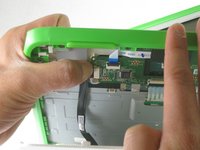
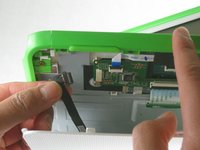
    3. OLPC XO-4 Touch Touchpad Controller Replacement: 步骤 18 中的图像 1,3 OLPC XO-4 Touch Touchpad Controller Replacement: 步骤 18 中的图像 2,3 OLPC XO-4 Touch Touchpad Controller Replacement: 步骤 18 中的图像 3,3
      • Disconnect the ribbon cable attached to the keyboard compartment.

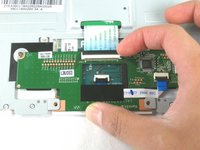
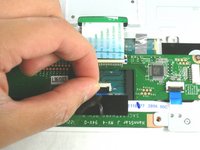
      • Unplug the ribbon cable between the touchpad and the mouse buttons controller.

      • Remove the mouse buttons controller from the device.

      询问修复机器人

      添加评论

    1. OLPC XO-4 Touch Touchpad Controller Replacement, Touchpad Controller: 步骤 19 中的图像 1,1
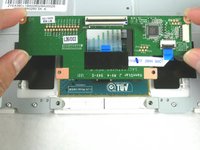
      • Remove the two 4mm Phillips screws that attach the metal plate to the touchpad assembly.

      • Be sure not to lose the silver magnet in the lower right corner of the touchpad assembly.

      询问修复机器人

      添加评论

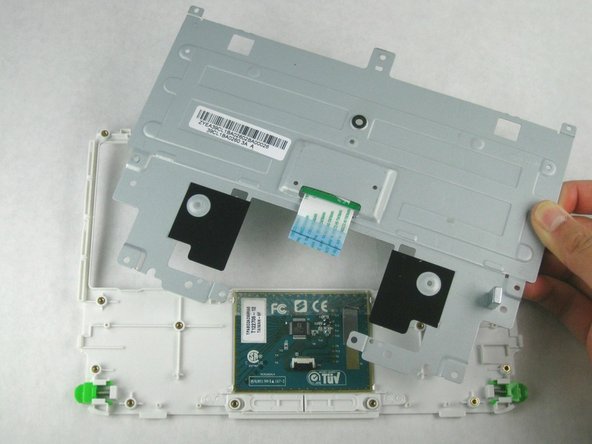
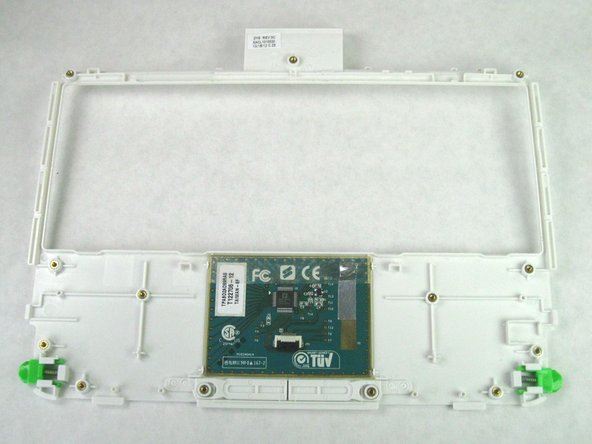
    2. OLPC XO-4 Touch Touchpad Controller Replacement: 步骤 20 中的图像 1,3 OLPC XO-4 Touch Touchpad Controller Replacement: 步骤 20 中的图像 2,3 OLPC XO-4 Touch Touchpad Controller Replacement: 步骤 20 中的图像 3,3
      • Remove the silver contact tape from the metal plate.

      • Lift the metal plate off of the touchpad assembly.

      询问修复机器人

      添加评论

结论

To reassemble your device, follow these instructions in reverse order.

取消:我没有完成这个指南。

另外一个人完成了本指南。

团队

Cal Poly, Team 3-30, Amido Winter 2013 Cal Poly, Team 3-30, Amido Winter 2013 的会员

CPSU-AMIDO-W13S3G30

3 名成员

创作了42篇指南

0指南评论

添加评论

浏览统计数据:

过去 24 小时: 0

过去 7 天: 5

过去 30 天: 29

总计 863