跳转到主内容
加入维修社区 - 创建账户

MSI GP60 2PE Leopard Wireless Card Replacement

你所需要的

    1. MSI GP60 2PE Leopard Wireless Card Replacement, Battery: 步骤 1 中的图像 1,1
      • Flip MSI GP60 2PE Leopard, so that the back is facing up.

      询问修复机器人

      添加评论

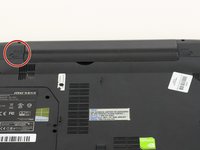
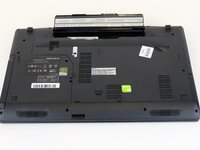
    2. MSI GP60 2PE Leopard Wireless Card Replacement: 步骤 2 中的图像 1,1
      • Find the unlock tab located on the upper right side of the device, then slide it to the right.

      询问修复机器人

      添加评论

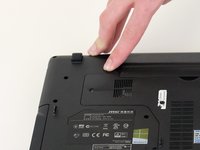
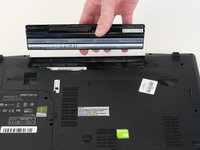
    3. MSI GP60 2PE Leopard Wireless Card Replacement: 步骤 3 中的图像 1,3 MSI GP60 2PE Leopard Wireless Card Replacement: 步骤 3 中的图像 2,3 MSI GP60 2PE Leopard Wireless Card Replacement: 步骤 3 中的图像 3,3
      • Slide and hold the release tab on the left side of the battery, so that you can remove the battery.

      询问修复机器人

      添加评论

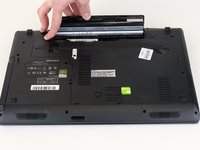
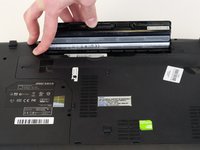
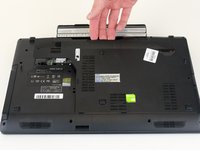
    4. MSI GP60 2PE Leopard Wireless Card Replacement: 步骤 4 中的图像 1,3 MSI GP60 2PE Leopard Wireless Card Replacement: 步骤 4 中的图像 2,3 MSI GP60 2PE Leopard Wireless Card Replacement: 步骤 4 中的图像 3,3
      • While holding the release tab, remove the battery slowly.

      询问修复机器人

      添加评论

    1. MSI GP60 2PE Leopard Wireless Card Replacement, Back Panel: 步骤 5 中的图像 1,1
      • Flip the device over so the back is facing up.

      询问修复机器人

      添加评论

    2. MSI GP60 2PE Leopard Wireless Card Replacement: 步骤 6 中的图像 1,2 MSI GP60 2PE Leopard Wireless Card Replacement: 步骤 6 中的图像 2,2
      • Remove the four 5mm screws from the back of the device using a Phillips #00 screwdriver.

      • There is a screw located under the battery; lift the battery up to access it.

      询问修复机器人

      添加评论

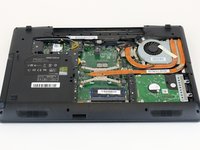
    3. MSI GP60 2PE Leopard Wireless Card Replacement: 步骤 7 中的图像 1,2 MSI GP60 2PE Leopard Wireless Card Replacement: 步骤 7 中的图像 2,2
      • Once all four screws are removed, lift the back off.

      询问修复机器人

      添加评论

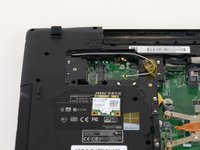
    1. MSI GP60 2PE Leopard Wireless Card Replacement, Wireless Card: 步骤 8 中的图像 1,1
      • Locate the wireless card.

      询问修复机器人

      添加评论

    2. MSI GP60 2PE Leopard Wireless Card Replacement: 步骤 9 中的图像 1,1
      • Using a Phillips #00 screwdriver, remove the one 2 mm screw that is holding the wireless card in place.

      询问修复机器人

      添加评论

    3. MSI GP60 2PE Leopard Wireless Card Replacement: 步骤 10 中的图像 1,1
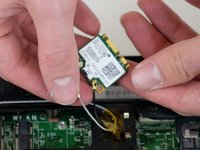
      • Carefully remove the wireless card.

      • Pay close attention to the two wires attached to wireless card.

      询问修复机器人

      添加评论

    4. MSI GP60 2PE Leopard Wireless Card Replacement: 步骤 11 中的图像 1,2 MSI GP60 2PE Leopard Wireless Card Replacement: 步骤 11 中的图像 2,2
      • Remove the wires connecting to the wireless card by pinching around the base where they connect, then carefully disconnect them.

      • The wires should come off fairly easily.

      • Avoid yanking or pulling too hard. This can result in the wires breaking.

      添加评论

结论

To reassemble your device, follow these instructions in reverse order.

取消:我没有完成这个指南。

2等其他人完成本指南。

0指南评论

添加评论

浏览统计数据:

过去 24 小时: 0

过去 7 天: 6

过去 30 天: 32

总计 2,217