跳转到主内容
加入维修社区 - 创建账户

Logitech Harmony Smart Keyboard On/Off Switch Replacement

你所需要的

    1. Logitech Harmony Smart Keyboard On/Off Switch Replacement, Back Panel: 步骤 1 中的图像 1,2 Logitech Harmony Smart Keyboard On/Off Switch Replacement, Back Panel: 步骤 1 中的图像 2,2
      • Turn keyboard over to the backside.

      询问修复机器人

      添加评论

    2. Logitech Harmony Smart Keyboard On/Off Switch Replacement: 步骤 2 中的图像 1,3 Logitech Harmony Smart Keyboard On/Off Switch Replacement: 步骤 2 中的图像 2,3 Logitech Harmony Smart Keyboard On/Off Switch Replacement: 步骤 2 中的图像 3,3
      • Press and slide up on the upper battery latch, using both thumbs.

      询问修复机器人

      添加评论

    3. Logitech Harmony Smart Keyboard On/Off Switch Replacement: 步骤 3 中的图像 1,1
      • Remove the two AA batteries and set them aside.

      询问修复机器人

      添加评论

    4. Logitech Harmony Smart Keyboard On/Off Switch Replacement: 步骤 4 中的图像 1,2 Logitech Harmony Smart Keyboard On/Off Switch Replacement: 步骤 4 中的图像 2,2
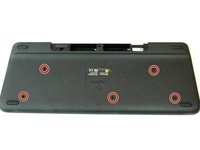
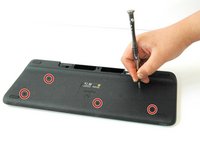
      • Unscrew all five 4.0 mm screws, using Phillips #1 screwdriver.

      询问修复机器人
      添加评论

    5. Logitech Harmony Smart Keyboard On/Off Switch Replacement: 步骤 5 中的图像 1,2 Logitech Harmony Smart Keyboard On/Off Switch Replacement: 步骤 5 中的图像 2,2
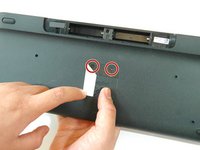
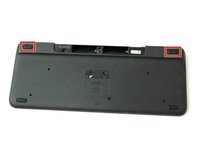
      • Peel off the center sticker to reveal two hidden 4.0 mm screws.

      • Unscrew these two screws with a Phillips #1 screwdriver.

      询问修复机器人
      添加评论

    6. Logitech Harmony Smart Keyboard On/Off Switch Replacement: 步骤 6 中的图像 1,3 Logitech Harmony Smart Keyboard On/Off Switch Replacement: 步骤 6 中的图像 2,3 Logitech Harmony Smart Keyboard On/Off Switch Replacement: 步骤 6 中的图像 3,3
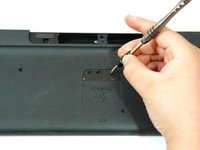
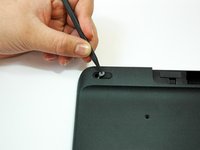
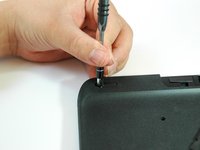
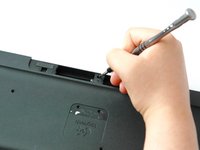
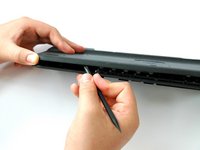
      • Lift both top left and top right rubber stickers halfway, using the sharp end of the plastic spudger.

      • Unscrew a total of two 4.0 mm screws, under the rubber stickers, using a Phillips #1 screwdriver.

      询问修复机器人
      添加评论

    7. Logitech Harmony Smart Keyboard On/Off Switch Replacement: 步骤 7 中的图像 1,2 Logitech Harmony Smart Keyboard On/Off Switch Replacement: 步骤 7 中的图像 2,2
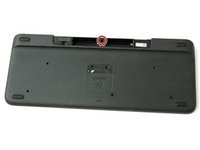
      • Unscrew the top center 4.0 mm screw, in the battery compartment, using the Phillips #1 screwdriver.

      • Now, you should have a total of ten 4.0 mm screws set aside.

      询问修复机器人

      添加评论

    8. Logitech Harmony Smart Keyboard On/Off Switch Replacement: 步骤 8 中的图像 1,3 Logitech Harmony Smart Keyboard On/Off Switch Replacement: 步骤 8 中的图像 2,3 Logitech Harmony Smart Keyboard On/Off Switch Replacement: 步骤 8 中的图像 3,3
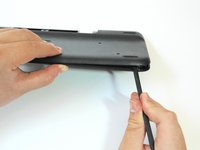
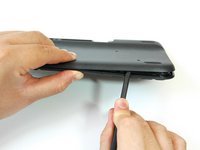
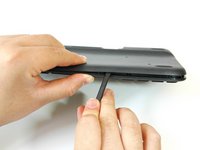
      • Wedge the flat end of the spudger between the back panel and front panel.

      • Slide the flat end of the spudger from right to left to pry the two panels apart.

      询问修复机器人

      添加评论

    9. Logitech Harmony Smart Keyboard On/Off Switch Replacement: 步骤 9 中的图像 1,3 Logitech Harmony Smart Keyboard On/Off Switch Replacement: 步骤 9 中的图像 2,3 Logitech Harmony Smart Keyboard On/Off Switch Replacement: 步骤 9 中的图像 3,3
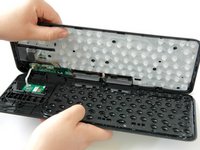
      • Separate the back panel from the front panel completely, using both hands.

      • A white ribbon flex cable will remain connected to both panels.

      • Pull the panels apart slowly and gently, or the white ribbon flex cable may be unsafely removed.

      询问修复机器人

      添加评论

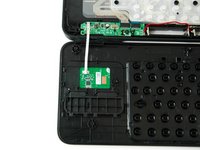
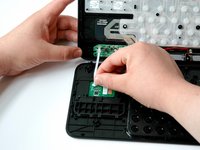
    1. Logitech Harmony Smart Keyboard On/Off Switch Replacement, On/Off Switch: 步骤 10 中的图像 1,3 Logitech Harmony Smart Keyboard On/Off Switch Replacement, On/Off Switch: 步骤 10 中的图像 2,3 Logitech Harmony Smart Keyboard On/Off Switch Replacement, On/Off Switch: 步骤 10 中的图像 3,3
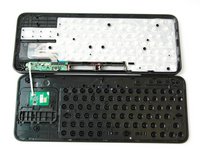
      • Grip the lower end of the ribbon flex cable (white band) using your thumb and index finger.

      • Then slide the strip out toward yourself in a scooping motion.

      • Now, you should have two completely separated panel pieces.

      询问修复机器人

      添加评论

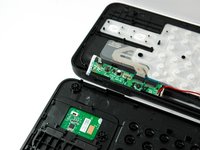
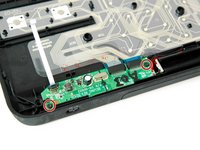
    2. Logitech Harmony Smart Keyboard On/Off Switch Replacement: 步骤 11 中的图像 1,3 Logitech Harmony Smart Keyboard On/Off Switch Replacement: 步骤 11 中的图像 2,3 Logitech Harmony Smart Keyboard On/Off Switch Replacement: 步骤 11 中的图像 3,3
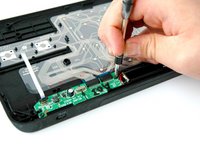
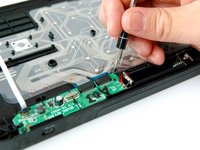
      • Set aside the front panel and locate the green card atop the on/off switch on the back panel.

      • Unscrew the two 4.0 mm screws on either side of the green card using a Phillips #1 screwdriver.

      询问修复机器人

      添加评论

    3. Logitech Harmony Smart Keyboard On/Off Switch Replacement: 步骤 12 中的图像 1,3 Logitech Harmony Smart Keyboard On/Off Switch Replacement: 步骤 12 中的图像 2,3 Logitech Harmony Smart Keyboard On/Off Switch Replacement: 步骤 12 中的图像 3,3
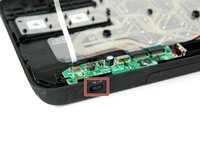
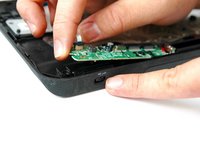
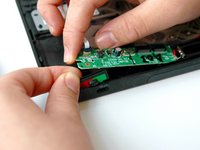
      • Lift up and hold the left side of the green card with one index finger.

      • Grip and pull the on/off switch out with your other index finger and thumb.

      添加评论

结论

To reassemble your device, follow these instructions in reverse order.

取消:我没有完成这个指南。

2等其他人完成本指南。

团队

CSU Fullerton, Team S1-G2, Bruce Fall 2017 CSU Fullerton, Team S1-G2, Bruce Fall 2017 的会员

CSUF-BRUCE-F17S1G2

3 名成员

创作了10篇指南

1指南评论

please share switch rear side.. and where could we buy this switch.. ?

Praveen Krishnan - 回复 分享

添加评论

浏览统计数据:

过去 24 小时: 2

过去 7 天: 22

过去 30 天: 60

总计 5,242