简介
If the microphone in your Logitech G432 headset is loose or needs to be replaced due to being faulty or from wear and tear, use this guide to adjust or replace it.
The Logitech G432 headset includes a built-in microphone that allows you to communicate with other players while gaming. This type of microphone is known as a "gaming microphone," and it is specifically designed to pick up your voice while filtering out background noise and other sounds.
This microphone is a useful tool for gamers who want to communicate with their teammates and coordinate their gameplay effectively. By using a headset with a built-in microphone like the Logitech G432, you can enjoy a more immersive gaming experience and improve your chances of success in multiplayer games.
Before beginning, make sure to turn off the power. If the microphone is powered, make sure to turn it off and unplug it from the power source before making any adjustments or attempting to replace it.
你所需要的
-
-
-
-
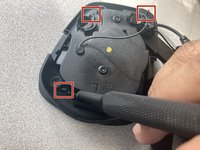
Remove the three 1.0 mm screws from the edge of the earpiece using a Phillips #0 screwdriver.
-
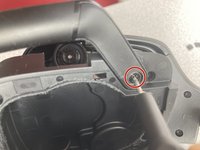
Use the pointed end of a spudger to remove the black sticker covering the fourth screw.
-
Remove the single 1.0 mm screw from beneath the sticker using a Phillips #0 screwdriver.
-
-
-


 询问修复机器人


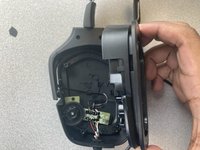


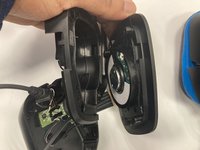
To reassemble your device, follow these instructions in reverse order.
另外一个人完成了本指南。

团队

Marist, Team 1-2, Chaterdon Spring 2023 Marist, Team 1-2, Chaterdon Spring 2023 的会员
MARS-CHATERDON-S23S1G2
3 名成员
创作了19篇指南
