跳转到主内容
加入维修社区 - 创建账户

Logitech G305 Mouse Left Clicker Replacement

你所需要的

  1. Logitech G305 Mouse Left Clicker Replacement, Left Clicker: 步骤 1 中的图像 1,2 Logitech G305 Mouse Left Clicker Replacement, Left Clicker: 步骤 1 中的图像 2,2
    • Remove the battery cover by pressing the top of the cover and pulling it downwards.

    • Remove the battery.

  2. Logitech G305 Mouse Left Clicker Replacement: 步骤 2 中的图像 1,3 Logitech G305 Mouse Left Clicker Replacement: 步骤 2 中的图像 2,3 Logitech G305 Mouse Left Clicker Replacement: 步骤 2 中的图像 3,3
    • Carefully use a box cutter to follow the grooves of the mouse skate pads and slowly lift them off.

    • Use a Phillips #00 screwdriver to remove the four screws.

  3. Logitech G305 Mouse Left Clicker Replacement: 步骤 3 中的图像 1,2 Logitech G305 Mouse Left Clicker Replacement: 步骤 3 中的图像 2,2
    • Use a spudger to carefully separate the two halves of the mouse near the battery compartment.

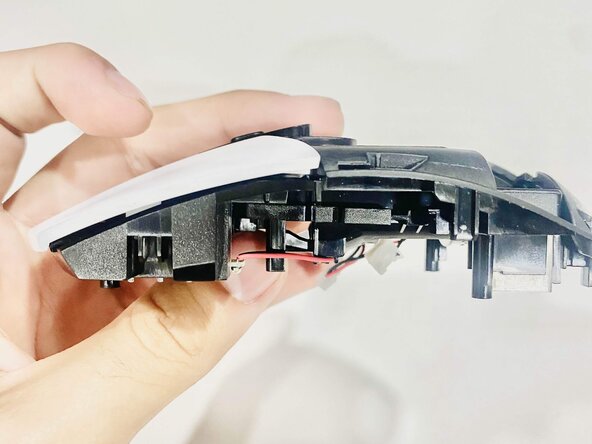
  4. Logitech G305 Mouse Left Clicker Replacement: 步骤 4 中的图像 1,2 Logitech G305 Mouse Left Clicker Replacement: 步骤 4 中的图像 2,2
    • Open the compartment and slowly separate the halves until the internal wires are exposed.

    • Carefully disconnect the two wires by hand from the base.

    • The wires are fragile and require careful handling.

  5. Logitech G305 Mouse Left Clicker Replacement: 步骤 5 中的图像 1,3 Logitech G305 Mouse Left Clicker Replacement: 步骤 5 中的图像 2,3 Logitech G305 Mouse Left Clicker Replacement: 步骤 5 中的图像 3,3
    • Remove the three screws from the center battery compartment using a Phillips #00 screwdriver.

    • Remove the two screws securing the left clicker.

  6. Logitech G305 Mouse Left Clicker Replacement: 步骤 6 中的图像 1,2 Logitech G305 Mouse Left Clicker Replacement: 步骤 6 中的图像 2,2
    • Lift the battery compartment to gain easy access to the clicker.

    • Lift the battery compartment with care because of fragile wires.

    • Remove the left clicker.

  7. Logitech G305 Mouse Left Clicker Replacement: 步骤 7 中的图像 1,2 Logitech G305 Mouse Left Clicker Replacement: 步骤 7 中的图像 2,2
    • Insert the replacement component and slide it into position until it securely clicks into place.

结论

To reassemble your device, follow these instructions in reverse order.

另外一个人完成了本指南。

Juan Iniguez

于09/30/25注册

172 声望

撰写一个指南

团队

CSU Los Angeles, Team 8-9, Grodsky Fall 2025 CSU Los Angeles, Team 8-9, Grodsky Fall 2025 的会员

CSULA-GRODSKY-F25S8G9

2 名成员

创作了1篇指南

0指南评论

添加评论

浏览统计数据:

过去 24 小时: 11

过去 7 天: 81

过去 30 天: 347

总计 1,703