跳转到主内容
加入维修社区 - 创建账户

Lenovo Essential G570 RAM Replacement

你所需要的

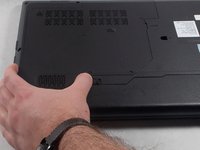
    1. Lenovo Essential G570 RAM Replacement, Battery: 步骤 1 中的图像 1,1
      • Turn off the laptop.

      • Disconnect the charging cable.

      • Failure to unplug the cable could result in electric shock.

      • Turn the computer upside down.

      询问修复机器人

      添加评论

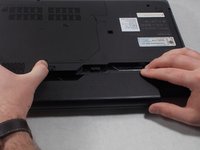
    2. Lenovo Essential G570 RAM Replacement: 步骤 2 中的图像 1,2 Lenovo Essential G570 RAM Replacement: 步骤 2 中的图像 2,2
      • Locate the two switches that lock the battery.

      • Push the right switch outwards to unlock the battery.

      询问修复机器人

      添加评论

    3. Lenovo Essential G570 RAM Replacement: 步骤 3 中的图像 1,2 Lenovo Essential G570 RAM Replacement: 步骤 3 中的图像 2,2
      • Push and hold the left switch outwards to unlock the battery.

      • Pull the battery away from the computer.

      询问修复机器人

      添加评论

    1. Lenovo Essential G570 RAM Replacement, Back Panel: 步骤 4 中的图像 1,1
      • Turn the laptop over so that the bottom side is facing up.

      询问修复机器人

      添加评论

    2. Lenovo Essential G570 RAM Replacement: 步骤 5 中的图像 1,1
      • Unscrew the five 5mm Phillips #0 screws that hold the cover in place.

      • The screws do not come out fully from the back plate. They stay attached to the plate itself.

      询问修复机器人

      添加评论

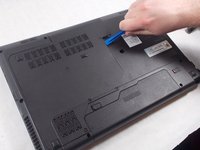
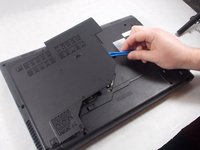
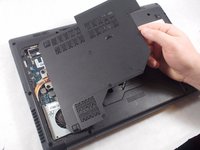
    3. Lenovo Essential G570 RAM Replacement: 步骤 6 中的图像 1,3 Lenovo Essential G570 RAM Replacement: 步骤 6 中的图像 2,3 Lenovo Essential G570 RAM Replacement: 步骤 6 中的图像 3,3
      • With the screws removed, insert the plastic opening tool into the groove located on the right side.

      • Begin to pry up, and the plate should lift up from the body of the laptop.

      • While lifting up, take the piece in one hand and pull up and to the right to fully remove the back plate.

      询问修复机器人

      添加评论

    1. Lenovo Essential G570 RAM Replacement, RAM: 步骤 7 中的图像 1,1
      • Using your fingers, hold open the two clips holding the top RAM in place.

      • The two RAM chips are placed one on top of another. It is important to take the top one out first to easily access the bottom one.

      • With the clips held away from the RAM, slide the top stick out from it's connection.

      询问修复机器人

      添加评论

    2. Lenovo Essential G570 RAM Replacement: 步骤 8 中的图像 1,1
      • With the top RAM stick removed, repeat the same process for the bottom piece. Begin by holding the two clips away from the RAM.

      • With the clips held out, slide the RAM out from the connection.

      询问修复机器人

      添加评论

结论

To reassemble your device, follow these instructions in reverse order.

取消:我没有完成这个指南。

3等其他人完成本指南。

团队

UMass Dartmouth, Team S1-G1, Simcock Spring 2018 UMass Dartmouth, Team S1-G1, Simcock Spring 2018 的会员

UMASSD-SIMCOCK-S18S1G1

3 名成员

创作了42篇指南

0指南评论

添加评论

浏览统计数据:

过去 24 小时: 1

过去 7 天: 7

过去 30 天: 26

总计 1,111