此翻译由机器生成,尚未经过人工审核。 会说这种语言吗? 查看评论。

如何使用USB制作一个Windows 10 的启动盘

最后更新于 2026年8月10日
浏览量: 40万
浏览统计数据:
- 过去24小时
- 26
- 过去 7 天:
- 158
- 过去 30 天:
- 725
- 总计
- 404,696
评论: 31
9 comments on steps, 22 guide comments.
Go to guide comments已完成: 107 108
107 人已将本指南标记为“已完成”。你会是下一个完成的人吗?
108 人已将本指南标记为“已完成”。包括你——干的漂亮!
收藏: 24 25
24 人已收藏(并订阅)本指南。你会是下一个吗?
25 人收藏(并订阅)了本指南——这其中包括你!
社区贡献指南
我们社区的一个非常棒的成员制作了本指南。它不是由 iFixit 工作人员创建的。
简介
转到步骤 1 ↓这个指南将引导你来制作一个应急的Windows 10 USB启动盘。这个启动盘应该放在抽屉里以备不时之需。
如果您在启动操作系统时遇到困难,可以使用另一台Windows电脑来解决问题。
你所需要的
-
-
-
点击 "Download tool now"
 询问修复机器人
-
-
选择“Create installation media (USB flash drive, DVD or ISO file) for another PC"
-
点击“Next”
-
-
-


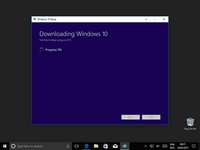
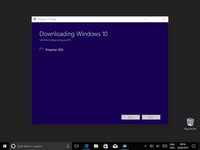
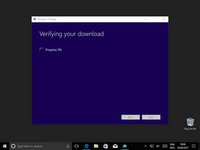


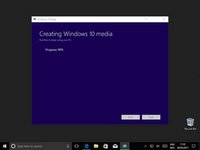
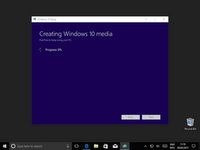


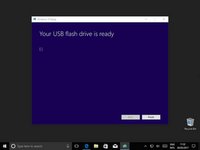
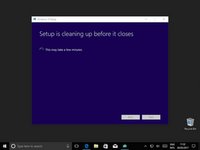
恭喜你完成了Windows 10启动盘的制作!这个闪存盘已经安装好了Windows 10,你可以随时使用了。
107等其他人完成本指南。


22指南评论
Mr. Bailey. How is this Boot drive different from the Recovery drive that I create directly from my PC? Thanks.
John Norton - 回复 分享
They do the same thing essentially, they allow you to boot and recover your windows installation. However there is a one difference and that's that, I believe, the recovery drive tool only gives you the option to create a disk for the computer you are using. It's exactly like the recovery partition that some computers and laptops have.
My guide is quite generic in that you could create the disk for any Windows 10 installation.
Thanks for the question.
Conor Bailey - 回复 分享
From my practice, UUByte ISO Editor can also create disks for any Windows 10 installation (including Windows 7, Windows 8 and Mac).
And compared with the method shared by Mr. Bailey above, UUByte ISO Editor saves time for users because it only takes 3 steps to create a Windows 10 bootable USB on my PC. It has no difficulty for those new users.
I recommend you add something about how to boot from the USB drive, especially on a machine that has UEFI SecureBoot enabled.
Bill Meacham - 回复 分享
I agree that that part of the process is important, however there are so many variables to uefi that writing a coherent guide for that would be difficult. Not to mention that screen shotting those steps a more difficult (although obviously not impossible).
But thank you for the feed back, I'll consider it in the future.
Conor Bailey - 回复 分享
