跳转到主内容
加入维修社区 - 创建账户

HP Pavilion zd8000 Base Fans Replacement

你所需要的

    1. HP Pavilion zd8000 Base Fans Replacement, Battery: 步骤 1 中的图像 1,1
      • Slide the battery release latch towards you.

      询问修复机器人

      添加评论

    2. HP Pavilion zd8000 Base Fans Replacement: 步骤 2 中的图像 1,2 HP Pavilion zd8000 Base Fans Replacement: 步骤 2 中的图像 2,2
      • Pull up on the battery to remove it.

      询问修复机器人

      添加评论

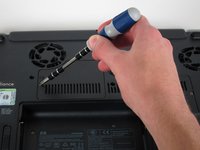
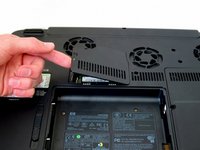
    1. HP Pavilion zd8000 Base Fans Replacement, RAM: 步骤 3 中的图像 1,2 HP Pavilion zd8000 Base Fans Replacement, RAM: 步骤 3 中的图像 2,2
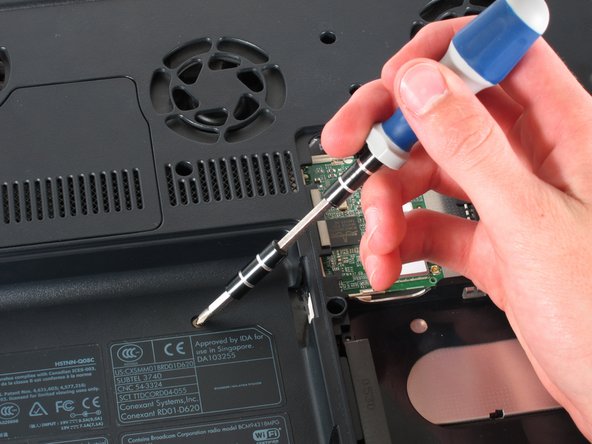
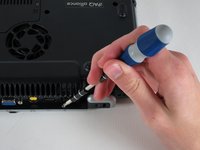
      • Loosen the Phillips screw labeled ‘ram’ and lift the cover.

      询问修复机器人

      添加评论

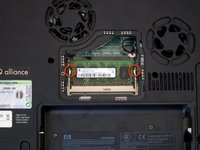
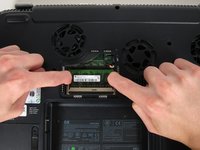
    2. HP Pavilion zd8000 Base Fans Replacement: 步骤 4 中的图像 1,2 HP Pavilion zd8000 Base Fans Replacement: 步骤 4 中的图像 2,2
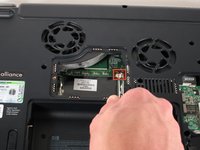
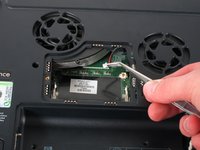
      • Locate the green RAM card and find the metal tabs securing the card.

      • Push outwards on the two tabs to release the card.

      询问修复机器人
      添加评论

    3. HP Pavilion zd8000 Base Fans Replacement: 步骤 5 中的图像 1,1
      • Carefully slide the card out at an upward angle away from the slot.

      询问修复机器人
      添加评论

    1. HP Pavilion zd8000 Base Fans Replacement, WiFi Card Cables: 步骤 6 中的图像 1,2 HP Pavilion zd8000 Base Fans Replacement, WiFi Card Cables: 步骤 6 中的图像 2,2
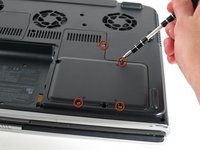
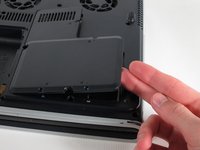
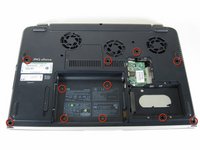
      • Unscrew the four 8mm Philips screws marked with an icon resembling a stacks of discs.

      • Lift the cover from the right to remove it.

      询问修复机器人

      添加评论

    2. HP Pavilion zd8000 Base Fans Replacement: 步骤 7 中的图像 1,2 HP Pavilion zd8000 Base Fans Replacement: 步骤 7 中的图像 2,2
      在这个步骤中使用的工具:
      Tweezers
      $4.99
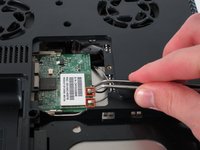
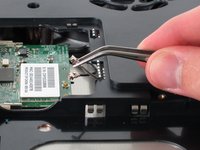
      • Use tweezers to detach the grey and black cables connected to the green WiFi card.

      询问修复机器人

      添加评论

    1. HP Pavilion zd8000 Base Fans Replacement, CD/Optical Drive: 步骤 8 中的图像 1,1
      • Remove the 8mm Philips screw located between the hard drive and the WiFi card.

      询问修复机器人

      添加评论

    2. HP Pavilion zd8000 Base Fans Replacement: 步骤 9 中的图像 1,2 HP Pavilion zd8000 Base Fans Replacement: 步骤 9 中的图像 2,2
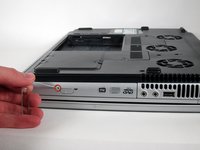
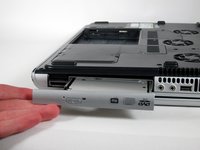
      • Turn the laptop 90 degrees clockwise so you are facing the CD drive.

      • Unbend a paperclip and insert the end into the small hole by the eject button to cause the tray to pop out towards you.

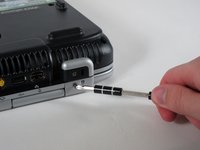
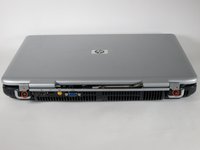
      询问修复机器人

      添加评论

    3. HP Pavilion zd8000 Base Fans Replacement: 步骤 10 中的图像 1,2 HP Pavilion zd8000 Base Fans Replacement: 步骤 10 中的图像 2,2
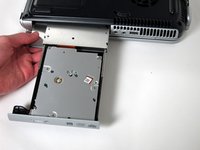
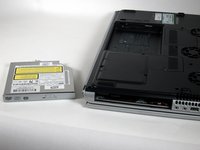
      • Gently pull the tray away from the laptop and the rest of the optical drive will follow.

      添加评论

    1. HP Pavilion zd8000 Base Fans Replacement, Keyboard: 步骤 11 中的图像 1,1
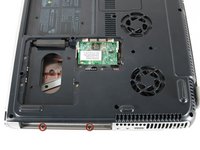
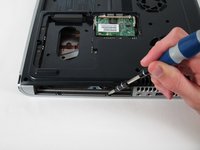
      • Remove the two 8mm Philips screws marked “K” on the bottom of the laptop.

      询问修复机器人
      添加评论

    2. HP Pavilion zd8000 Base Fans Replacement: 步骤 12 中的图像 1,2 HP Pavilion zd8000 Base Fans Replacement: 步骤 12 中的图像 2,2
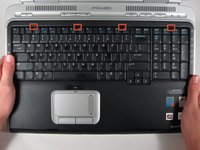
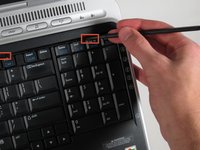
      • Flip the laptop over and open the screen.

      • Push up on the four latches located at the top of the keyboard with the spudger to release them.

      询问修复机器人
      添加评论

    3. HP Pavilion zd8000 Base Fans Replacement: 步骤 13 中的图像 1,2 HP Pavilion zd8000 Base Fans Replacement: 步骤 13 中的图像 2,2
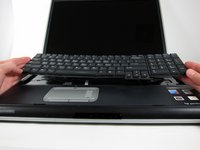
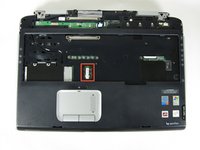
      • Lift the keyboard carefully because it is attached to the motherboard by a ribbon cable.

      • Lift the top of the keyboard towards you. Then, while keeping the keyboard at an angle, lift it towards the display.

      询问修复机器人
      添加评论

    4. HP Pavilion zd8000 Base Fans Replacement: 步骤 14 中的图像 1,2 HP Pavilion zd8000 Base Fans Replacement: 步骤 14 中的图像 2,2
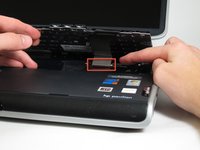
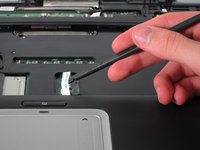
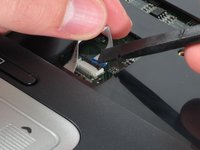
      • Rotate the keyboard so that the bottom is visible.

      • With the keyboard lifted, locate the blue-striped tab on the underside of the black ribbon cable.

      • Pull the tab towards you to release the keyboard from the laptop.

      询问修复机器人

      添加评论

    1. HP Pavilion zd8000 Base Fans Replacement, Switch Cover: 步骤 15 中的图像 1,2 HP Pavilion zd8000 Base Fans Replacement, Switch Cover: 步骤 15 中的图像 2,2
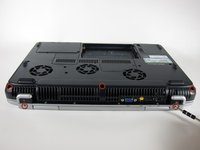
      • Place the laptop face-down and rotate it 180 degrees so the vents are facing you.

      • Remove the five 8mm Philips screws. Three are on the black base and two are near the hinges.

      询问修复机器人

      添加评论

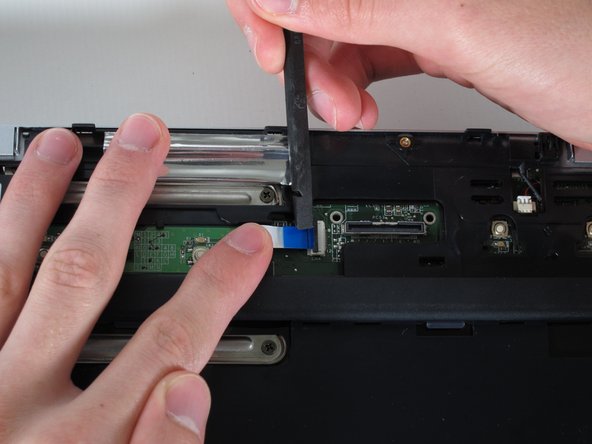
    2. HP Pavilion zd8000 Base Fans Replacement: 步骤 16 中的图像 1,1
      • Flip the laptop over.

      • Fully open the laptop.

      询问修复机器人
      添加评论

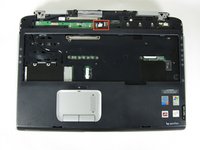
    3. HP Pavilion zd8000 Base Fans Replacement: 步骤 17 中的图像 1,3 HP Pavilion zd8000 Base Fans Replacement: 步骤 17 中的图像 2,3 HP Pavilion zd8000 Base Fans Replacement: 步骤 17 中的图像 3,3
      • Rotate it so the display is on your right and the keyboard is on your left.

      • Lift the switch cover firmly but slowly so you do not snap it.

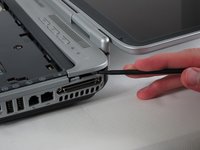
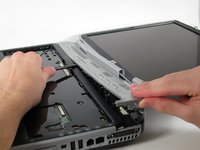
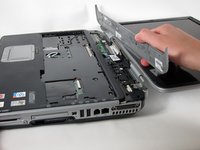
      • Lift the switch cover carefully from one end while sliding the spudger between the switch cover and the laptop to separate them.

      • The switch cover should easily separate from the laptop as you run the spudger through.

      询问修复机器人
      添加评论

    1. HP Pavilion zd8000 Base Fans Replacement, Screen: 步骤 18 中的图像 1,2 HP Pavilion zd8000 Base Fans Replacement, Screen: 步骤 18 中的图像 2,2
      • Close the lid and rotate the laptop so that the vents are facing you.

      • Unscrew the two 8mm Philips screws below the hinges.

      询问修复机器人

      添加评论

    2. HP Pavilion zd8000 Base Fans Replacement: 步骤 19 中的图像 1,2 HP Pavilion zd8000 Base Fans Replacement: 步骤 19 中的图像 2,2
      • Carefully rotate the laptop 90 degrees counter-clockwise and open the screen.

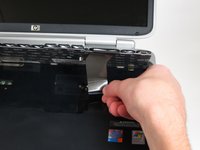
      • Pull on the black tab with the HP service sticker to unplug the display from the motherboard.

      询问修复机器人

      添加评论

    3. HP Pavilion zd8000 Base Fans Replacement: 步骤 20 中的图像 1,2 HP Pavilion zd8000 Base Fans Replacement: 步骤 20 中的图像 2,2
      在这个步骤中使用的工具:
      Tweezers
      $4.99
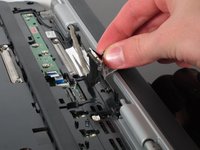
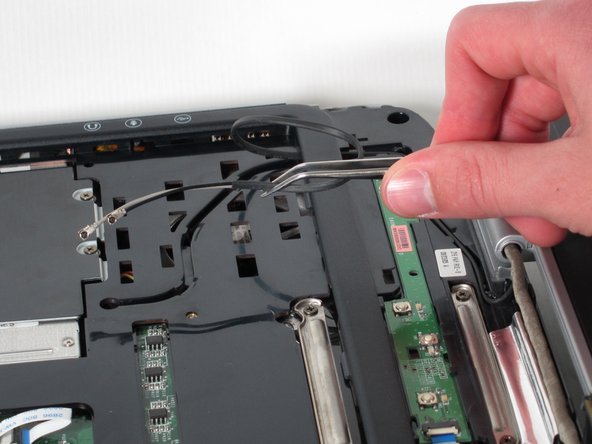
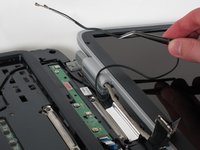
      • Using tweezers, remove the black cable from the hole leading to the WiFi enclosure.

      • Pull gently to remove the black and grey cables from the case.

      • Check the surface beneath the laptop to ensure the cables do not catch on anything when you flip the laptop over.

      询问修复机器人

      添加评论

    4. HP Pavilion zd8000 Base Fans Replacement: 步骤 21 中的图像 1,2 HP Pavilion zd8000 Base Fans Replacement: 步骤 21 中的图像 2,2
      • Using tweezers, pull the black cable towards the display and through the hole in the casing.

      询问修复机器人

      添加评论

    5. HP Pavilion zd8000 Base Fans Replacement: 步骤 22 中的图像 1,3 HP Pavilion zd8000 Base Fans Replacement: 步骤 22 中的图像 2,3 HP Pavilion zd8000 Base Fans Replacement: 步骤 22 中的图像 3,3
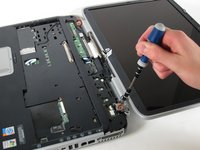
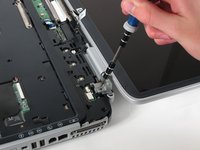
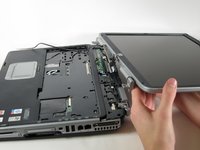
      • Unscrew the two 8mm Philips screws that attach the hinge to the laptop's display.

      • Lift the screen upwards to detach it from the laptop.

      询问修复机器人

      添加评论

    1. HP Pavilion zd8000 Base Fans Replacement, Top Cover: 步骤 23 中的图像 1,2 HP Pavilion zd8000 Base Fans Replacement, Top Cover: 步骤 23 中的图像 2,2
      • With the laptop face-down, remove the eleven 8mm Philips screws.

      询问修复机器人

      添加评论

    2. HP Pavilion zd8000 Base Fans Replacement: 步骤 24 中的图像 1,2 HP Pavilion zd8000 Base Fans Replacement: 步骤 24 中的图像 2,2
      • Rotate the laptop 180 degrees so the vents are facing you.

      • Unscrew the four 3mm Philips screws below the vents.

      询问修复机器人

      添加评论

    3. HP Pavilion zd8000 Base Fans Replacement: 步骤 25 中的图像 1,2 HP Pavilion zd8000 Base Fans Replacement: 步骤 25 中的图像 2,2
      • Rotate the laptop 90 degrees counter-clockwise.

      • Unscrew the two 3mm Philips screws from the optical drive bay.

      询问修复机器人

      添加评论

    4. HP Pavilion zd8000 Base Fans Replacement: 步骤 26 中的图像 1,3 HP Pavilion zd8000 Base Fans Replacement: 步骤 26 中的图像 2,3 HP Pavilion zd8000 Base Fans Replacement: 步骤 26 中的图像 3,3
      • Flip the laptop over so it is face-up with the trackpad closest to you.

      • Locate the ribbon cable directly above the track pad.

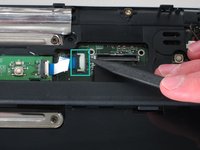
      • Find the black latch at the end of the ribbon cable and unlatch it with a spudger to release it.

      询问修复机器人

      添加评论

    5. HP Pavilion zd8000 Base Fans Replacement: 步骤 27 中的图像 1,3 HP Pavilion zd8000 Base Fans Replacement: 步骤 27 中的图像 2,3 HP Pavilion zd8000 Base Fans Replacement: 步骤 27 中的图像 3,3
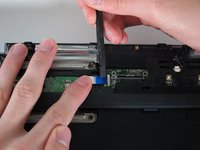
      • Find the ribbon cable on the LED board located at the top of the laptop.

      • You will notice that the ribbon cable is connected to two levels - you will be dealing with the one on the lower level.

      • Find the black latch at the end of the ribbon cable and unlatch it with a spudger to release it.

      询问修复机器人

      添加评论

    6. HP Pavilion zd8000 Base Fans Replacement: 步骤 28 中的图像 1,2 HP Pavilion zd8000 Base Fans Replacement: 步骤 28 中的图像 2,2
      在这个步骤中使用的工具:
      Tweezers
      $4.99
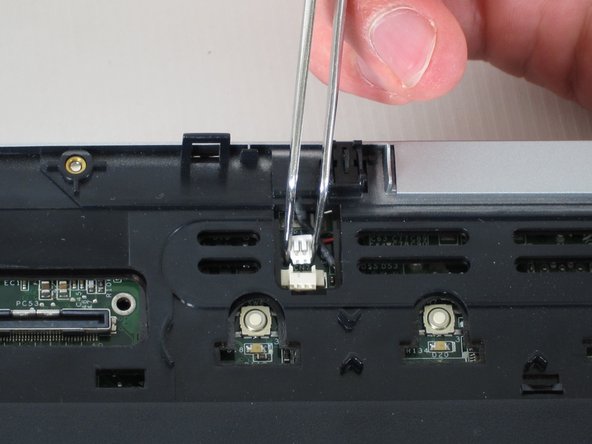
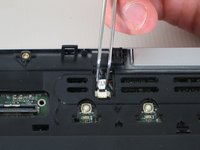
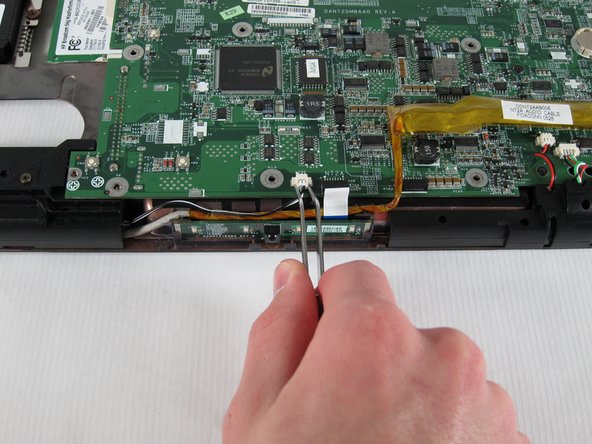
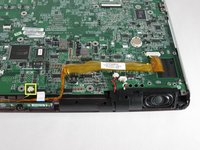
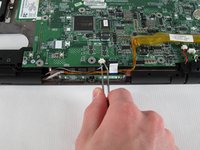
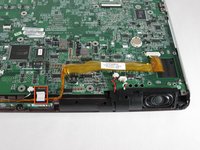
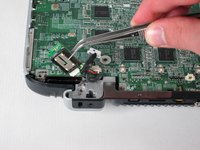
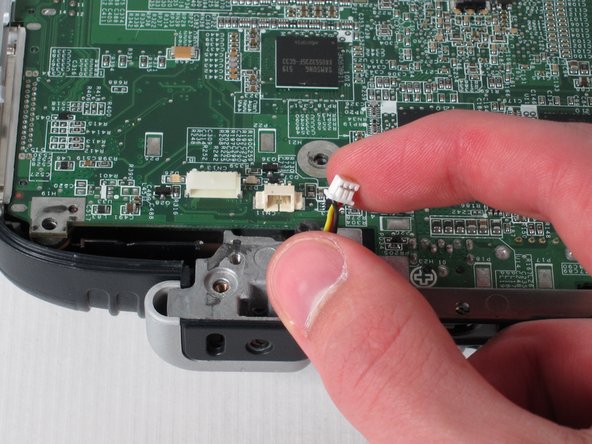
      • Locate the white connector attached to a red and black cable to the right of the LED board.

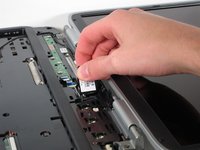
      • Using tweezers, pull the white connector away from you.

      询问修复机器人

      添加评论

    7. HP Pavilion zd8000 Base Fans Replacement: 步骤 29 中的图像 1,2 HP Pavilion zd8000 Base Fans Replacement: 步骤 29 中的图像 2,2
      • Unscrew the four 8mm Philips screws from the top cover.

      询问修复机器人

      添加评论

    8. HP Pavilion zd8000 Base Fans Replacement: 步骤 30 中的图像 1,2 HP Pavilion zd8000 Base Fans Replacement: 步骤 30 中的图像 2,2
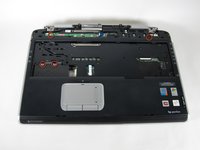
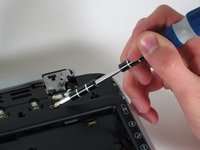
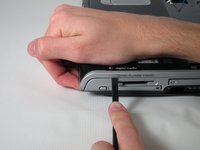
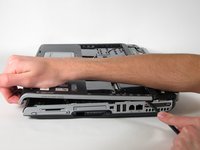
      • Rotate the computer 90 degrees clockwise and insert the spudger at the seam above the card reader.

      • While lifting the front end of the top cover, slide the spudger across the seam.

      • When you have reached the firewire port, it should click open.

      询问修复机器人

      添加评论

    9. HP Pavilion zd8000 Base Fans Replacement: 步骤 31 中的图像 1,1
      • Lift the top cover from the left side to remove it completely.

      询问修复机器人

      添加评论

    1. HP Pavilion zd8000 Base Fans Replacement, USB Module: 步骤 32 中的图像 1,2 HP Pavilion zd8000 Base Fans Replacement, USB Module: 步骤 32 中的图像 2,2
      • Rotate the laptop 90 degrees counter-clockwise

      • Locate the USB Module

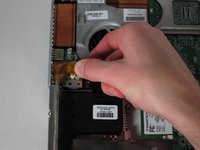
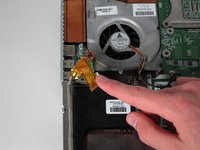
      • Grip the yellow cable cover and pull it to the right to release it.

      询问修复机器人

      添加评论

    2. HP Pavilion zd8000 Base Fans Replacement: 步骤 33 中的图像 1,2 HP Pavilion zd8000 Base Fans Replacement: 步骤 33 中的图像 2,2
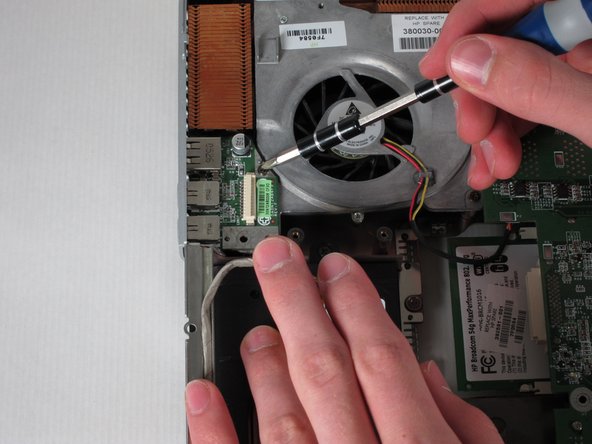
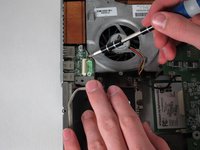
      • Unscrew the 6mm Philips screw connecting the USB module to the fan.

      询问修复机器人

      添加评论

    3. HP Pavilion zd8000 Base Fans Replacement: 步骤 34 中的图像 1,1
      • Pull the module to the right and lift it out to release it.

      询问修复机器人

      添加评论

    1. HP Pavilion zd8000 Base Fans Replacement, Motherboard: 步骤 35 中的图像 1,2 HP Pavilion zd8000 Base Fans Replacement, Motherboard: 步骤 35 中的图像 2,2
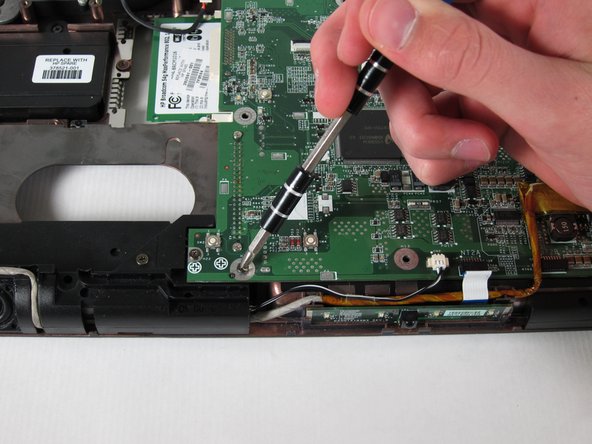
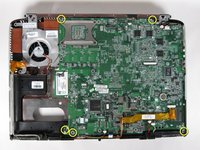
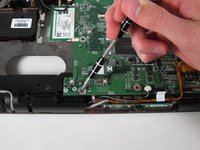
      • Unscrew and remove the five 4mm Philips screws marked with the white Phillips screw icon.

      询问修复机器人

      添加评论

    2. HP Pavilion zd8000 Base Fans Replacement: 步骤 36 中的图像 1,1
      • Unscrew and remove the two 8mm Philips screws from the heat sink fan.

      询问修复机器人

      添加评论

    3. HP Pavilion zd8000 Base Fans Replacement: 步骤 37 中的图像 1,1
      在这个步骤中使用的工具:
      Tweezers
      $4.99
      • Using tweezers, remove the digital drive board cable - the cable set on the right with black, red, green, and white wires.

      • Using tweezers, remove the the rigth speaker cable - the cable set on the left with red and black wires - by pulling the white connector towards you.

      询问修复机器人

      添加评论

    4. HP Pavilion zd8000 Base Fans Replacement: 步骤 38 中的图像 1,2 HP Pavilion zd8000 Base Fans Replacement: 步骤 38 中的图像 2,2
      • Using tweezers, remove the left speaker cable by pulling the white connector towards you.

      询问修复机器人

      添加评论

    5. HP Pavilion zd8000 Base Fans Replacement: 步骤 39 中的图像 1,2 HP Pavilion zd8000 Base Fans Replacement: 步骤 39 中的图像 2,2
      • Remove the LED board cable by pulling the white tab towards you.

      询问修复机器人

      添加评论

    6. HP Pavilion zd8000 Base Fans Replacement: 步骤 40 中的图像 1,2 HP Pavilion zd8000 Base Fans Replacement: 步骤 40 中的图像 2,2
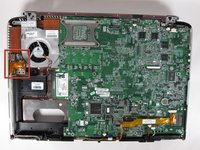
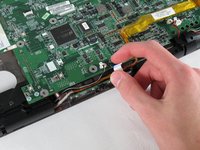
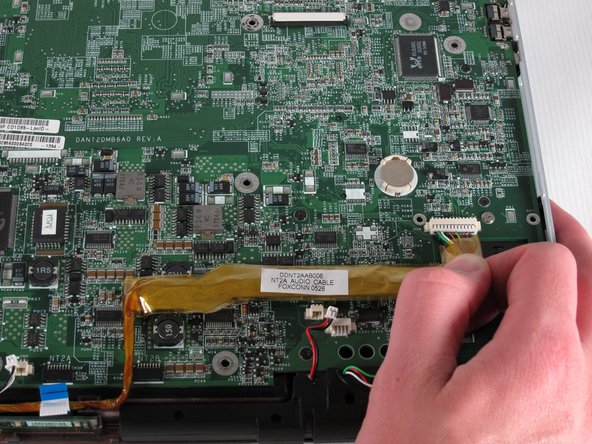
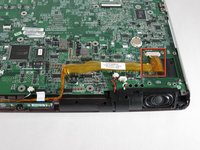
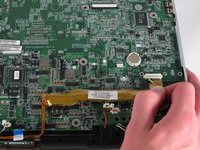
      • Remove the audio cable - the one with the yellow covering located at the bottom-right corner of the motherboard - by pulling the yellow covering towards you.

      询问修复机器人

      添加评论

    7. HP Pavilion zd8000 Base Fans Replacement: 步骤 41 中的图像 1,3 HP Pavilion zd8000 Base Fans Replacement: 步骤 41 中的图像 2,3 HP Pavilion zd8000 Base Fans Replacement: 步骤 41 中的图像 3,3
      • Rotate the laptop 180 degrees and locate the Bluetooth module at the bottom-left corner of the motherboard.

      • Using tweezers, remove the Bluetooth module’s white connector by pulling it away from you.

      询问修复机器人

      添加评论

    8. HP Pavilion zd8000 Base Fans Replacement: 步骤 42 中的图像 1,2 HP Pavilion zd8000 Base Fans Replacement: 步骤 42 中的图像 2,2
      • Using tweezers, pull up on the Bluetooth module to remove it.

      询问修复机器人

      添加评论

    9. HP Pavilion zd8000 Base Fans Replacement: 步骤 43 中的图像 1,2 HP Pavilion zd8000 Base Fans Replacement: 步骤 43 中的图像 2,2
      • Remove the fan cable by pulling the white connector away from you.

      询问修复机器人

      添加评论

    10. HP Pavilion zd8000 Base Fans Replacement: 步骤 44 中的图像 1,2 HP Pavilion zd8000 Base Fans Replacement: 步骤 44 中的图像 2,2
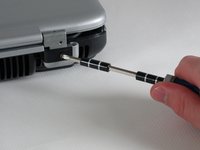
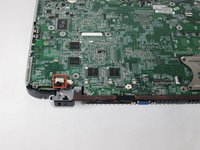
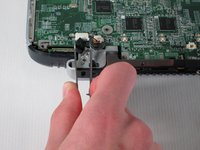
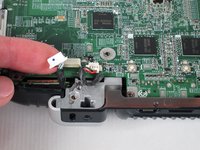
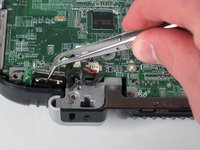
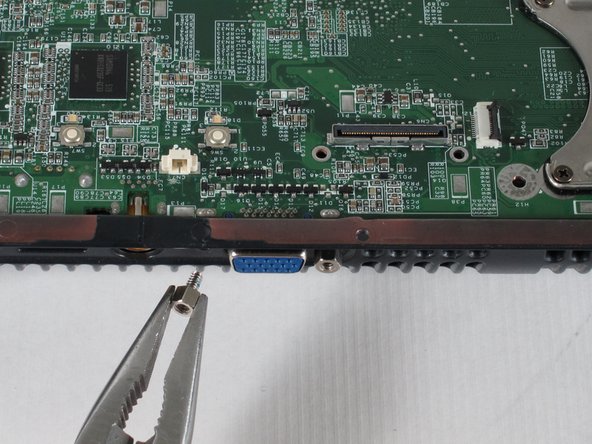
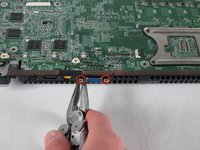
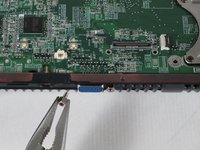
      • Using pliers, unscrew and remove the two bolts from both sides of the blue VGA connector.

      询问修复机器人

      添加评论

    11. HP Pavilion zd8000 Base Fans Replacement: 步骤 45 中的图像 1,2 HP Pavilion zd8000 Base Fans Replacement: 步骤 45 中的图像 2,2
      • Carefully flip the laptop face-down with the battery compartment facing you.

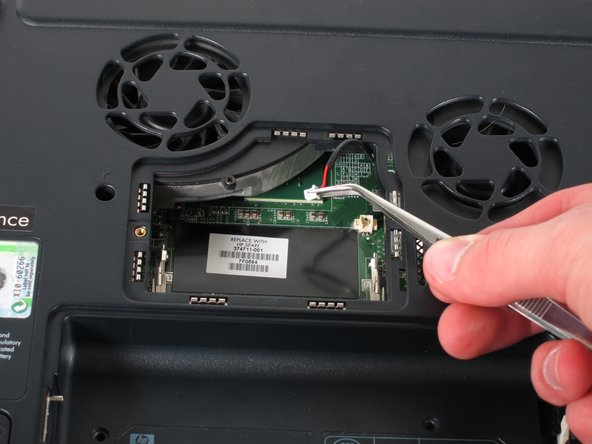
      • Using tweezers, remove the black and red cable from the RAM compartment by pulling on the white connector.

      询问修复机器人

      添加评论

    12. HP Pavilion zd8000 Base Fans Replacement: 步骤 46 中的图像 1,2 HP Pavilion zd8000 Base Fans Replacement: 步骤 46 中的图像 2,2
      • Flip the laptop face-up and turn it so that the drive labelled "hp usb digital drive" faces you.

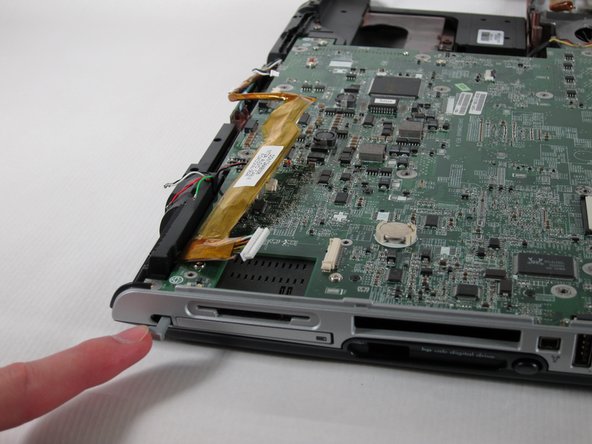
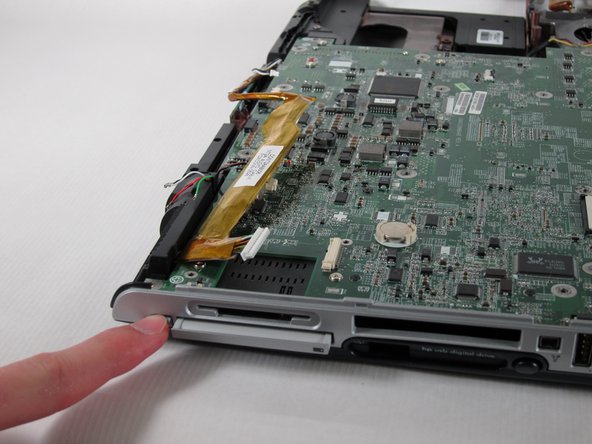
      • Press the ridged space saver card above the "hp usb digital drive" label to eject and remove it.

      询问修复机器人

      添加评论

    13. HP Pavilion zd8000 Base Fans Replacement: 步骤 47 中的图像 1,3 HP Pavilion zd8000 Base Fans Replacement: 步骤 47 中的图像 2,3 HP Pavilion zd8000 Base Fans Replacement: 步骤 47 中的图像 3,3
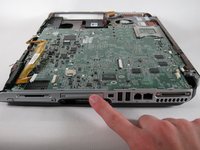
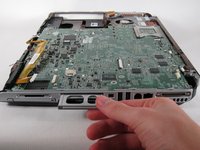
      • Locate the PC card below the SD card reader.

      • Push the button to its left once to eject the button itself, then press it once again to remove the PC card.

      询问修复机器人

      添加评论

    14. HP Pavilion zd8000 Base Fans Replacement: 步骤 48 中的图像 1,1
      • Once the PC card pops out, pull it out.

      询问修复机器人

      添加评论

    15. HP Pavilion zd8000 Base Fans Replacement: 步骤 49 中的图像 1,2 HP Pavilion zd8000 Base Fans Replacement: 步骤 49 中的图像 2,2
      • Turn the computer 90 degrees counter-clockwise and clear all cables off of the motherboard.

      • Push in the grey button to the left of the PC card as far as possible.

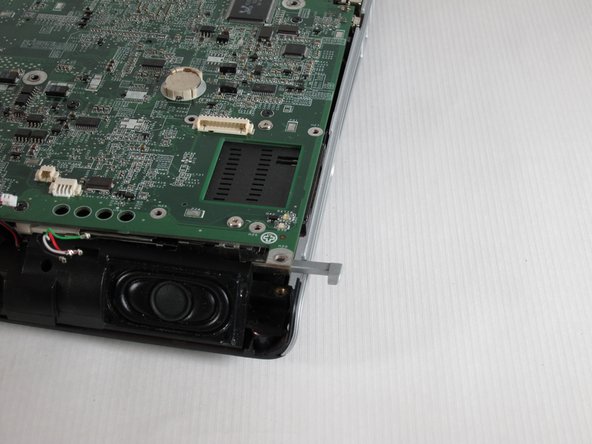
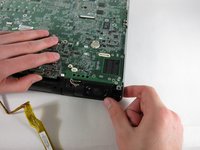
      • Keeping the button pressed down, lift the motherboard up until the button pops out the top of the case.

      询问修复机器人

      添加评论

    16. HP Pavilion zd8000 Base Fans Replacement: 步骤 50 中的图像 1,1
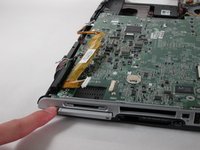
      • Pull the right casing to the side to release the ports on the motherboard from it.

      询问修复机器人

      添加评论

    17. HP Pavilion zd8000 Base Fans Replacement: 步骤 51 中的图像 1,2 HP Pavilion zd8000 Base Fans Replacement: 步骤 51 中的图像 2,2
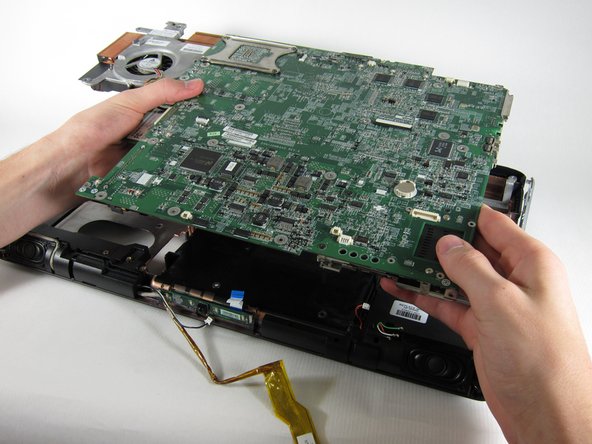
      • Lift the motherboard up until it releases from the bottom casing and remove it from the laptop.

      询问修复机器人

      添加评论

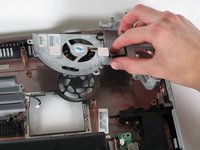
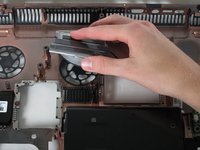
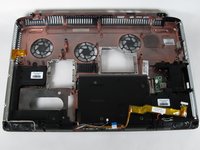
    1. HP Pavilion zd8000 Base Fans Replacement, Base Fans: 步骤 52 中的图像 1,2 HP Pavilion zd8000 Base Fans Replacement, Base Fans: 步骤 52 中的图像 2,2
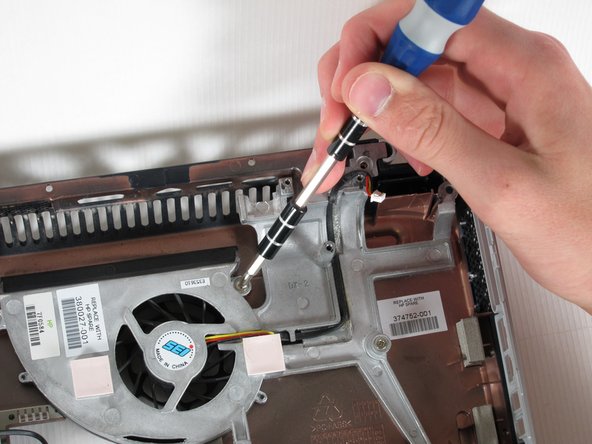
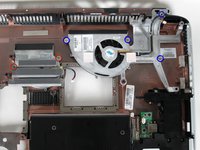
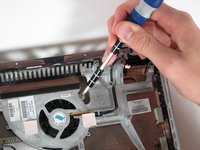
      • Unscrew the two 8mm Philips screws on both sides of the middle fan and remove them.

      • Unscrew the four 8mm Phillips screws from the right fan and remove them.

      询问修复机器人

      添加评论

    2. HP Pavilion zd8000 Base Fans Replacement: 步骤 53 中的图像 1,3 HP Pavilion zd8000 Base Fans Replacement: 步骤 53 中的图像 2,3 HP Pavilion zd8000 Base Fans Replacement: 步骤 53 中的图像 3,3
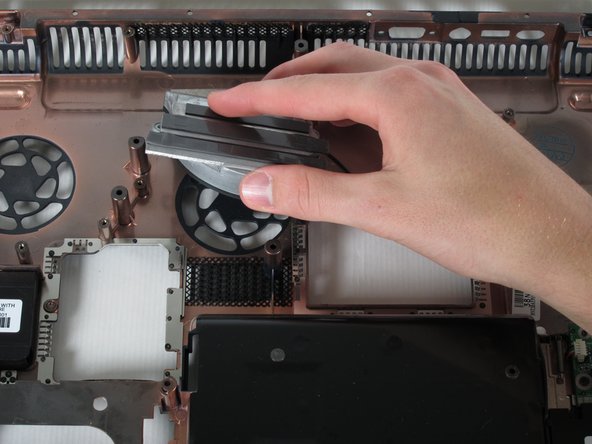
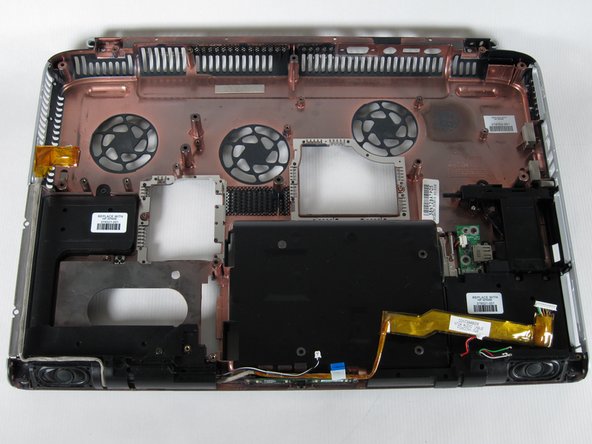
      • Lift both fans up and remove them from the laptop casing.

      询问修复机器人

      添加评论

结论

To reassemble your device, follow these instructions in reverse order.

取消:我没有完成这个指南。

3等其他人完成本指南。

Allie Menard

于04/12/11注册

820 声望

创作了13篇指南

团队

Cal Poly, Team 24-56, Amido Spring 2011 Cal Poly, Team 24-56, Amido Spring 2011 的会员

CPSU-AMIDO-S11S24G56

4 名成员

创作了95篇指南

1指南评论

Then what ? I have the zd8000 the original DVDs for the operating system and drivers and the AC power supply and a new hard drive. Wherever would I find a new mobo though ? I would really love to rebuild this old laptop it has a memories , it was the first true widescreen high definition PC ever made. It's special.

Timothy Deshazo - 回复 分享

添加评论

浏览统计数据:

过去 24 小时: 4

过去 7 天: 8

过去 30 天: 32

总计 9,712