跳转到主内容
加入维修社区 - 创建账户

HP Mini 110-3735dx Screen Replacement

你所需要的

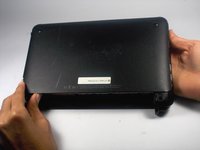
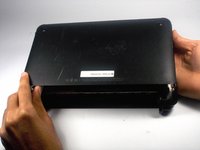
  1. HP Mini 110-3735dx Screen Replacement, Battery: 步骤 1 中的图像 1,3 HP Mini 110-3735dx Screen Replacement, Battery: 步骤 1 中的图像 2,3 HP Mini 110-3735dx Screen Replacement, Battery: 步骤 1 中的图像 3,3
    • With the bottom of the HP Mini facing up, slide both switches inward towards each other.

    询问修复机器人

    添加评论

  2. HP Mini 110-3735dx Screen Replacement: 步骤 2 中的图像 1,2 HP Mini 110-3735dx Screen Replacement: 步骤 2 中的图像 2,2
    • With the left switch still pushed inward, pull the battery towards you to remove it from the computer.

    询问修复机器人

    添加评论

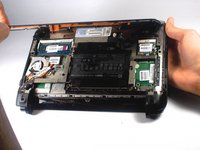
  3. HP Mini 110-3735dx Screen Replacement, Backcover: 步骤 3 中的图像 1,3 HP Mini 110-3735dx Screen Replacement, Backcover: 步骤 3 中的图像 2,3 HP Mini 110-3735dx Screen Replacement, Backcover: 步骤 3 中的图像 3,3
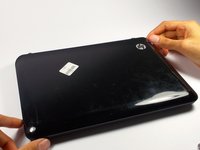
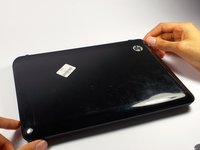
    • Pull upward from under the back cover via the missing battery area.

    • Best to start from one of the corners.

    询问修复机器人

    添加评论

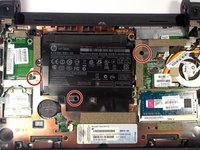
  4. HP Mini 110-3735dx Screen Replacement, Keyboard: 步骤 4 中的图像 1,2 HP Mini 110-3735dx Screen Replacement, Keyboard: 步骤 4 中的图像 2,2
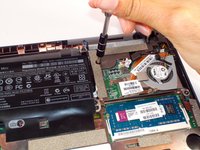
    • Remove the three 4.0 mm screws with the keyboard indicator next to them using a Phillips #1 screw driver.

    询问修复机器人

    添加评论

  5. HP Mini 110-3735dx Screen Replacement: 步骤 5 中的图像 1,2 HP Mini 110-3735dx Screen Replacement: 步骤 5 中的图像 2,2
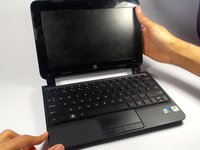
    • Flip the laptop over, and open it up.

    • Don't worry! No pieces will fall out.

    询问修复机器人

    添加评论

  6. HP Mini 110-3735dx Screen Replacement: 步骤 6 中的图像 1,2 HP Mini 110-3735dx Screen Replacement: 步骤 6 中的图像 2,2
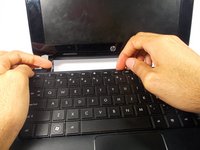
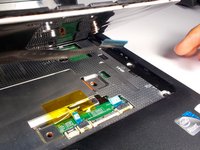
    • With the keyboard facing you, pull the black bezel upward until its loose.

    • You should hear three clicks.

    询问修复机器人

    添加评论

  7. HP Mini 110-3735dx Screen Replacement: 步骤 7 中的图像 1,2 HP Mini 110-3735dx Screen Replacement: 步骤 7 中的图像 2,2
    • Move and hold the bezel slightly towards the screen while lifting the keyboard from the top.

    询问修复机器人

    添加评论

  8. HP Mini 110-3735dx Screen Replacement: 步骤 8 中的图像 1,1
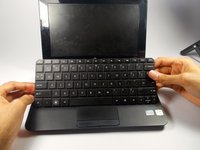
    • Pull up the keyboard from the bottom corners exposing the keyboard cable.

    询问修复机器人

    添加评论

  9. HP Mini 110-3735dx Screen Replacement: 步骤 9 中的图像 1,2 HP Mini 110-3735dx Screen Replacement: 步骤 9 中的图像 2,2
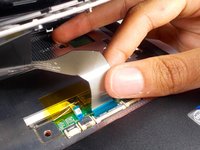
    • Lift the black holder connected to the keyboard cable until it points up.

    询问修复机器人

    添加评论

  10. HP Mini 110-3735dx Screen Replacement: 步骤 10 中的图像 1,2 HP Mini 110-3735dx Screen Replacement: 步骤 10 中的图像 2,2
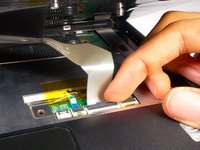
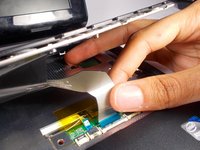
    • Gently pull the keyboard cable from the socket.

    询问修复机器人

    添加评论

  11. HP Mini 110-3735dx Screen Replacement, Hard Drive Cage: 步骤 11 中的图像 1,1
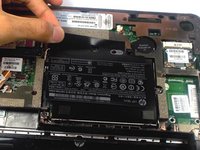
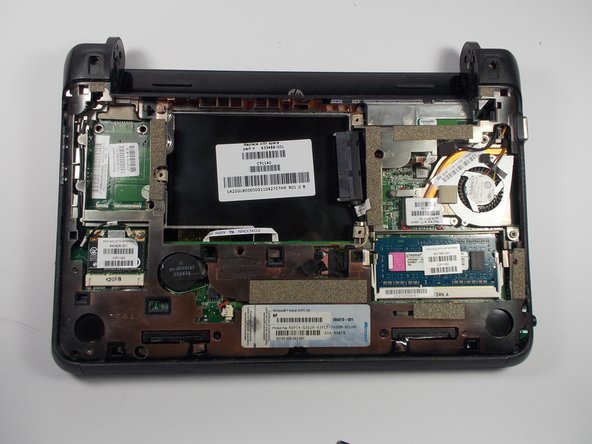
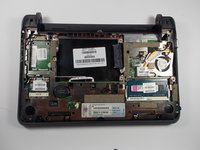
    • Remove the three 5.0 mm screws holding the hard drive cage in place using a Phillips #1 screw driver.

    询问修复机器人

    添加评论

  12. HP Mini 110-3735dx Screen Replacement: 步骤 12 中的图像 1,3 HP Mini 110-3735dx Screen Replacement: 步骤 12 中的图像 2,3 HP Mini 110-3735dx Screen Replacement: 步骤 12 中的图像 3,3
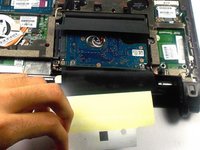
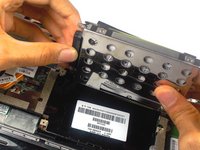
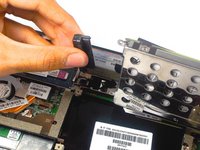
    • Lift the hard drive cage by pulling the tape upward.

    • Start by pulling the tape from the side with the keyboard symbol.

    询问修复机器人

    添加评论

  13. HP Mini 110-3735dx Screen Replacement: 步骤 13 中的图像 1,2 HP Mini 110-3735dx Screen Replacement: 步骤 13 中的图像 2,2
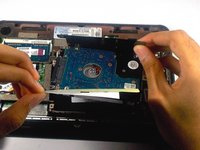
    • Unplug the cable connecting to the hard drive.

    询问修复机器人

    添加评论

  14. HP Mini 110-3735dx Screen Replacement, Screen: 步骤 14 中的图像 1,2 HP Mini 110-3735dx Screen Replacement, Screen: 步骤 14 中的图像 2,2
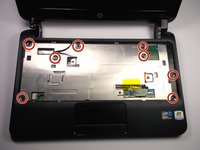
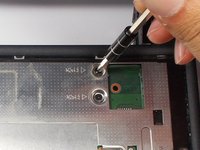
    • Remove the 8 5.0 mm screws under the keyboard using a Phillips #1 screw driver.

    询问修复机器人

    添加评论

  15. HP Mini 110-3735dx Screen Replacement: 步骤 15 中的图像 1,3 HP Mini 110-3735dx Screen Replacement: 步骤 15 中的图像 2,3 HP Mini 110-3735dx Screen Replacement: 步骤 15 中的图像 3,3
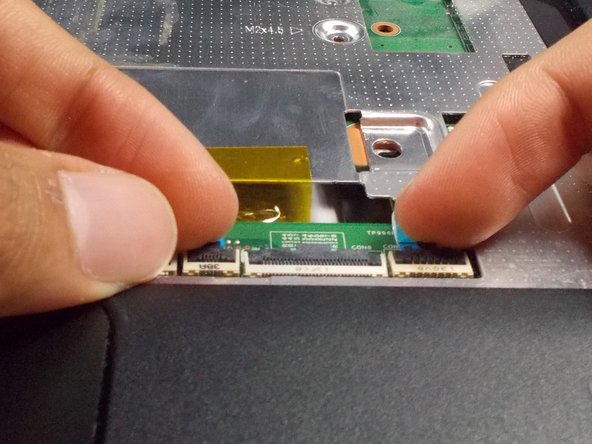
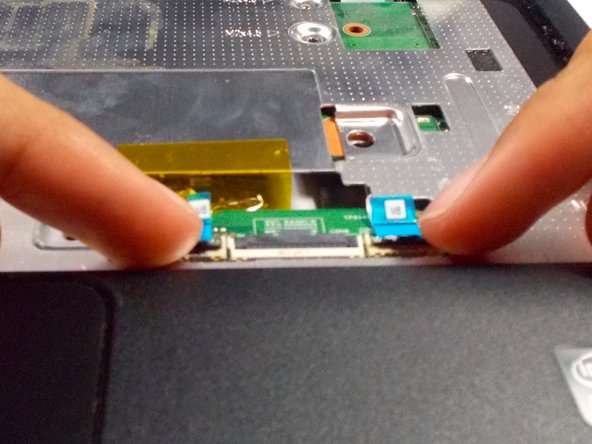
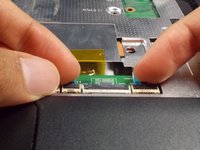
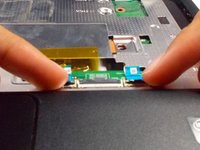
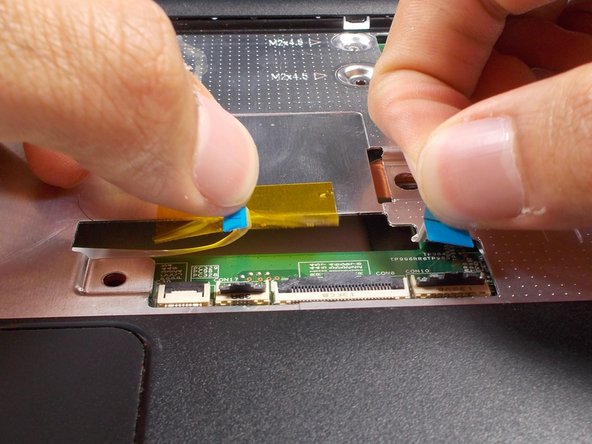
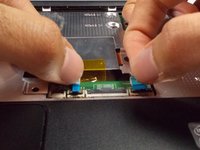
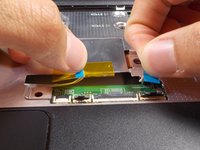
    • Lift the two black holders upward located next to the socket for the keyboard close to the tracked pad.

    询问修复机器人

    添加评论

  16. HP Mini 110-3735dx Screen Replacement: 步骤 16 中的图像 1,2 HP Mini 110-3735dx Screen Replacement: 步骤 16 中的图像 2,2
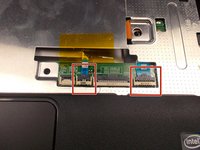
    • Remove the two connectors for the motherboard from their sockets.

    询问修复机器人

    添加评论

  17. HP Mini 110-3735dx Screen Replacement: 步骤 17 中的图像 1,2 HP Mini 110-3735dx Screen Replacement: 步骤 17 中的图像 2,2
    • Close the laptop by bringing the screen down.

    • Flip the laptop over to the other side.

    询问修复机器人

    添加评论

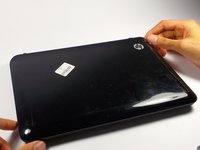
  18. HP Mini 110-3735dx Screen Replacement: 步骤 18 中的图像 1,2 HP Mini 110-3735dx Screen Replacement: 步骤 18 中的图像 2,2
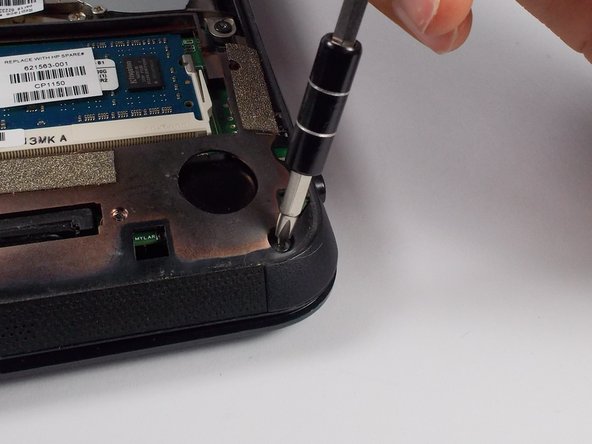
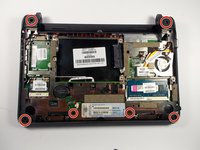
    • Remove the 6 5.0 mm screws holding the back plate together using a Phillips #1 screw driver.

    询问修复机器人

    添加评论

  19. HP Mini 110-3735dx Screen Replacement: 步骤 19 中的图像 1,2 HP Mini 110-3735dx Screen Replacement: 步骤 19 中的图像 2,2
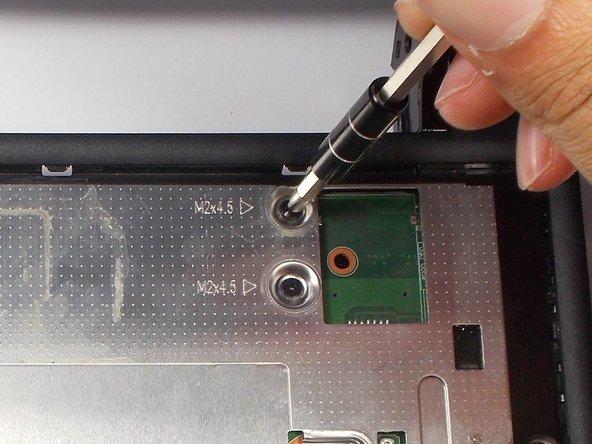
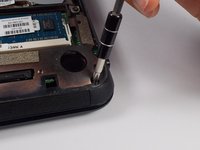
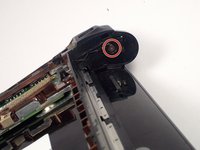
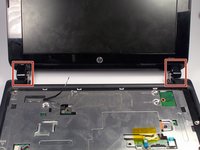
    • Remove the 2 3.0 mm screw head holding the plastic piece in place using a Phillips #1 screw driver.

    • Located on the left and right side where the battery was removed.

    询问修复机器人

    添加评论

  20. HP Mini 110-3735dx Screen Replacement: 步骤 20 中的图像 1,3 HP Mini 110-3735dx Screen Replacement: 步骤 20 中的图像 2,3 HP Mini 110-3735dx Screen Replacement: 步骤 20 中的图像 3,3
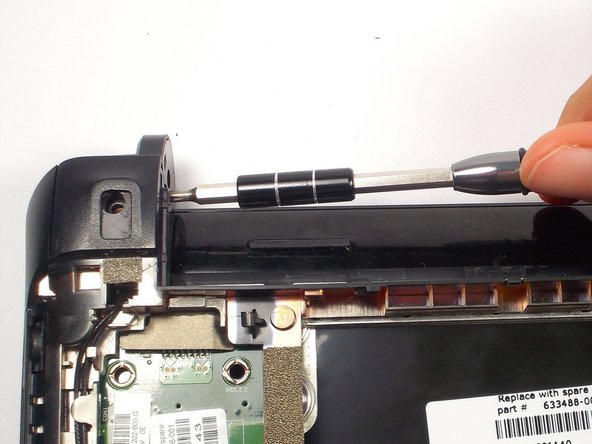
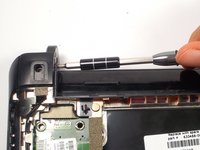
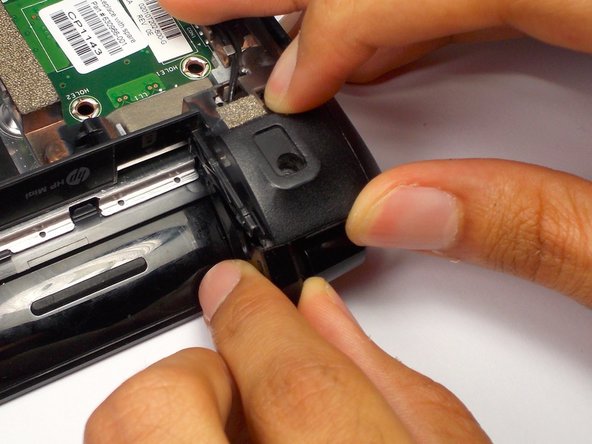
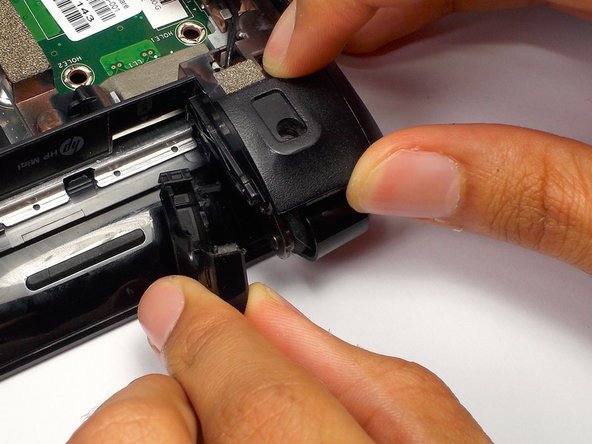
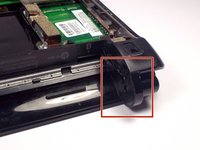
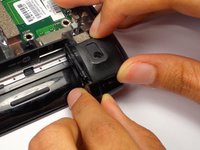
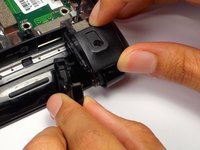
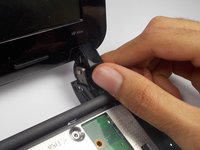
    • Pull the black plastic pieces that the screws was holding inward.

    • The pieces are located on the left and right corners connecting the bottom and top of the HP Mini.

    询问修复机器人

    添加评论

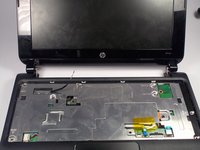
  21. HP Mini 110-3735dx Screen Replacement: 步骤 21 中的图像 1,2 HP Mini 110-3735dx Screen Replacement: 步骤 21 中的图像 2,2
    • Flip the laptop back over.

    • Open it by lifting the screeen.

    询问修复机器人

    添加评论

  22. HP Mini 110-3735dx Screen Replacement: 步骤 22 中的图像 1,3 HP Mini 110-3735dx Screen Replacement: 步骤 22 中的图像 2,3 HP Mini 110-3735dx Screen Replacement: 步骤 22 中的图像 3,3
    • Right next to the previous plastic piece, remove the other two plastic pieces.

    • This may be difficult to come off. Tilt the screen back and forth to help loosen the piece.

    询问修复机器人

    添加评论

  23. HP Mini 110-3735dx Screen Replacement: 步骤 23 中的图像 1,1
    • Using the plastic prying tool, pry the front plate of the bottom part of your HP Mini.

    • Start along the speaker grill near the touch pad, and move along the sides.

    询问修复机器人

    添加评论

  24. HP Mini 110-3735dx Screen Replacement: 步骤 24 中的图像 1,2 HP Mini 110-3735dx Screen Replacement: 步骤 24 中的图像 2,2
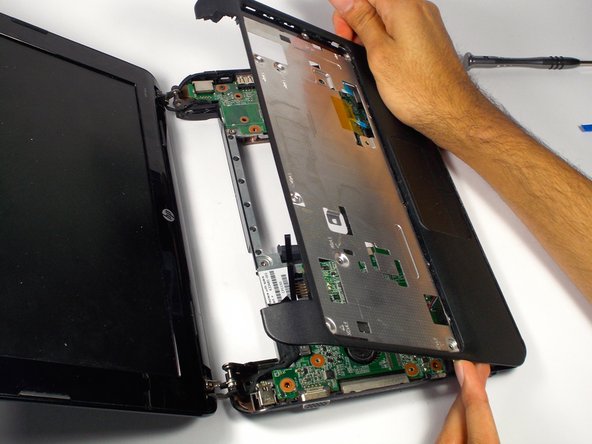
    • Lift up the front plate where the keyboard was.

    询问修复机器人

    添加评论

  25. HP Mini 110-3735dx Screen Replacement: 步骤 25 中的图像 1,3 HP Mini 110-3735dx Screen Replacement: 步骤 25 中的图像 2,3 HP Mini 110-3735dx Screen Replacement: 步骤 25 中的图像 3,3
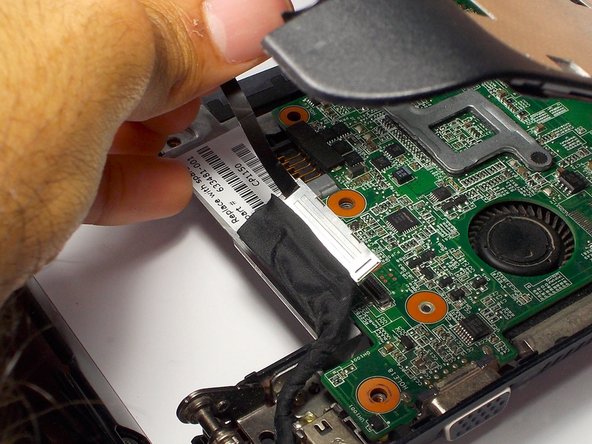
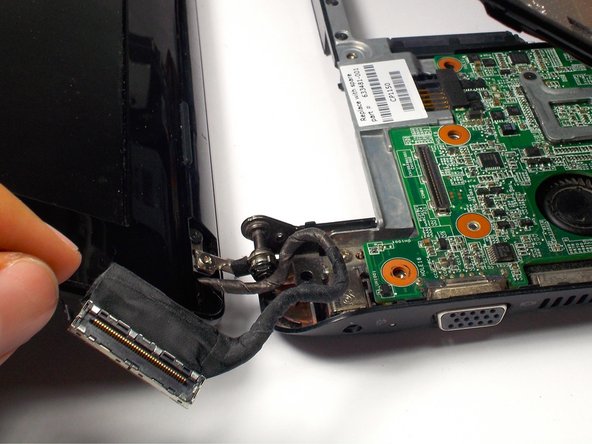
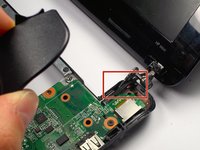
    • Remove the display cable from the motherboard located on the top left corner under where the keyboard was by pulling on the black tab.

    • Move the cable.

    询问修复机器人

    添加评论

  26. HP Mini 110-3735dx Screen Replacement: 步骤 26 中的图像 1,3 HP Mini 110-3735dx Screen Replacement: 步骤 26 中的图像 2,3 HP Mini 110-3735dx Screen Replacement: 步骤 26 中的图像 3,3
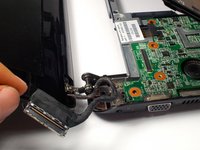
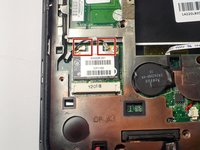
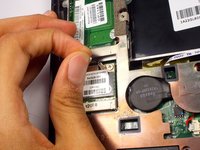
    • Remove the webcam cables from the motherboard.

    • Located on the back side of the laptop in the bottom left corner.

    询问修复机器人

    添加评论

  27. HP Mini 110-3735dx Screen Replacement: 步骤 27 中的图像 1,1
    • Flip over the computer, and open the laptop.

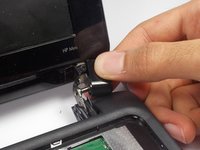
    • Lift up the front plate on the top right corner.

    询问修复机器人

    添加评论

  28. HP Mini 110-3735dx Screen Replacement: 步骤 28 中的图像 1,3 HP Mini 110-3735dx Screen Replacement: 步骤 28 中的图像 2,3 HP Mini 110-3735dx Screen Replacement: 步骤 28 中的图像 3,3
    在这个步骤中使用的工具:
    Tweezers
    $4.99
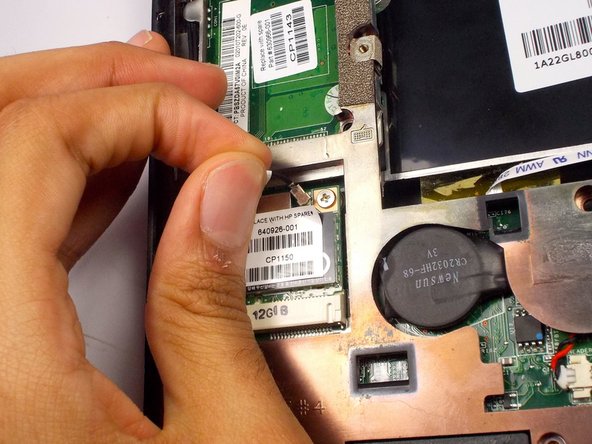
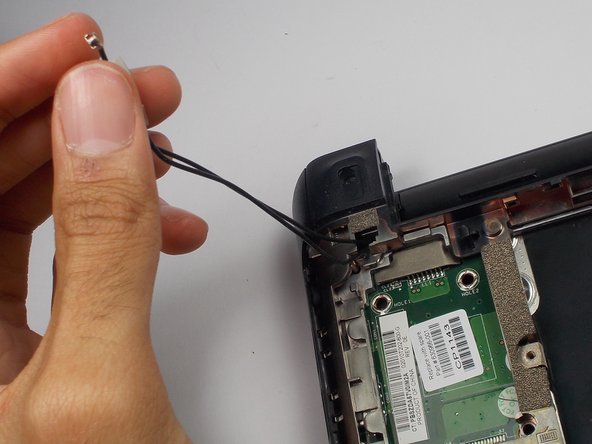
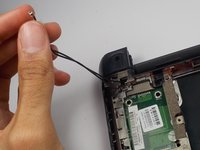
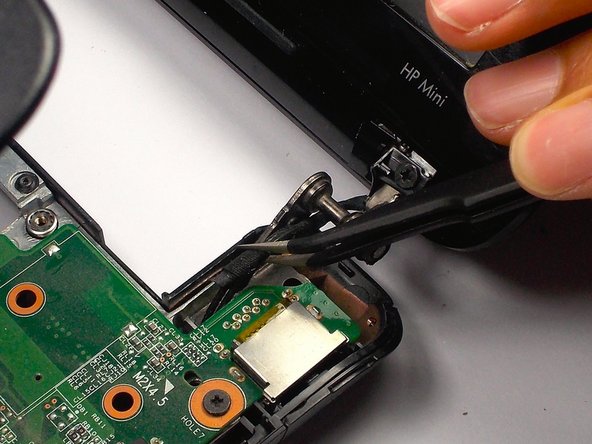
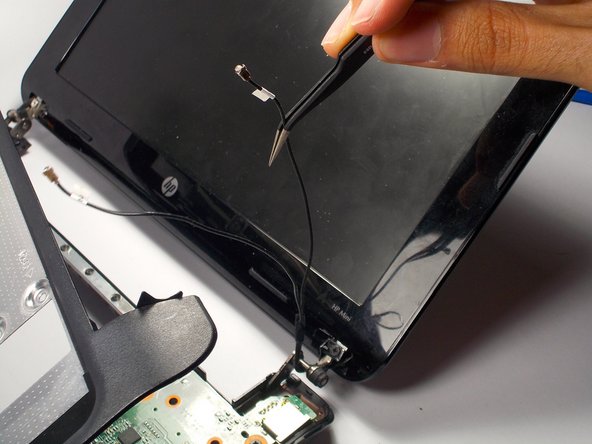
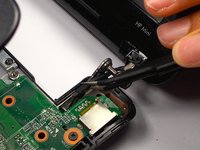
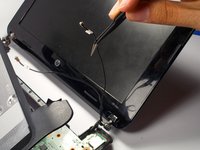
    • Pull the cables for the web cam out using tweezers.

    询问修复机器人

    添加评论

  29. HP Mini 110-3735dx Screen Replacement: 步骤 29 中的图像 1,2 HP Mini 110-3735dx Screen Replacement: 步骤 29 中的图像 2,2
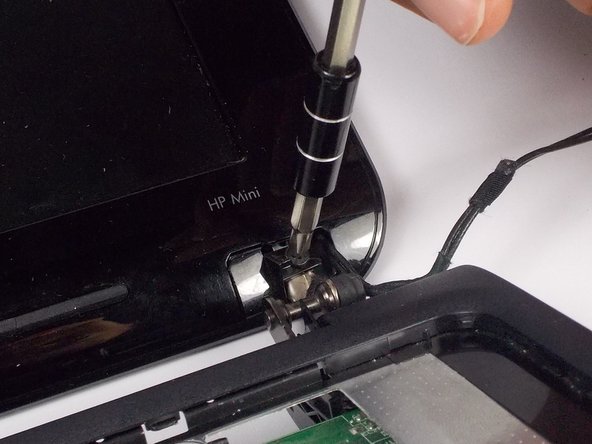
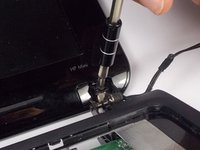
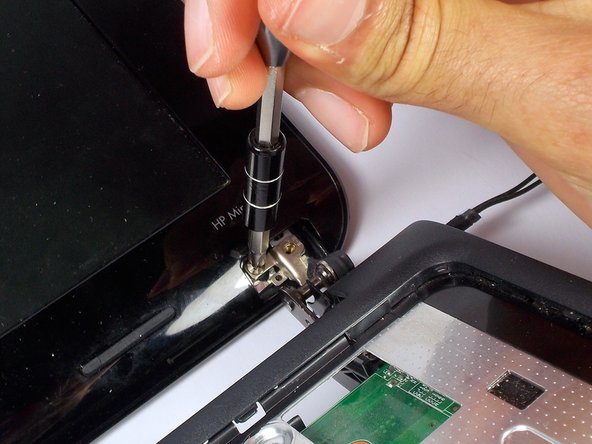
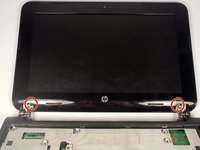
    • Remove the 2 3.0 mm screws on both sides of the bottom of the display using a Phillips #1 screwdriver.

    询问修复机器人

    添加评论

  30. HP Mini 110-3735dx Screen Replacement: 步骤 30 中的图像 1,2 HP Mini 110-3735dx Screen Replacement: 步骤 30 中的图像 2,2
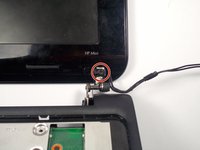
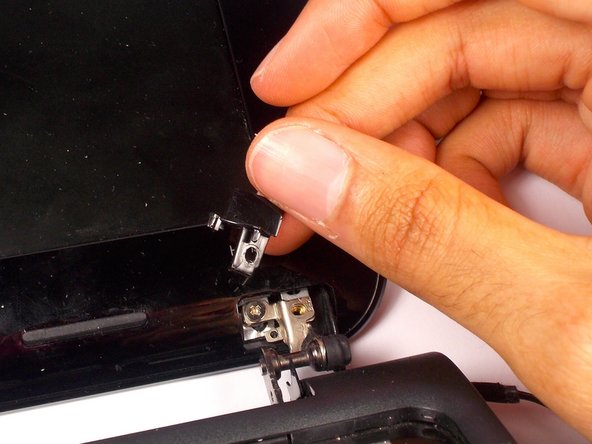
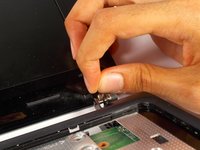
    • Remove the black plastic piece that the screw was holding on both sides.

    • This will reveal another screw.

    询问修复机器人

    添加评论

  31. HP Mini 110-3735dx Screen Replacement: 步骤 31 中的图像 1,2 HP Mini 110-3735dx Screen Replacement: 步骤 31 中的图像 2,2
    • Remove the 2 3.0 mm screws on both sides using a Phillips #1 screw driver.

    • When removing, keep hold of the screen to make sure it doesn't fall.

    询问修复机器人

    添加评论

  32. HP Mini 110-3735dx Screen Replacement: 步骤 32 中的图像 1,1
    • Pry the front plate using the plastic opening tool by pushing along the border of the front and back plate.

    • Make sure to pry from the sides, top and bottom as the corners will come undone themselves.

    询问修复机器人

    添加评论

  33. HP Mini 110-3735dx Screen Replacement: 步骤 33 中的图像 1,3 HP Mini 110-3735dx Screen Replacement: 步骤 33 中的图像 2,3 HP Mini 110-3735dx Screen Replacement: 步骤 33 中的图像 3,3
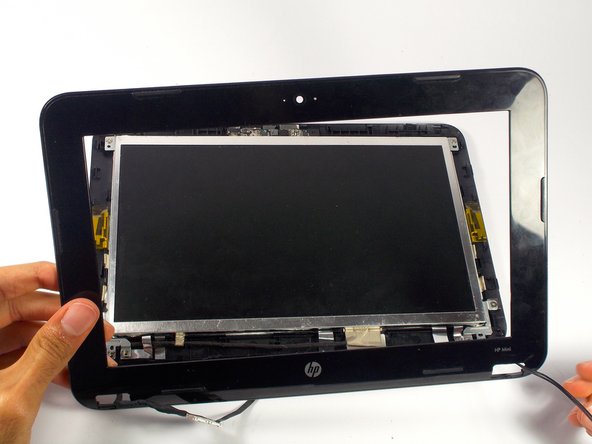
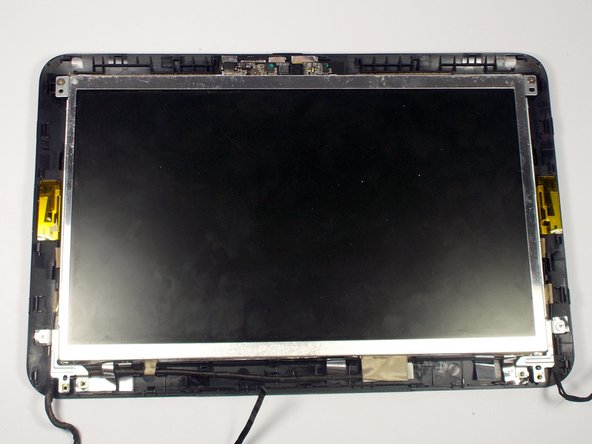
    • Remove the front plate.

    • Pull the cables through the holes.

    询问修复机器人

    添加评论

  34. HP Mini 110-3735dx Screen Replacement: 步骤 34 中的图像 1,2 HP Mini 110-3735dx Screen Replacement: 步骤 34 中的图像 2,2
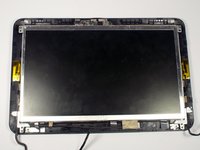
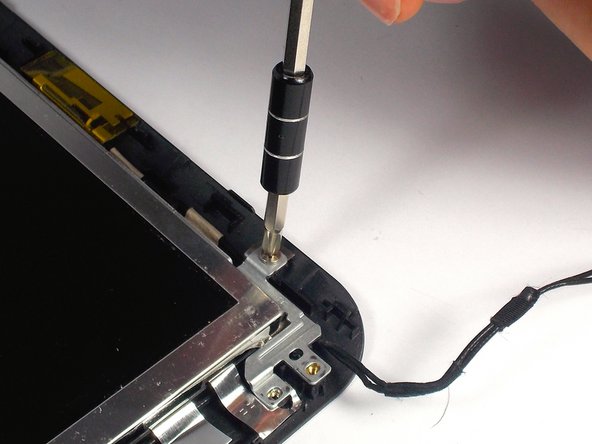
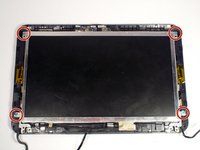
    • Remove the 4 4.0 mm screws holding the screen in place using a Phillips #1 screw driver.

    询问修复机器人

    添加评论

  35. HP Mini 110-3735dx Screen Replacement: 步骤 35 中的图像 1,2 HP Mini 110-3735dx Screen Replacement: 步骤 35 中的图像 2,2
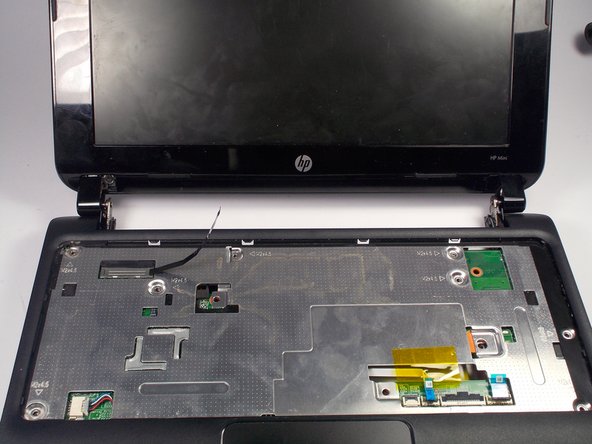
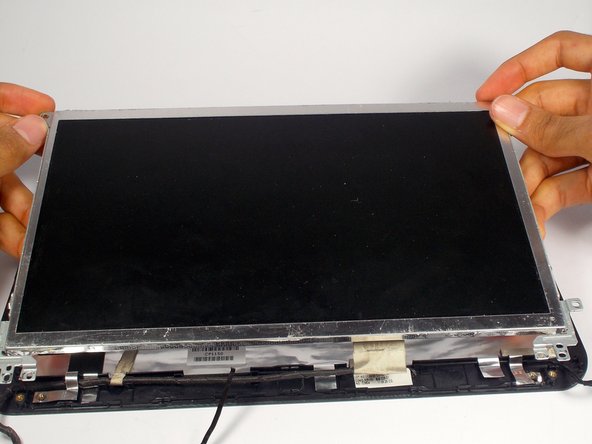
    • Lift the screen up.

    询问修复机器人

    添加评论

  36. HP Mini 110-3735dx Screen Replacement: 步骤 36 中的图像 1,2 HP Mini 110-3735dx Screen Replacement: 步骤 36 中的图像 2,2
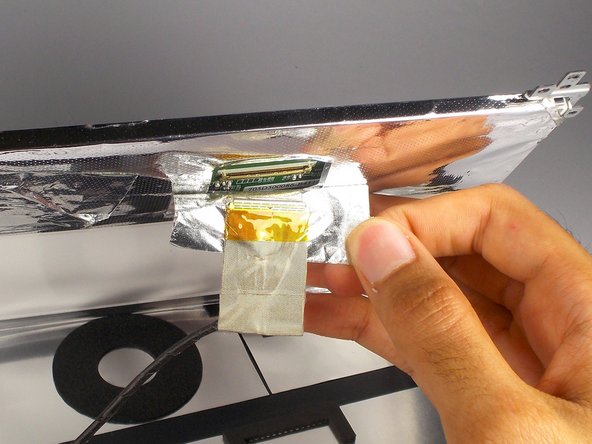
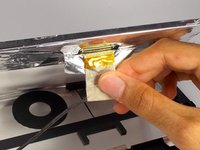
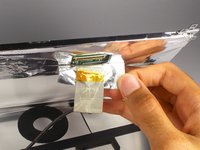
    • Under the screen, peel off the tape near the cable completely, so you can see the socket for the cable.

    询问修复机器人

    添加评论

结论

To reassemble your device, follow these instructions in reverse order.

取消:我没有完成这个指南。

团队

UMass Dartmouth, Team 4-1, Catania Spring 2016 UMass Dartmouth, Team 4-1, Catania Spring 2016 的会员

UMASSD-CATANIA-S16S4G1

4 名成员

创作了7篇指南

1指南评论

Tengo una pregunta en pantalla habrá alguna otra que sea compatible con esta hp sin ser el mismo modelo?

Icela Ross - 回复 分享

添加评论

浏览统计数据:

过去 24 小时: 0

过去 7 天: 1

过去 30 天: 27

总计 1,176