跳转到主内容
加入维修社区 - 创建账户

HP Chromebook 11 G3 Camera Replacement

你所需要的

    1. HP Chromebook 11 G3 Camera Replacement, Keyboard Mount: 步骤 1 中的图像 1,2 HP Chromebook 11 G3 Camera Replacement, Keyboard Mount: 步骤 1 中的图像 2,2
      • Flip the laptop upside down so that the lid lies flat on the table.

      • Remove the nine 6mm Phillips #00 screws that line the border.

      询问修复机器人

      添加评论

    2. HP Chromebook 11 G3 Camera Replacement: 步骤 2 中的图像 1,2 HP Chromebook 11 G3 Camera Replacement: 步骤 2 中的图像 2,2
      在这个步骤中使用的工具:
      Tweezers
      $4.99
      • Remove the two rubber feet closest to the hinge using tweezers.

      • Remove the two 6mm Phillips #00 screws revealed under these rubber feet.

      • The rubber feet may tear while removal; preventing this can be difficult, but it won’t harm the laptop. If desired, replace these rubber feet during reassembly.

      询问修复机器人

      添加评论

    3. HP Chromebook 11 G3 Camera Replacement: 步骤 3 中的图像 1,1
      • Flip the laptop so it is in the upright position.

      • Open the lid.

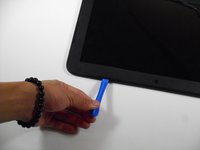
      • Unsnap the keyboard mount along the border of the laptop using a plastic opening tool.

      • This may require more force than expected. Hearing loud clicks as the plastic opening tool slides along the seam is normal.

      询问修复机器人

      添加评论

    4. HP Chromebook 11 G3 Camera Replacement: 步骤 4 中的图像 1,3 HP Chromebook 11 G3 Camera Replacement: 步骤 4 中的图像 2,3 HP Chromebook 11 G3 Camera Replacement: 步骤 4 中的图像 3,3
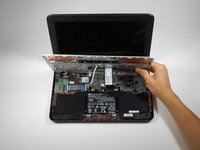
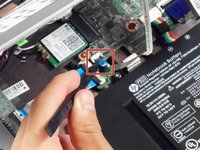
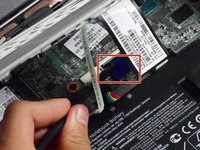
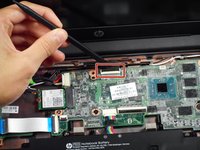
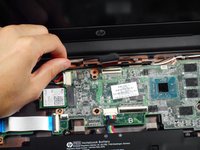
      • Tilt the keyboard mount up.

      • Use a spudger to flip up the two ZIF connector retaining flaps for the ribbon cables that connect the keyboard mount to the motherboard.

      • Gently remove both ribbon cables.

      添加评论

    5. HP Chromebook 11 G3 Camera Replacement: 步骤 5 中的图像 1,1
      • Lift the keyboard mount out of the laptop.

      询问修复机器人

      添加评论

    1. HP Chromebook 11 G3 Camera Replacement, Display Assembly: 步骤 6 中的图像 1,1
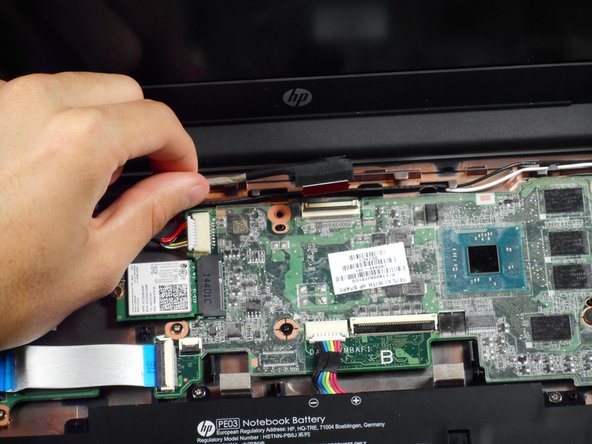
      • Gently tug on the black and white wires connected to the Wi-Fi module to disconnect them.

      询问修复机器人

      添加评论

    2. HP Chromebook 11 G3 Camera Replacement: 步骤 7 中的图像 1,2 HP Chromebook 11 G3 Camera Replacement: 步骤 7 中的图像 2,2
      • Using a spudger, lift the ZIF retaining flap that secures the display’s ribbon cable to the motherboard.

      • Gently pull the ribbon cable out of its socket.

      询问修复机器人

      添加评论

    3. HP Chromebook 11 G3 Camera Replacement: 步骤 8 中的图像 1,1
      • Free the wire from the casing.

      询问修复机器人

      添加评论

    4. HP Chromebook 11 G3 Camera Replacement: 步骤 9 中的图像 1,1
      • Remove the two 6mm Phillips #00 screws located near the upper left and right corners of the hinge mounts.

      • Hold the lid so that it is folded slightly inwards while removing the screws so that the lid doesn’t fall.

      询问修复机器人

      添加评论

    5. HP Chromebook 11 G3 Camera Replacement: 步骤 10 中的图像 1,1
      • Rotate the lid to a 90-degree angle with the table.

      • Shimmy the lid out of the laptop.

      询问修复机器人

      添加评论

    1. HP Chromebook 11 G3 Camera Replacement, Screen Bezel: 步骤 11 中的图像 1,3 HP Chromebook 11 G3 Camera Replacement, Screen Bezel: 步骤 11 中的图像 2,3 HP Chromebook 11 G3 Camera Replacement, Screen Bezel: 步骤 11 中的图像 3,3
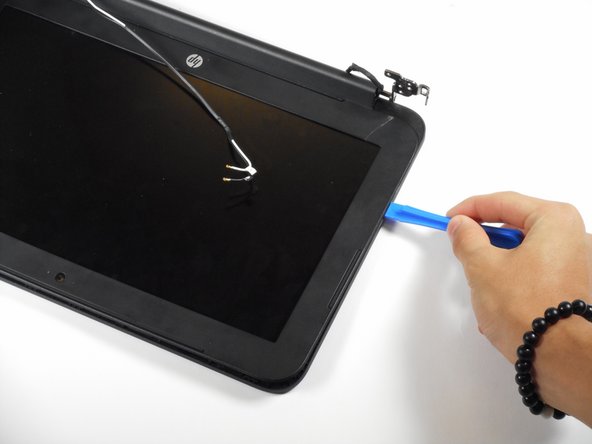
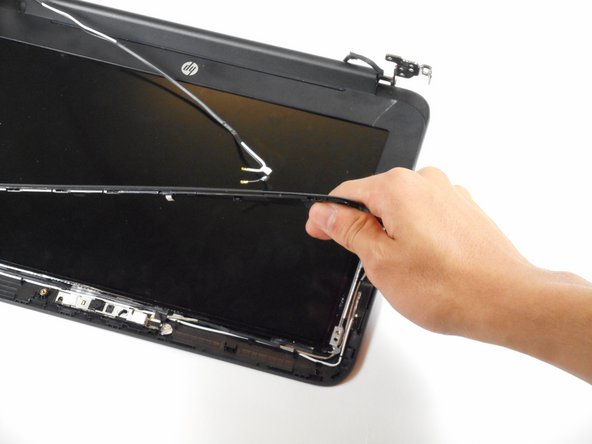
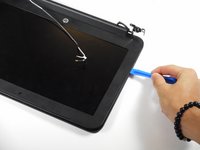
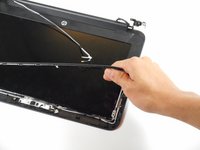
      • Use the plastic opening tool to pry the left and right side of the top of the lid, and proceed inwards from the sides.

      • Do not attempt to remove the entire frame; this isn't necessary for removing the camera.

      • Do not pry at the center of the lid; this may damage the camera inside.

      询问修复机器人

      添加评论

    1. HP Chromebook 11 G3 Camera Replacement, Camera: 步骤 12 中的图像 1,1
      • Gently remove the slide-out connector near the bottom left corner of the camera mount.

      询问修复机器人

      添加评论

    2. HP Chromebook 11 G3 Camera Replacement: 步骤 13 中的图像 1,1
      在这个步骤中使用的工具:
      Tweezers
      $4.99
      • Locate the two silver strips of tape on each edge of the camera mount.

      • Use tweezers to peel off these strips.

      询问修复机器人

      添加评论

    3. HP Chromebook 11 G3 Camera Replacement: 步骤 14 中的图像 1,1
      • Use a plastic opening tool to pry the camera mount out of the lid.

      • Apply force evenly to prevent bending the mount.

      询问修复机器人

      添加评论

    4. HP Chromebook 11 G3 Camera Replacement: 步骤 15 中的图像 1,1
      • Lift the camera out of the lid.

      询问修复机器人

      添加评论

结论

To reassemble your device, follow these instructions in reverse order.

取消:我没有完成这个指南。

3等其他人完成本指南。

Rahul Goyal

于04/26/17注册

1,401 声望

创作了10篇指南

团队

Cal Poly, Team S23-G3, Livingston Spring 2017 Cal Poly, Team S23-G3, Livingston Spring 2017 的会员

CPSU-LIVINGSTON-S17S23G3

4 名成员

创作了72篇指南

0指南评论

添加评论

浏览统计数据:

过去 24 小时: 0

过去 7 天: 6

过去 30 天: 25

总计 1,474