跳转到主内容
加入维修社区 - 创建账户

HP 15-dy2702dx Keyboard Replacement

你所需要的

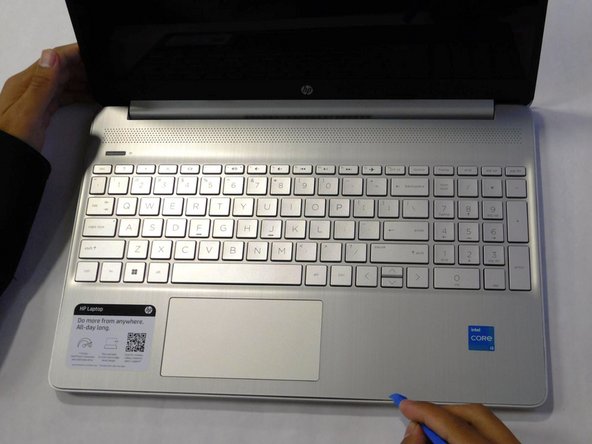
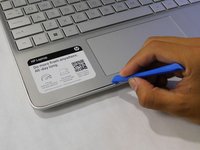
    1. HP 15-dy2702dx Keyboard Replacement, Lower Case: 步骤 1 中的图像 1,1
      • Remove both of the rubber strips to uncover the hidden screws.

      • You can use a prying tool to help lift an end.

      询问修复机器人
      添加评论

    2. HP 15-dy2702dx Keyboard Replacement: 步骤 2 中的图像 1,1
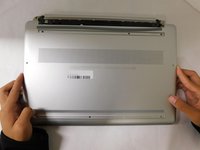
      • Unscrew all 8 Phillips #1 screws on the bottom panel:

      • Two M2.5x6

      • Six M2x6

      询问修复机器人

      添加评论

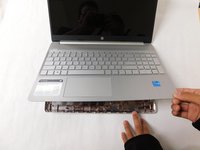
    3. HP 15-dy2702dx Keyboard Replacement: 步骤 3 中的图像 1,2 HP 15-dy2702dx Keyboard Replacement: 步骤 3 中的图像 2,2
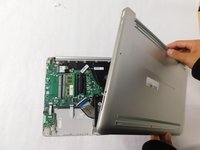
      • Flip the laptop over and open the lid.

      • Separate the bottom panel from the main body by using the iFixit opening tool.

      • Ensure that the bottom panel is completely separated along the edges.

      询问修复机器人
      添加评论

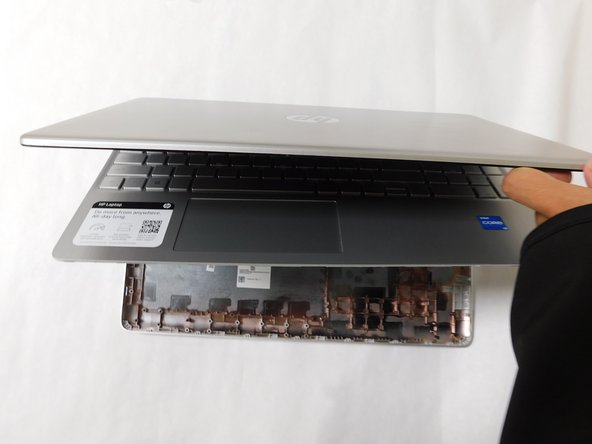
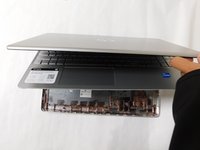
    4. HP 15-dy2702dx Keyboard Replacement: 步骤 4 中的图像 1,2 HP 15-dy2702dx Keyboard Replacement: 步骤 4 中的图像 2,2
      • If you can lift the laptop like shown in the first picture, the bottom panel is nearly separated.

      • Close the laptop to allow the back edges to fully separate

      询问修复机器人
      添加评论

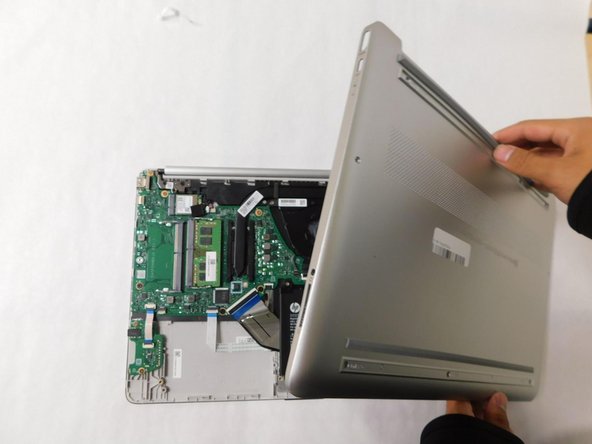
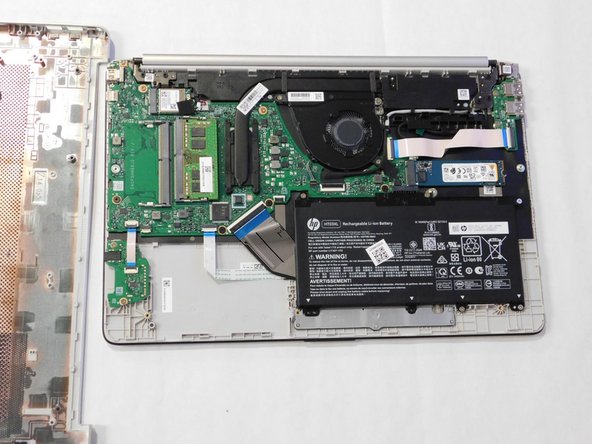
    5. HP 15-dy2702dx Keyboard Replacement: 步骤 5 中的图像 1,3 HP 15-dy2702dx Keyboard Replacement: 步骤 5 中的图像 2,3 HP 15-dy2702dx Keyboard Replacement: 步骤 5 中的图像 3,3
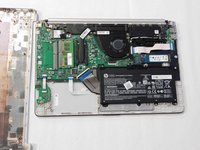
      • Flip the laptop over and carefully remove the lower case.

      询问修复机器人
      添加评论

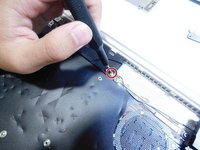
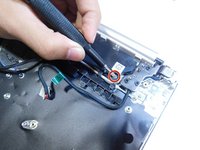
    1. HP 15-dy2702dx Keyboard Replacement, Battery: 步骤 6 中的图像 1,2 HP 15-dy2702dx Keyboard Replacement, Battery: 步骤 6 中的图像 2,2
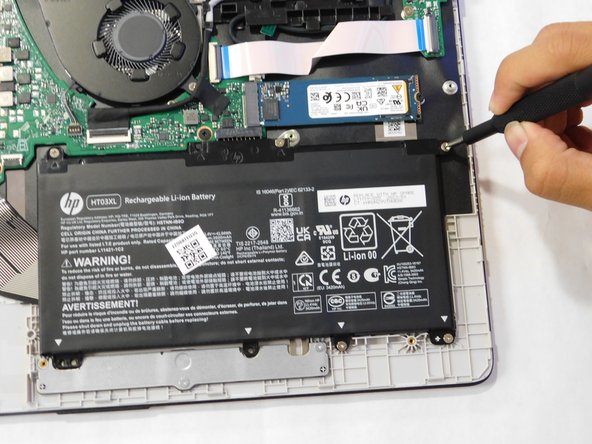
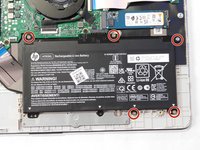
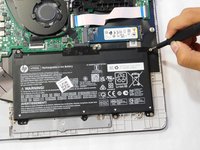
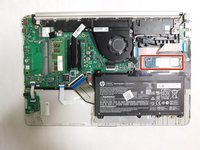
      • Remove the five M2x6 screws that secure the battery with a Phillips #1 screwdriver.

      询问修复机器人

      添加评论

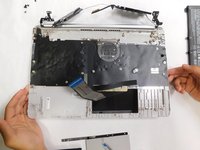
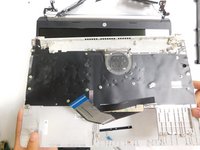
    2. HP 15-dy2702dx Keyboard Replacement: 步骤 7 中的图像 1,3 HP 15-dy2702dx Keyboard Replacement: 步骤 7 中的图像 2,3 HP 15-dy2702dx Keyboard Replacement: 步骤 7 中的图像 3,3
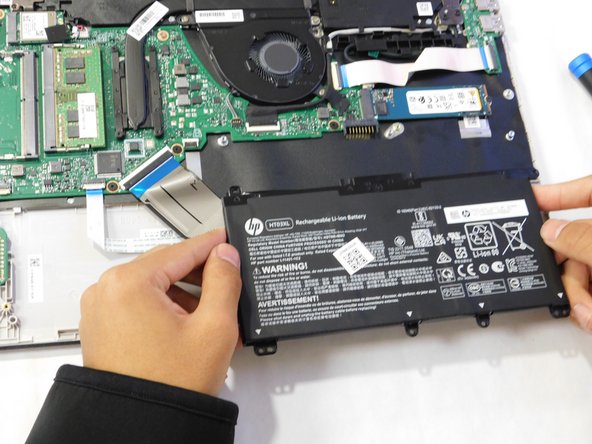
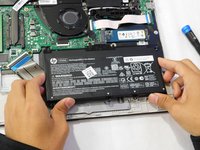
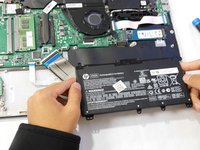
      • Grab the sides of the battery and gently pull the battery until it disconnects from the connector on motherboard.

      • Lift the battery up and out.

      询问修复机器人
      添加评论

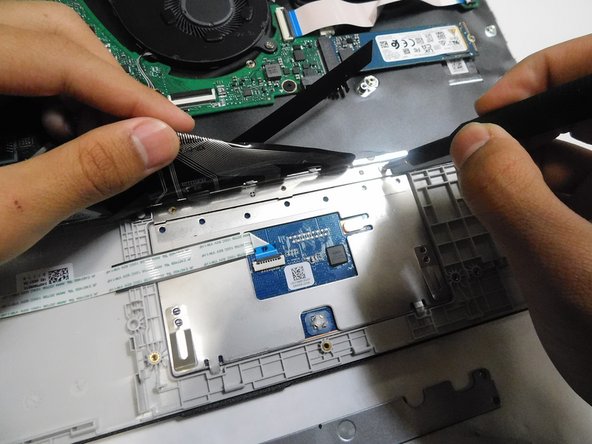
    1. HP 15-dy2702dx Keyboard Replacement, Trackpad: 步骤 8 中的图像 1,1
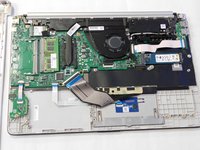
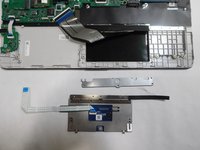
      • Find the trackpad.

      询问修复机器人
      添加评论

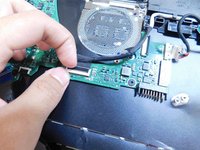
    2. HP 15-dy2702dx Keyboard Replacement: 步骤 9 中的图像 1,3 HP 15-dy2702dx Keyboard Replacement: 步骤 9 中的图像 2,3 HP 15-dy2702dx Keyboard Replacement: 步骤 9 中的图像 3,3
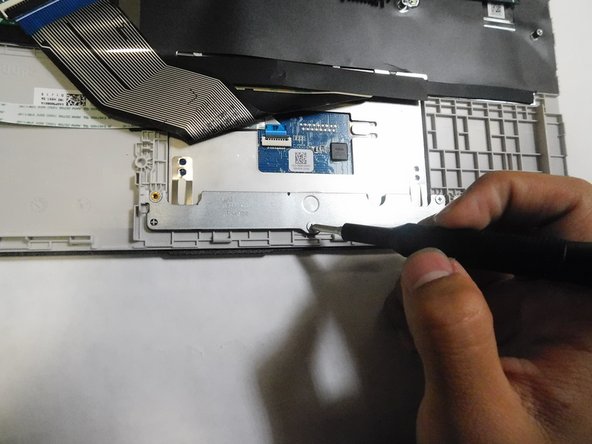
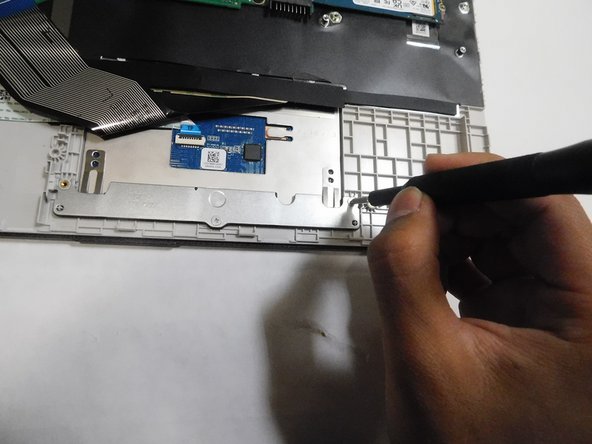
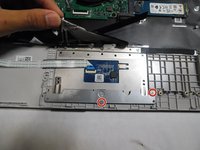
      • Unscrew the two M2x6 Phillips #1 screws securing the trackpad.

      询问修复机器人
      添加评论

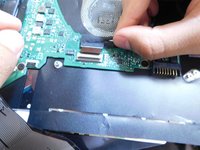
    3. HP 15-dy2702dx Keyboard Replacement: 步骤 10 中的图像 1,2 HP 15-dy2702dx Keyboard Replacement: 步骤 10 中的图像 2,2
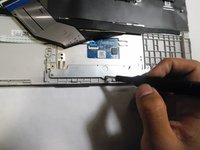
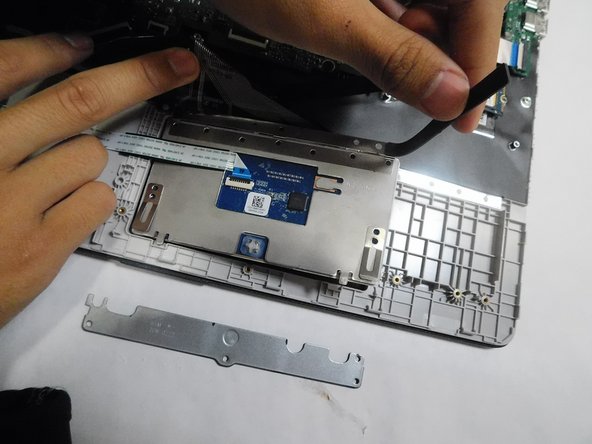
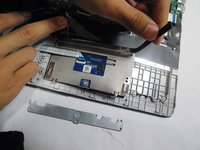
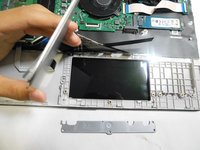
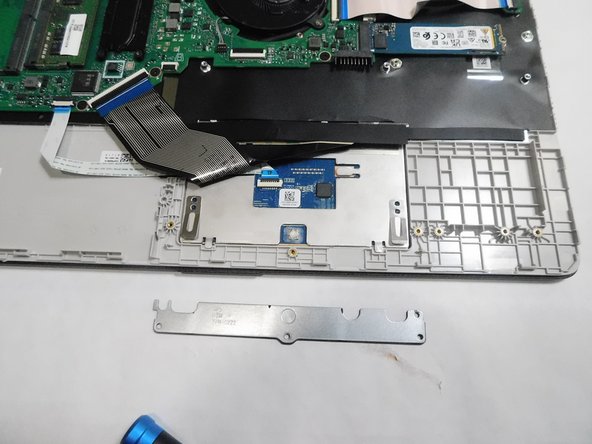
      • Remove the metal bracket.

      询问修复机器人
      添加评论

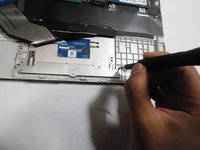
    4. HP 15-dy2702dx Keyboard Replacement: 步骤 11 中的图像 1,3 HP 15-dy2702dx Keyboard Replacement: 步骤 11 中的图像 2,3 HP 15-dy2702dx Keyboard Replacement: 步骤 11 中的图像 3,3
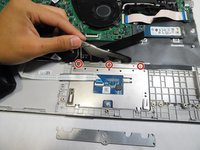
      • Lift the black ribbon covering the screws.

      • Unscrew the top three M2x3 Phillips #0 screws.

      询问修复机器人

      添加评论

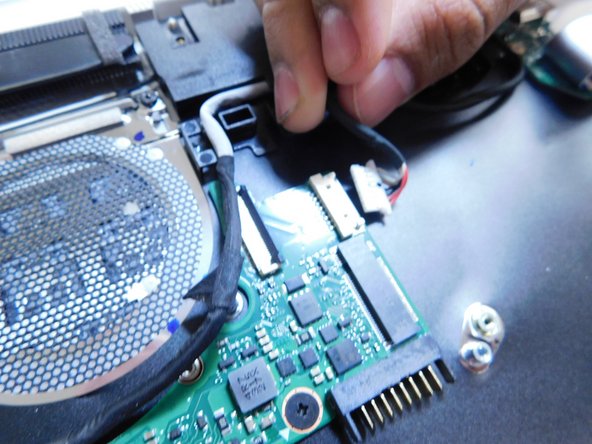
    5. HP 15-dy2702dx Keyboard Replacement: 步骤 12 中的图像 1,3 HP 15-dy2702dx Keyboard Replacement: 步骤 12 中的图像 2,3 HP 15-dy2702dx Keyboard Replacement: 步骤 12 中的图像 3,3
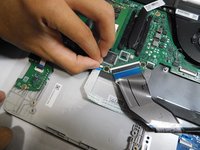
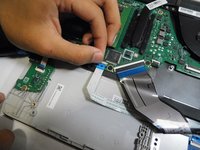
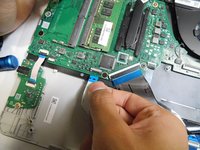
      • Flip up the locking flap holding the trackpad ribbon in place.

      • Pull the ribbon straight out of its socket.

      询问修复机器人
      添加评论

    6. HP 15-dy2702dx Keyboard Replacement: 步骤 13 中的图像 1,2 HP 15-dy2702dx Keyboard Replacement: 步骤 13 中的图像 2,2
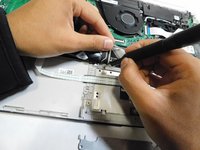
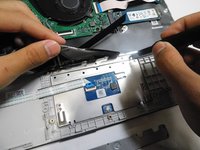
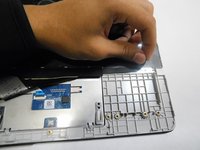
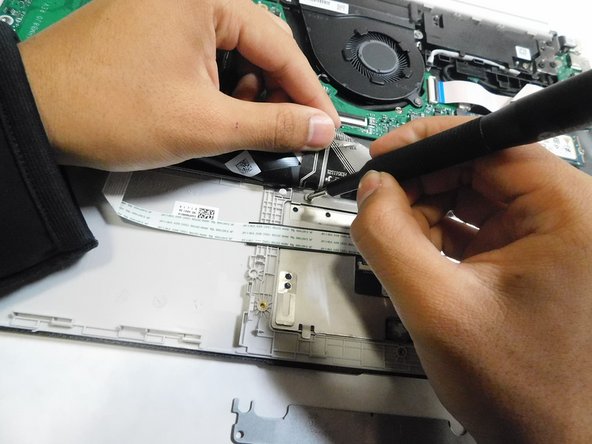
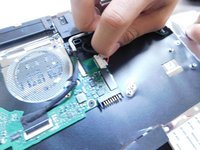
      • Peel back the sticky black strip holding the trackpad in place.

      询问修复机器人
      添加评论

    7. HP 15-dy2702dx Keyboard Replacement: 步骤 14 中的图像 1,2 HP 15-dy2702dx Keyboard Replacement: 步骤 14 中的图像 2,2
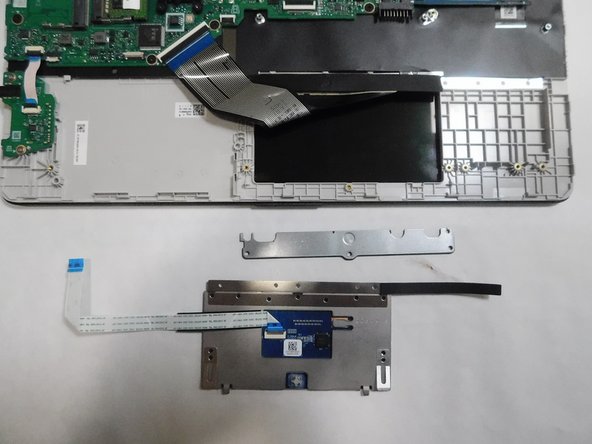
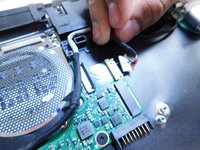
      • Remove the trackpad from the laptop.

      询问修复机器人
      添加评论

    1. HP 15-dy2702dx Keyboard Replacement, SSD: 步骤 15 中的图像 1,3 HP 15-dy2702dx Keyboard Replacement, SSD: 步骤 15 中的图像 2,3 HP 15-dy2702dx Keyboard Replacement, SSD: 步骤 15 中的图像 3,3
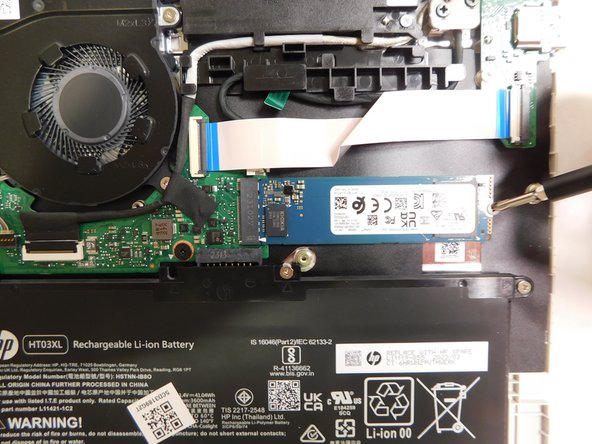
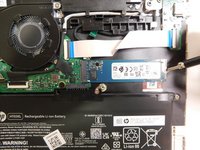
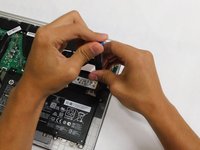
      • Locate the storage drive.

      • Unscrew the single screw holding the drive in place.

      • The screw is a M2x3 mm Phillips #1 head screw.

      询问修复机器人

      添加评论

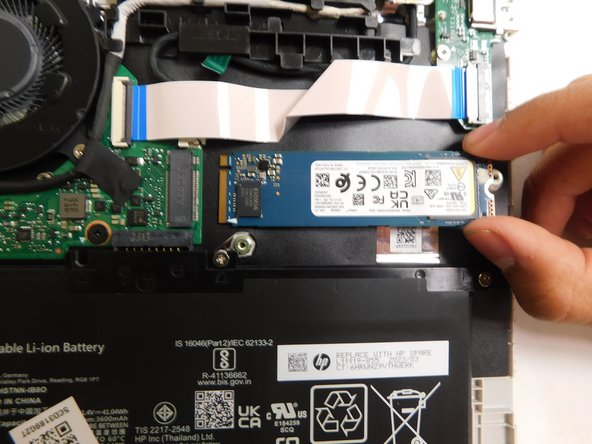
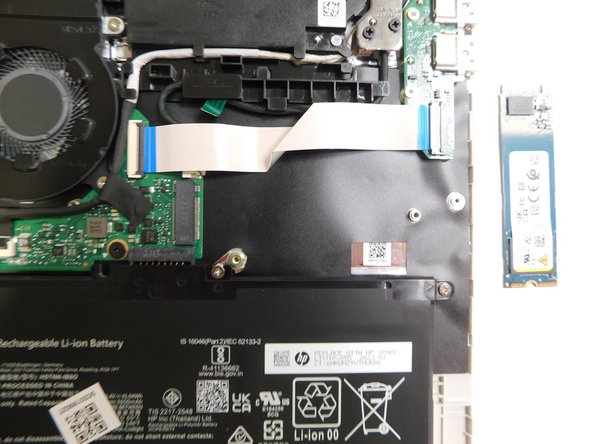
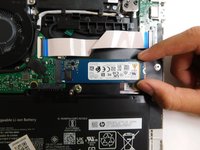
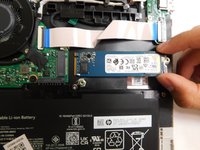
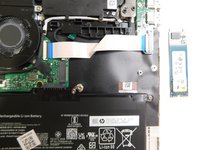
    2. HP 15-dy2702dx Keyboard Replacement: 步骤 16 中的图像 1,3 HP 15-dy2702dx Keyboard Replacement: 步骤 16 中的图像 2,3 HP 15-dy2702dx Keyboard Replacement: 步骤 16 中的图像 3,3
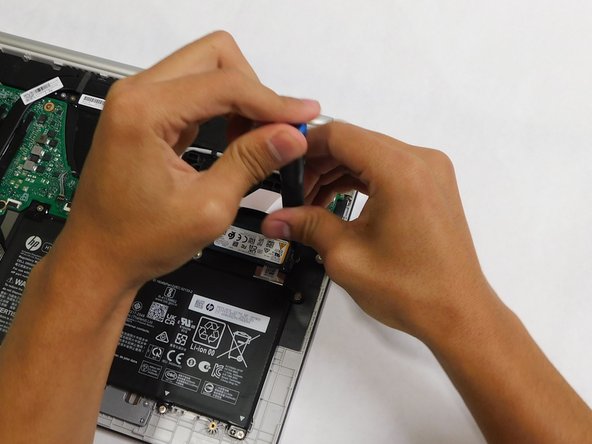
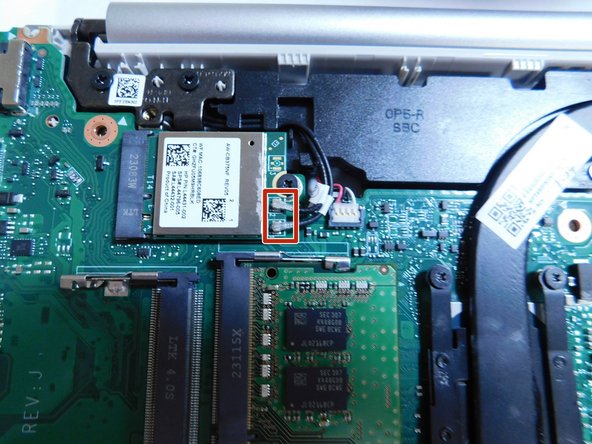
      • Grab the drive by its side and gently pull it out.

      询问修复机器人
      添加评论

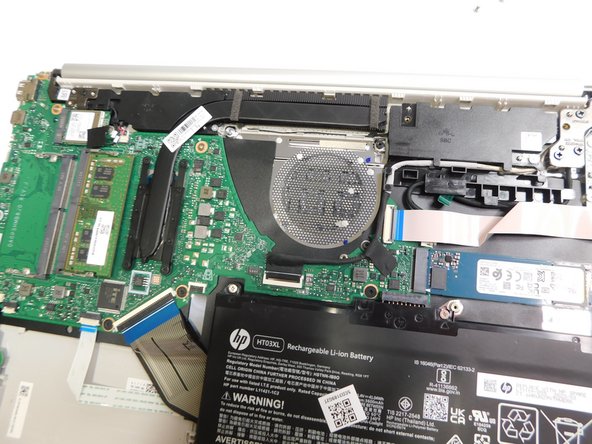
    1. HP 15-dy2702dx Keyboard Replacement, Fan: 步骤 17 中的图像 1,3 HP 15-dy2702dx Keyboard Replacement, Fan: 步骤 17 中的图像 2,3 HP 15-dy2702dx Keyboard Replacement, Fan: 步骤 17 中的图像 3,3
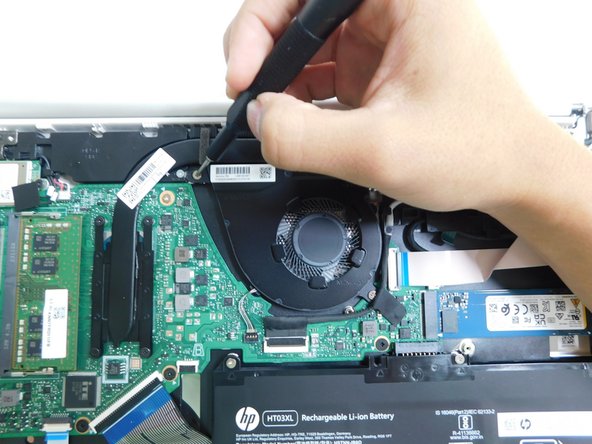
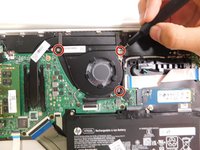
      • Use a Phillips #1 screwdriver to unscrew the three screws that secure the fan.

      • These screws sizes are M2x6.

      询问修复机器人

      添加评论

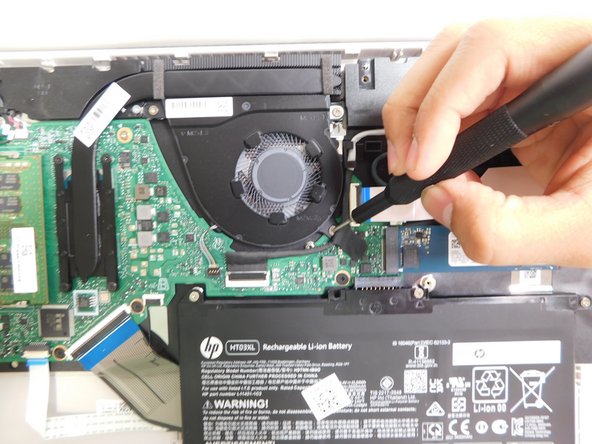
    2. HP 15-dy2702dx Keyboard Replacement: 步骤 18 中的图像 1,1
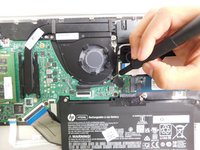
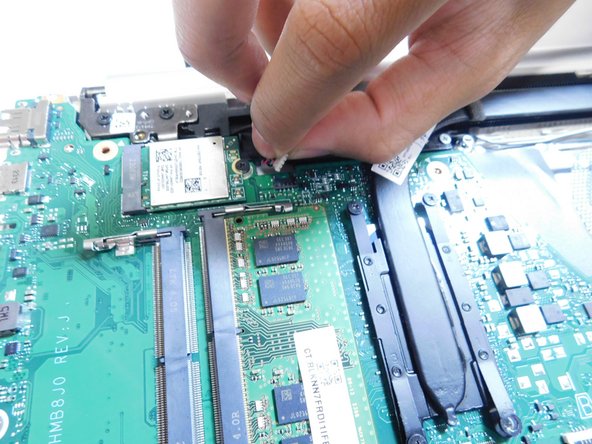
      • Grip the cord that connects the fan to the motherboard and gently pull out to disconnect the cable from the connector.

      • Alternatively, we recommend using a tool to push the connector out of its socket to avoid damaging the wires.

      询问修复机器人

      添加评论

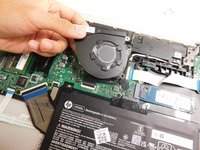
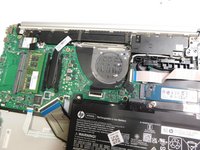
    3. HP 15-dy2702dx Keyboard Replacement: 步骤 19 中的图像 1,2 HP 15-dy2702dx Keyboard Replacement: 步骤 19 中的图像 2,2
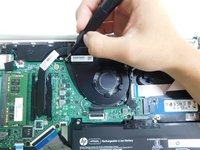
      • Gently lift the fan to remove it from the case.

      询问修复机器人

      添加评论

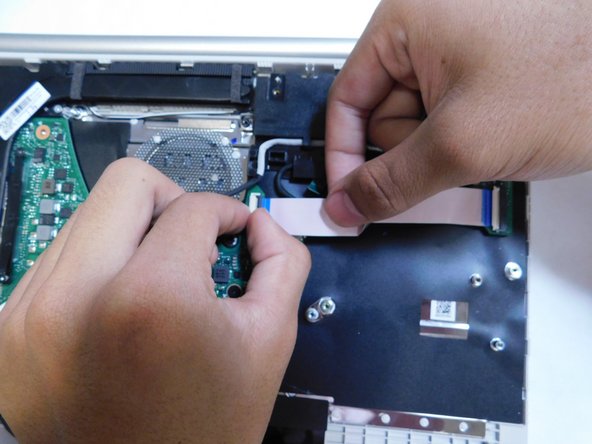
    1. HP 15-dy2702dx Keyboard Replacement, Keyboard Assembly: 步骤 20 中的图像 1,3 HP 15-dy2702dx Keyboard Replacement, Keyboard Assembly: 步骤 20 中的图像 2,3 HP 15-dy2702dx Keyboard Replacement, Keyboard Assembly: 步骤 20 中的图像 3,3
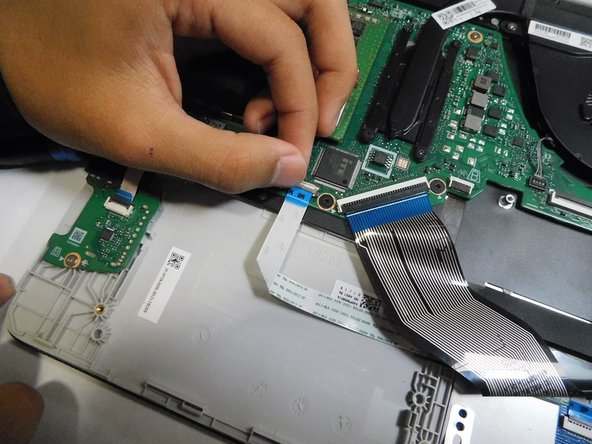
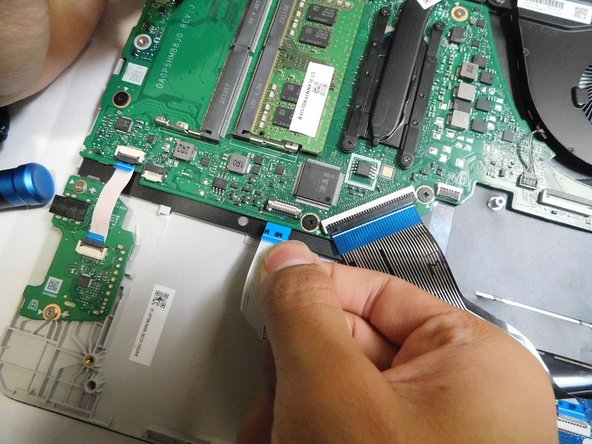
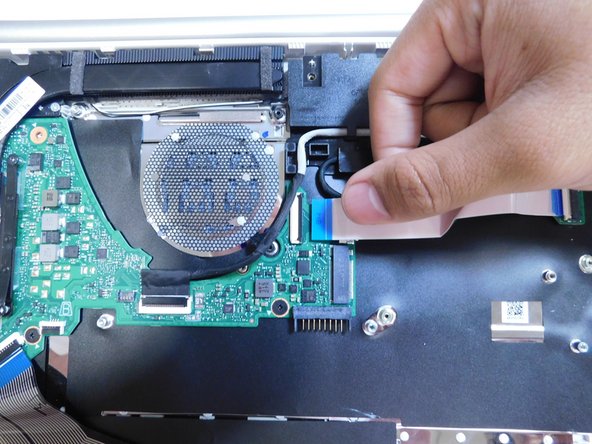
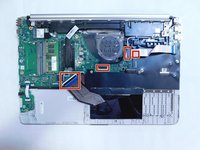
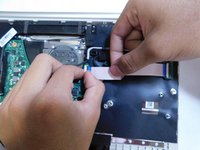
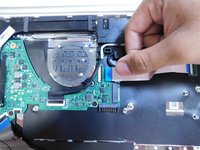
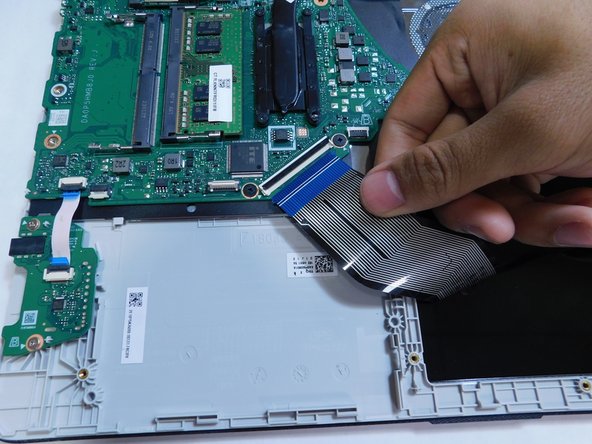
      • Disconnect all the ribbon cables from the motherboard.

      • Ensure to flip up the locking flaps before attempting to pull the ribbon out.

      询问修复机器人

      添加评论

    2. HP 15-dy2702dx Keyboard Replacement: 步骤 21 中的图像 1,2 HP 15-dy2702dx Keyboard Replacement: 步骤 21 中的图像 2,2
      • Continue disconnecting the ribbon cables.

      询问修复机器人

      添加评论

    3. HP 15-dy2702dx Keyboard Replacement: 步骤 22 中的图像 1,2 HP 15-dy2702dx Keyboard Replacement: 步骤 22 中的图像 2,2
      • Continue disconnecting the remaining ribbons.

      询问修复机器人

      添加评论

    4. HP 15-dy2702dx Keyboard Replacement: 步骤 23 中的图像 1,2 HP 15-dy2702dx Keyboard Replacement: 步骤 23 中的图像 2,2
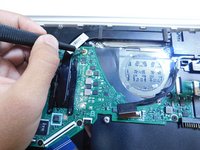
      • Disconnect the connector.

      询问修复机器人

      添加评论

    5. HP 15-dy2702dx Keyboard Replacement: 步骤 24 中的图像 1,3 HP 15-dy2702dx Keyboard Replacement: 步骤 24 中的图像 2,3 HP 15-dy2702dx Keyboard Replacement: 步骤 24 中的图像 3,3
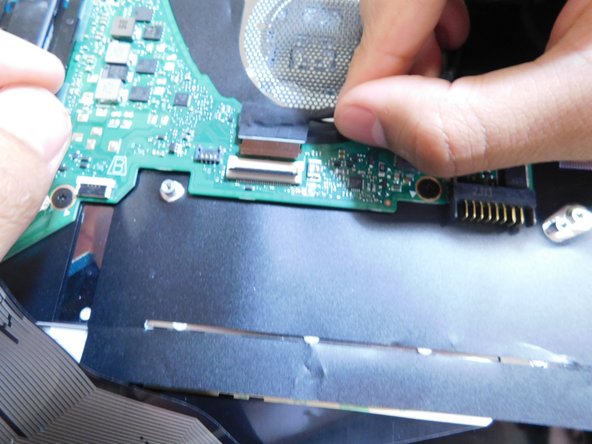
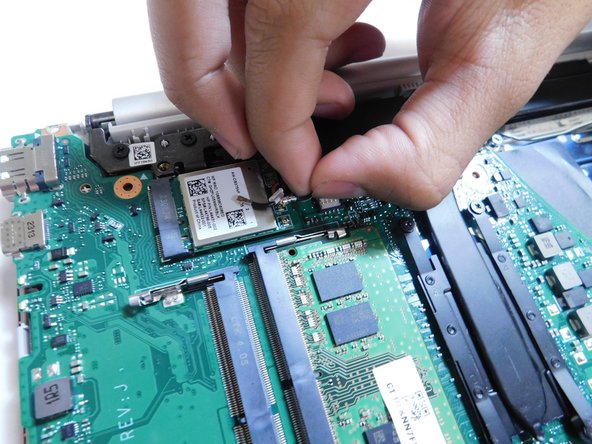
      • Peel off the black sticker covering the silver connectors near the top of the motherboard.

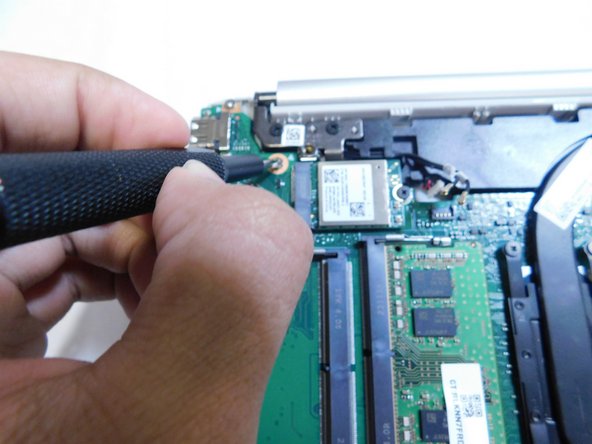
      • Remove the two silver colored round connector from the motherboard by pulling them up.

      • The connector should have a tag on them with number 1 and 2 on them.

      询问修复机器人

      添加评论

    6. HP 15-dy2702dx Keyboard Replacement: 步骤 25 中的图像 1,2 HP 15-dy2702dx Keyboard Replacement: 步骤 25 中的图像 2,2
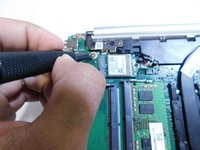
      • Pull up on the last connector on the motherboard next to the connectors removed in the previous step.

      询问修复机器人

      添加评论

    7. HP 15-dy2702dx Keyboard Replacement: 步骤 26 中的图像 1,3 HP 15-dy2702dx Keyboard Replacement: 步骤 26 中的图像 2,3 HP 15-dy2702dx Keyboard Replacement: 步骤 26 中的图像 3,3
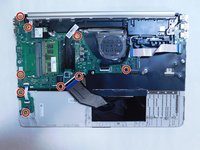
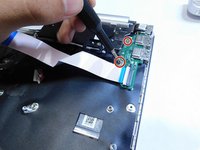
      • Unscrew all M2x3 Phillips #1 screws holding the motherboard in place.

      询问修复机器人

      添加评论

    8. HP 15-dy2702dx Keyboard Replacement: 步骤 27 中的图像 1,2 HP 15-dy2702dx Keyboard Replacement: 步骤 27 中的图像 2,2
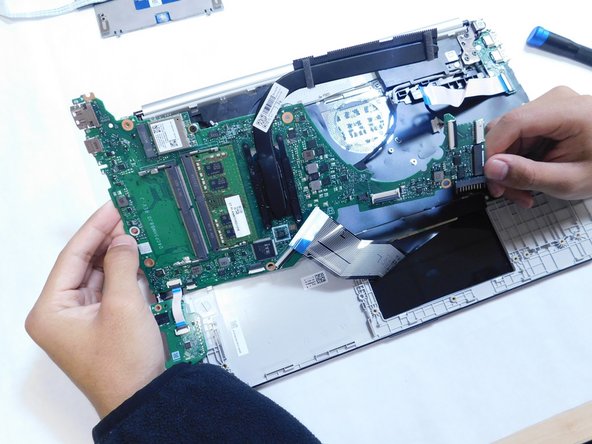
      • Remove the motherboard from the case.

      询问修复机器人

      添加评论

    9. HP 15-dy2702dx Keyboard Replacement: 步骤 28 中的图像 1,2 HP 15-dy2702dx Keyboard Replacement: 步骤 28 中的图像 2,2
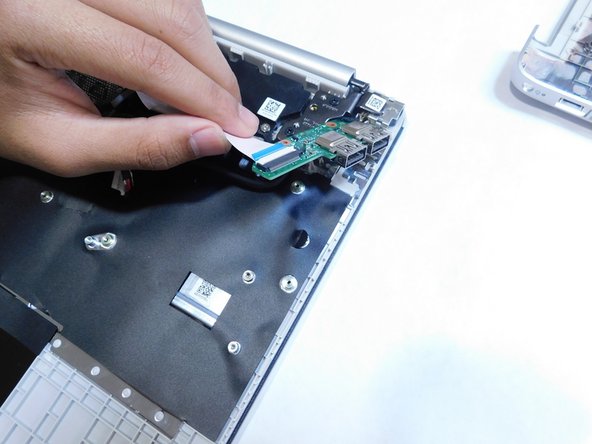
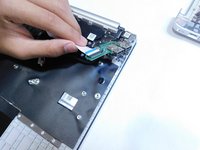
      • Unscrew the two M2x3 Phillips #1 screws.

      • Remove the I/O board from the case.

      询问修复机器人

      添加评论

    10. HP 15-dy2702dx Keyboard Replacement: 步骤 29 中的图像 1,3 HP 15-dy2702dx Keyboard Replacement: 步骤 29 中的图像 2,3 HP 15-dy2702dx Keyboard Replacement: 步骤 29 中的图像 3,3
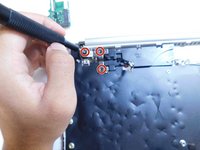
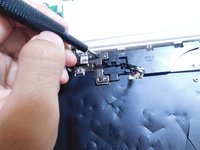
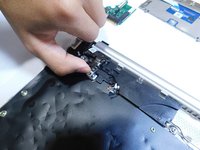
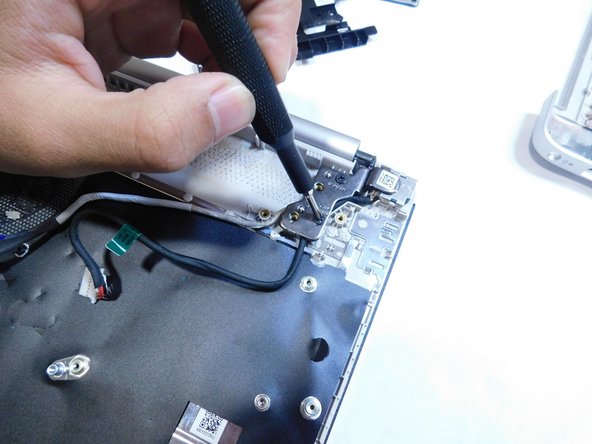
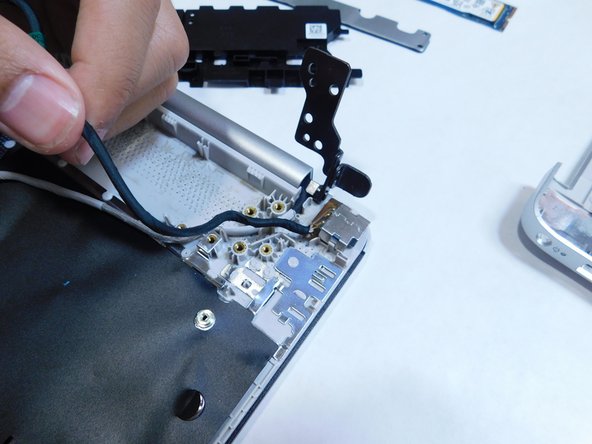
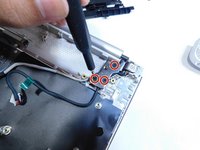
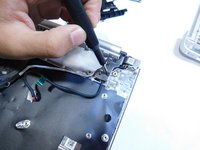
      • Unscrew the three M2x6 Phillips #1 screws from the left metal hinge.

      • Lift the hinge.

      询问修复机器人

      添加评论

    11. HP 15-dy2702dx Keyboard Replacement: 步骤 30 中的图像 1,2 HP 15-dy2702dx Keyboard Replacement: 步骤 30 中的图像 2,2
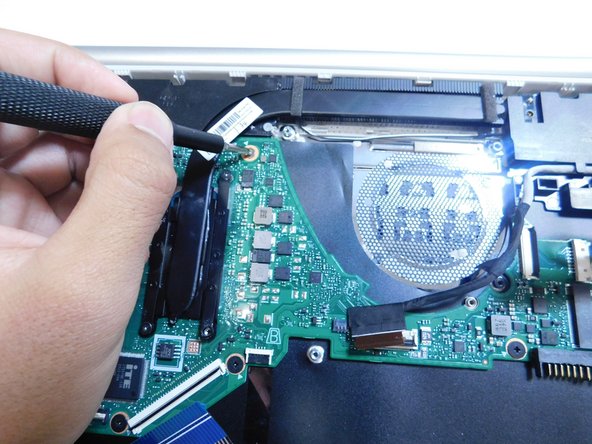
      • Unscrew the two Phillips #1 screws.

      • One is on the left side near where the fan was removed.

      • The other is near the right laptop metal hinge.

      询问修复机器人

      添加评论

    12. HP 15-dy2702dx Keyboard Replacement: 步骤 31 中的图像 1,2 HP 15-dy2702dx Keyboard Replacement: 步骤 31 中的图像 2,2
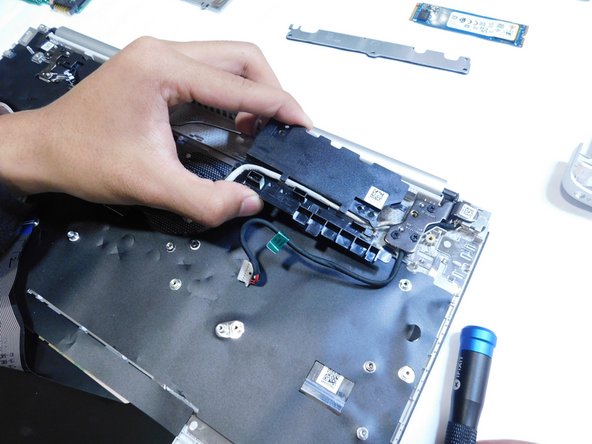
      • Remove the black boxes from the case.

      • Disconnect the power cable (white cable with a black flag at the end).

      • The black boxes is still connected to the case through a black wire, do not attempt to remove the wire.

      询问修复机器人

      添加评论

    13. HP 15-dy2702dx Keyboard Replacement: 步骤 32 中的图像 1,3 HP 15-dy2702dx Keyboard Replacement: 步骤 32 中的图像 2,3 HP 15-dy2702dx Keyboard Replacement: 步骤 32 中的图像 3,3
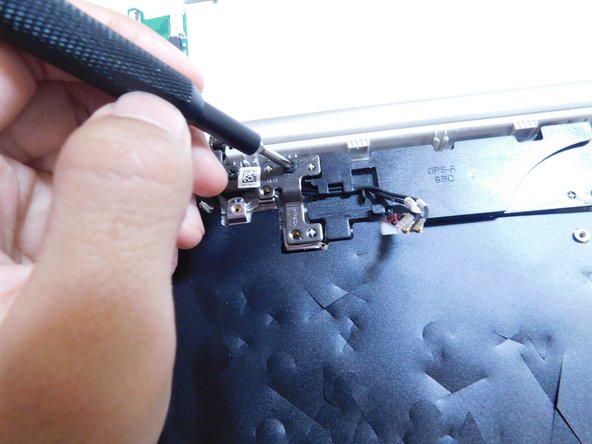
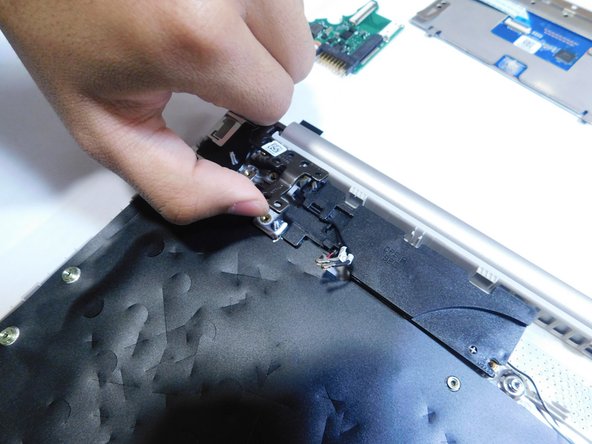
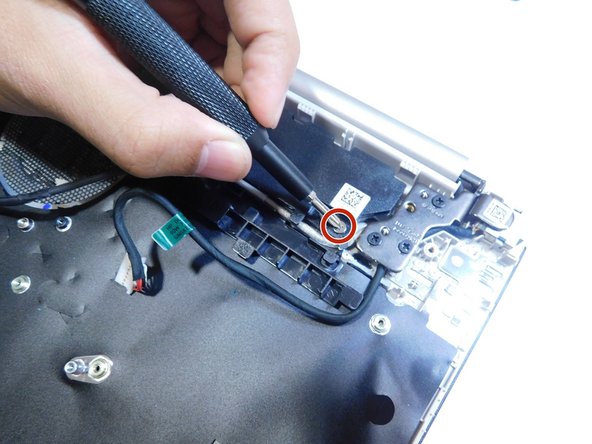
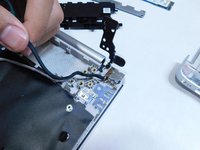
      • Unscrew the three Philips head #1 screws on the right-side metal hinge.

      • Lift the hinge.

      询问修复机器人

      添加评论

    14. HP 15-dy2702dx Keyboard Replacement: 步骤 33 中的图像 1,1
      • Remove the DC in jack from the case by pulling it straight up.

      询问修复机器人

      添加评论

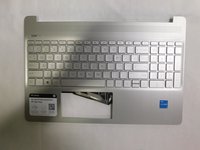
    15. HP 15-dy2702dx Keyboard Replacement: 步骤 34 中的图像 1,3 HP 15-dy2702dx Keyboard Replacement: 步骤 34 中的图像 2,3 HP 15-dy2702dx Keyboard Replacement: 步骤 34 中的图像 3,3
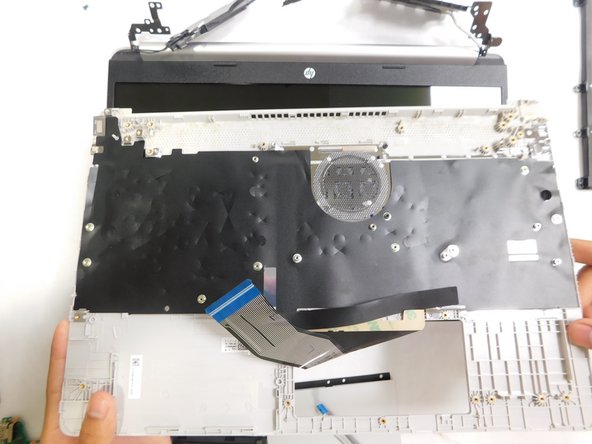
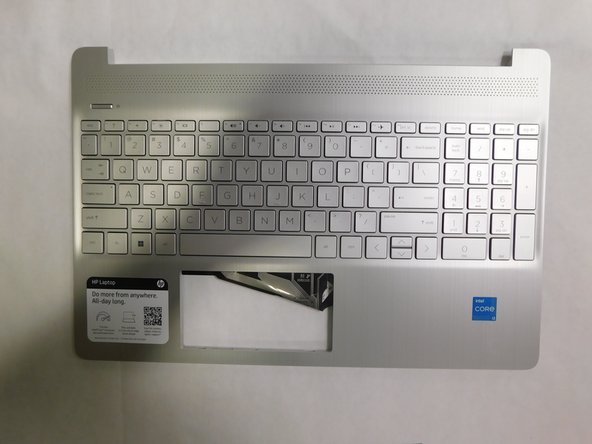
      • Remove the keyboard from the laptop.

      • The keyboard is a type where it is directly integrated into the frame so you will need to replace the whole frame.

      询问修复机器人

      添加评论

结论

To reassemble your device, follow these instructions in reverse order.

取消:我没有完成这个指南。

另外一个人完成了本指南。

团队

Gateway, Team 1-4, Pee Fall 2023 Gateway, Team 1-4, Pee Fall 2023 的会员

GCC-PEE-F23S1G4

4 名成员

创作了72篇指南

0指南评论

添加评论

浏览统计数据:

过去 24 小时: 2

过去 7 天: 15

过去 30 天: 59

总计 1,698