跳转到主内容
加入维修社区 - 创建账户

Gateway MS2370 Fan Replacement

你所需要的

  1. Gateway MS2370 Fan Replacement, Battery: 步骤 1 中的图像 1,1
    • Make sure the laptop is turned off and flipped over so that the bottom is facing up. Then, locate the battery clip as shown.

    询问修复机器人

    添加评论

  2. Gateway MS2370 Fan Replacement: 步骤 2 中的图像 1,1
    • Either using your fingers or a plastic spudger push the battery clip to the left to release battery.

    询问修复机器人

    添加评论

  3. Gateway MS2370 Fan Replacement: 步骤 3 中的图像 1,1
    • Pull the battery from the laptop to remove it.

    询问修复机器人

    添加评论

  4. Gateway MS2370 Fan Replacement, RAM: 步骤 4 中的图像 1,1
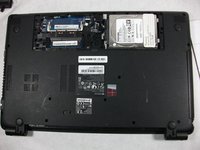
    • Unscrew the three 10mm inch Phillips 01 screws on the back of your laptop.

    • Unplug everything from the USB and SD ports.

    询问修复机器人

    添加评论

  5. Gateway MS2370 Fan Replacement: 步骤 5 中的图像 1,1
    • Remove the cover panel.

    • This exposes more screws that must be removed.

    询问修复机器人

    添加评论

  6. Gateway MS2370 Fan Replacement: 步骤 6 中的图像 1,1
    • Unplug the two exposed cables from the motherboard.

    询问修复机器人

    添加评论

  7. Gateway MS2370 Fan Replacement: 步骤 7 中的图像 1,2 Gateway MS2370 Fan Replacement: 步骤 7 中的图像 2,2
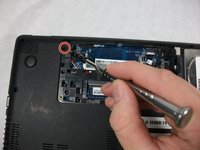
    • Unscrew the rest of the case screws which include several 10mm 01 Phillips screws and three 3mm 00 Phillips screws.

    • This marked screw will not fully come out. Just loosen it and leave it there it will not effect the rest of the replacement.

    询问修复机器人

    添加评论

  8. Gateway MS2370 Fan Replacement: 步骤 8 中的图像 1,2 Gateway MS2370 Fan Replacement: 步骤 8 中的图像 2,2
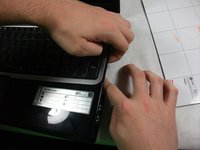
    • Pry the laptop case apart.

    • The disc drive in this photo was removed. You can remove it just by puling it out when the previous step is completed.

    询问修复机器人

    添加评论

  9. Gateway MS2370 Fan Replacement: 步骤 9 中的图像 1,1
    • Unplug the track-pad and the keyboard ribbon cable by lifting up the grey flap and removing the cable.

    • This cable has a special connector the requires you to lift open a grey flap to unplug properly.

    • The keyboard plug is located at the center of the motherboard and can be unplugged like a normal cable.

    询问修复机器人

    添加评论

  10. Gateway MS2370 Fan Replacement: 步骤 10 中的图像 1,1
    • Remove the top half of the case.

    询问修复机器人

    添加评论

  11. Gateway MS2370 Fan Replacement: 步骤 11 中的图像 1,1
    • Unscrew all 5 10mm inch Phillips 01 screws.

    • One more off screen

    询问修复机器人

    添加评论

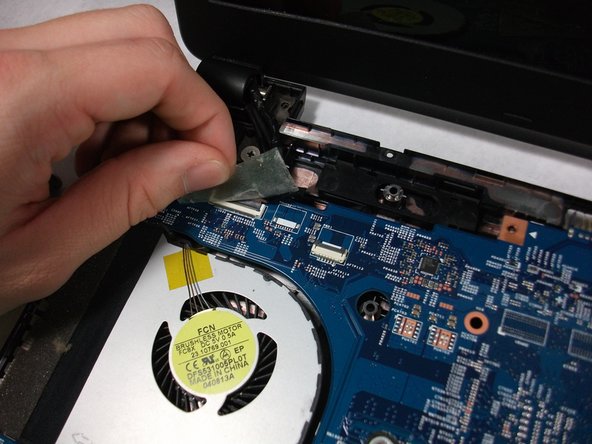
  12. Gateway MS2370 Fan Replacement: 步骤 12 中的图像 1,3 Gateway MS2370 Fan Replacement: 步骤 12 中的图像 2,3 Gateway MS2370 Fan Replacement: 步骤 12 中的图像 3,3
    • Unplug the ribbon cable connected to the USB Hub, the network card, and the monitor cable.

    询问修复机器人

    添加评论

  13. Gateway MS2370 Fan Replacement: 步骤 13 中的图像 1,1
    • Flip the motherboard over.

    询问修复机器人

    添加评论

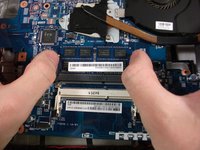
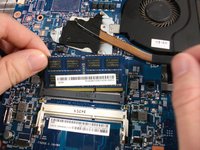
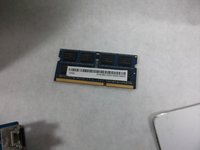
  14. Gateway MS2370 Fan Replacement: 步骤 14 中的图像 1,3 Gateway MS2370 Fan Replacement: 步骤 14 中的图像 2,3 Gateway MS2370 Fan Replacement: 步骤 14 中的图像 3,3
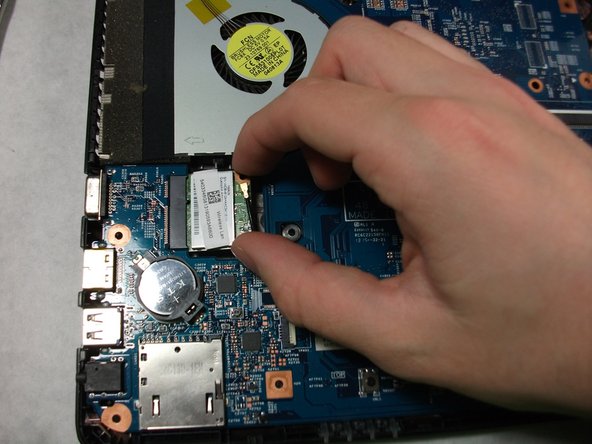
    • Using your two thumbs to pull outwards from the inside of the RAM slot to release and remove the RAM.

    • The last step of this replacement guide is not required to complete the fan replacement guide.

    询问修复机器人

    添加评论

  15. Gateway MS2370 Fan Replacement, Fan: 步骤 15 中的图像 1,1
    • Unscrew the three 3mm inch Phillips 01 screws.

    • These screws will not be removed entirely. Just loosen them enough to free the fan from the motherboard.

    询问修复机器人

    添加评论

  16. Gateway MS2370 Fan Replacement: 步骤 16 中的图像 1,1
    • Unplug the fan cable from the motherboard.

    询问修复机器人

    添加评论

  17. Gateway MS2370 Fan Replacement: 步骤 17 中的图像 1,1
    • Remove the Fan.

    询问修复机器人

    添加评论

结论

To reassemble your device, follow these instructions in reverse order.

取消:我没有完成这个指南。

团队

UMass Dartmouth, Team S1-G5, Simcock Fall 2017 UMass Dartmouth, Team S1-G5, Simcock Fall 2017 的会员

UMASSD-SIMCOCK-F17S1G5

3 名成员

创作了10篇指南

0指南评论

添加评论

浏览统计数据:

过去 24 小时: 3

过去 7 天: 10

过去 30 天: 28

总计 901