跳转到主内容
加入维修社区 - 创建账户

Gateway MA6 Laptop Wireless Card Replacement

你所需要的

  1. Gateway MA6 Laptop Wireless Card Replacement, Battery: 步骤 1 中的图像 1,1
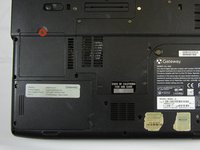
    • To prevent injury, make sure the laptop is unplugged before removing the battery.

    • Make sure the switch in the upper right corner of the laptop is switched to the "unlock" position (toward the unlocked padlock icon).

    询问修复机器人

    添加评论

  2. Gateway MA6 Laptop Wireless Card Replacement: 步骤 2 中的图像 1,3 Gateway MA6 Laptop Wireless Card Replacement: 步骤 2 中的图像 2,3 Gateway MA6 Laptop Wireless Card Replacement: 步骤 2 中的图像 3,3
    • Pull the switch on the upper lefthand corner of the laptop towards the unlocked padlock icon.

    • Firmly pull the battery outwards and away from the laptop.

    询问修复机器人

    添加评论

  3. Gateway MA6 Laptop Wireless Card Replacement, Wireless Card: 步骤 3 中的图像 1,2 Gateway MA6 Laptop Wireless Card Replacement, Wireless Card: 步骤 3 中的图像 2,2
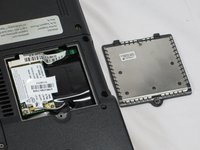
    • Loosen the 3mm Phillips #0 screw from the back of the WiFi card backplate.

    • The screw will remain in the backplate.

    • Lift upwards on the back plate to remove it.

    询问修复机器人

    添加评论

  4. Gateway MA6 Laptop Wireless Card Replacement: 步骤 4 中的图像 1,1
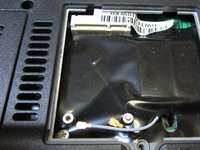
    • Use the plastic opening tool to gently pry upwards on the two connecting cables to remove them.

    询问修复机器人

    添加评论

  5. Gateway MA6 Laptop Wireless Card Replacement: 步骤 5 中的图像 1,1
    • Remove the 2 mm Phillips #0 screw.

    • The card will lift itself up 30° after the screw has been removed.

    询问修复机器人

    添加评论

  6. Gateway MA6 Laptop Wireless Card Replacement: 步骤 6 中的图像 1,2 Gateway MA6 Laptop Wireless Card Replacement: 步骤 6 中的图像 2,2
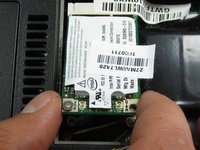
    • Hold the WiFi card on both sides and pull outwards to remove it.

    询问修复机器人

    添加评论

结论

To reassemble your device, follow these instructions in reverse order.

取消:我没有完成这个指南。

团队

Cal Poly, Team 6-2, Forte Spring 2014 Cal Poly, Team 6-2, Forte Spring 2014 的会员

CPSU-FORTE-S14S6G2

5 名成员

创作了20篇指南

0指南评论

添加评论

浏览统计数据:

过去 24 小时: 1

过去 7 天: 6

过去 30 天: 29

总计 1,125