跳转到主内容
加入维修社区 - 创建账户

Gateway ID49C07U RAM Replacement

你所需要的

  1. Gateway ID49C07U RAM Replacement, Battery: 步骤 1 中的图像 1,1
    • Turn the laptop over so the bottom of the device is facing upwards with the hinge facing away from you.

    询问修复机器人
  2. Gateway ID49C07U RAM Replacement: 步骤 2 中的图像 1,2 Gateway ID49C07U RAM Replacement: 步骤 2 中的图像 2,2
    • Locate the switch on the top left of the laptop labeled with a padlock symbol.

    • Flip the switch in the direction of the unlocked padlock symbol.

    询问修复机器人
  3. Gateway ID49C07U RAM Replacement: 步骤 3 中的图像 1,1
    • Locate the switch that releases the battery and slide it to the right.

    询问修复机器人
  4. Gateway ID49C07U RAM Replacement: 步骤 4 中的图像 1,1
    • While holding the release switch to the right, pull the battery away from you.

    询问修复机器人
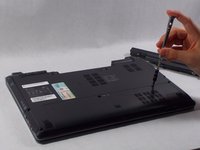
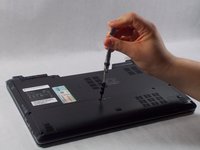
  5. Gateway ID49C07U RAM Replacement, RAM: 步骤 5 中的图像 1,2 Gateway ID49C07U RAM Replacement, RAM: 步骤 5 中的图像 2,2
    • Locate two screws securing back panel

    • Unscrew both

    询问修复机器人
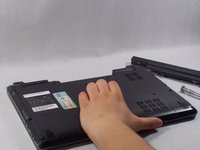
  6. Gateway ID49C07U RAM Replacement: 步骤 6 中的图像 1,2 Gateway ID49C07U RAM Replacement: 步骤 6 中的图像 2,2
    • Remove plate from device

    询问修复机器人
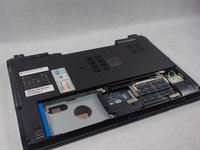
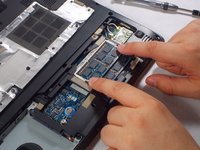
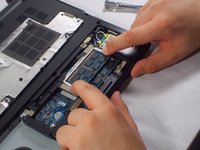
  7. Gateway ID49C07U RAM Replacement: 步骤 7 中的图像 1,2 Gateway ID49C07U RAM Replacement: 步骤 7 中的图像 2,2
    • Locate RAM

    • Push tabs apart to release memory

    询问修复机器人
  8. Gateway ID49C07U RAM Replacement: 步骤 8 中的图像 1,1
    • Pull out memory

结论

To reassemble your device, follow these instructions in reverse order.

2等其他人完成本指南。

团队

0指南评论

添加评论

浏览统计数据:

过去 24 小时: 1

过去 7 天: 5

过去 30 天: 61

总计 657