跳转到主内容
加入维修社区 - 创建账户

Framework Laptop 12 Mainboard Installation

仅作为前提条件
本指南仅提供前提条件!本指南是另一个程序的一部分,不能单独使用。

你所需要的

  1. Framework Laptop 12 Mainboard Installation, Install the Mainboard: 步骤 1 中的图像 1,2 Framework Laptop 12 Mainboard Installation, Install the Mainboard: 步骤 1 中的图像 2,2
    • Carefully lay the Mainboard in the laptop.

    • Use the two alignment pins to help align the Mainboard to the laptop.

    • Be careful not to trap the webcam or display cables under the Mainboard as you set it in place.

  2. Framework Laptop 12 Mainboard Installation: 步骤 2 中的图像 1,1
    • Use your Framework Screwdriver to tighten the five captive T5 Torx screws to secure the Mainboard.

    • Tighten the screws until they're snug. Don't over-tighten them, or you may strip the screws.

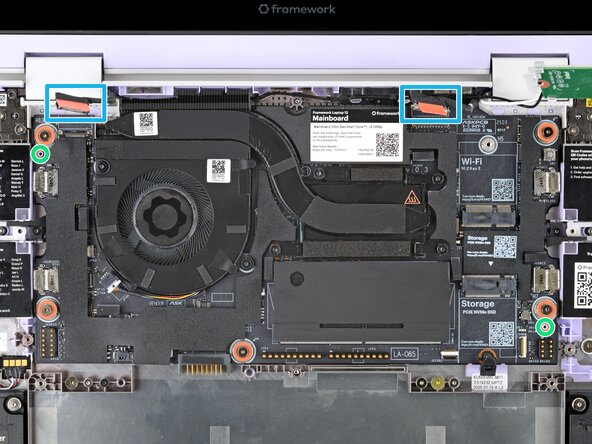
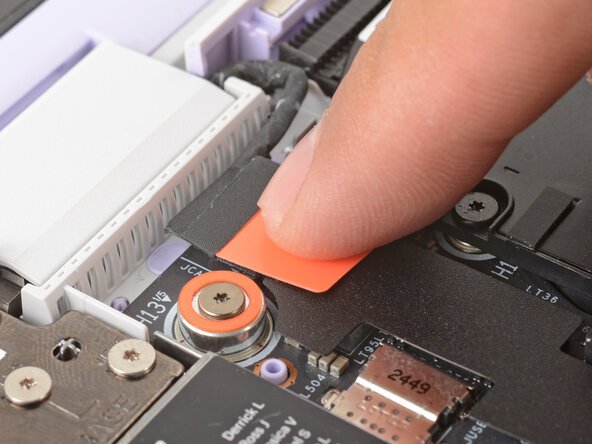
  3. Framework Laptop 12 Mainboard Installation: 步骤 3 中的图像 1,2 Framework Laptop 12 Mainboard Installation: 步骤 3 中的图像 2,2
    • Use your fingers to grab the display cable by its orange tab.

    • Align and press the display cable straight down onto its connector.

  4. Framework Laptop 12 Mainboard Installation: 步骤 4 中的图像 1,2 Framework Laptop 12 Mainboard Installation: 步骤 4 中的图像 2,2
    • Use your fingers to grab the webcam cable by its orange tab.

    • Align and press the webcam cable straight down onto its connector.

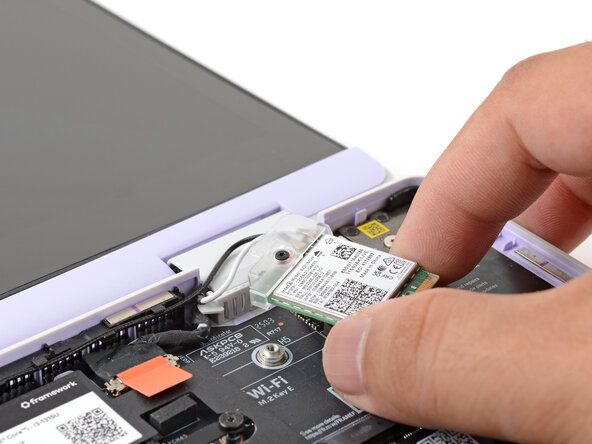
  5. Framework Laptop 12 Mainboard Installation, Install the Wi-Fi card: 步骤 5 中的图像 1,2 Framework Laptop 12 Mainboard Installation, Install the Wi-Fi card: 步骤 5 中的图像 2,2
    • Use your fingers to carefully move the Wi-Fi card over the Mainboard.

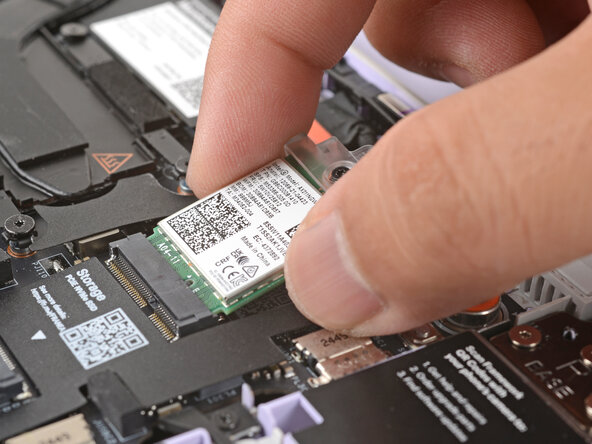
  6. Framework Laptop 12 Mainboard Installation: 步骤 6 中的图像 1,2 Framework Laptop 12 Mainboard Installation: 步骤 6 中的图像 2,2
    • Hold the Wi-Fi card by its edges. Don't touch the gold contacts with your fingers. If you do, wipe the contacts with a clean, lint-free cloth to remove any finger oils.

    • Align the Wi-Fi card's gold contacts and notch with the socket on the Mainboard.

    • Insert the Wi-Fi card into the socket at a shallow angle. The gold contacts should mostly be covered by the socket.

    • If the clear Wi-Fi card bracket or antenna cables got disconnected during the repair, go to the next step. If they're still attached, skip down three steps.

  7. Framework Laptop 12 Mainboard Installation, Reconnect a disconnected antenna cable: 步骤 7 中的图像 1,3 Framework Laptop 12 Mainboard Installation, Reconnect a disconnected antenna cable: 步骤 7 中的图像 2,3 Framework Laptop 12 Mainboard Installation, Reconnect a disconnected antenna cable: 步骤 7 中的图像 3,3
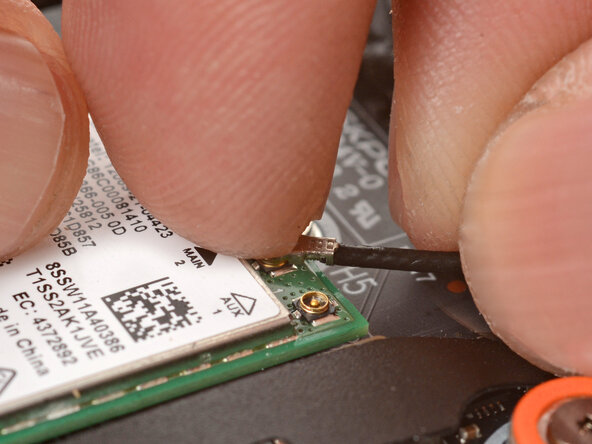
    • Follow the next two steps if an antenna cable disconnected from the Wi-Fi card.

    • Hold the Wi-Fi card down with your finger.

    • Position the black antenna cable connector over the left Wi-Fi card's coaxial socket.

    • Tweezers can help position the connector.

    • Use your finger to press the connector into place. You should feel a faint click, and the cable will stay attached to the socket by itself.

    • These connectors are very delicate! If the connector doesn't feel like it's clicking in place, reposition the connector and try again.

    • Repeat the procedure with the white antenna cable.

  8. Framework Laptop 12 Mainboard Installation: 步骤 8 中的图像 1,2 Framework Laptop 12 Mainboard Installation: 步骤 8 中的图像 2,2
    • Slide the Wi-Fi bracket over the top edge of the Wi-Fi card.

  9. Framework Laptop 12 Mainboard Installation, Tighten the Wi-Fi card screw: 步骤 9 中的图像 1,1
    • Use your Framework Screwdriver to tighten the captive T5 Torx screw to secure the Wi-Fi card.

终点

Arthur Shi

于01/03/18注册

316,799 声望

创作了730篇指南

0指南评论

添加评论

浏览统计数据:

过去 24 小时: 0

过去 7 天: 0

过去 30 天: 1

总计 36