跳转到主内容
加入维修社区 - 创建账户

Framework Laptop 12 Battery Replacement

你所需要的

  1. Framework Laptop 12 Battery Replacement, Power down your laptop: 步骤 1 中的图像 1,3 Framework Laptop 12 Battery Replacement, Power down your laptop: 步骤 1 中的图像 2,3 Framework Laptop 12 Battery Replacement, Power down your laptop: 步骤 1 中的图像 3,3
    • Before you begin repairs, unplug your laptop and shut it down from the operating system. This ensures that the laptop isn't in standby/suspend mode.

    • The indicator LEDs along the edges should be unlit. The laptop should be silent.

    • If you accidentally turn on the laptop during repair, hold the power button down for 10 seconds to shut it down.

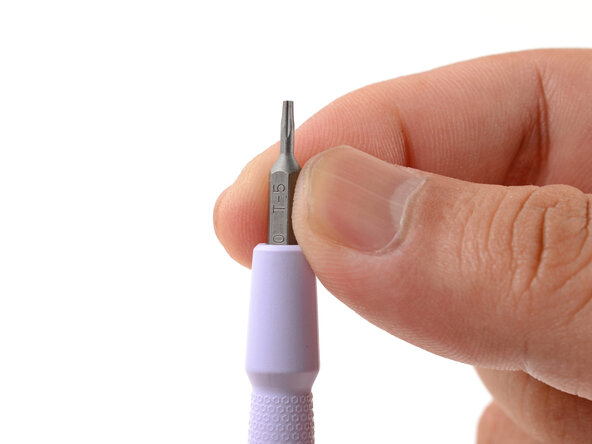
    • Make sure your Framework Screwdriver has the T5 Torx bit (labeled as T-5) facing outwards. If it's not, pull the bit out and flip it.

  2. Framework Laptop 12 Battery Replacement, Set your laptop down: 步骤 2 中的图像 1,1
    • Set your Framework Laptop face-down on a clean work surface.

  3. Framework Laptop 12 Battery Replacement, Loosen the bottom screws: 步骤 3 中的图像 1,2 Framework Laptop 12 Battery Replacement, Loosen the bottom screws: 步骤 3 中的图像 2,2
    • Use your Framework Screwdriver to fully loosen the eight captive T5 Torx screws on the bottom of your laptop.

    • Most screws in your Framework Laptop (including these) are captive—they're designed to stay in place after you loosen them.

  4. Framework Laptop 12 Battery Replacement, Flip your laptop over: 步骤 4 中的图像 1,1
    • Flip your laptop over so it's face-up on your work surface.

  5. Framework Laptop 12 Battery Replacement, Open your laptop: 步骤 5 中的图像 1,2 Framework Laptop 12 Battery Replacement, Open your laptop: 步骤 5 中的图像 2,2
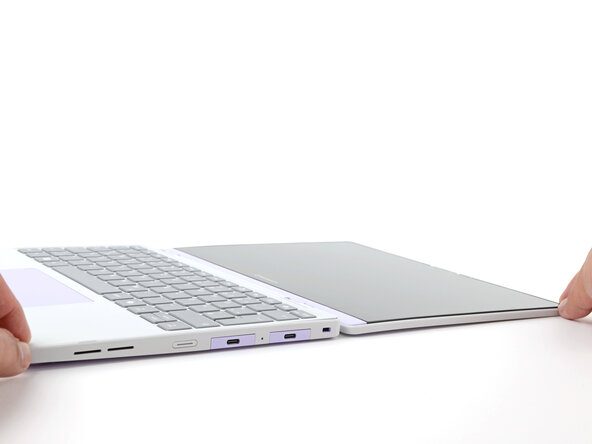
    • Open the laptop lid so that both the screen and the base lie flat on your work surface.

  6. Framework Laptop 12 Battery Replacement, Remove the Input Cover: 步骤 6 中的图像 1,3 Framework Laptop 12 Battery Replacement, Remove the Input Cover: 步骤 6 中的图像 2,3 Framework Laptop 12 Battery Replacement, Remove the Input Cover: 步骤 6 中的图像 3,3
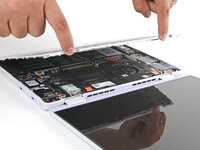
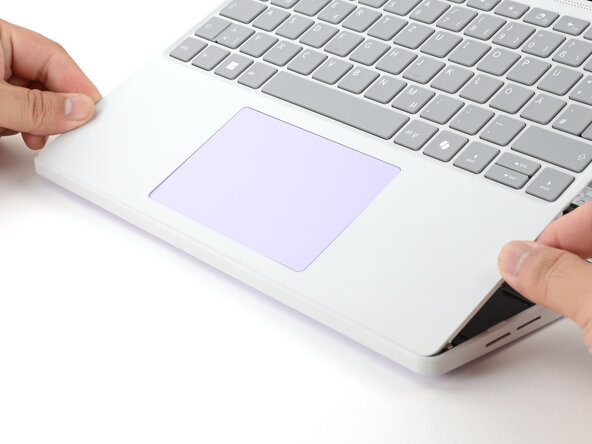
    • Use your fingers to grip the Input Cover in the hinge cutouts.

    • Lift upwards to swing the Input Cover up from the base of the laptop.

    • Magnets hold the Input Cover down, so you'll feel some resistance. If it feels stuck, check that you've fully loosened all the screws on the bottom of your laptop.

    • Remove the Input Cover.

  7. Framework Laptop 12 Battery Replacement, Loosen the battery screws: 步骤 7 中的图像 1,1
    • Use your Framework Screwdriver to loosen the six captive T5 Torx screws securing the battery.

  8. Framework Laptop 12 Battery Replacement, Disconnect the battery: 步骤 8 中的图像 1,2 Framework Laptop 12 Battery Replacement, Disconnect the battery: 步骤 8 中的图像 2,2
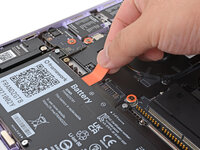
    • Grab the orange battery tab with your fingers and lift straight up to disconnect the battery.

    • The battery connector can be tight, requiring some force. If it feels like part of the battery won't come up, check that the battery screws are fully loosened.

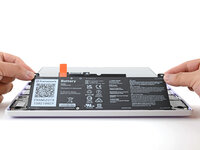
  9. Framework Laptop 12 Battery Replacement, Remove the battery: 步骤 9 中的图像 1,2 Framework Laptop 12 Battery Replacement, Remove the battery: 步骤 9 中的图像 2,2
    • Lift and remove the battery from the laptop.

  10. Framework Laptop 12 Battery Replacement, Disassembly complete: 步骤 10 中的图像 1,1
    • Congratulations on completing disassembly! The remaining steps will show how to reassemble your Framework Laptop.

  11. Framework Laptop 12 Battery Replacement, Install the battery: 步骤 11 中的图像 1,1
    • Lay the battery in its recess in the laptop.

  12. Framework Laptop 12 Battery Replacement: 步骤 12 中的图像 1,2 Framework Laptop 12 Battery Replacement: 步骤 12 中的图像 2,2
    • Use your finger to push the battery down near its connector to reconnect it.

  13. Framework Laptop 12 Battery Replacement: 步骤 13 中的图像 1,1
    • Use your Framework Screwdriver to tighten the six captive T5 Torx screws to secure the battery.

    • Tighten the screws until they're snug. Don't over-tighten them, or you may strip the screws.

  14. Framework Laptop 12 Battery Replacement, Install the Input Cover: 步骤 14 中的图像 1,3 Framework Laptop 12 Battery Replacement, Install the Input Cover: 步骤 14 中的图像 2,3 Framework Laptop 12 Battery Replacement, Install the Input Cover: 步骤 14 中的图像 3,3
    • Angle the bottom edge of the Input Cover towards the base of the laptop.

    • Align and insert the bottom edge of the Input Cover into the base of the laptop.

    • Make sure the slots along the bottom edge of the Input Cover slide into the tabs in the base.

    • Lower the Input Cover's top edge onto the laptop until the magnets snap it in place.

    • Make sure the Input Cover sits neatly within the laptop frame and no corners are popping up.

  15. Framework Laptop 12 Battery Replacement, Close and flip your laptop: 步骤 15 中的图像 1,2 Framework Laptop 12 Battery Replacement, Close and flip your laptop: 步骤 15 中的图像 2,2
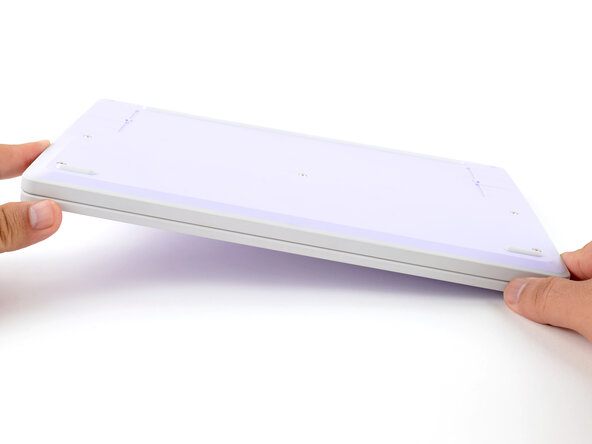
    • Close the laptop lid.

    • Flip your laptop face-down on a clean work surface.

  16. Framework Laptop 12 Battery Replacement, Tighten the bottom screws: 步骤 16 中的图像 1,2 Framework Laptop 12 Battery Replacement, Tighten the bottom screws: 步骤 16 中的图像 2,2
    • Use your Framework Screwdriver to tighten the eight captive T5 Torx screws on the bottom of your laptop.

    • Tighten the screws until they're snug. Don't over-tighten them, or you may strip the screws.

  17. Framework Laptop 12 Battery Replacement, Plug in your laptop: 步骤 17 中的图像 1,1
    • The battery ships in shipping mode, so the laptop won't power on until you plug it in first.

    • Plug a power supply into any USB-C port on your laptop.

结论

You finished fixing your Framework Laptop!

Don't throw your battery in the trash. Click here to learn how to dispose of it properly.

If you need help, contact Framework support.

2等其他人完成本指南。

Arthur Shi

于01/03/18注册

324,650 声望

创作了802篇指南

团队

Guide Team Guide Team 的会员

Staff

10 名成员

创作了16,355篇指南

0指南评论

添加评论

浏览统计数据:

过去 24 小时: 4

过去 7 天: 11

过去 30 天: 50

总计 687