跳转到主内容

Epson PowerLite 83+ Fan Replacement

你所需要的

  1. Epson PowerLite 83+ Fan Replacement, Motherboard: 步骤 1 中的图像 1,3 Epson PowerLite 83+ Fan Replacement, Motherboard: 步骤 1 中的图像 2,3 Epson PowerLite 83+ Fan Replacement, Motherboard: 步骤 1 中的图像 3,3
    • Remove the eight 5mm Phillips #2 screws securing the projector's bottom cover.

    • A long shank Phillips #2 screwdriver is required to reach the screws.

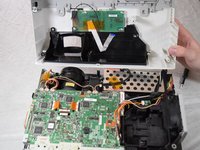
  2. Epson PowerLite 83+ Fan Replacement: 步骤 2 中的图像 1,3 Epson PowerLite 83+ Fan Replacement: 步骤 2 中的图像 2,3 Epson PowerLite 83+ Fan Replacement: 步骤 2 中的图像 3,3
    • Flip the projector over and lift the top cover from the rear of the projector.

    • Two cables are connected at the front that prevent full removal.

    • Disconnect the slide cover JST connector. Grip the connector and rock it back and forth while apply gentle pressure.

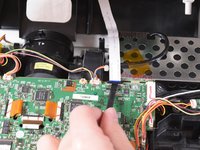
  3. Epson PowerLite 83+ Fan Replacement: 步骤 3 中的图像 1,2 Epson PowerLite 83+ Fan Replacement: 步骤 3 中的图像 2,2
    • Using a spudger, lift the ribbon cable's locking tab along the length of the cable.

    • Remove the ribbon cable from the connector and place the projector's top cover aside.

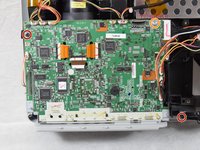
  4. Epson PowerLite 83+ Fan Replacement: 步骤 4 中的图像 1,3 Epson PowerLite 83+ Fan Replacement: 步骤 4 中的图像 2,3 Epson PowerLite 83+ Fan Replacement: 步骤 4 中的图像 3,3
    • Remove the two 6 mm Phillips #2 screws.

    • Remove the single silver 5 mm Phillips #2 screw.

  5. Epson PowerLite 83+ Fan Replacement: 步骤 5 中的图像 1,3 Epson PowerLite 83+ Fan Replacement: 步骤 5 中的图像 2,3 Epson PowerLite 83+ Fan Replacement: 步骤 5 中的图像 3,3
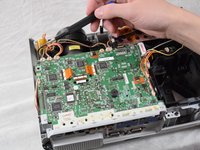
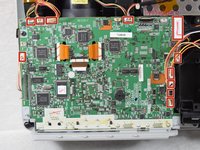
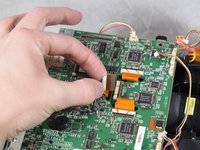
    • Using your fingernails or a spudger, remove the eleven JST connectors attached to the motherboard.

  6. Epson PowerLite 83+ Fan Replacement: 步骤 6 中的图像 1,2 Epson PowerLite 83+ Fan Replacement: 步骤 6 中的图像 2,2
    • Using a spudger, flip up the plastic locking tabs and gently remove the three ribbon cables from their connectors.

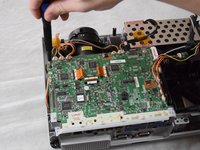
  7. Epson PowerLite 83+ Fan Replacement: 步骤 7 中的图像 1,2 Epson PowerLite 83+ Fan Replacement: 步骤 7 中的图像 2,2
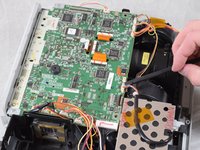
    • Ensure all JST connectors are clear of the motherboard and that the ribbon cables freely move in their motherboard cutouts.

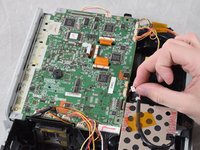
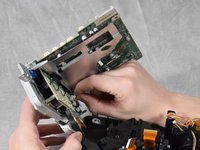
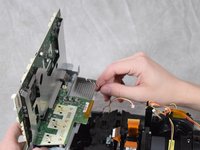
    • Lift the motherboard from the front side of the projector to clear the ribbon cables.

    • Disconnect the speaker's JST connector on the underside of the motherboard using your fingernails.

    • Remove the motherboard from the case.

  8. Epson PowerLite 83+ Fan Replacement, Exhaust Fan: 步骤 8 中的图像 1,2 Epson PowerLite 83+ Fan Replacement, Exhaust Fan: 步骤 8 中的图像 2,2
    • Loosen the two captive Phillips #2 screws securing the lamp.

    • Captive screws should not be removed. They are secured to the lamp itself with retaining rings and will be removed along with the lamp.

  9. Epson PowerLite 83+ Fan Replacement: 步骤 9 中的图像 1,1
    • Hold onto the indented areas of the lamp with your fingers and gently pull it upwards to remove it from the casing.

  10. Epson PowerLite 83+ Fan Replacement: 步骤 10 中的图像 1,3 Epson PowerLite 83+ Fan Replacement: 步骤 10 中的图像 2,3 Epson PowerLite 83+ Fan Replacement: 步骤 10 中的图像 3,3
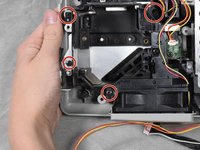
    • Remove the four 6 mm Phillips #2 screws.

    • Lift the fan bracket straight up to remove it from the casing.

  11. Epson PowerLite 83+ Fan Replacement: 步骤 11 中的图像 1,2 Epson PowerLite 83+ Fan Replacement: 步骤 11 中的图像 2,2
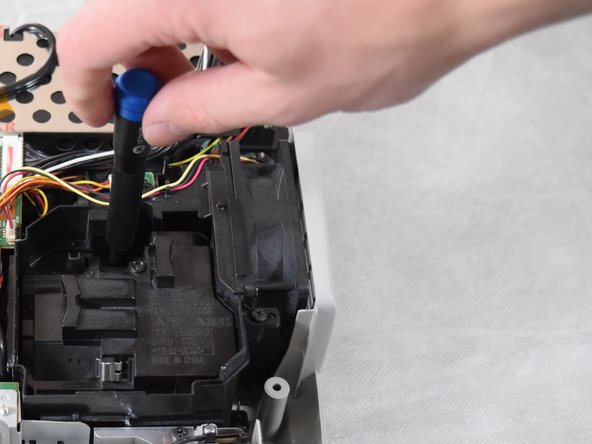
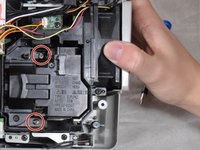
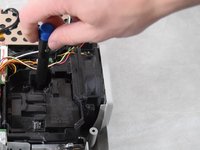
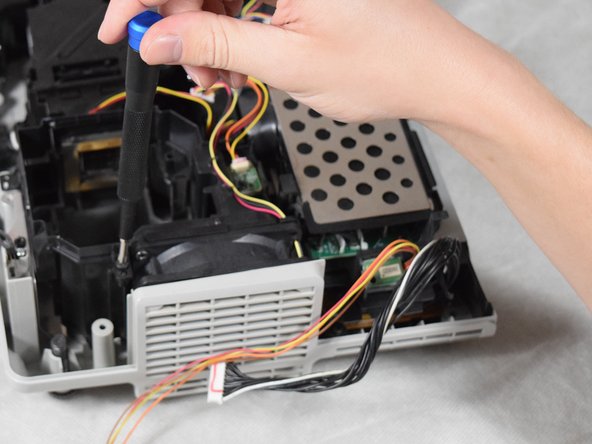
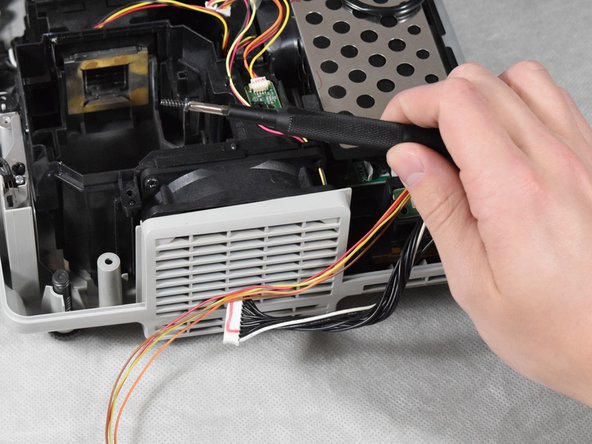
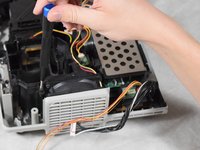
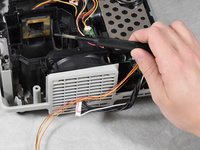
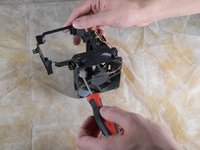
    • Remove the two 6 mm Phillips #2 screws.

    • A long, thin shank Phillips #2 screwdriver is required to remove the screws.

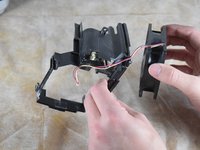
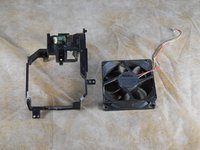
  12. Epson PowerLite 83+ Fan Replacement: 步骤 12 中的图像 1,2 Epson PowerLite 83+ Fan Replacement: 步骤 12 中的图像 2,2
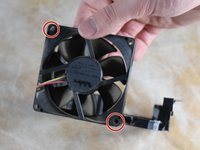
    • Remove the exhaust fan from the bracket.

结论

To reassemble your device, follow these instructions in reverse order.

Billy Fox

于02/22/22注册

467 声望

创作了3篇指南

团队

Clemson, Team 2-4, Hunter Spring 2022 Clemson, Team 2-4, Hunter Spring 2022 的会员

CLEM-HUNTER-S22S2G4

4 名成员

创作了6篇指南

0指南评论

添加评论

浏览统计数据:

过去 24 小时: 0

过去 7 天: 6

过去 30 天: 17

总计 402