简介
RAM can be responsible for bluescreens and other difficult-to-diagnose errors; this guide will instruct you how to replace, remove, or add RAM to your Laptop
你所需要的
-
-
-
Slide the battery release slider all the way to the right and push the battery straight out of the back of the computer
 询问修复机器人
-
-
-
-
-
-
Unscrew the 8 Phillips head screws marked in the photo.
-
Use a plastic opening tool to pry the panel away from the laptop body.
-
Lift the panel up and away.
-
-
-


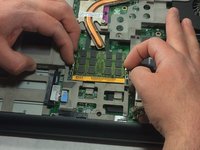
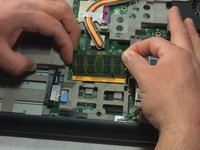
To reassemble your device, follow these instructions in reverse order.
2等其他人完成本指南。

团队

UMass Dartmouth, Team S8-G4, Catania Spring 2017 UMass Dartmouth, Team S8-G4, Catania Spring 2017 的会员
UMASSD-CATANIA-S17S8G4
3 名成员
创作了52篇指南
