跳转到主内容
加入维修社区 - 创建账户

Dell Inspiron E1405 RAM Replacement

你所需要的

    1. Dell Inspiron E1405 RAM Replacement, Battery: 步骤 1 中的图像 1,1
      • Save your work, power the laptop off, and ensure that the charging cable is unplugged before removing the battery.

      • Flip the laptop over.

      • Locate the battery release switch on the bottom of the laptop.

      询问修复机器人

      添加评论

    2. Dell Inspiron E1405 RAM Replacement: 步骤 2 中的图像 1,3 Dell Inspiron E1405 RAM Replacement: 步骤 2 中的图像 2,3 Dell Inspiron E1405 RAM Replacement: 步骤 2 中的图像 3,3
      • Slide the battery release switch away from the lock symbol until you hear the battery click.

      • Slide the battery towards the back of the laptop until it comes free.

      询问修复机器人

      添加评论

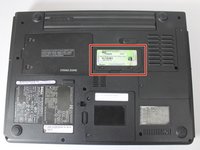
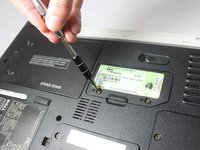
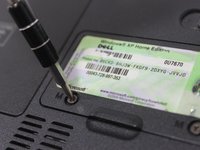
    1. Dell Inspiron E1405 RAM Replacement, RAM: 步骤 3 中的图像 1,3 Dell Inspiron E1405 RAM Replacement, RAM: 步骤 3 中的图像 2,3 Dell Inspiron E1405 RAM Replacement, RAM: 步骤 3 中的图像 3,3
      • Locate the RAM access door.

      • Remove the two 5.5mm screws securing the RAM access door with a #00 Phillips screwdriver.

      添加评论

    2. Dell Inspiron E1405 RAM Replacement: 步骤 4 中的图像 1,1
      • Using your fingers, open and remove the access door from the laptop, exposing the RAM underneath.

      询问修复机器人

      添加评论

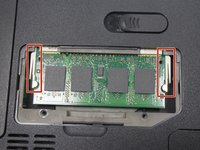
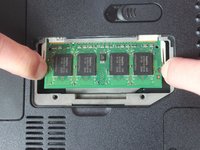
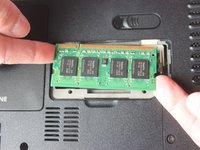
    3. Dell Inspiron E1405 RAM Replacement: 步骤 5 中的图像 1,3 Dell Inspiron E1405 RAM Replacement: 步骤 5 中的图像 2,3 Dell Inspiron E1405 RAM Replacement: 步骤 5 中的图像 3,3
      • To access the RAM, push out the latches outward on the left and right of the RAM.

      • To remove the memory card, pull it out of the tray with the latches still stretched out.

      询问修复机器人

      添加评论

结论

To reassemble your device, follow these instructions in reverse order.

取消:我没有完成这个指南。

另外一个人完成了本指南。

团队

Texas Tech, Team S8-G3, Bennett Spring 2017 Texas Tech, Team S8-G3, Bennett Spring 2017 的会员

TTU-BENNETT-S17S8G3

3 名成员

创作了35篇指南

0指南评论

添加评论

浏览统计数据:

过去 24 小时: 1

过去 7 天: 6

过去 30 天: 28

总计 837