跳转到主内容
加入维修社区 - 创建账户

Dell Inspiron 910 RAM Replacement

你所需要的

    1. Dell Inspiron 910 RAM Replacement, Battery: 步骤 1 中的图像 1,1
      • Flip the laptop so the battery is facing upwards.

      • Push the battery release tabs toward the center of the device.

      • Remove the battery.

      询问修复机器人

      添加评论

    1. Dell Inspiron 910 RAM Replacement, Preparation: 步骤 2 中的图像 1,1
      • Remember to power off the device before starting!

      • Disconnect any cables or external devices from the laptop, then flip it and remove the battery by pressing the battery tabs inward.

      询问修复机器人

      添加评论

    2. Dell Inspiron 910 RAM Replacement: 步骤 3 中的图像 1,1
      • Locate the large black panel with two screws holding it in place. (This is the panel with ventilation holes)

      • Unscrew both of the screws using a Philips Screwdriver.

      询问修复机器人

      添加评论

    3. Dell Inspiron 910 RAM Replacement: 步骤 4 中的图像 1,1
      • Remove the panel by pulling upward.

      • Removal may require some force!

      询问修复机器人

      添加评论

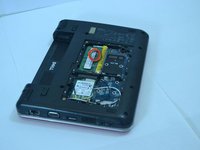
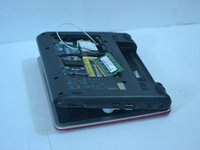
    4. Dell Inspiron 910 RAM Replacement: 步骤 5 中的图像 1,2 Dell Inspiron 910 RAM Replacement: 步骤 5 中的图像 2,2
      • After removing the panel, locate the memory modules.

      • Look for the silver tabs on either side of the white plastic holding the RAM in place. Then gently remove the RAM.

      询问修复机器人

      添加评论

    5. Dell Inspiron 910 RAM Replacement, For Reinstallation: 步骤 6 中的图像 1,1
      • Depress the RAM until it locks into place; there should be an audible clicking noise when it does so and the gold contacts should be barely visible.

      • Congratulations! You have completed the guide.

      询问修复机器人

      添加评论

结论

To reassemble your device, follow these instructions in reverse order.

取消:我没有完成这个指南。

4等其他人完成本指南。

团队

Cal Poly, Team 14-10, Forte Spring 2012 Cal Poly, Team 14-10, Forte Spring 2012 的会员

CPSU-FORTE-S12S14G10

5 名成员

创作了63篇指南

0指南评论

添加评论

浏览统计数据:

过去 24 小时: 1

过去 7 天: 11

过去 30 天: 46

总计 3,368