跳转到主内容
加入维修社区 - 创建账户

Asus ROG G751JL-DS71 RAM Replacement

你所需要的

    1. Asus ROG G751JL-DS71 RAM Replacement, CD-ROM Player: 步骤 1 中的图像 1,2 Asus ROG G751JL-DS71 RAM Replacement, CD-ROM Player: 步骤 1 中的图像 2,2
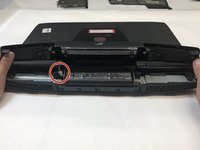
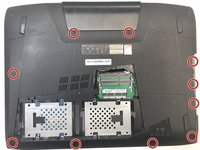
      • Lift the rubber cover found on the bottom of the laptop.

      • Remove the 5.2 mm screw with a Phillips 1 Screwdriver.

      添加评论

    2. Asus ROG G751JL-DS71 RAM Replacement: 步骤 2 中的图像 1,3 Asus ROG G751JL-DS71 RAM Replacement: 步骤 2 中的图像 2,3 Asus ROG G751JL-DS71 RAM Replacement: 步骤 2 中的图像 3,3
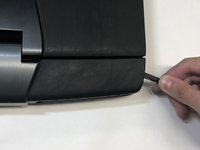
      • Use the nylon spudger to remove the back center panel.

      添加评论

    3. Asus ROG G751JL-DS71 RAM Replacement: 步骤 3 中的图像 1,2 Asus ROG G751JL-DS71 RAM Replacement: 步骤 3 中的图像 2,2
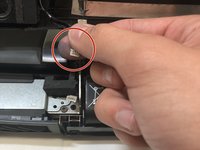
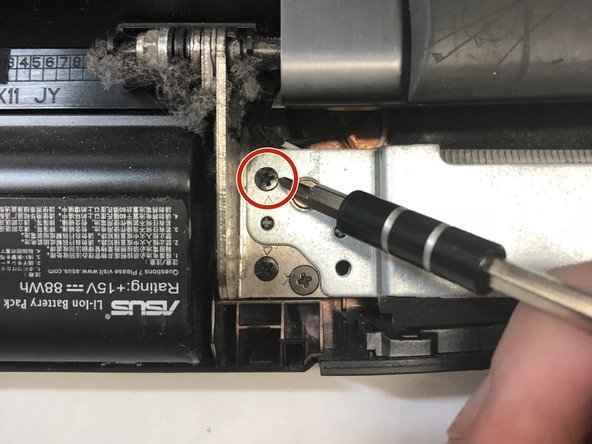
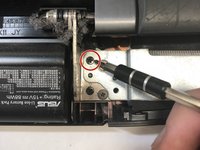
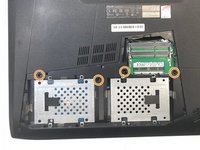
      • Use a Phillips 1 Screwdriver to remove the 5 mm screw that is located underneath the back panel.

      添加评论

    4. Asus ROG G751JL-DS71 RAM Replacement: 步骤 4 中的图像 1,2 Asus ROG G751JL-DS71 RAM Replacement: 步骤 4 中的图像 2,2
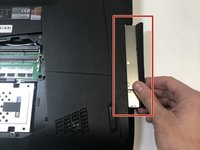
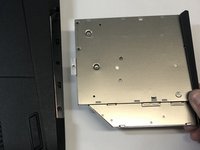
      • Pull out the optical drive found on the side of the laptop.

      询问修复机器人

      添加评论

    1. Asus ROG G751JL-DS71 RAM Replacement, Top Rear Panel: 步骤 5 中的图像 1,2 Asus ROG G751JL-DS71 RAM Replacement, Top Rear Panel: 步骤 5 中的图像 2,2
      在这个步骤中使用的工具:
      Tweezers
      $4.99
      • Use a pair of tweezers to remove the top four rubber stoppers found on the bottom of the laptop.

      询问修复机器人

      添加评论

    2. Asus ROG G751JL-DS71 RAM Replacement: 步骤 6 中的图像 1,2 Asus ROG G751JL-DS71 RAM Replacement: 步骤 6 中的图像 2,2
      • Use a Phillips 1 Screwdriver to remove the top four 8.5 mm screws.

      询问修复机器人

      添加评论

    3. Asus ROG G751JL-DS71 RAM Replacement: 步骤 7 中的图像 1,3 Asus ROG G751JL-DS71 RAM Replacement: 步骤 7 中的图像 2,3 Asus ROG G751JL-DS71 RAM Replacement: 步骤 7 中的图像 3,3
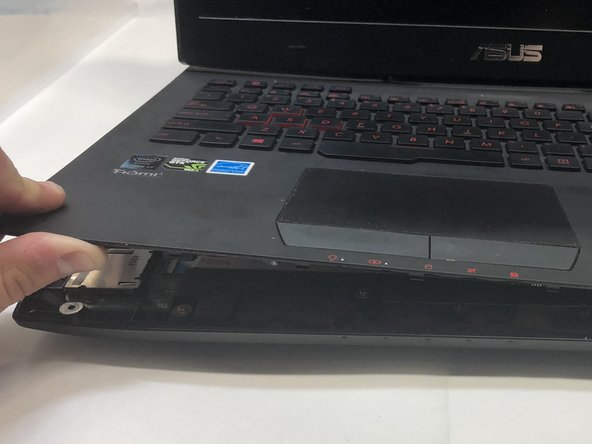
      • Use a nylon spudger to carefully pry the top back panel off.

      • While removing the top back panel, be careful not to break the four pin connector located underneath.

      • Disconnect the four-pin connector and remove the top back panel from the computer.

      询问修复机器人

      添加评论

    1. Asus ROG G751JL-DS71 RAM Replacement, Keyboard: 步骤 8 中的图像 1,3 Asus ROG G751JL-DS71 RAM Replacement, Keyboard: 步骤 8 中的图像 2,3 Asus ROG G751JL-DS71 RAM Replacement, Keyboard: 步骤 8 中的图像 3,3
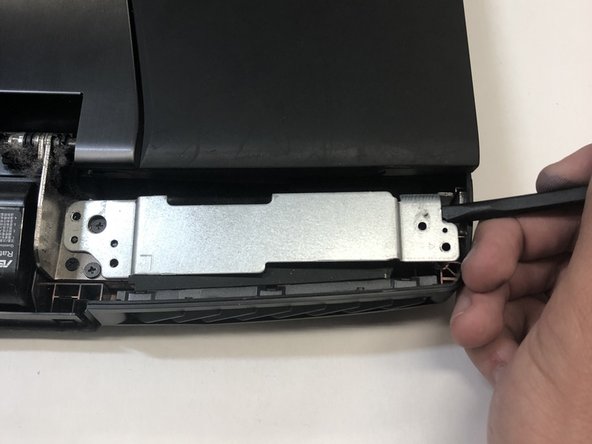
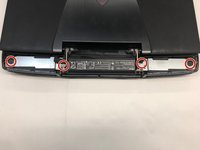
      • Use a Phillips 1 Screwdriver to remove the four 6.8 mm screws underneath the back panel.

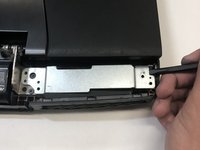
      • Lift away the metal housings from each side of the laptop.

      添加评论

    2. Asus ROG G751JL-DS71 RAM Replacement: 步骤 9 中的图像 1,2 Asus ROG G751JL-DS71 RAM Replacement: 步骤 9 中的图像 2,2
      • Use a Phillips 1 Screwdriver to remove the ten 5.2 mm screws holding the main panel in place.

      • Use a Phillips 1 Screwdriver to remove the four 5.2 mm screws underneath the center panel.

      询问修复机器人

      添加评论

    3. Asus ROG G751JL-DS71 RAM Replacement: 步骤 10 中的图像 1,3 Asus ROG G751JL-DS71 RAM Replacement: 步骤 10 中的图像 2,3 Asus ROG G751JL-DS71 RAM Replacement: 步骤 10 中的图像 3,3
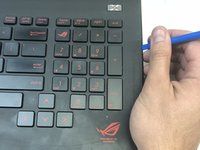
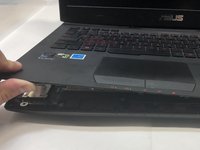
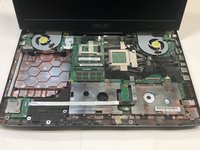
      • Use a plastic opening tool to pry the keyboard from the base of the laptop.

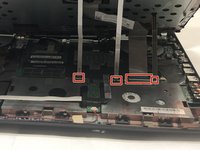
      • Lift the keyboard carefully so as to not tear or break the four ribbon connectors underneath the keyboard.

      询问修复机器人

      添加评论

    4. Asus ROG G751JL-DS71 RAM Replacement: 步骤 11 中的图像 1,2 Asus ROG G751JL-DS71 RAM Replacement: 步骤 11 中的图像 2,2
      在这个步骤中使用的工具:
      Tweezers
      $4.99
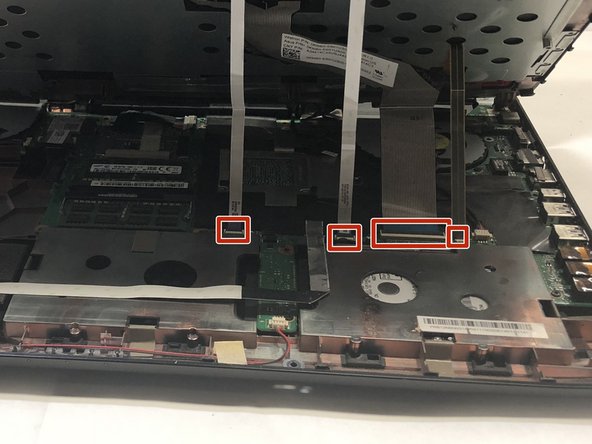
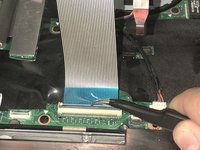
      • Use a pair of tweezers to undo each of the four ribbon connectors.

      • The keyboard is now completely disconnected from the laptop and you can remove it.

      添加评论

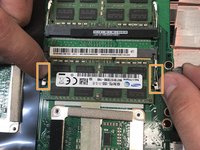
    1. Asus ROG G751JL-DS71 RAM Replacement, RAM: 步骤 12 中的图像 1,2 Asus ROG G751JL-DS71 RAM Replacement, RAM: 步骤 12 中的图像 2,2
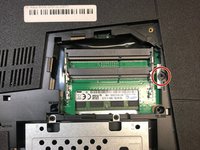
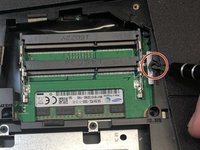
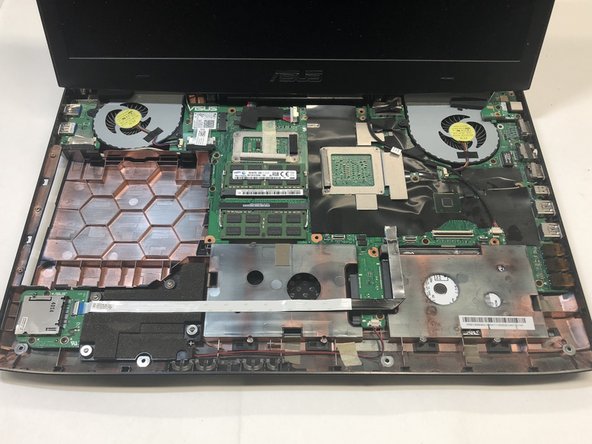
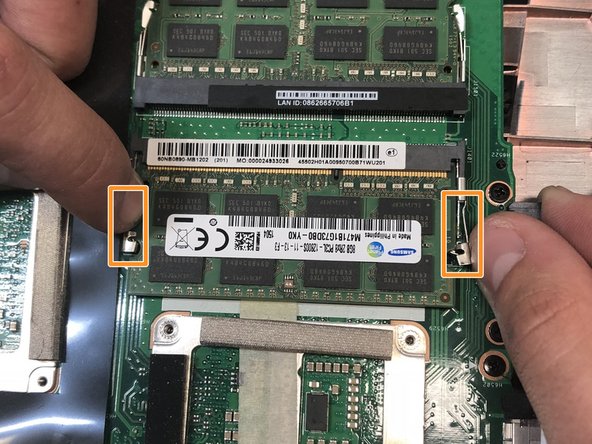
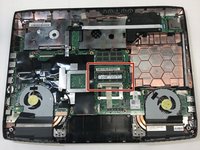
      • First locate the RAM.

      • Then pull the tabs located on the left and right of the RAM outwards to release the RAM.

      • You can now remove the RAM and replace it.

      询问修复机器人

      添加评论

结论

To reassemble your device, follow these instructions in reverse order.

取消:我没有完成这个指南。

另外一个人完成了本指南。

Gwennie Kidd

于01/22/18注册

147 声望

撰写一个指南

团队

Cal Poly, Team S16-G1, Banghart Winter 2018 Cal Poly, Team S16-G1, Banghart Winter 2018 的会员

CPSU-BANGHART-W18S16G1

4 名成员

创作了54篇指南

0指南评论

添加评论

浏览统计数据:

过去 24 小时: 1

过去 7 天: 7

过去 30 天: 47

总计 1,483