跳转到主内容
加入维修社区 - 创建账户

Asus Q325U Keyboard Replacement

你所需要的

  1. Asus Q325U Keyboard Replacement, Back Panel: 步骤 1 中的图像 1,3 Asus Q325U Keyboard Replacement, Back Panel: 步骤 1 中的图像 2,3 Asus Q325U Keyboard Replacement, Back Panel: 步骤 1 中的图像 3,3
    • Remove the ten 5mm screws using a T5 Torx screwdriver.

    询问修复机器人
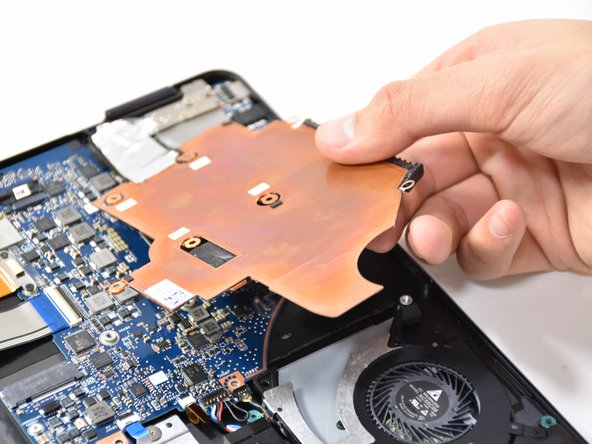
  2. Asus Q325U Keyboard Replacement: 步骤 2 中的图像 1,3 Asus Q325U Keyboard Replacement: 步骤 2 中的图像 2,3 Asus Q325U Keyboard Replacement: 步骤 2 中的图像 3,3
    • Lift the back panel upward using the suction tool.

    询问修复机器人
  3. Asus Q325U Keyboard Replacement, SSD: 步骤 3 中的图像 1,2 Asus Q325U Keyboard Replacement, SSD: 步骤 3 中的图像 2,2
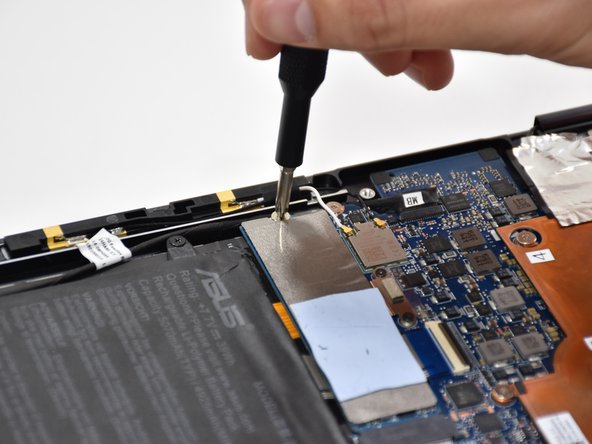
    • Remove one 2mm screw on top of the SSD using a Phillips #1 screwdriver.

    询问修复机器人
  4. Asus Q325U Keyboard Replacement: 步骤 4 中的图像 1,2 Asus Q325U Keyboard Replacement: 步骤 4 中的图像 2,2
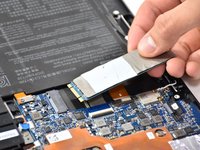
    • Carefully slide and lift the SSD to remove it.

    询问修复机器人
  5. Asus Q325U Keyboard Replacement, Battery: 步骤 5 中的图像 1,2 Asus Q325U Keyboard Replacement, Battery: 步骤 5 中的图像 2,2
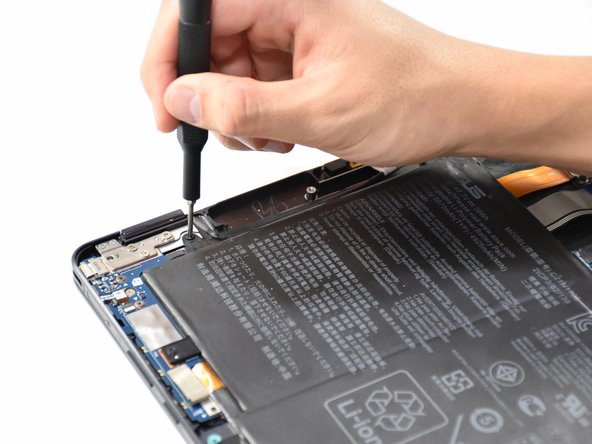
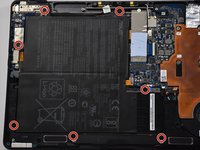
    • Remove the seven 5mm screws around the battery using a Phillips #00 screwdriver.

    询问修复机器人
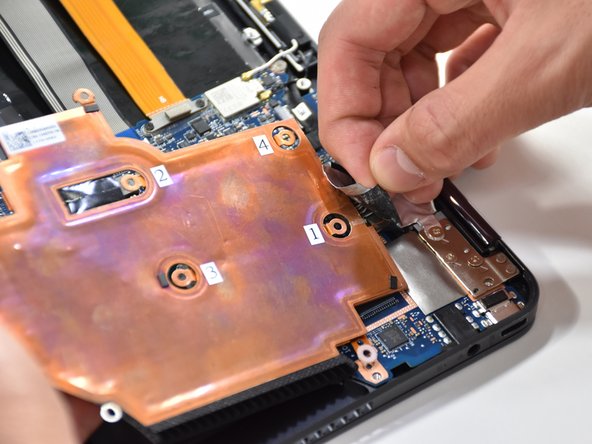
  6. Asus Q325U Keyboard Replacement: 步骤 6 中的图像 1,2 Asus Q325U Keyboard Replacement: 步骤 6 中的图像 2,2
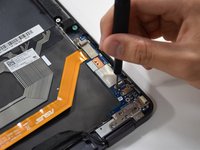
    • Using a Phillips #000 screwdriver, remove the two 3mm screws on top of the orange battery connector.

  7. Asus Q325U Keyboard Replacement: 步骤 7 中的图像 1,2 Asus Q325U Keyboard Replacement: 步骤 7 中的图像 2,2
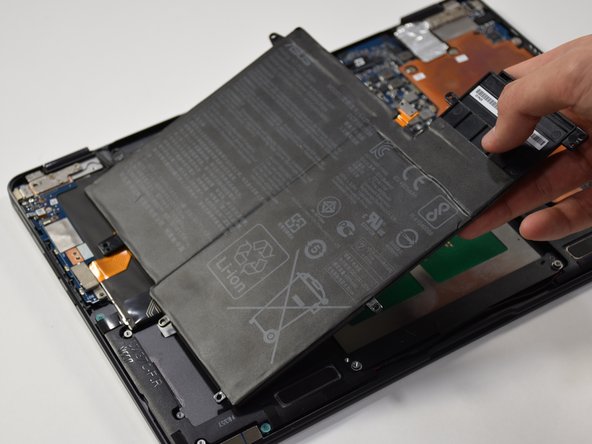
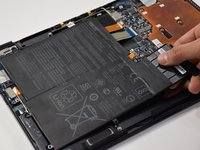
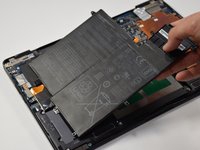
    • Lift the battery out from the laptop.

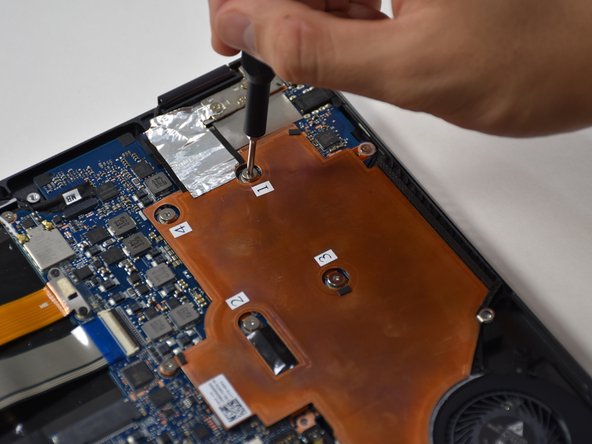
  8. Asus Q325U Keyboard Replacement, Copper Plate: 步骤 8 中的图像 1,2 Asus Q325U Keyboard Replacement, Copper Plate: 步骤 8 中的图像 2,2
    • Remove the six 3mm screws using a Phillips #00.

    询问修复机器人
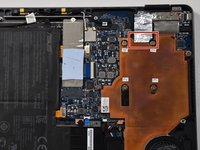
  9. Asus Q325U Keyboard Replacement: 步骤 9 中的图像 1,2 Asus Q325U Keyboard Replacement: 步骤 9 中的图像 2,2
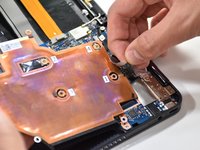
    • Use the plastic opening tool to lift up the edge. Pull upward on the edge.

    询问修复机器人
  10. Asus Q325U Keyboard Replacement: 步骤 10 中的图像 1,2 Asus Q325U Keyboard Replacement: 步骤 10 中的图像 2,2
    • On the other side of the plate, remove the tape.

    询问修复机器人
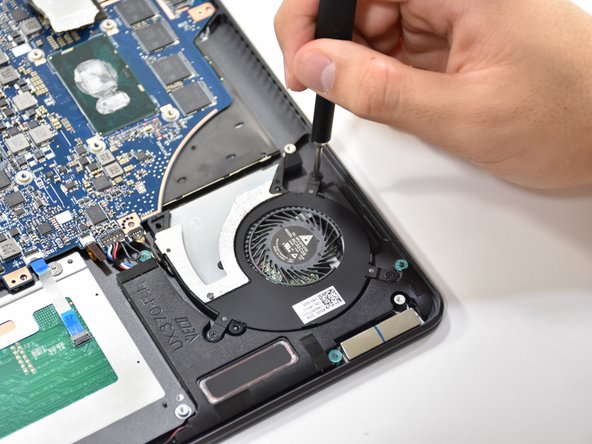
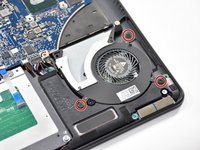
  11. Asus Q325U Keyboard Replacement, CPU Fan: 步骤 11 中的图像 1,2 Asus Q325U Keyboard Replacement, CPU Fan: 步骤 11 中的图像 2,2
    • Remove the three 3.7 mm screws using a Phillips #00 screwdriver.

    询问修复机器人
  12. Asus Q325U Keyboard Replacement: 步骤 12 中的图像 1,1
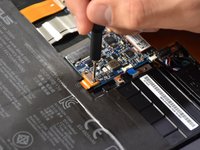
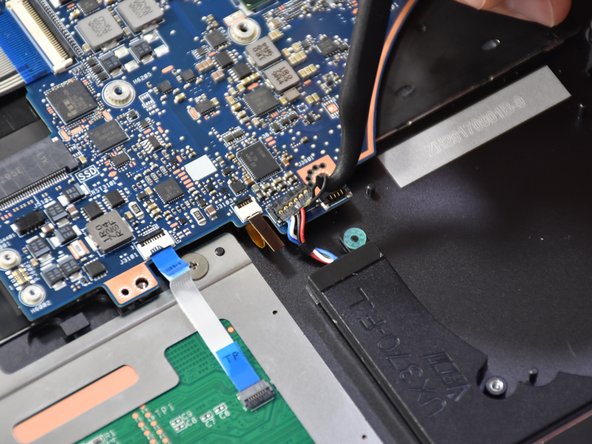
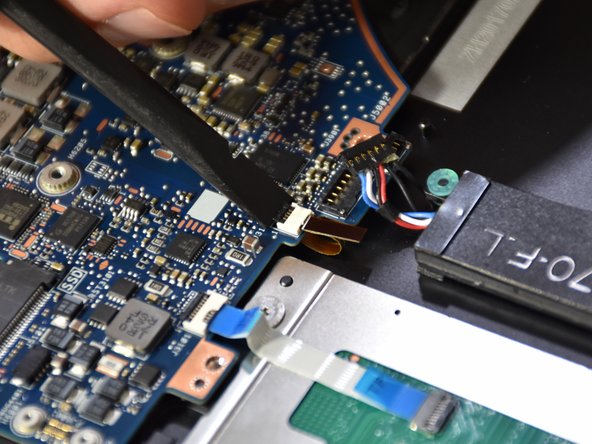
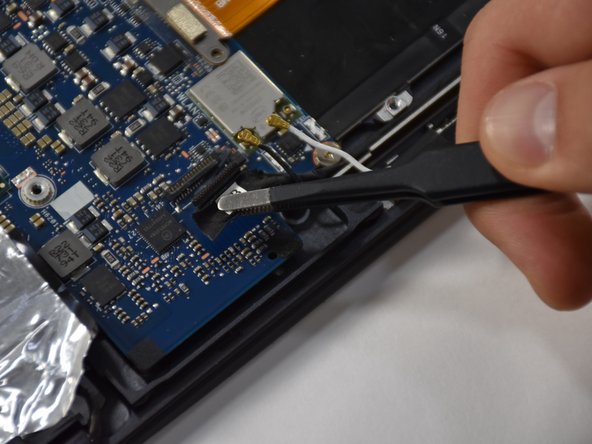
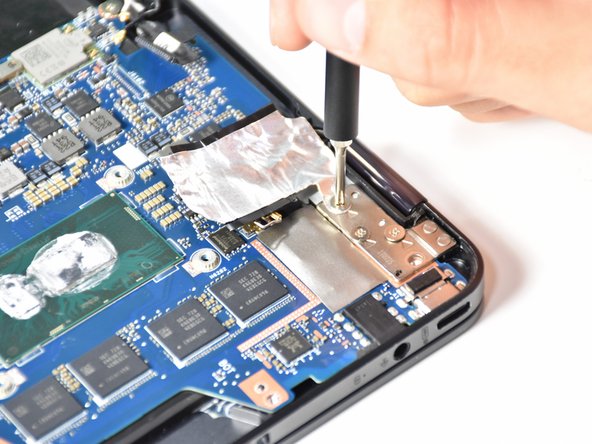
    • Detach the black wire and plug shown using a tweezer.

    询问修复机器人
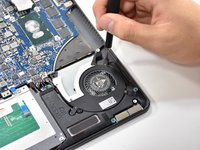
  13. Asus Q325U Keyboard Replacement: 步骤 13 中的图像 1,1
    • Grab CPU fan by its edge and gently pull upwards to remove.

    询问修复机器人
  14. Asus Q325U Keyboard Replacement, Motherboard: 步骤 14 中的图像 1,2 Asus Q325U Keyboard Replacement, Motherboard: 步骤 14 中的图像 2,2
    在这个步骤中使用的工具:
    Halberd Spudger
    $2.99
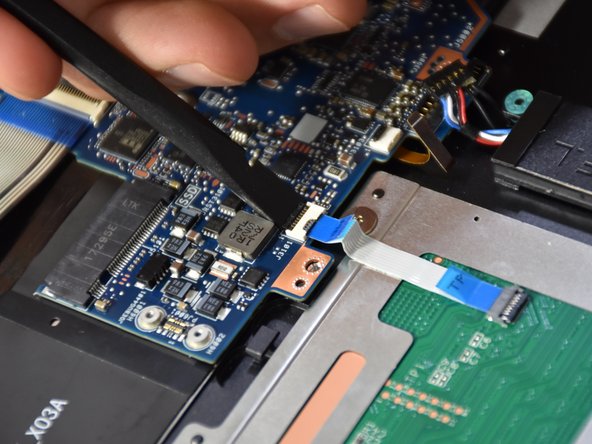
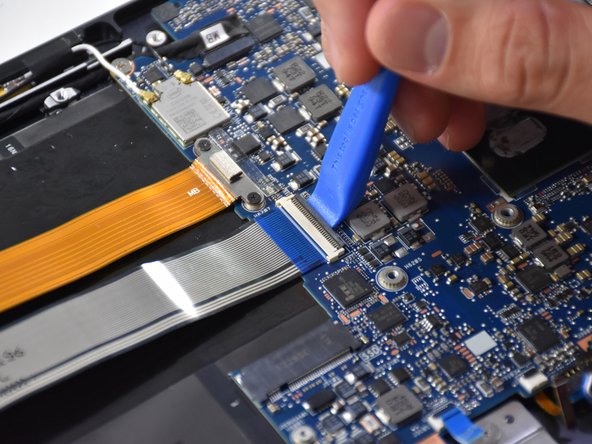
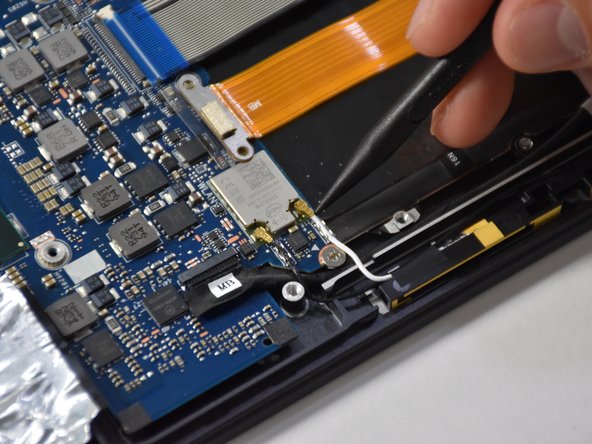
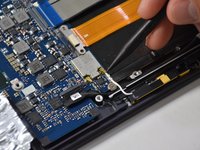
    • Remove the first connection wire by pulling the small back loop with the Halberd Spudger.

    询问修复机器人
  15. Asus Q325U Keyboard Replacement: 步骤 15 中的图像 1,3 Asus Q325U Keyboard Replacement: 步骤 15 中的图像 2,3 Asus Q325U Keyboard Replacement: 步骤 15 中的图像 3,3
    在这个步骤中使用的工具:
    Tweezers
    $4.99
    • Lift the small black tab of the orange connector with your fingers or a plastic opening tool.

    • Remove the orange connector by pulling with tweezers.

    询问修复机器人
  16. Asus Q325U Keyboard Replacement: 步骤 16 中的图像 1,3 Asus Q325U Keyboard Replacement: 步骤 16 中的图像 2,3 Asus Q325U Keyboard Replacement: 步骤 16 中的图像 3,3
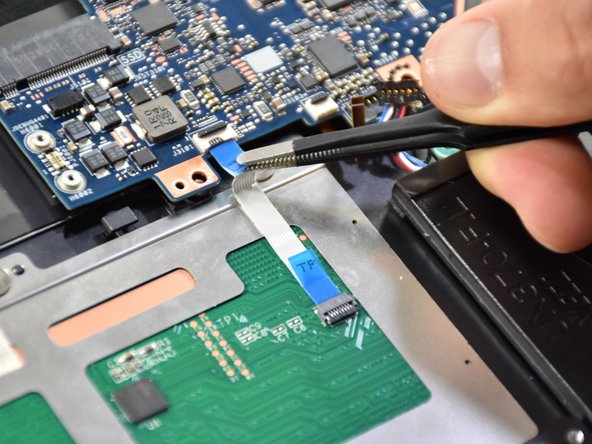
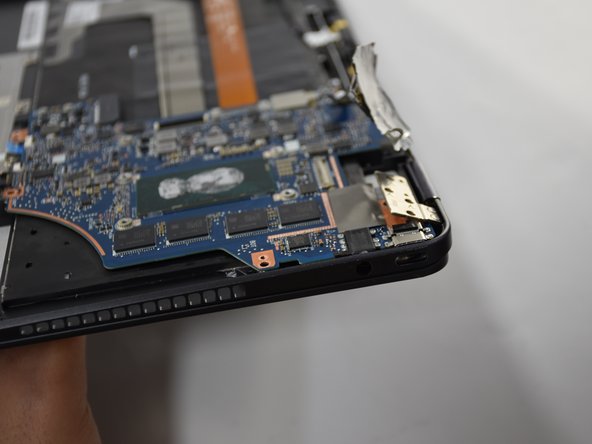
    • Lift the small black tab on the white plastic piece of the touch pad connector with a spudger.

    • Remove the touch pad connector by pulling with tweezers.

    询问修复机器人
  17. Asus Q325U Keyboard Replacement: 步骤 17 中的图像 1,3 Asus Q325U Keyboard Replacement: 步骤 17 中的图像 2,3 Asus Q325U Keyboard Replacement: 步骤 17 中的图像 3,3
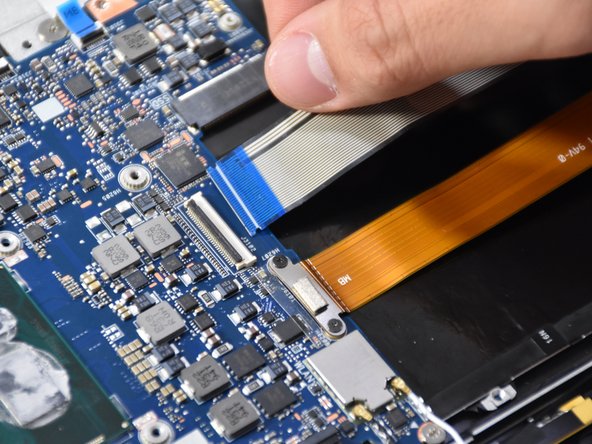
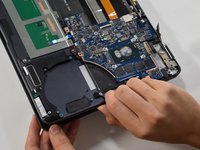
    • Lift the black tab on the long white plastic piece of the thick blue band.

    • Remove the thick blue band by pulling.

    询问修复机器人
  18. Asus Q325U Keyboard Replacement: 步骤 18 中的图像 1,3 Asus Q325U Keyboard Replacement: 步骤 18 中的图像 2,3 Asus Q325U Keyboard Replacement: 步骤 18 中的图像 3,3
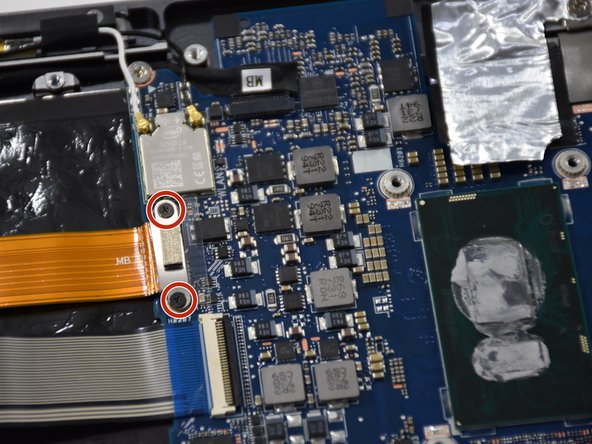
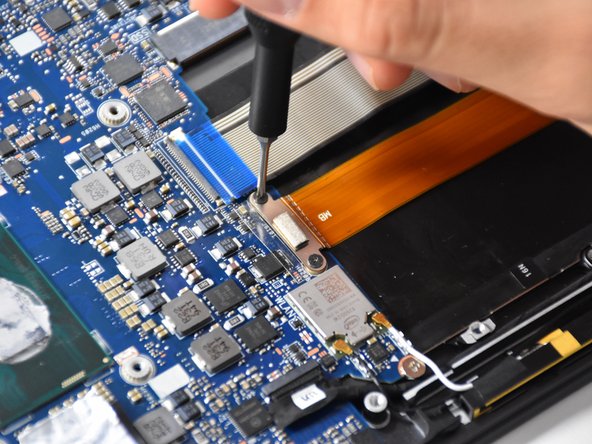
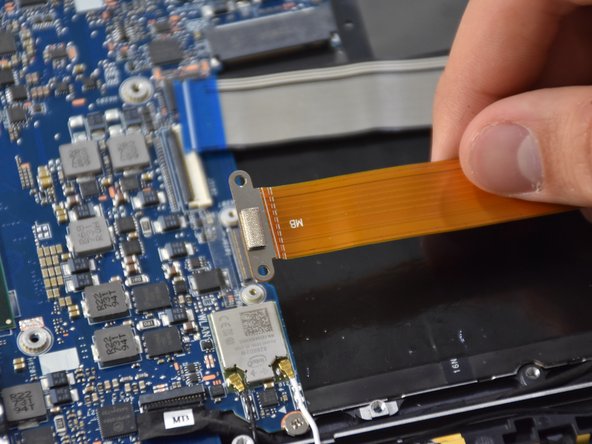
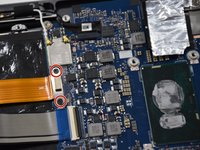
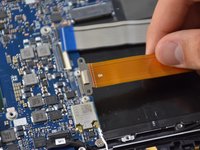
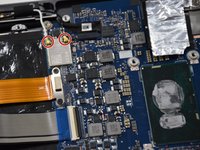
    • Remove the two Phillips #000 screws on the metal connector above the thick orange band.

    • Lift up the thick orange band.

    询问修复机器人
  19. Asus Q325U Keyboard Replacement: 步骤 19 中的图像 1,3 Asus Q325U Keyboard Replacement: 步骤 19 中的图像 2,3 Asus Q325U Keyboard Replacement: 步骤 19 中的图像 3,3
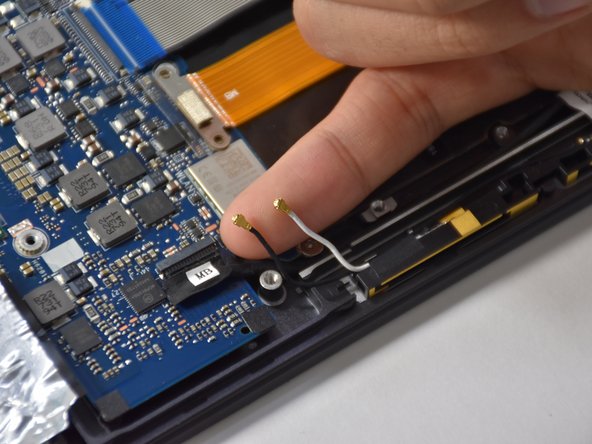
    • Gently lift up the two smallest connectors using your fingers or a plastic opening tool.

    询问修复机器人
  20. Asus Q325U Keyboard Replacement: 步骤 20 中的图像 1,2 Asus Q325U Keyboard Replacement: 步骤 20 中的图像 2,2
    • Lift up the black hinge of the connector using a plastic opening tool.

    • Remove the connector using a tweezer.

    询问修复机器人
  21. Asus Q325U Keyboard Replacement: 步骤 21 中的图像 1,3 Asus Q325U Keyboard Replacement: 步骤 21 中的图像 2,3 Asus Q325U Keyboard Replacement: 步骤 21 中的图像 3,3
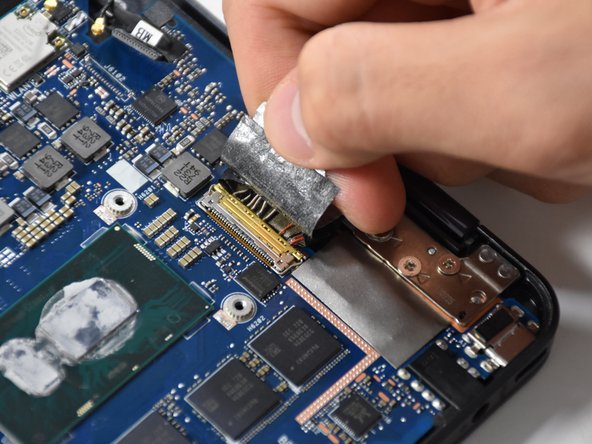
    • Pull up the tap of the biggest connector using your fingers.

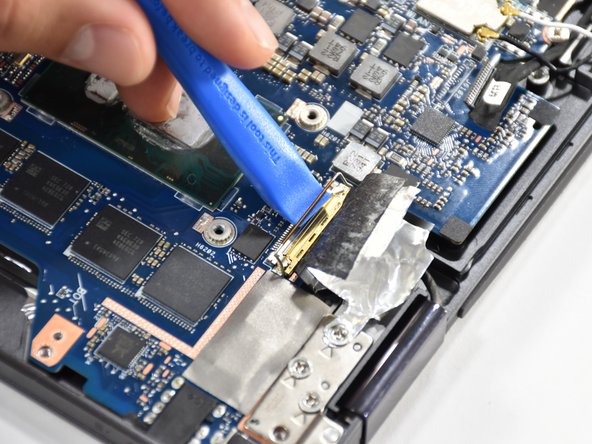
    • Lift the gold hinge using a plastic opening tool.

    • Lift the connector up with your fingers to remove.

    询问修复机器人
  22. Asus Q325U Keyboard Replacement: 步骤 22 中的图像 1,2 Asus Q325U Keyboard Replacement: 步骤 22 中的图像 2,2
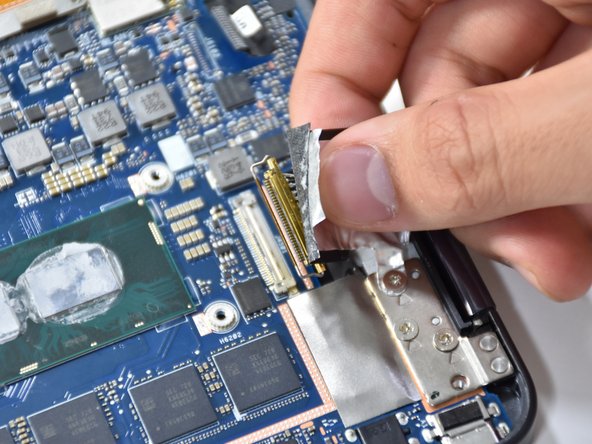
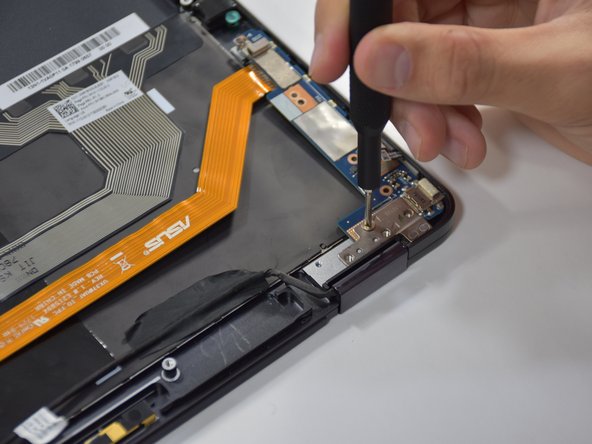
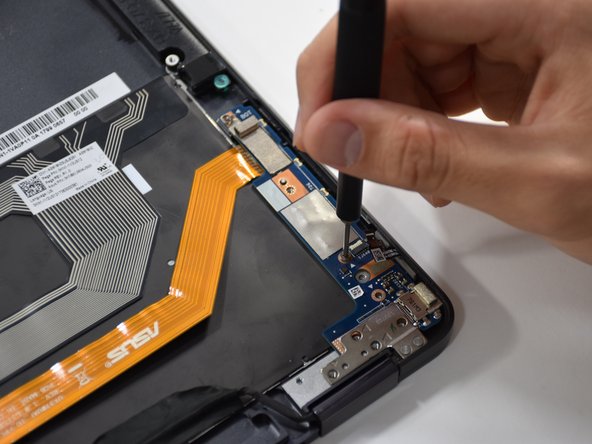
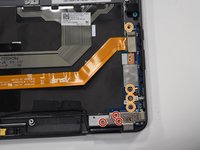
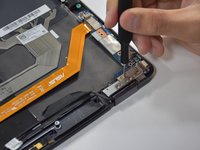
    • Remove the four 4.8 mm screws using a Phillips #00 screwdriver.

    询问修复机器人
  23. Asus Q325U Keyboard Replacement: 步骤 23 中的图像 1,2 Asus Q325U Keyboard Replacement: 步骤 23 中的图像 2,2
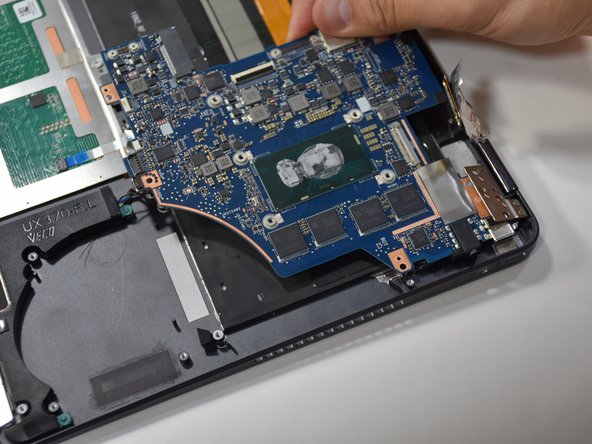
    • Slightly open up the laptop. This will lift up the hinge at the corner and free the motherboard.

    询问修复机器人
  24. Asus Q325U Keyboard Replacement: 步骤 24 中的图像 1,2 Asus Q325U Keyboard Replacement: 步骤 24 中的图像 2,2
    • Pull the motherboard away from the corner to remove.

    询问修复机器人
  25. Asus Q325U Keyboard Replacement, Keyboard: 步骤 25 中的图像 1,3 Asus Q325U Keyboard Replacement, Keyboard: 步骤 25 中的图像 2,3 Asus Q325U Keyboard Replacement, Keyboard: 步骤 25 中的图像 3,3
    • Remove the three 4 mm screws using a Phillips #00 screwdriver.

    • Remove the four 4.8 mm screws using a Phillips #000 screwdriver.

    询问修复机器人
  26. Asus Q325U Keyboard Replacement: 步骤 26 中的图像 1,1
    • Slide out the blue chip board connected to the long orange piece by gently grabbing the tab and lifting.

    询问修复机器人
  27. Asus Q325U Keyboard Replacement: 步骤 27 中的图像 1,1
    • Release the single MB wire by removing the black piece of tape.

    询问修复机器人
  28. Asus Q325U Keyboard Replacement: 步骤 28 中的图像 1,1
    • Untape the blue striped strip by pulling upwards and laying it flat.

    询问修复机器人
  29. Asus Q325U Keyboard Replacement: 步骤 29 中的图像 1,3 Asus Q325U Keyboard Replacement: 步骤 29 中的图像 2,3 Asus Q325U Keyboard Replacement: 步骤 29 中的图像 3,3
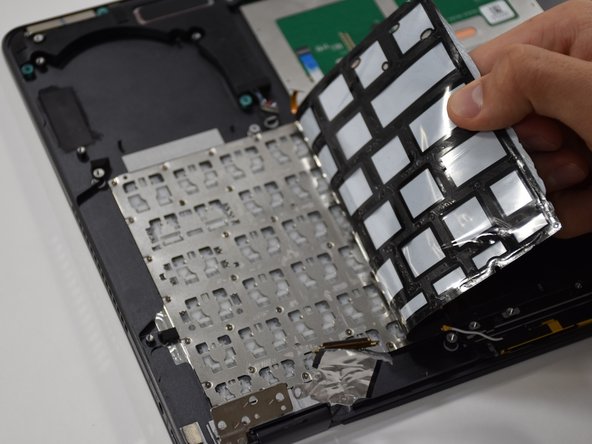
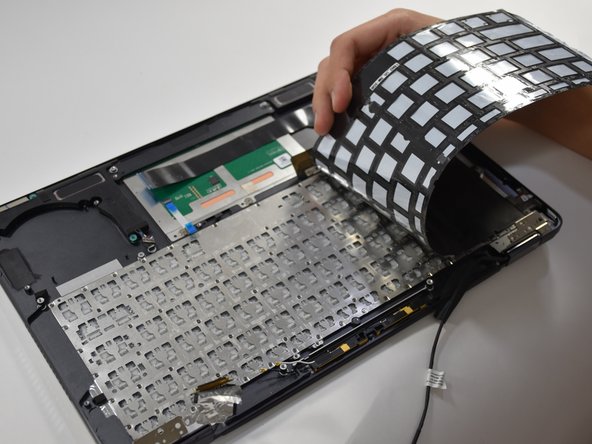
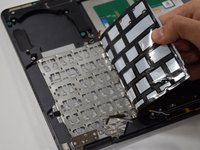
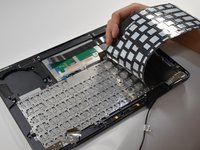
    • Starting at the upper left corner, remove the black adhesive from the keyboard.

    询问修复机器人
  30. Asus Q325U Keyboard Replacement: 步骤 30 中的图像 1,2 Asus Q325U Keyboard Replacement: 步骤 30 中的图像 2,2
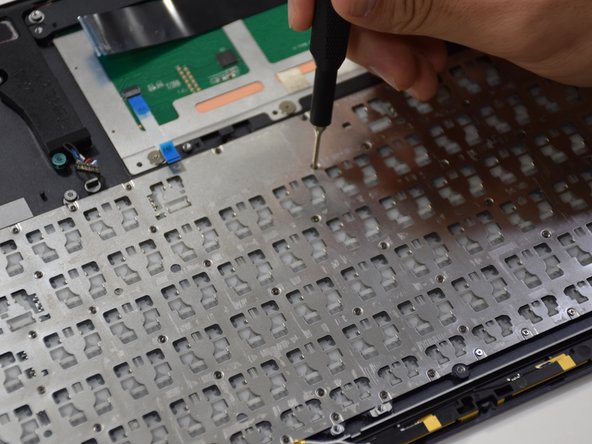
    • Remove eighty 1 mm screws located on the keyboard frame using a Phillips #000 screwdriver.

    询问修复机器人
  31. Asus Q325U Keyboard Replacement: 步骤 31 中的图像 1,1
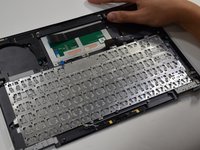
    • Grab the edge of the keyboard and lift upwards to remove.

    询问修复机器人
结论

To reassemble your device, follow these instructions in reverse order.

团队

Cal Poly, Team S19-G1, White Winter 2019 Cal Poly, Team S19-G1, White Winter 2019 的会员

CPSU-WHITE-W19S19G1

3 名成员

创作了6篇指南

0指南评论

添加评论

浏览统计数据:

过去 24 小时: 0

过去 7 天: 5

过去 30 天: 27

总计 993