跳转到主内容
加入维修社区 - 创建账户

Apple PowerBook G3 400 RAM Replacement

你所需要的

  1. Apple PowerBook G3 400 RAM Replacement, Keyboard: 步骤 1 中的图像 1,1
    • Pull the keyboard tabs toward you while lifting up on the keyboard until it releases from it's hold.

    • To lift the keyboard out pull it up and away from you. Then place the keyboard on the track pad.

    询问修复机器人

    添加评论

  2. Apple PowerBook G3 400 RAM Replacement: 步骤 2 中的图像 1,1
    • Pull the keyboard ribbon vertically from the logic board to release connection.

    • The connector may be tight and difficult to remove. If stuck try rocking the connector back and forth while pulling up until it releases. This same process can be used for many of the connectors on this device.

    • Remove battery and CD/DVD drives before proceeding any further.

    添加评论

  3. Apple PowerBook G3 400 RAM Replacement: 步骤 3 中的图像 1,1
    • Your computer should look approximately like this.

    询问修复机器人

    添加评论

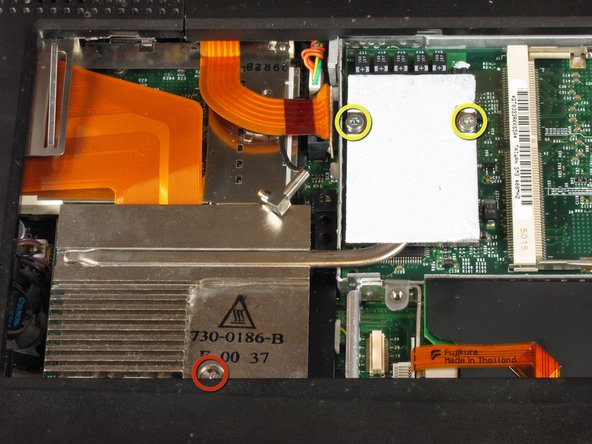
  4. Apple PowerBook G3 400 RAM Replacement, RAM: 步骤 4 中的图像 1,1
    • Remove the two silver Phillips #1 screws that attach the heat shield to the metal framework.

    • Lift the heat shield up and toward you.

    询问修复机器人

    添加评论

  5. Apple PowerBook G3 400 RAM Replacement: 步骤 5 中的图像 1,1
    • Pull the PRAM battery cable vertically upward to disconnect it.

    • Remove the battery by pulling up and to the left.

    添加评论

  6. Apple PowerBook G3 400 RAM Replacement: 步骤 6 中的图像 1,1
    • Remove the two T8 Torx screws that attach the heat sink to the processor.

    • Remove the long silver Phillips #1 screw from the heat sink.

    询问修复机器人

    添加评论

  7. Apple PowerBook G3 400 RAM Replacement: 步骤 7 中的图像 1,1
    • Lift up the heat sink unit from the left side and remove.

    询问修复机器人

    添加评论

  8. Apple PowerBook G3 400 RAM Replacement: 步骤 8 中的图像 1,1
    • Lift the processor on the right side and pull directly up.

    • The RAM chips should be in the slots on the processor.

    询问修复机器人

    添加评论

  9. Apple PowerBook G3 400 RAM Replacement: 步骤 9 中的图像 1,1
    • After removing the RAM, your laptop should now look like this.

    询问修复机器人

    添加评论

结论

To reassemble your device, follow these instructions in reverse order.

取消:我没有完成这个指南。

2等其他人完成本指南。

Ian

于04/18/11注册

57 声望

撰写一个指南

团队

Cal Poly, Team 4-2, Regan Spring 2011 Cal Poly, Team 4-2, Regan Spring 2011 的会员

CPSU-REGAN-S11S4G2

4 名成员

创作了6篇指南

0指南评论

添加评论

浏览统计数据:

过去 24 小时: 0

过去 7 天: 9

过去 30 天: 42

总计 2,495