跳转到主内容
加入维修社区 - 创建账户

Anker 2.4G Wireless Mouse LED Replacement

你所需要的

    1. Anker 2.4G Wireless Mouse LED Replacement, LED: 步骤 1 中的图像 1,1
      • Use a spudger to gently pry off the stickers to reveal the location of the four screws.

      询问修复机器人

      添加评论

    2. Anker 2.4G Wireless Mouse LED Replacement: 步骤 2 中的图像 1,1
      • Remove the four screws to continue.

      询问修复机器人

      添加评论

    3. Anker 2.4G Wireless Mouse LED Replacement: 步骤 3 中的图像 1,2 Anker 2.4G Wireless Mouse LED Replacement: 步骤 3 中的图像 2,2
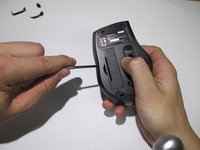
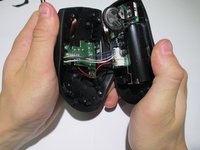
      • Pry the center of the mouse apart using a spudger to separate the upper and lower housing of the boards.

      询问修复机器人

      添加评论

    4. Anker 2.4G Wireless Mouse LED Replacement: 步骤 4 中的图像 1,1
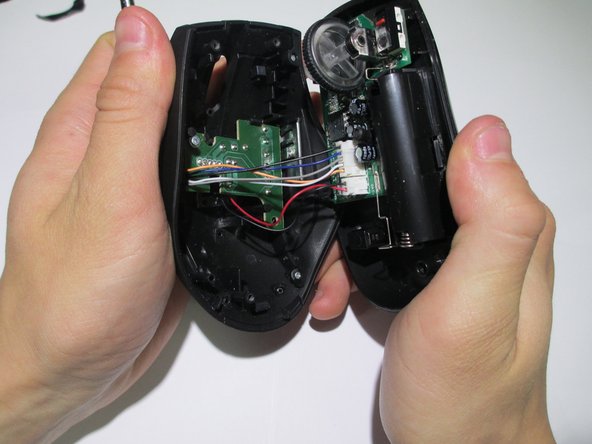
      • Remove the wires from the white crimp headers. This will separate the upper and lower housing units of the mouse.

      • Pull as far up on the wire as possible, but be careful to avoid ripping the wires.

      询问修复机器人

      添加评论

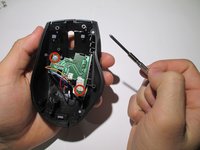
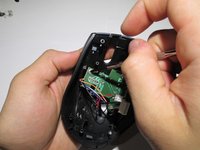
    5. Anker 2.4G Wireless Mouse LED Replacement: 步骤 5 中的图像 1,2 Anker 2.4G Wireless Mouse LED Replacement: 步骤 5 中的图像 2,2
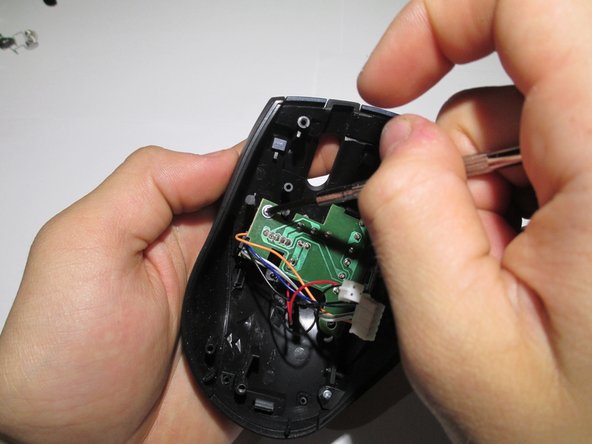
      • Take the upper housing of the mouse and remove the two screws that hold the board in place.

      询问修复机器人

      添加评论

    6. Anker 2.4G Wireless Mouse LED Replacement: 步骤 6 中的图像 1,1
      • Gently remove the circuit board from the mouse.

      询问修复机器人

      添加评论

    7. Anker 2.4G Wireless Mouse LED Replacement: 步骤 7 中的图像 1,1
      • To remove the LED, flip the board over and desolder the wires.

      • Replace LED with a new LED and resolder into place.

      询问修复机器人

      添加评论

结论

To reassemble your device, follow these instructions in reverse order.

取消:我没有完成这个指南。

Colin

于02/10/14注册

409 声望

创作了3篇指南

团队

Cal Poly, Team 1-39, Maness Winter 2014 Cal Poly, Team 1-39, Maness Winter 2014 的会员

CPSU-MANESS-W14S1G39

4 名成员

创作了48篇指南

0指南评论

添加评论

浏览统计数据:

过去 24 小时: 1

过去 7 天: 10

过去 30 天: 35

总计 3,626