跳转到主内容
加入维修社区 - 创建账户

Alienware P18G M14X R1 RAM Replacement

你所需要的

  1. Alienware P18G M14X R1 RAM Replacement, Back Cover: 步骤 1 中的图像 1,1
    • Loosen the top left and top right 6.5mm PH1 screws that hold down the back cover.

    • The screws will not be able to be removed from the back cover. They can only be loosened or tightened.

    询问修复机器人

    添加评论

  2. Alienware P18G M14X R1 RAM Replacement: 步骤 2 中的图像 1,1
    • Slide back cover forward using your thumbs.

    询问修复机器人

    添加评论

  3. Alienware P18G M14X R1 RAM Replacement: 步骤 3 中的图像 1,1
    • Lift up the cover and set aside exposing the internals of the computer.

    询问修复机器人

    添加评论

  4. Alienware P18G M14X R1 RAM Replacement, RAM: 步骤 4 中的图像 1,1
    • Unscrew the two 6.35 mm using the PH1 screw driver.

    询问修复机器人

    添加评论

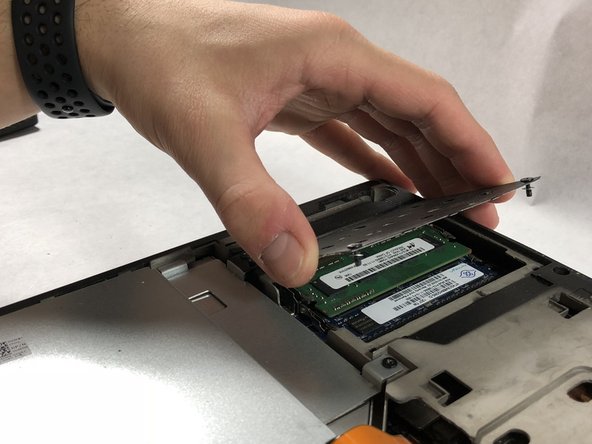
  5. Alienware P18G M14X R1 RAM Replacement: 步骤 5 中的图像 1,2 Alienware P18G M14X R1 RAM Replacement: 步骤 5 中的图像 2,2
    • Lift the plate and remove it to uncover the RAM sticks.

    询问修复机器人

    添加评论

  6. Alienware P18G M14X R1 RAM Replacement: 步骤 6 中的图像 1,1
    • Push outward on the prongs that secure the RAM stick in the slots.

    • After releasing the prongs the rams stick will rise up.

    询问修复机器人

    添加评论

  7. Alienware P18G M14X R1 RAM Replacement: 步骤 7 中的图像 1,1
    • Be very gentle in this step, making sure to not damage anything.

    • Pull the RAM stick out of its housing.

    询问修复机器人

    添加评论

  8. Alienware P18G M14X R1 RAM Replacement: 步骤 8 中的图像 1,1
    • Push outward on the prongs that secure the RAM stick in the slots.

    • After releasing the prongs the rams stick will rise up.

    询问修复机器人

    添加评论

  9. Alienware P18G M14X R1 RAM Replacement: 步骤 9 中的图像 1,1
    • Be very gentle in this step, making sure to not damage anything.

    • Pull the second ram stick out of its housing.

    询问修复机器人

    添加评论

结论

To reassemble your device, follow these instructions in reverse order.

取消:我没有完成这个指南。

团队

0指南评论

添加评论

浏览统计数据:

过去 24 小时: 0

过去 7 天: 4

过去 30 天: 15

总计 1,365