热门论坛问题
提问这里还没有问题。成为第一个提问者吧!
Background
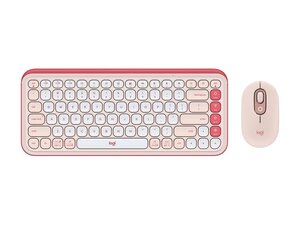
The POP ICON COMBO is a wireless keyboard and mouse set from Logitech designed for style and everyday productivity. The set emphasizes customization with Action Keys on the keyboard and Action Buttons on the mouse, and is aimed at compact, comfortable typing and fast scrolling. The devices use durable plastic construction and incorporate recycled plastic in their housings to improve sustainability. The combo connects wirelessly (Bluetooth) and is configurable via Logi Options+ software.
Identification
The Logitech POP ICON COMBO includes Keyboard (M/N YR0101), Mouse (M/N MR0092) and USB receiver. Model labels are located as follows — Keyboard: on the underside product label; Mouse: on the underside product label; USB Receiver: printed on the flat face or side of the receiver housing near the USB plug. Each component carries its own model (M/N) and serial (S/N) identifiers.
Specifications
- Form Factor: Wireless compact keyboard + wireless compact mouse combo
- Model Numbers / SKUs: 920-013103, 920-013104, 920-013105, 920-013043, 920-013135 (multiple color variants, English US QWERTY)
- Connectivity: Bluetooth (wireless)
- Key Features: Action Keys (keyboard) and Action Buttons (mouse), customizable via Logi Options+
- Materials: Durable plastic construction with recycled plastic content in housing
- Keyboard Layout: English US (QWERTY)
- Switch Type: Low-profile scissor/membrane style switches (exact manufacturer/model not specified by Logitech)
- Mouse Sensor: Optical sensor (exact sensor model not published)
- Power: Battery-powered (user-replaceable batteries; exact cell counts not published by Logitech)
- Software: Configurable with Logi Options+ for remapping and customization
- In the Box: POP keyboard, POP mouse, documentation (USB receiver not listed; product connects via Bluetooth)
Troubleshooting
Common repair-relevant faults include connectivity/pairing failures and unresponsive keys or mouse buttons. Diagnose by checking power/battery state, re-pairing the devices over Bluetooth, testing on another host, and verifying settings in Logi Options+; for physical faults, inspect the underside for loose screws or damaged battery contacts.
For additional troubleshooting help, visit: Visit Logitech Support (https://support.logi.com) for product help and contact options.
Additional Information
Warranty Info
See Logitech warranty information at support.logi.com (warranty varies by region).
