跳转到主内容

Opening Procedure

仅作为前提条件
本指南仅提供前提条件!本指南是另一个程序的一部分,不能单独使用。

你所需要的

  1. Opening Procedure, Tape the screen: 步骤 1 中的图像 1,3 Opening Procedure, Tape the screen: 步骤 1 中的图像 2,3 Opening Procedure, Tape the screen: 步骤 1 中的图像 3,3
    • If your screen glass is cracked, keep further breakage contained and prevent bodily harm during your repair by taping the glass.

    • Lay overlapping strips of clear packing tape over the Surface’s screen until the whole face is covered.

    • This will keep glass shards contained and provide structural integrity when prying and lifting the screen.

    • Do your best to follow the rest of the guide as described. However, once the glass is broken, it will likely continue to crack as you work, and you may need to use a metal prying tool to scoop the glass out.

    • Wear safety glasses to protect your eyes, and be careful not to damage the LCD display.

  2. Opening Procedure, Heat the right edge of the screen: 步骤 2 中的图像 1,1
    • Heat an iOpener and apply it to the right edge of the Surface's screen for two minutes.

    • You may need to reheat and reapply the iOpener several times to get the tablet warm enough. Follow the iOpener instructions to avoid overheating.

    • You may also use a hair dryer, heat gun, or hot plate to heat the Surface.

    • Be careful not to overheat the Surface—the screen and internal battery are susceptible to heat damage.

    • Don't use a hot plate if the screen has been taped.

  3. Opening Procedure, Take note of the adhesive layout: 步骤 3 中的图像 1,1
    • Take note of the screen adhesive layout before continuing:

    • These areas only contain adhesive and are safe to cut.

    • The display board and flex cables sit here close to the edge. Cut carefully and don't insert the pick more than 1/8 inch (3 mm).

    • Fragile antenna cables lie under this part of the screen. Carefully follow the procedure in step 13 to avoid damaging them. The adhesive is also the thickest here.

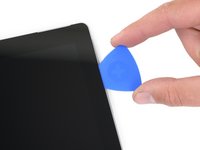
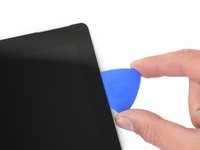
  4. Opening Procedure, Insert an opening pick into the speaker opening: 步骤 4 中的图像 1,2 Opening Procedure, Insert an opening pick into the speaker opening: 步骤 4 中的图像 2,2
    • Insert an opening pick into the top-right speaker cutout on the screen and slide the pick between the glass and speaker grille.

    • Don't insert the opening pick deeper than 0.45 in (12 mm). Inserting the pick too far may damage the LCD.

  5. Opening Procedure: 步骤 5 中的图像 1,2 Opening Procedure: 步骤 5 中的图像 2,2
    • Rotate the pick toward the bottom of the Surface to slide it underneath the lower edge of the speaker cutout.

  6. Opening Procedure, Cut through the screen adhesive: 步骤 6 中的图像 1,2 Opening Procedure, Cut through the screen adhesive: 步骤 6 中的图像 2,2
    • Slide the pick down the right edge of the Surface to slice through the adhesive under the screen.

    • Throughout the rest of the procedure, if you encounter significant resistance while sliding the pick, stop and reheat the section you're working on. Applying too much pressure with the pick can crack the glass.

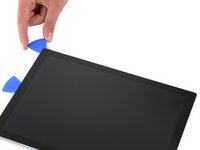
    • Leave this opening pick in the right edge to prevent the adhesive from resealing.

  7. Opening Procedure: 步骤 7 中的图像 1,1
    • Reheat your iOpener and apply it to the bottom edge of the Surface's screen for two minutes.

    • You may also use a hair dryer, heat gun, or hot plate to heat the Surface.

    • Be careful not to overheat the Surface—the screen and internal battery are susceptible to heat damage.

    • Don't use a hot plate if the screen has been taped.

  8. Opening Procedure: 步骤 8 中的图像 1,3 Opening Procedure: 步骤 8 中的图像 2,3 Opening Procedure: 步骤 8 中的图像 3,3
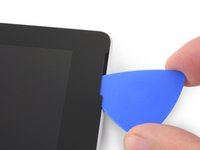
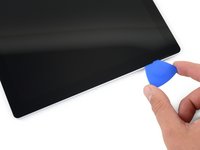
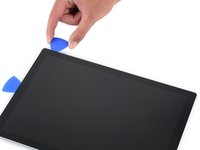
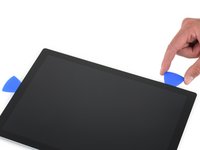
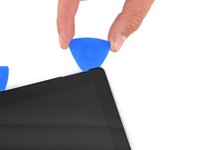
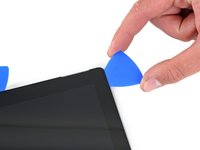
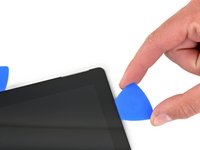
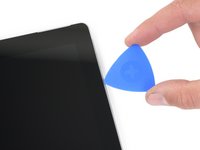
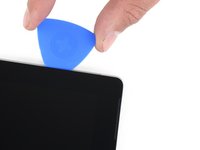
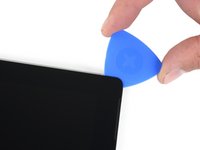
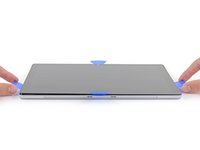
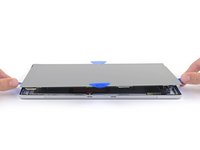
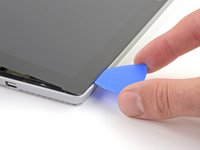
    • Insert a new opening pick into the bottom-right corner and slide it around the corner toward the bottom edge.

    • Don't insert the opening pick deeper than 0.25 in (6 mm) around the bottom-right corner. Inserting the pick too far may damage the LCD.

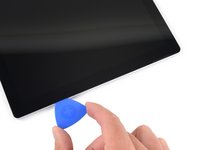
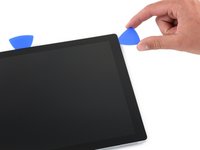
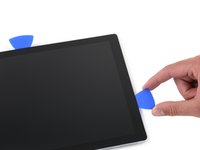
    • Slide the pick along the bottom edge of the Surface to cut through the screen adhesive.

    • Don't insert the opening pick deeper than 0.45 in (12 mm) along the bottom edge.

    • Leave this pick in the bottom edge to prevent the adhesive from resealing.

  9. Opening Procedure: 步骤 9 中的图像 1,1
    • Reheat your iOpener and apply it to the left edge of the Surface's screen for two minutes.

    • You may need to reheat and reapply the iOpener several times to get the tablet warm enough. Follow the iOpener instructions to avoid overheating.

    • You may also use a hair dryer, heat gun, or hot plate to heat the Surface.

    • Be careful not to overheat the Surface—the screen and internal battery are susceptible to heat damage.

    • Don't use a hot plate if the screen has been taped.

  10. Opening Procedure: 步骤 10 中的图像 1,3 Opening Procedure: 步骤 10 中的图像 2,3 Opening Procedure: 步骤 10 中的图像 3,3
    • Insert a new opening pick into the bottom left corner and slide it around the corner toward the left edge.

    • Be careful cutting under the lower 2.5 inches (65 mm) of the left edge. Don't insert the opening pick more than 1/8 inch (3 mm) here. The display cables sit near this part of the bezel and are easily damaged.

    • Once past the display cable area, you can insert the pick to 0.45 in (12 mm) again.

    • Slide the pick along the left edge of the Surface to cut through the screen adhesive.

    • Leave this pick in the left edge to prevent the adhesive from resealing.

  11. Opening Procedure: 步骤 11 中的图像 1,1
    • Reheat your iOpener and apply it to the top edge of the Surface's screen for two minutes.

    • The adhesive is thickest along this edge, and you may need to reheat and reapply the iOpener several times to get the tablet warm enough. Follow the iOpener instructions to avoid overheating.

    • You may also use a hair dryer, heat gun, or hot plate to heat the Surface.

    • Be careful not to overheat the Surface—the screen and internal battery are susceptible to heat damage.

    • Don't use a hot plate if the screen has been taped.

  12. Opening Procedure: 步骤 12 中的图像 1,3 Opening Procedure: 步骤 12 中的图像 2,3 Opening Procedure: 步骤 12 中的图像 3,3
    • Round the left corner with the opening pick and slide it along the top edge of the Surface. Stop when the pick is 2.75 inches (70 mm) away from the left edge.

    • The next 6 inches (15 cm) of the top edge of the case is covered by the left and right antennas, which sit between the case and the screen bezel. Follow the next steps carefully to avoid damaging the antennas.

  13. Opening Procedure: 步骤 13 中的图像 1,3 Opening Procedure: 步骤 13 中的图像 2,3 Opening Procedure: 步骤 13 中的图像 3,3
    • Fragile antenna cables lie under the top edge of the screen. Carefully follow the procedure to avoid damaging them.

    • Insert the point of a pick under the screen where you just stopped cutting. Don't insert the pick deeper than the edge of the bezel.

    • Carefully roll the pick to the right, pressing the long edge of the pick into the screen adhesive underneath the bezel, cutting the adhesive as you go. Don't slide the pick along the edge of the Surface.

    • Repeat this motion of inserting the point of the pick where you just cut, and rolling to the right all along the top edge of the Surface, until the pick is 2.5 inches (64 mm) from the right edge of the Surface.

  14. Opening Procedure: 步骤 14 中的图像 1,3 Opening Procedure: 步骤 14 中的图像 2,3 Opening Procedure: 步骤 14 中的图像 3,3
    • Once you cut the adhesive over the antennas (8.5 inches, or 22 cm, from the left edge), slide the pick the rest of the way along the top edge of the surface and round the top right corner to slice through any remaining adhesive.

  15. Opening Procedure, Open the Surface: 步骤 15 中的图像 1,3 Opening Procedure, Open the Surface: 步骤 15 中的图像 2,3 Opening Procedure, Open the Surface: 步骤 15 中的图像 3,3
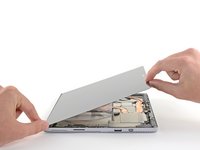
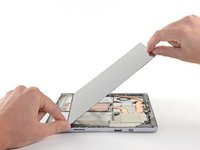
    • Very slowly lift the screen assembly away from the Surface case. If you encounter any resistance, stop and check that all the adhesive is separated.

    • Don't remove the screen yet. It is still connected to the motherboard by two cables.

    • Use an opening pick to cut through any remaining adhesive.

  16. Opening Procedure: 步骤 16 中的图像 1,3 Opening Procedure: 步骤 16 中的图像 2,3 Opening Procedure: 步骤 16 中的图像 3,3
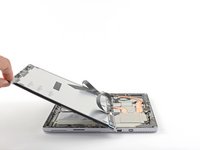
    • Lift the top of the screen assembly away from the case while sliding the bottom of the screen closer to the motherboard display connectors.

    • Gently lay the screen down on the case with the connectors facing up. Take care to avoid creasing the display cables.

  17. Opening Procedure, Tip for removing EMI shields: 步骤 17 中的图像 1,3 Opening Procedure, Tip for removing EMI shields: 步骤 17 中的图像 2,3 Opening Procedure, Tip for removing EMI shields: 步骤 17 中的图像 3,3
    在这个步骤中使用的工具:
    Tweezers
    $3.99
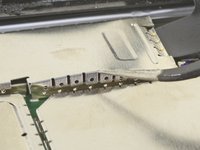
    • Use this method to remove any EMI shields necessary during your repair:

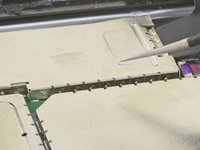
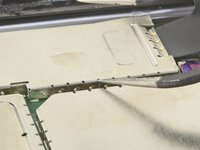
    • Use one tip of a pair of angled tweezers to pry up the EMI shield from the gaps between the "teeth."

    • Repeat this procedure at different points around the perimeter of the shield until it is free.

    • Try not to deform the shields too much—you will need to reinstall them during reassembly.

    • To reinstall, correct any deformations to the best of your ability, make sure the "teeth" align with the rim on the motherboard, and press down on the entire perimeter of the EMI shield.

    • Make sure all "teeth" are snug to the metal rim and not bent underneath the EMI shield.

    • Make sure the "teeth" are also touching the gold conductive strips on the top of ribbon cables.

  18. Opening Procedure, Disconnect the screen: 步骤 18 中的图像 1,3 Opening Procedure, Disconnect the screen: 步骤 18 中的图像 2,3 Opening Procedure, Disconnect the screen: 步骤 18 中的图像 3,3
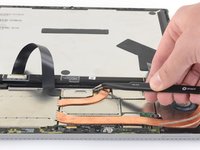
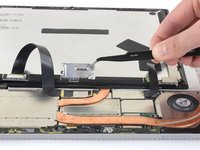
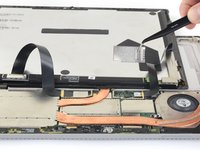
    • Use your tweezers to remove the two EMI shields covering the display cable connectors.

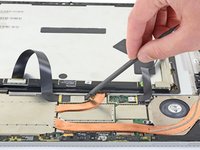
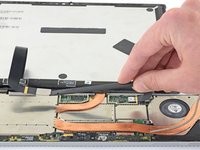
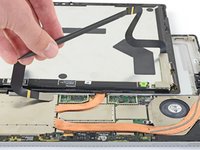
  19. Opening Procedure: 步骤 19 中的图像 1,3 Opening Procedure: 步骤 19 中的图像 2,3 Opening Procedure: 步骤 19 中的图像 3,3
    • Pry up with the flat end of a spudger to disconnect each display cable from the motherboard.

  20. Opening Procedure, Remove the screen: 步骤 20 中的图像 1,1
    • Remove the screen from the Surface.

    • During reassembly, pause here and follow this guide to replace the screen adhesive.

结论

To reassemble your device, follow the above steps in reverse order.

Take your e-waste to an R2 or e-Stewards certified recycler.

Repair didn’t go as planned? Try some basic troubleshooting, or ask our Answers community for help.

Sam Omiotek

于02/25/19注册

93,079 声望

创作了290篇指南

0指南评论

添加评论

浏览统计数据:

过去 24 小时: 0

过去 7 天: 1

过去 30 天: 7

总计 284