跳转到主内容

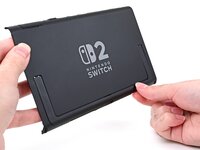
Nintendo Switch 2 支架更换

你所需要的

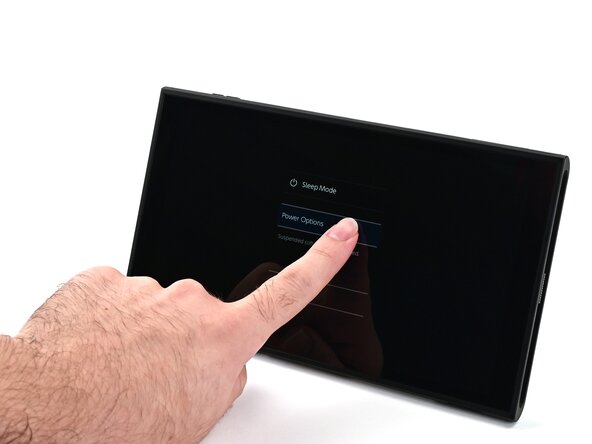
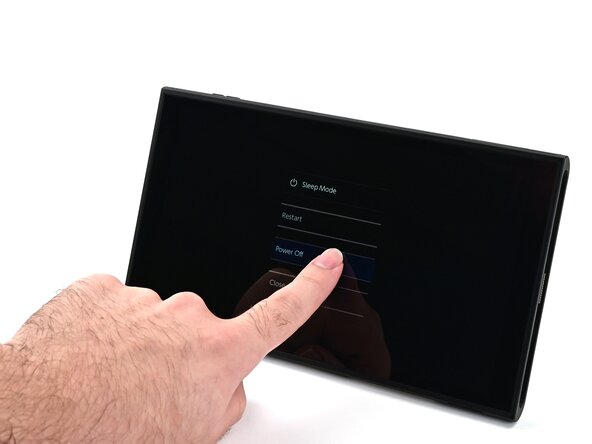
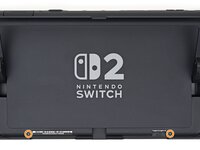
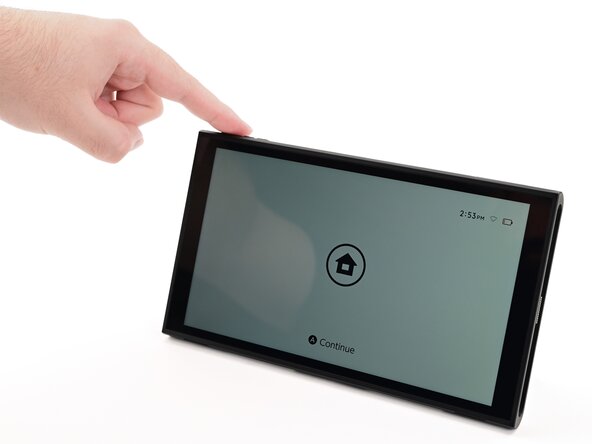
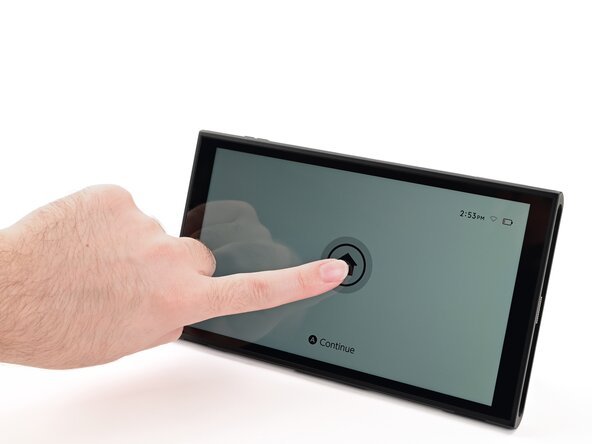
  1. Nintendo Switch 2 支架更换, 关闭主机: 步骤 1 中的图像 1,3 Nintendo Switch 2 支架更换, 关闭主机: 步骤 1 中的图像 2,3 Nintendo Switch 2 支架更换, 关闭主机: 步骤 1 中的图像 3,3
    • 为了维修过程中的安全,请在维修之前将电池电量消耗至25%以下,以降低维修过程中电池破损带来的起火风险。如果电池已经出现鼓包现象,请参照此指南妥善处置

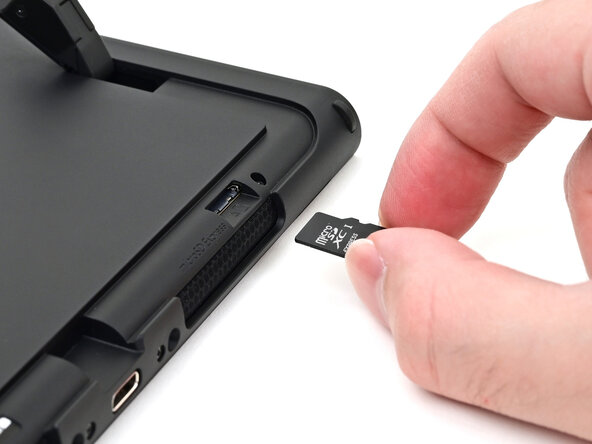
    • 移除插入主机的游戏卡和存储卡,断开所有连接至主机的线缆、手柄、以及其他任何配件。

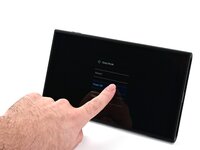
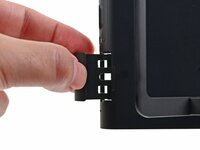
    • 长按电源按钮,点击电源选项,然后点击关机

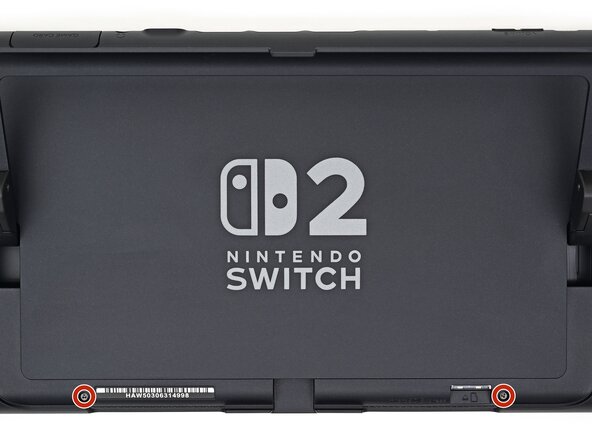
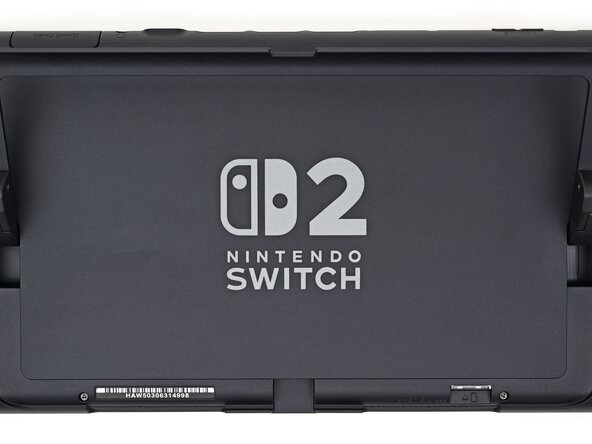
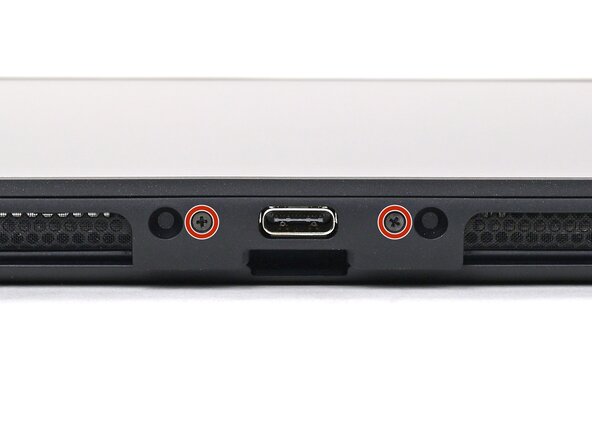
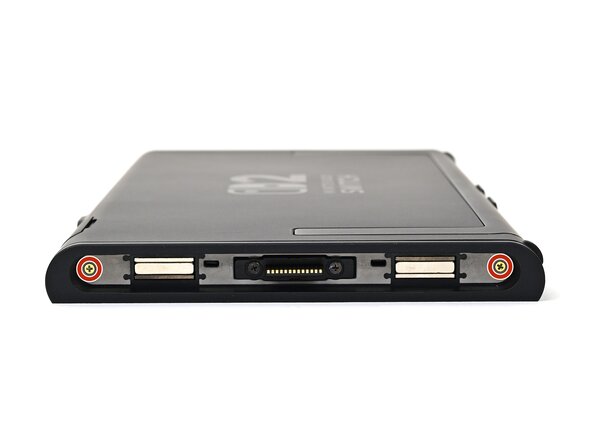
  2. Nintendo Switch 2 支架更换, 拆下底部螺丝: 步骤 2 中的图像 1,2 Nintendo Switch 2 支架更换, 拆下底部螺丝: 步骤 2 中的图像 2,2
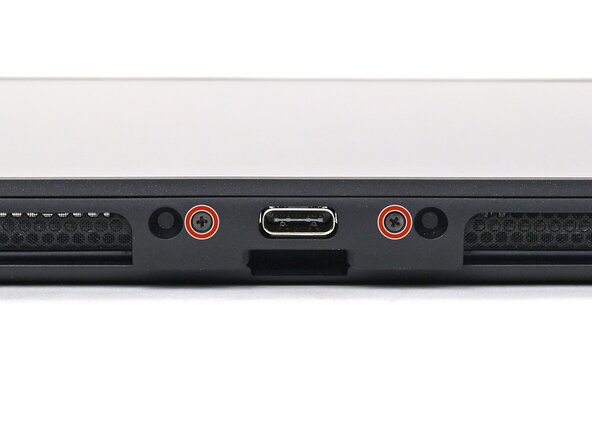
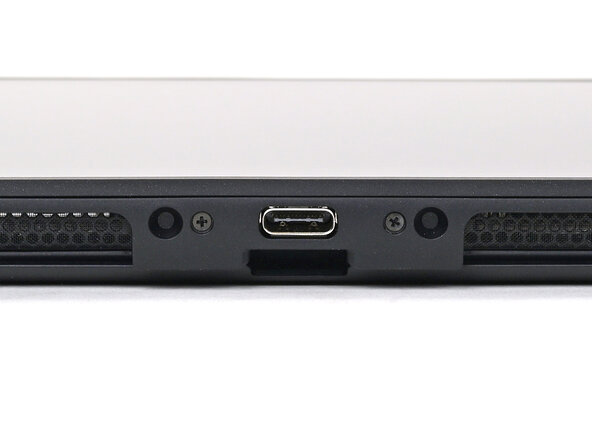
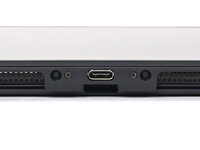
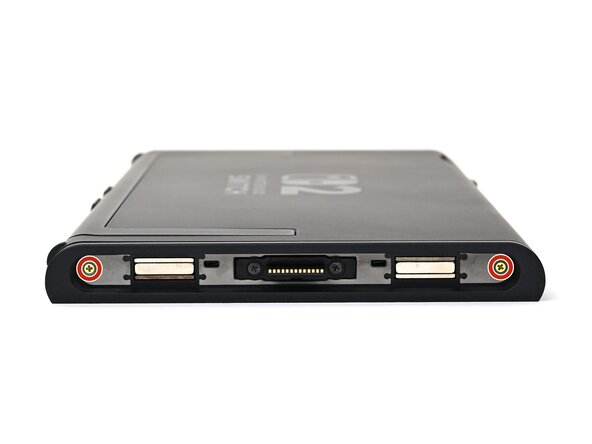
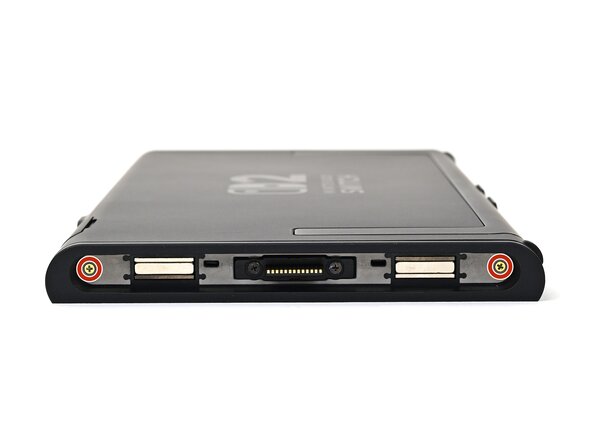
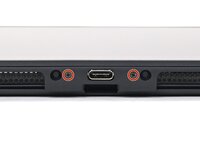
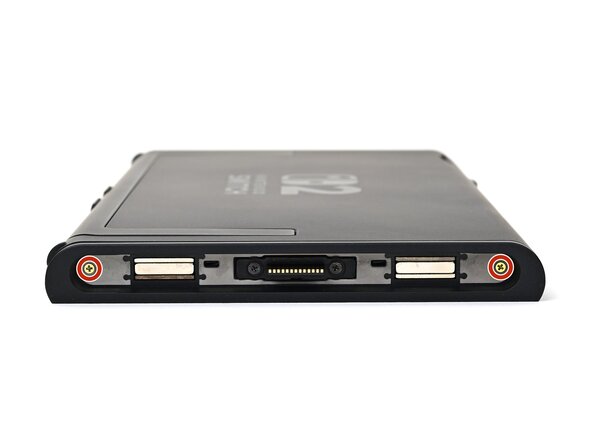
    • 使用 JIS 00 螺丝刀卸下底部 USB-C 端口两侧的两颗 3.1 毫米长的螺钉。

    • 可以在必要时尝试使用非 iFixit 的十字螺丝刀,但这样可能会损坏或拧花螺丝。用力向下推螺丝刀并慢慢扭转。

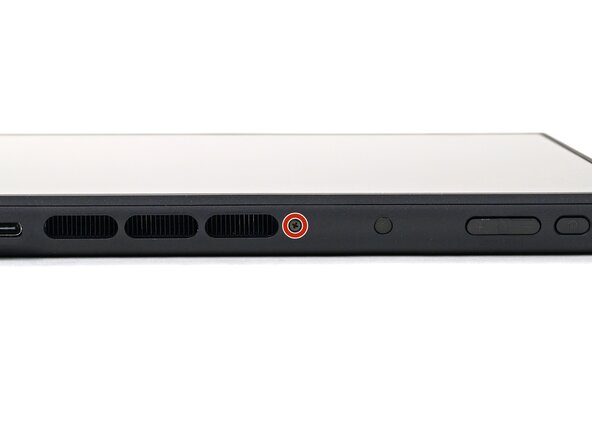
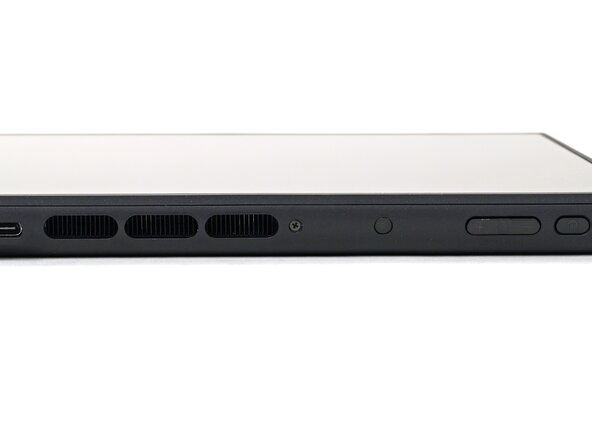
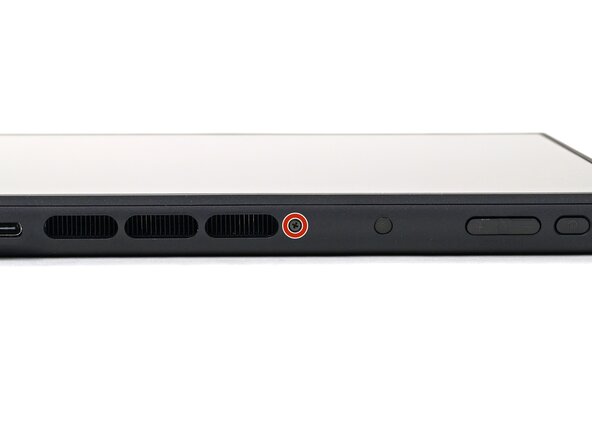
  3. Nintendo Switch 2 支架更换, 取下顶部螺丝: 步骤 3 中的图像 1,2 Nintendo Switch 2 支架更换, 取下顶部螺丝: 步骤 3 中的图像 2,2
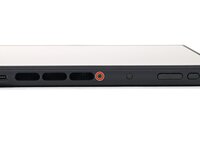
    • 使用 JIS 00 螺丝刀,取下位于机身顶部散热出风口旁边的一颗3.1毫米长螺丝。

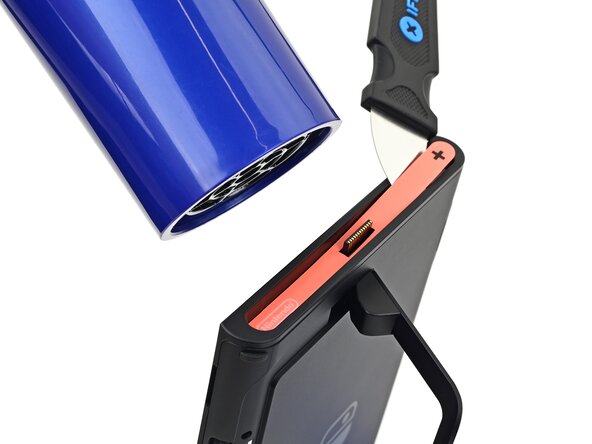
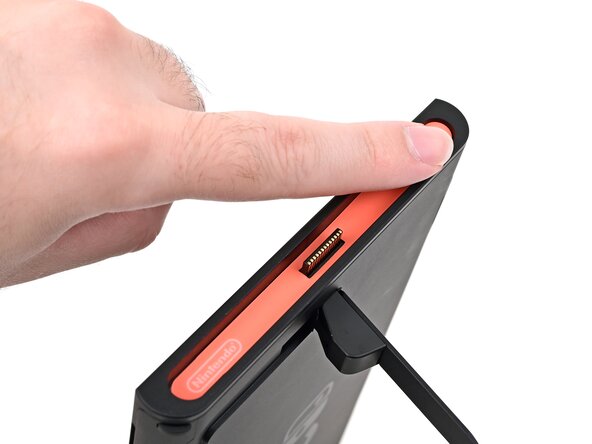
  4. Nintendo Switch 2 支架更换, 加热右侧贴纸: 步骤 4 中的图像 1,1
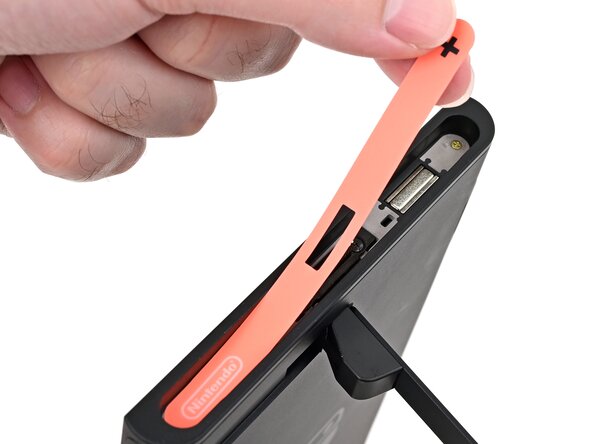
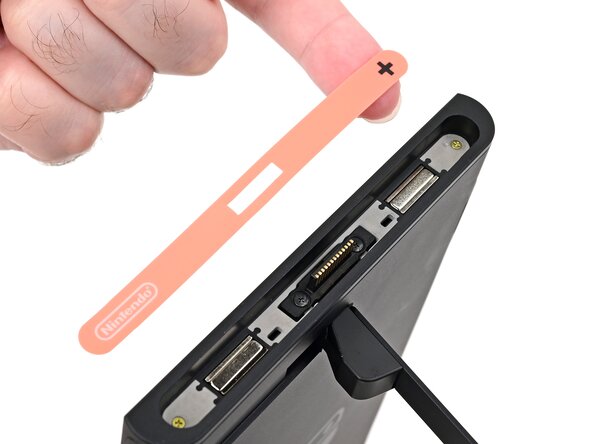
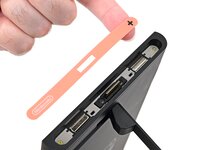
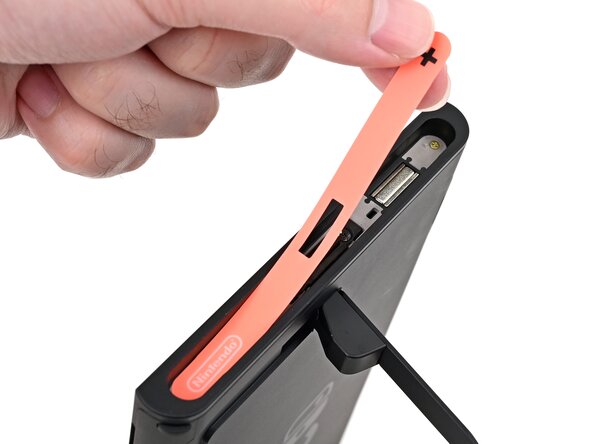
    • NS2两侧的磁力插槽中有几颗螺丝隐藏在彩色贴纸下,需要将其移除才能拆卸机身后盖。贴纸在拆卸式极其易损,但只要频繁的反复加热贴纸,小心操作,就能够减少对贴纸的损坏。

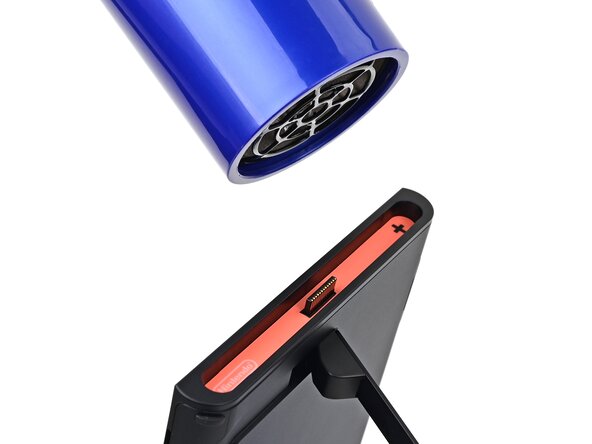
    • 使用吹风机热风枪加热主机右侧的贴纸,即有"+"符号的一侧,直到摸起来很热。

    • 您可以使用支架垂直支撑主机,以便于操作。

    • 如果您使用的是热风枪,请将其设置为较低档位,以避免熔化主机的塑料边缘。

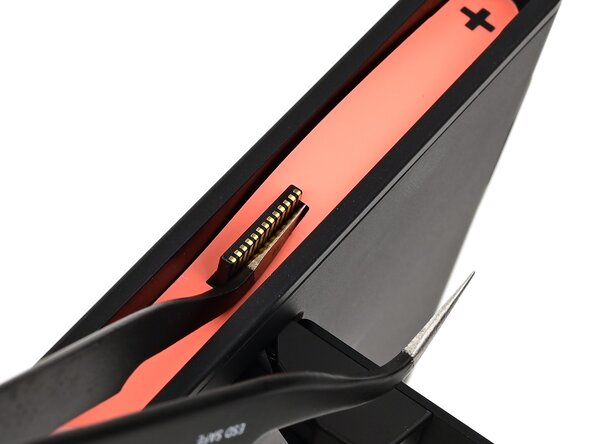
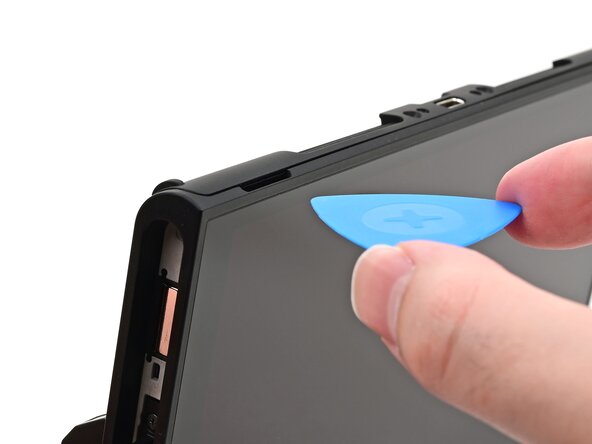
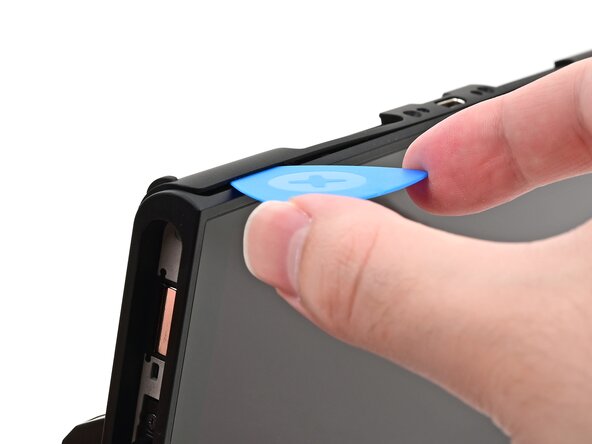
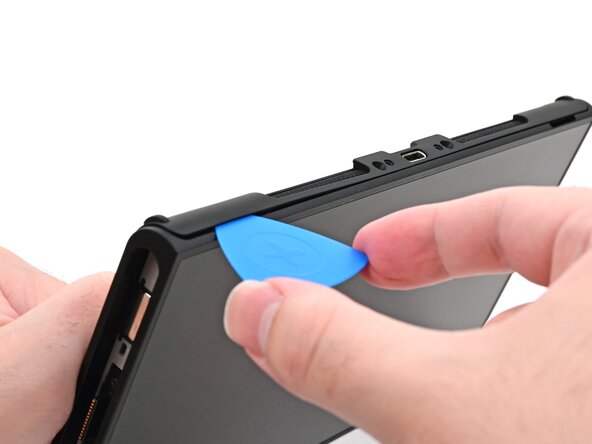
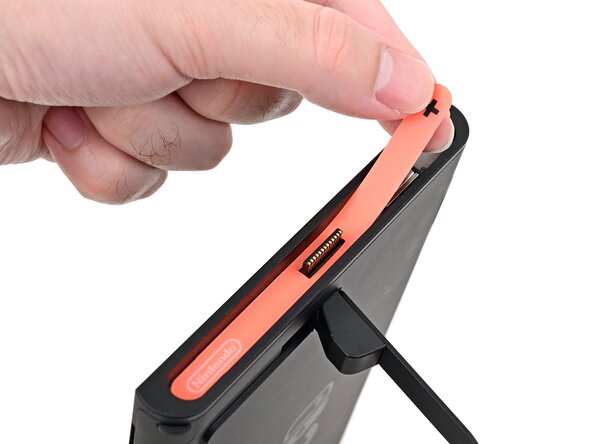
  5. Nintendo Switch 2 支架更换, 撬起右侧贴纸: 步骤 5 中的图像 1,3 Nintendo Switch 2 支架更换, 撬起右侧贴纸: 步骤 5 中的图像 2,3 Nintendo Switch 2 支架更换, 撬起右侧贴纸: 步骤 5 中的图像 3,3
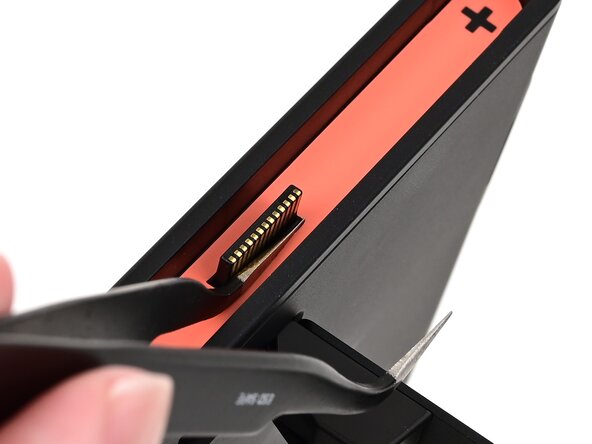
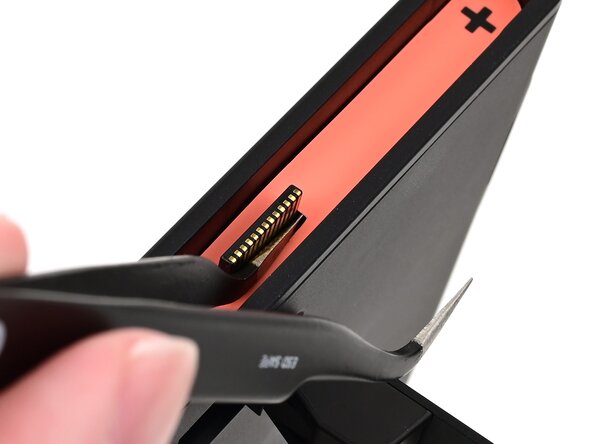
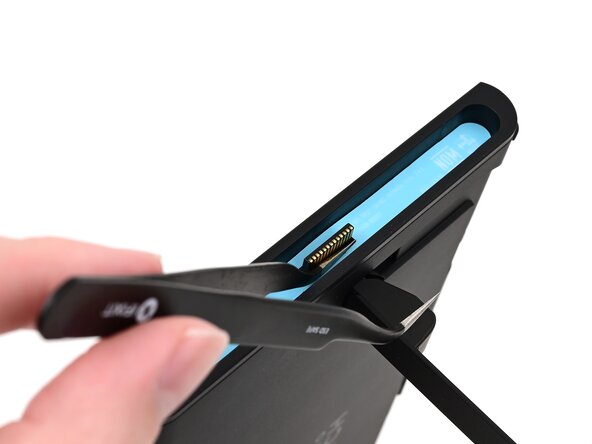
    • 镊子的尖端会从底部损坏贴纸,留下明显的印记。如果无法抬起贴纸,请不要用力试图揭下,而是继续加热。

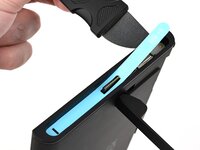
    • 将斜镊子的一头沿着 Joy-Con 2的接口四周,轻轻划入贴纸的下方。

    • 轻轻撬起贴纸,直到它开始从主机上抬起。

    • 保持镊子原位不动,保持贴纸抬起的状态。

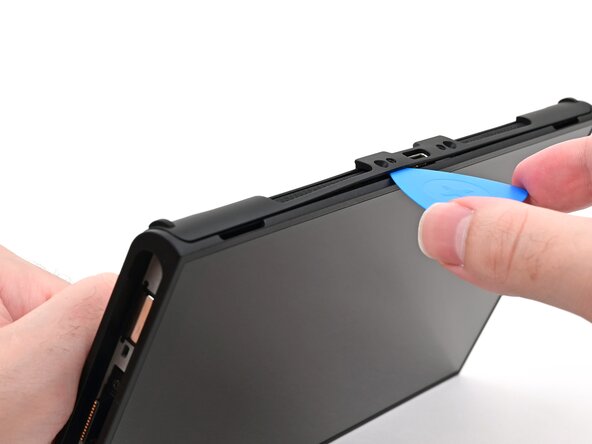
  6. Nintendo Switch 2 支架更换: 步骤 6 中的图像 1,3 Nintendo Switch 2 支架更换: 步骤 6 中的图像 2,3 Nintendo Switch 2 支架更换: 步骤 6 中的图像 3,3
    在这个步骤中使用的工具:
    Jimmy
    $7.16
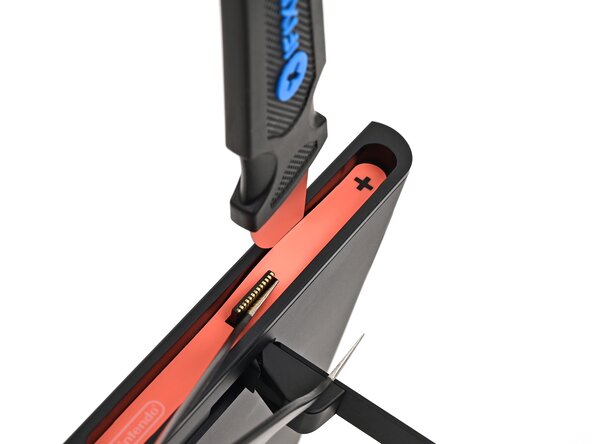
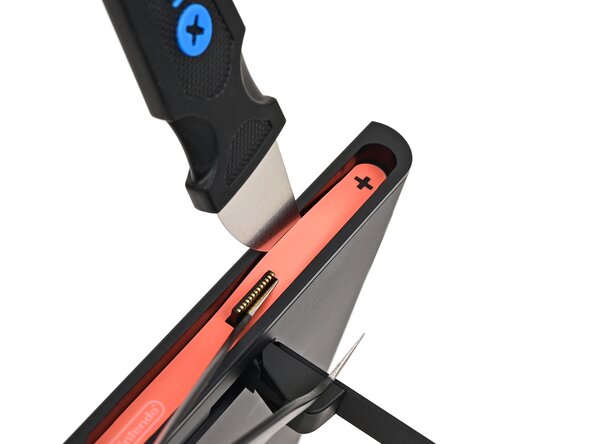
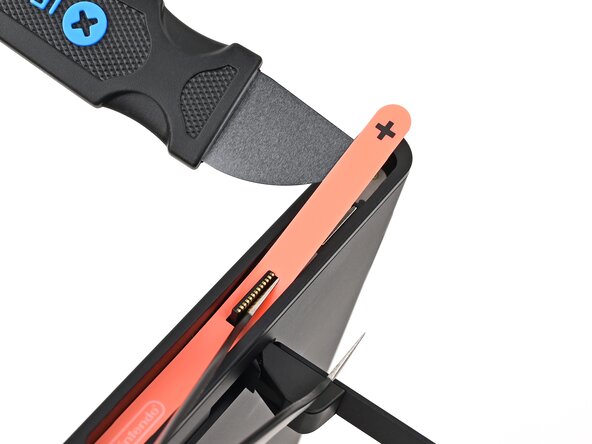
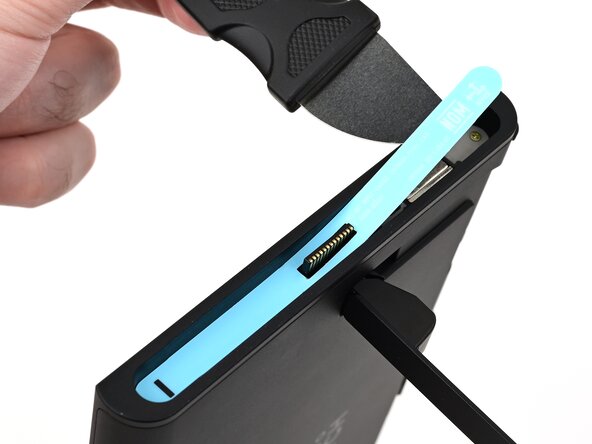
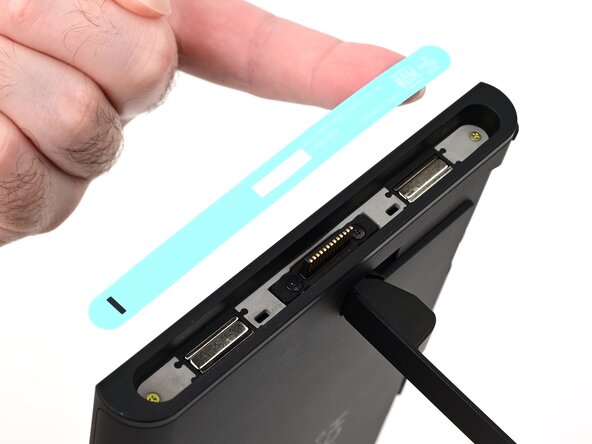
    • Jimmy 插入贴纸长边与机身边框的缝隙中。

    • 沿长边轻轻撬动贴纸,直到贴纸的顶部与机身分离。

    • 贴纸翘起之后,取出镊子。

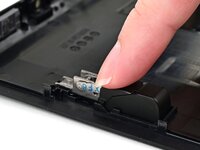
    • 可以用 Jimmy 保持贴纸顶部与机身的分离 - 如果贴纸落回机身的凹槽中,重复上述步骤,再次将贴纸撬起。
  7. Nintendo Switch 2 支架更换, 加热右侧贴纸: 步骤 7 中的图像 1,1
    • 重复加热加热右侧底部,直到摸起来很热。

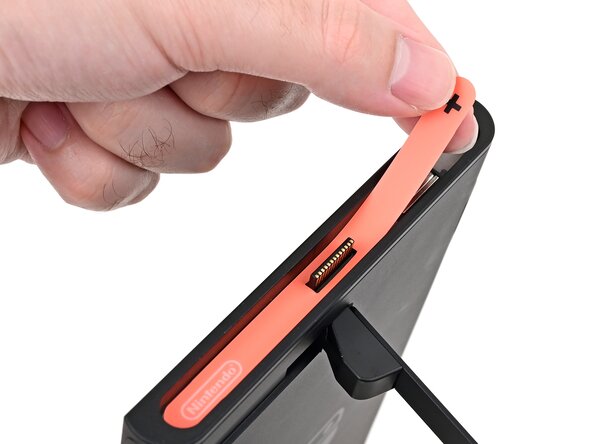
  8. Nintendo Switch 2 支架更换, 拆下右侧标签: 步骤 8 中的图像 1,3 Nintendo Switch 2 支架更换, 拆下右侧标签: 步骤 8 中的图像 2,3 Nintendo Switch 2 支架更换, 拆下右侧标签: 步骤 8 中的图像 3,3
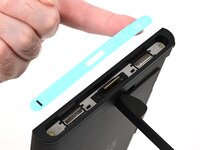
    • 小心地将贴纸从 Joy-Con 2接口上提起,然后将其剥下,并与机身完全分离。

  9. Nintendo Switch 2 支架更换, 拆下左侧贴纸: 步骤 9 中的图像 1,3 Nintendo Switch 2 支架更换, 拆下左侧贴纸: 步骤 9 中的图像 2,3 Nintendo Switch 2 支架更换, 拆下左侧贴纸: 步骤 9 中的图像 3,3
    • 重复此步骤,移除主机左侧标有“-”符号的标签。

  10. Nintendo Switch 2 支架更换, 拆下侧螺钉: 步骤 10 中的图像 1,2 Nintendo Switch 2 支架更换, 拆下侧螺钉: 步骤 10 中的图像 2,2
    • 使用 JIS 00 螺丝刀,拆下主机每一侧的两个3.6毫米长的金螺钉(共四个)。

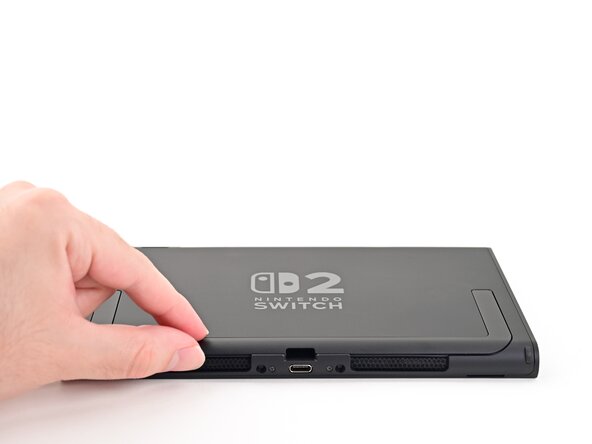
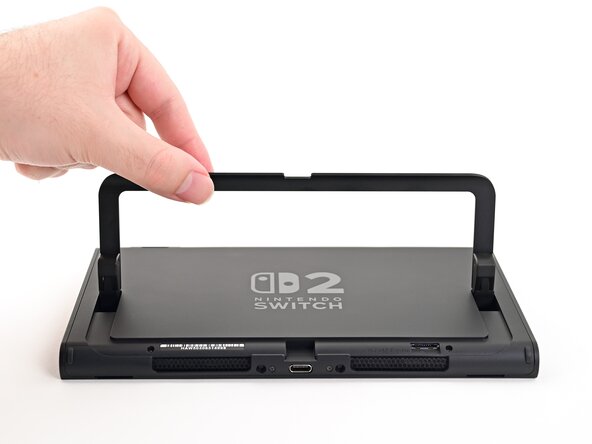
  11. Nintendo Switch 2 支架更换, 打开支架: 步骤 11 中的图像 1,3 Nintendo Switch 2 支架更换, 打开支架: 步骤 11 中的图像 2,3 Nintendo Switch 2 支架更换, 打开支架: 步骤 11 中的图像 3,3
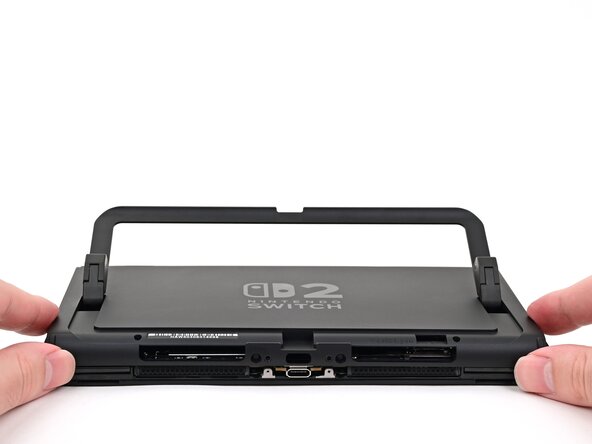
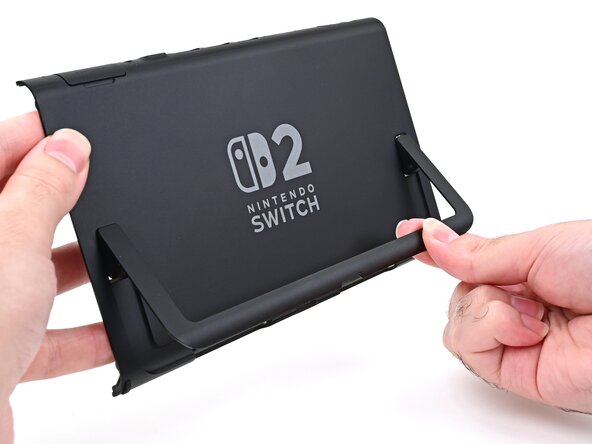
    • 用手指向上翻转主机背面的支架。

    • 如果安装了 microSD Express 卡,现在请将其取出,然后再继续下一步。

  12. Nintendo Switch 2 支架更换, 拆下后侧螺钉: 步骤 12 中的图像 1,2 Nintendo Switch 2 支架更换, 拆下后侧螺钉: 步骤 12 中的图像 2,2
    • 使用Y00螺丝刀拆下支架切口中的两个4.4毫米长的螺钉。

  13. Nintendo Switch 2 支架更换, 插入塑料拆机片: 步骤 13 中的图像 1,2 Nintendo Switch 2 支架更换, 插入塑料拆机片: 步骤 13 中的图像 2,2
    • 将塑料拆机片插入位于机身背部底部边缘,后盖和扬声器开孔之间的缝隙中。

  14. Nintendo Switch 2 支架更换: 步骤 14 中的图像 1,2 Nintendo Switch 2 支架更换: 步骤 14 中的图像 2,2
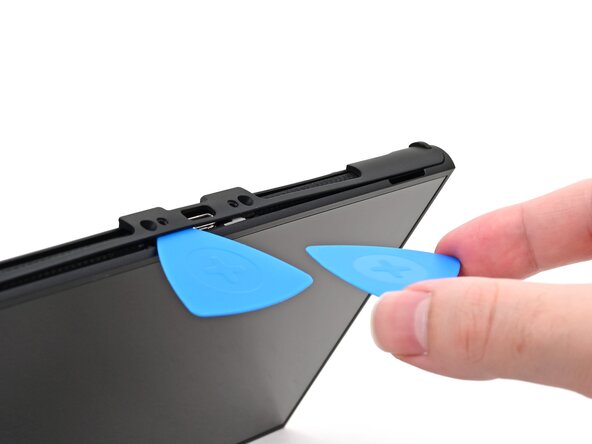
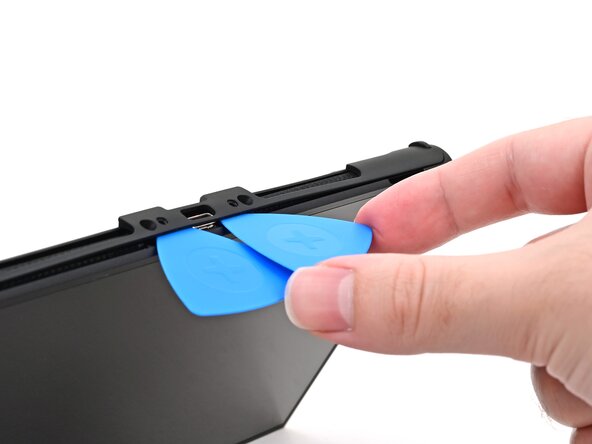
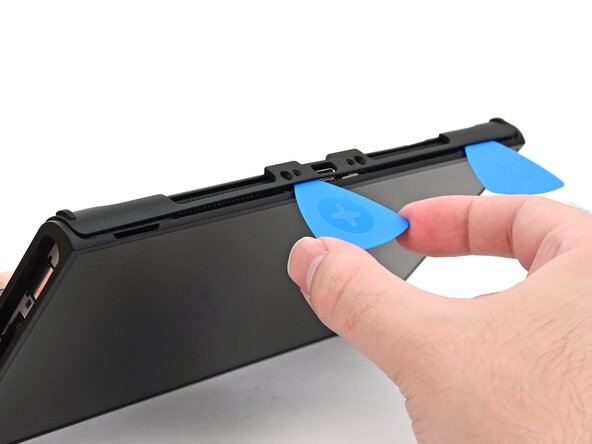
    • 沿缝隙朝向 USB-C 接口滑动塑料拆机片,直至划过接口一旁的螺丝孔之下。

  15. Nintendo Switch 2 支架更换, 插入第二个塑料拆机片: 步骤 15 中的图像 1,3 Nintendo Switch 2 支架更换, 插入第二个塑料拆机片: 步骤 15 中的图像 2,3 Nintendo Switch 2 支架更换, 插入第二个塑料拆机片: 步骤 15 中的图像 3,3
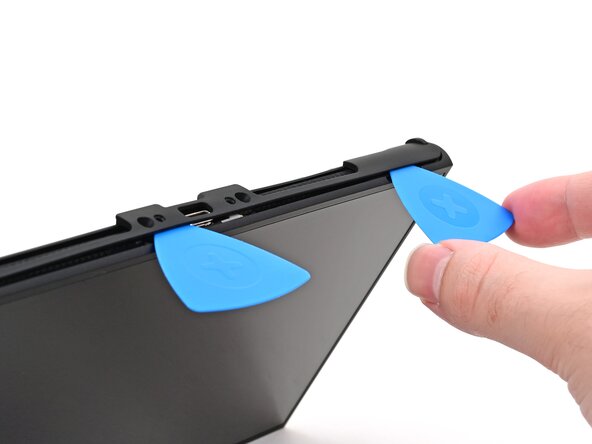
    • 将第二个塑料拆机片沿缝隙插入 USB-C 接口旁的另一个螺丝孔之下,然后沿缝隙划向机身另一边缘。

  16. Nintendo Switch 2 支架更换: 步骤 16 中的图像 1,2 Nintendo Switch 2 支架更换: 步骤 16 中的图像 2,2
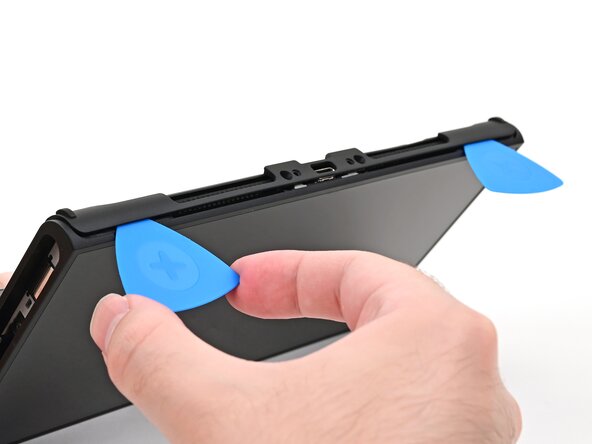
    • 将第一个塑料拆机片滑回最初插入的位置。

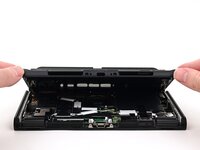
  17. Nintendo Switch 2 支架更换, 取下后盖: 步骤 17 中的图像 1,3 Nintendo Switch 2 支架更换, 取下后盖: 步骤 17 中的图像 2,3 Nintendo Switch 2 支架更换, 取下后盖: 步骤 17 中的图像 3,3
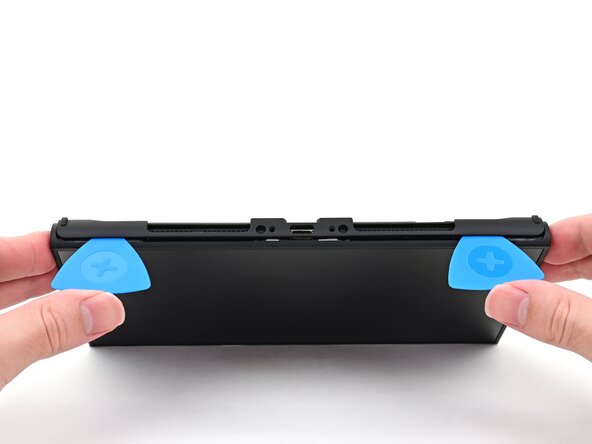
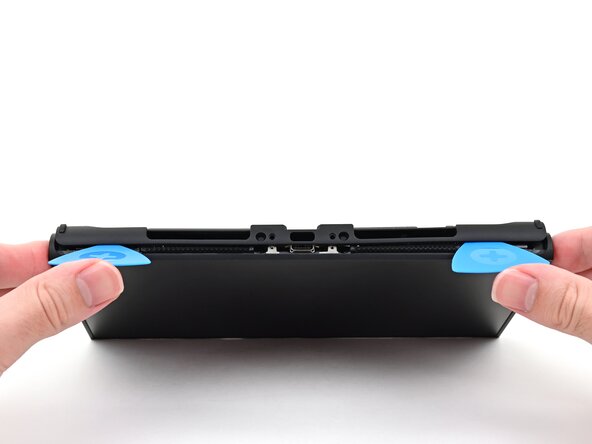
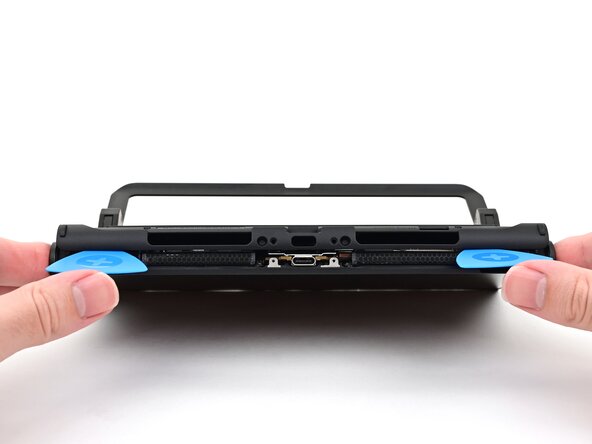
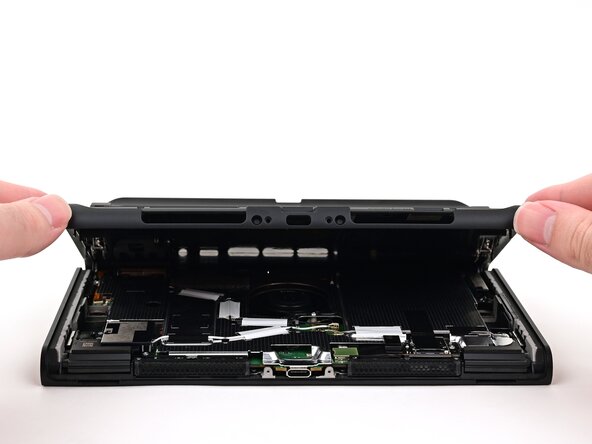
    • 小心不要让设备摔落。一旦后盖与机身分离,塑料拆机片会立刻从缝隙中脱离。

    • 双手扶住主机两侧边缘,将拇指放在塑料拆机片上。

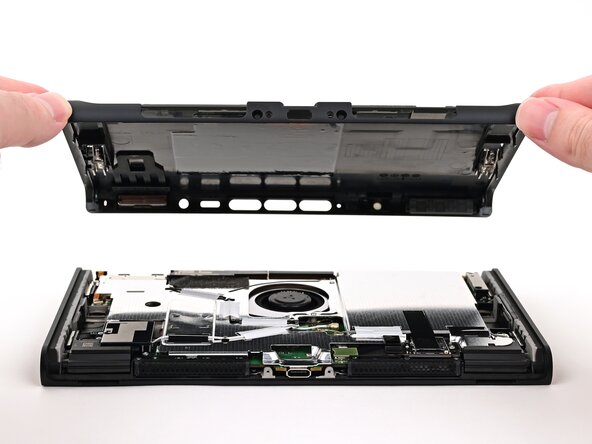
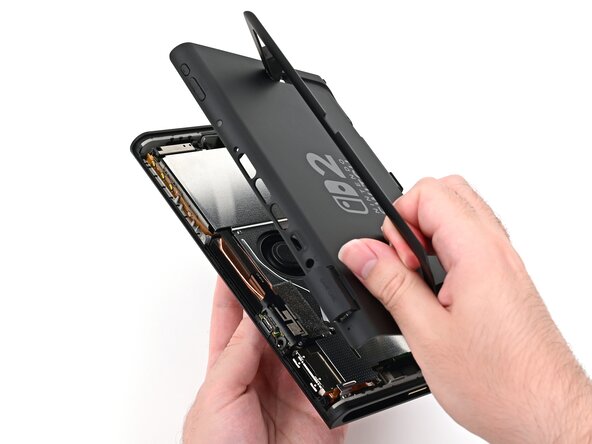
    • 向上推动塑料拆机片,直至后盖与机身分离,后盖上的 USB-C 开口位于接口之上。

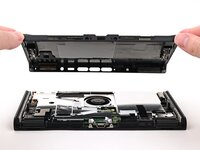
  18. Nintendo Switch 2 支架更换: 步骤 18 中的图像 1,3 Nintendo Switch 2 支架更换: 步骤 18 中的图像 2,3 Nintendo Switch 2 支架更换: 步骤 18 中的图像 3,3
    • 从底部边缘提起后盖并将其拆下。

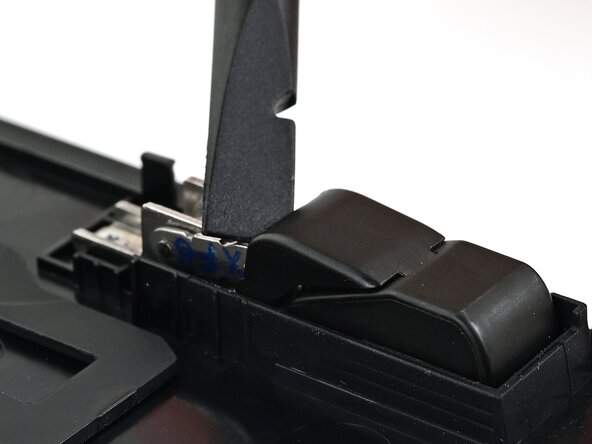
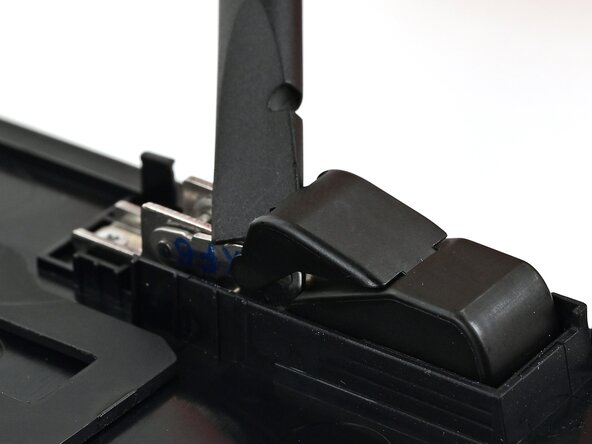
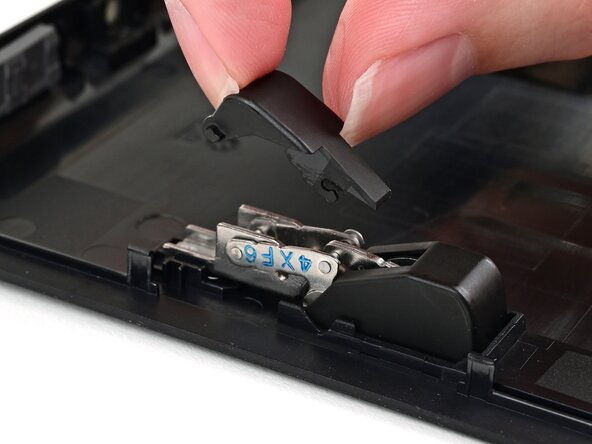
  19. Nintendo Switch 2 支架更换, 移除上部转轴盖板: 步骤 19 中的图像 1,2 Nintendo Switch 2 支架更换, 移除上部转轴盖板: 步骤 19 中的图像 2,2
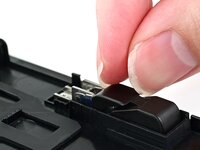
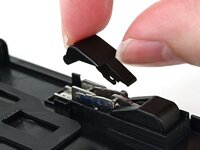
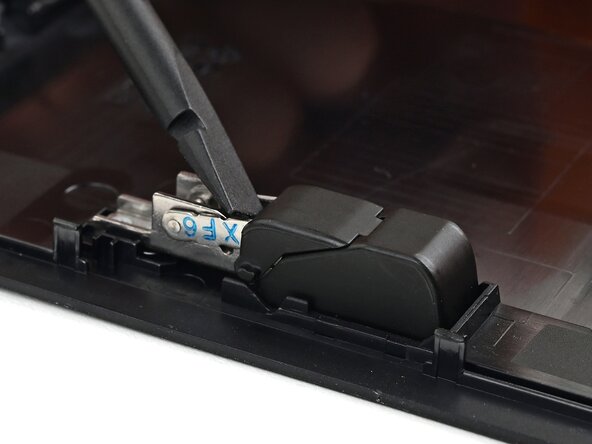
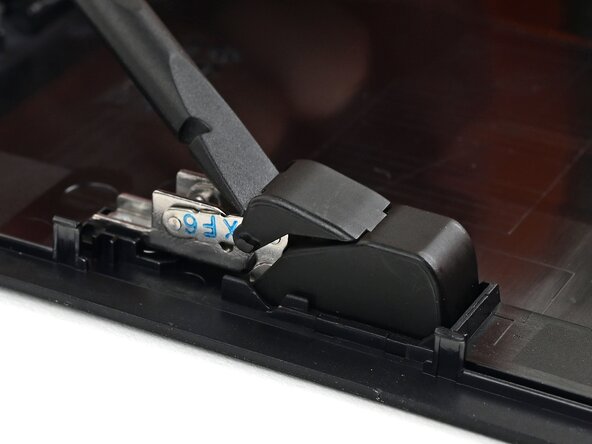
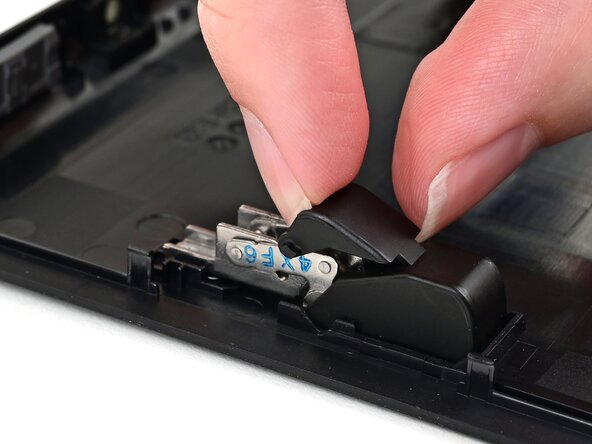
    • 使用撬棒的扁平一段,撬起一侧支架转轴上的塑料盖板,直至其脱离。

  20. Nintendo Switch 2 支架更换: 步骤 20 中的图像 1,2 Nintendo Switch 2 支架更换: 步骤 20 中的图像 2,2
    • 从下部转轴盖板之下,将上部转轴盖板抽出。

    • 盖板使用塑料卡扣固定,可能需要稍微用力。

  21. Nintendo Switch 2 支架更换: 步骤 21 中的图像 1,3 Nintendo Switch 2 支架更换: 步骤 21 中的图像 2,3 Nintendo Switch 2 支架更换: 步骤 21 中的图像 3,3
    • 重复此操作,移除另外一个转轴的上部盖板。

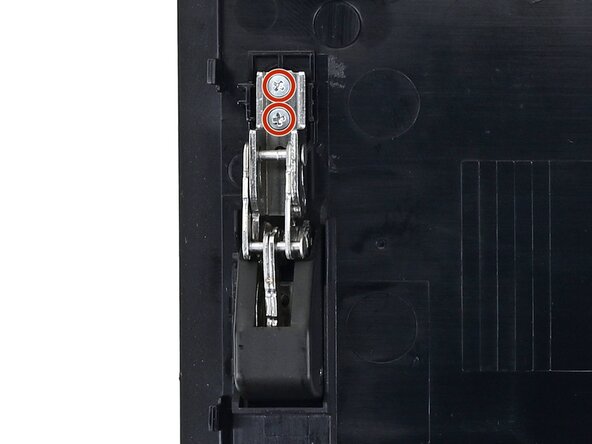
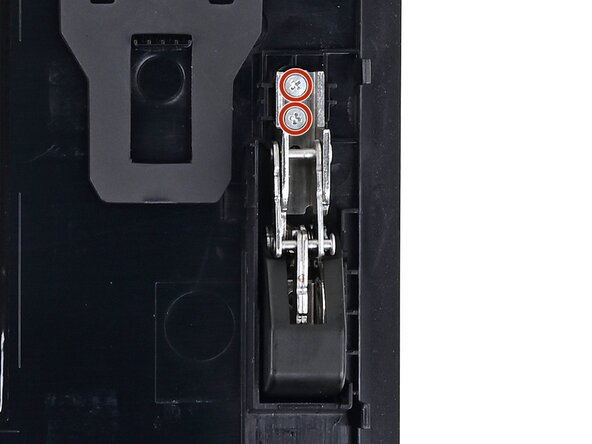
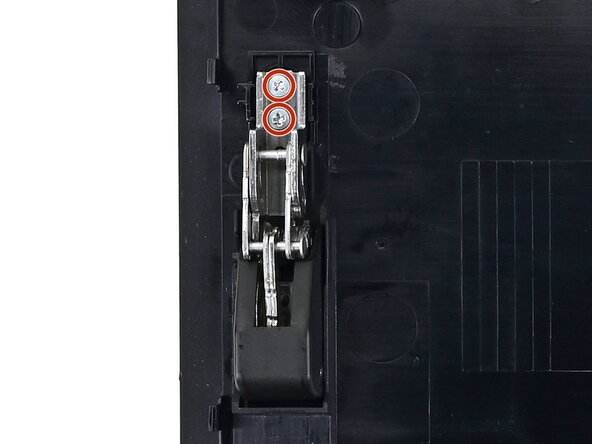
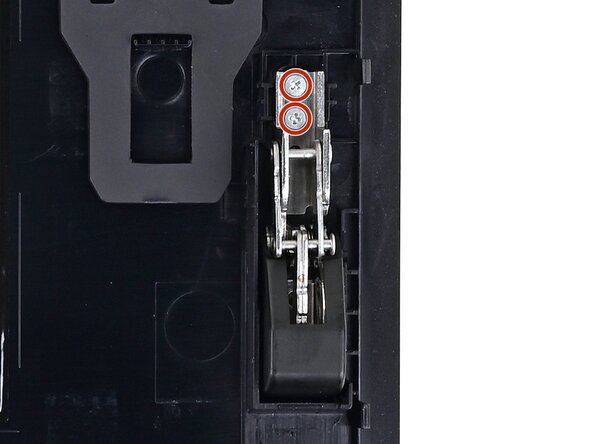
  22. Nintendo Switch 2 支架更换, 取下支架螺丝: 步骤 22 中的图像 1,2 Nintendo Switch 2 支架更换, 取下支架螺丝: 步骤 22 中的图像 2,2
    • 支架的两个转轴各有2个2.3mm长的银色螺丝,将其固定在主机后部盖板上。使用 JIS 00螺丝刀取下这4颗螺丝。

  23. Nintendo Switch 2 支架更换, 取下支架: 步骤 23 中的图像 1,3 Nintendo Switch 2 支架更换, 取下支架: 步骤 23 中的图像 2,3 Nintendo Switch 2 支架更换, 取下支架: 步骤 23 中的图像 3,3
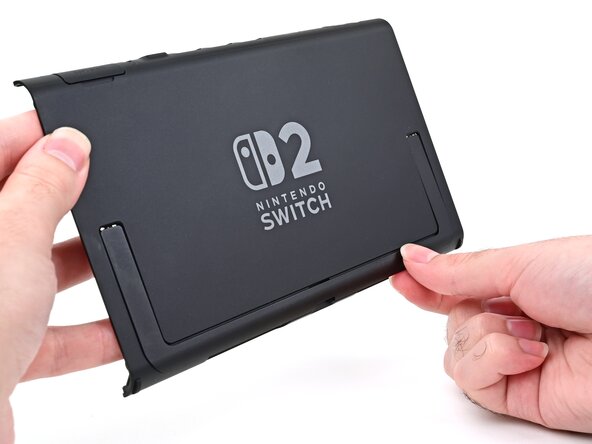
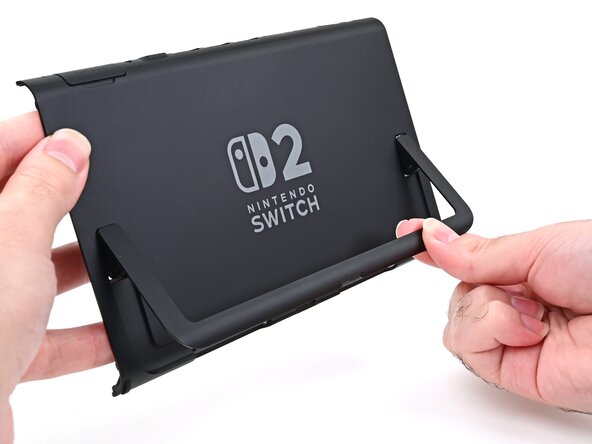
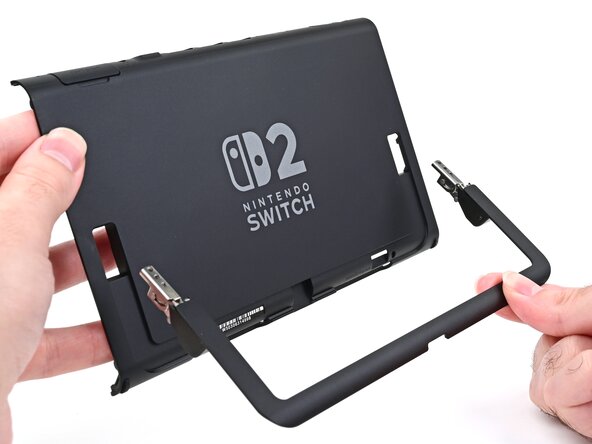
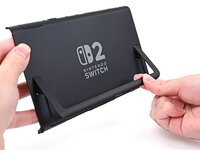
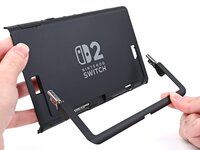
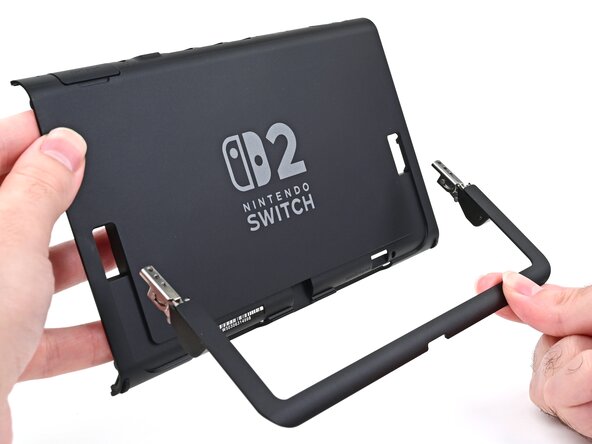
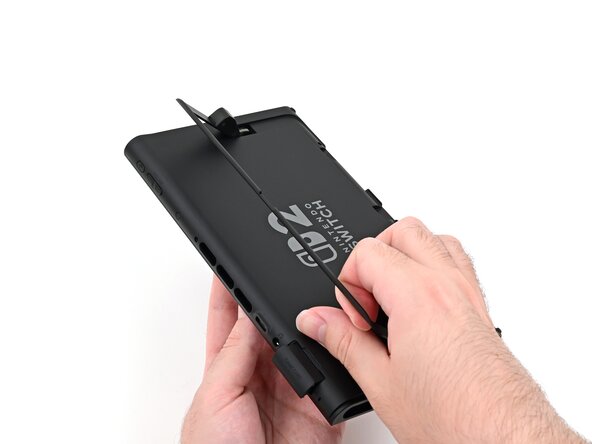
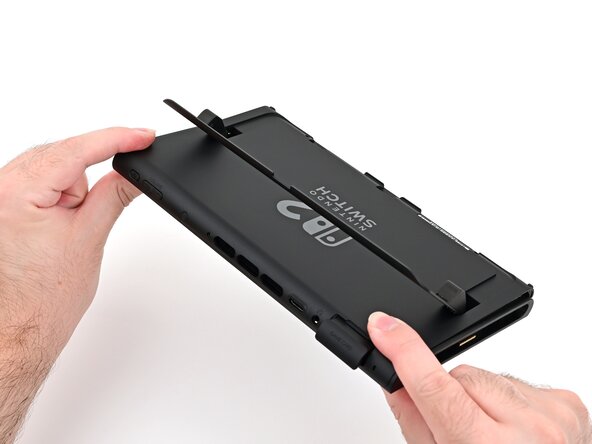
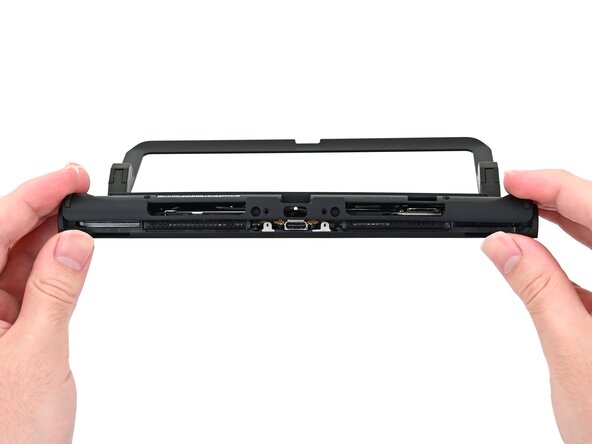
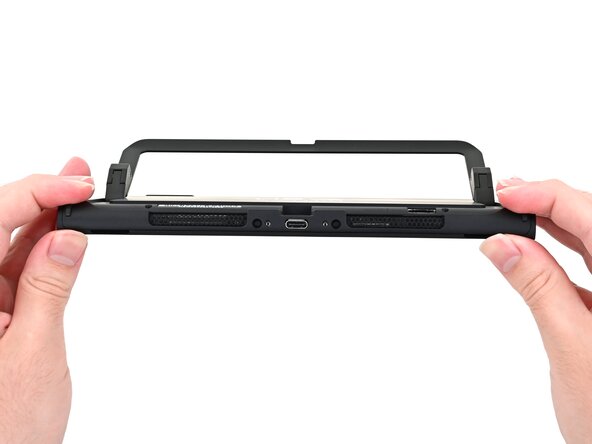
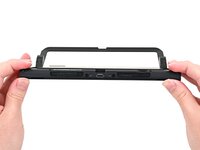
    • 开启支架,将其翻转到约45度角的位置,然后向远离主机背板的方向拉动,将其取下。

  24. Nintendo Switch 2 支架更换, 拆卸完成: 步骤 24 中的图像 1,1
    • 恭喜您完成拆卸!剩余步骤将展示如何重新组装主机。

  25. Nintendo Switch 2 支架更换, 安装支架: 步骤 25 中的图像 1,3 Nintendo Switch 2 支架更换, 安装支架: 步骤 25 中的图像 2,3 Nintendo Switch 2 支架更换, 安装支架: 步骤 25 中的图像 3,3
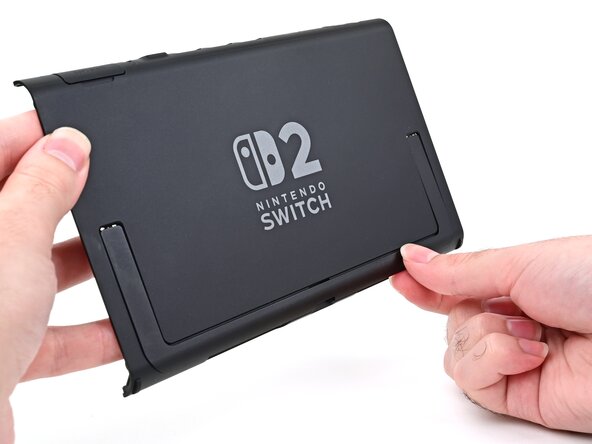
    • 以支架上转轴盖板面向主机背面盖板的位置,对齐支架和主机背板。

    • 将转轴插入背板上孔位中,然后按压支架,将其收到背板的开槽中。

  26. Nintendo Switch 2 支架更换, 安装支架螺丝: 步骤 26 中的图像 1,2 Nintendo Switch 2 支架更换, 安装支架螺丝: 步骤 26 中的图像 2,2
    • 支架两侧转轴各有2颗2.3mm长银色螺丝,将其固定到主机背板上。使用 JIS 00螺丝刀安装这4颗螺丝。

  27. Nintendo Switch 2 支架更换, 安装上部转轴盖板: 步骤 27 中的图像 1,3 Nintendo Switch 2 支架更换, 安装上部转轴盖板: 步骤 27 中的图像 2,3 Nintendo Switch 2 支架更换, 安装上部转轴盖板: 步骤 27 中的图像 3,3
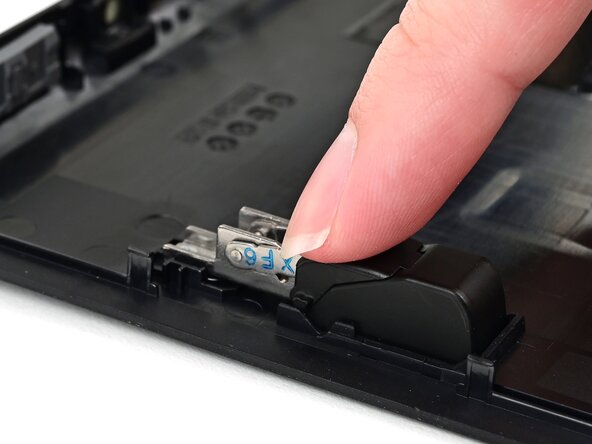
    • 将上部转轴盖板与对应转轴对齐,将底部的塑料部分插入下部转轴盖板之下。

    • 用手指按压上部转轴盖板,使其完全卡入到位。

  28. Nintendo Switch 2 支架更换: 步骤 28 中的图像 1,3 Nintendo Switch 2 支架更换: 步骤 28 中的图像 2,3 Nintendo Switch 2 支架更换: 步骤 28 中的图像 3,3
    • 重复此步骤,安装另外一侧的盖板。

  29. Nintendo Switch 2 支架更换, 准备后盖: 步骤 29 中的图像 1,3 Nintendo Switch 2 支架更换, 准备后盖: 步骤 29 中的图像 2,3 Nintendo Switch 2 支架更换, 准备后盖: 步骤 29 中的图像 3,3
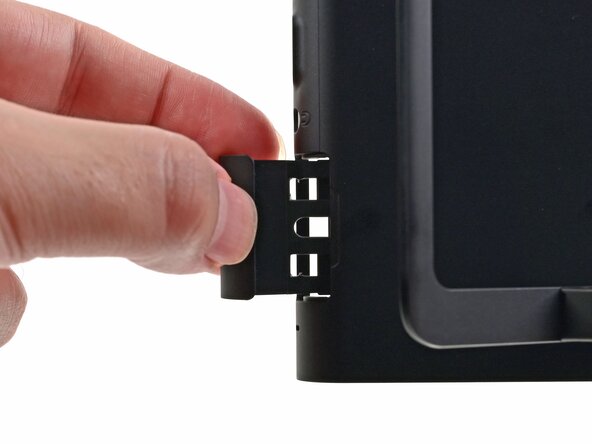
    • 完全拉出游戏卡托盘。

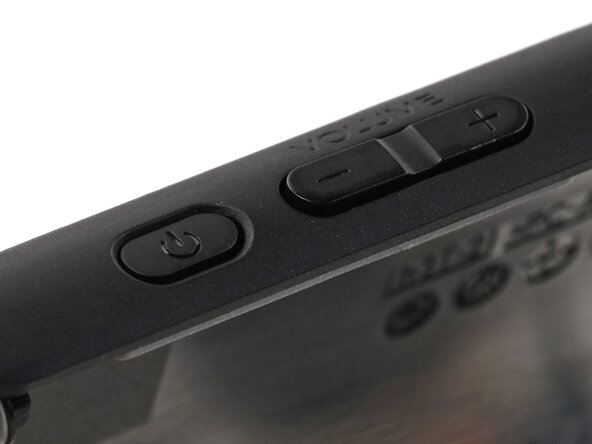
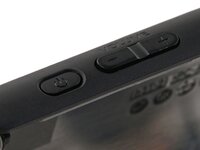
    • 仔细检查电源和音量按钮,确保它们正确就位。如果按钮下方的橡胶膜不合适,请确保它与楔子对齐。

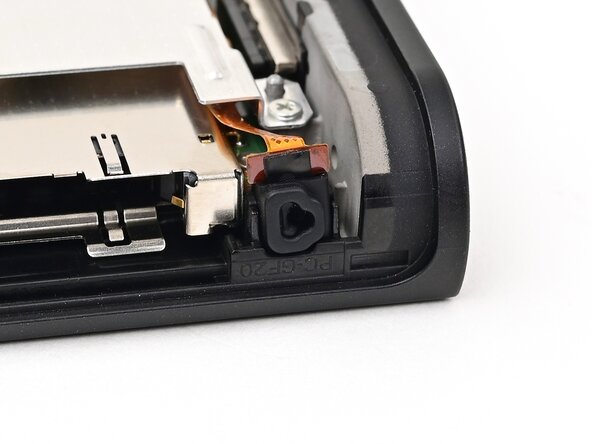
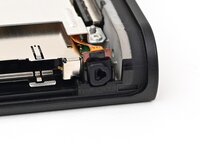
    • 检查麦克风,确保其完全固定在框架中的插槽中。

  30. Nintendo Switch 2 支架更换, 安装后盖: 步骤 30 中的图像 1,3 Nintendo Switch 2 支架更换, 安装后盖: 步骤 30 中的图像 2,3 Nintendo Switch 2 支架更换, 安装后盖: 步骤 30 中的图像 3,3
    • 将后盖顶部与主机顶部对齐。

    • 将后盖的顶部边缘设置到位,检查按钮和端口以确保它们正确对齐。如果没有,请掀开后盖再试一次。

    • 沿顶部边缘按压,以紧固将后盖固定到主机的卡扣。

  31. Nintendo Switch 2 支架更换: 步骤 31 中的图像 1,2 Nintendo Switch 2 支架更换: 步骤 31 中的图像 2,2
    • 将后盖和主机的其余部分挤压在一起,以固定卡扣。

  32. Nintendo Switch 2 支架更换, 安装背部螺丝: 步骤 32 中的图像 1,3 Nintendo Switch 2 支架更换, 安装背部螺丝: 步骤 32 中的图像 2,3 Nintendo Switch 2 支架更换, 安装背部螺丝: 步骤 32 中的图像 3,3
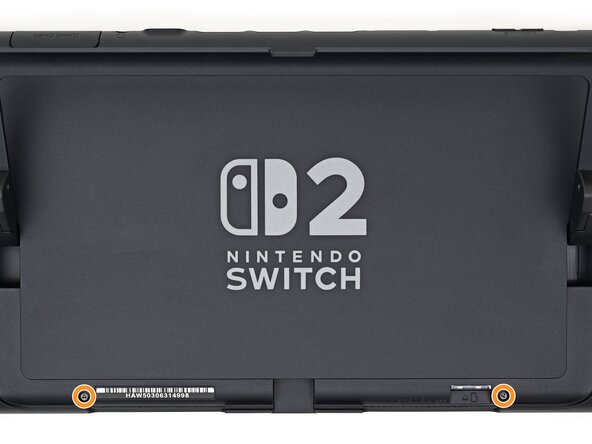
    • 使用 JIS 00螺丝刀,安装固定后盖的3颗3.1毫米长螺丝:1颗位于机身顶部边缘,2颗位于机身底部的 USB-C 接口两侧。

    • 使用 Y00 螺丝刀,安装位于支架凹槽中的2颗4.4毫米长螺丝。

  33. Nintendo Switch 2 支架更换, 安装侧螺钉: 步骤 33 中的图像 1,2 Nintendo Switch 2 支架更换, 安装侧螺钉: 步骤 33 中的图像 2,2
    • 在主机的两侧安装两个3.6毫米长的金螺钉(共四个)。

  34. Nintendo Switch 2 支架更换, 测试主机: 步骤 34 中的图像 1,2 Nintendo Switch 2 支架更换, 测试主机: 步骤 34 中的图像 2,2
    • 打开主机电源并测试功能,以确保其按预期工作。

  35. Nintendo Switch 2 支架更换, 安装贴纸: 步骤 35 中的图像 1,3 Nintendo Switch 2 支架更换, 安装贴纸: 步骤 35 中的图像 2,3 Nintendo Switch 2 支架更换, 安装贴纸: 步骤 35 中的图像 3,3
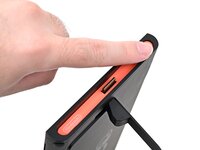
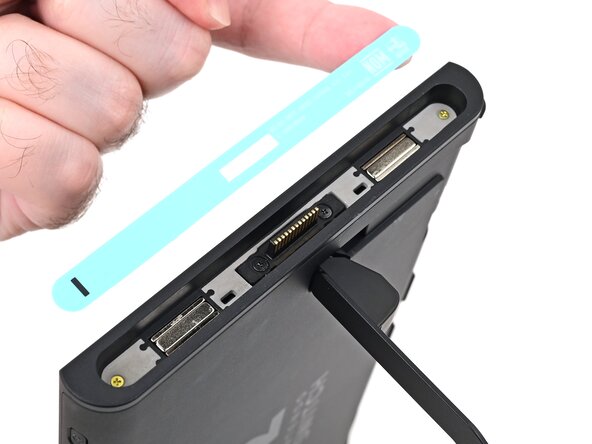
    • 将右侧标签与其凹槽对齐。确保贴纸上的切口与Joy-Con连接器对齐。

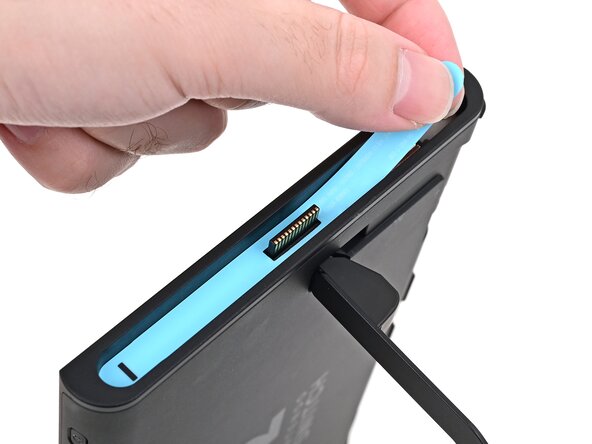
    • 将贴纸放入凹槽中,先对齐一端,然后再放入另外一端。

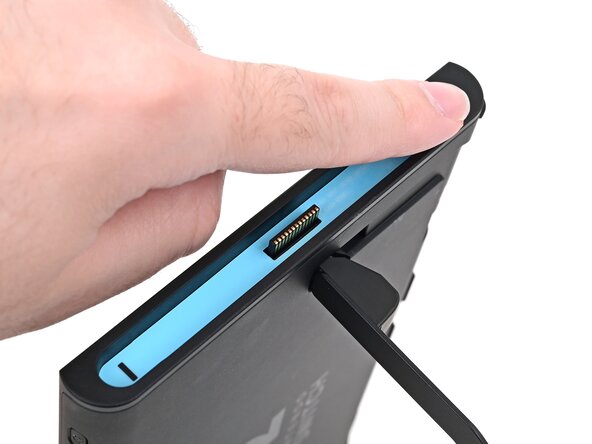
    • 用手指或撬棍的扁平一端将贴纸按到位。

    • 如果贴纸没有粘性,请在安放到位后对其加热

  36. Nintendo Switch 2 支架更换: 步骤 36 中的图像 1,3 Nintendo Switch 2 支架更换: 步骤 36 中的图像 2,3 Nintendo Switch 2 支架更换: 步骤 36 中的图像 3,3
    • 重复此步骤以安装左侧标签。

结论

NS2 已经修好了!

请将维修过程中产生的电子废弃物携带至R2 或 e-Stewards 认证回收点

维修过程中遇到意外情况?尝试以下基础疑难解答方法,或前往 iFixit Nintendo Switch 2 问答社区提问寻求帮助。

由衷感谢以下译者:

en zh

100%

Ennis正在帮助我们修复这个世界! 您也想加入吗?
开始翻译 ›

Nick Schultz

于03/24/24注册

36,887 声望

创作了224篇指南

0指南评论

添加评论

浏览统计数据:

过去 24 小时: 8

过去 7 天: 35

过去 30 天: 157

总计 363