跳转到主内容
加入维修社区 - 创建账户

Mac Pro Late 2013 Graphics Card Replacement

你所需要的

  1. Mac Pro Late 2013 Graphics Card Replacement, Outer Case: 步骤 1 中的图像 1,2 Mac Pro Late 2013 Graphics Card Replacement, Outer Case: 步骤 1 中的图像 2,2
    • Slide the lock switch to the right, to the unlocked position.

    询问修复机器人

    添加评论

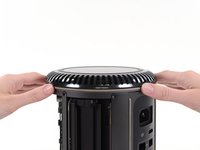
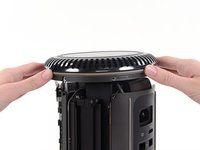
  2. Mac Pro Late 2013 Graphics Card Replacement: 步骤 2 中的图像 1,3 Mac Pro Late 2013 Graphics Card Replacement: 步骤 2 中的图像 2,3 Mac Pro Late 2013 Graphics Card Replacement: 步骤 2 中的图像 3,3
    • Lift the outer case straight up off the Mac Pro.

    • It may help to push down on the center of the fan while lifting the case up.

    询问修复机器人
    添加评论

  3. Mac Pro Late 2013 Graphics Card Replacement, Fan Assembly: 步骤 3 中的图像 1,3 Mac Pro Late 2013 Graphics Card Replacement, Fan Assembly: 步骤 3 中的图像 2,3 Mac Pro Late 2013 Graphics Card Replacement, Fan Assembly: 步骤 3 中的图像 3,3
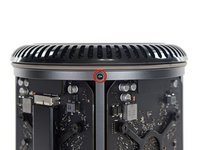
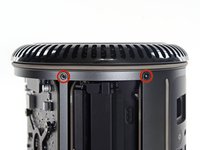
    • Remove five 5.1 mm T10 Torx screws from around the outer perimeter of the fan assembly.

    添加评论

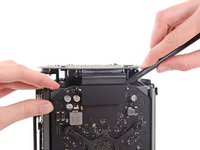
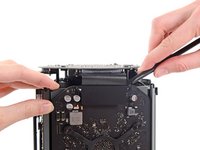
  4. Mac Pro Late 2013 Graphics Card Replacement: 步骤 4 中的图像 1,2 Mac Pro Late 2013 Graphics Card Replacement: 步骤 4 中的图像 2,2
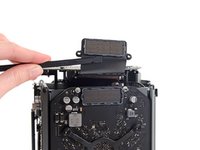
    • The fan assembly is attached to the rest of the computer by two cables on the IO board side.

    • Tilt the assembly up away from the IO board.

    • Do not try to remove the fan assembly yet, as it is still attached by two cables.

    询问修复机器人
    添加评论

  5. Mac Pro Late 2013 Graphics Card Replacement: 步骤 5 中的图像 1,1
    • While supporting the fan assembly with one hand, loosen the two T8 captive screws in the fan cable bracket.

    • These screws are captive in the Mac Pro. Do not try to remove these screws from your Mac Pro.

    添加评论

  6. Mac Pro Late 2013 Graphics Card Replacement: 步骤 6 中的图像 1,1
    在这个步骤中使用的工具:
    Tweezers
    $4.99
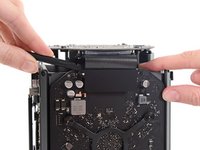
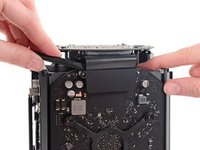
    • Use a pair of tweezers to pull the fan cable bracket away from the fan assembly.

    询问修复机器人

    添加评论

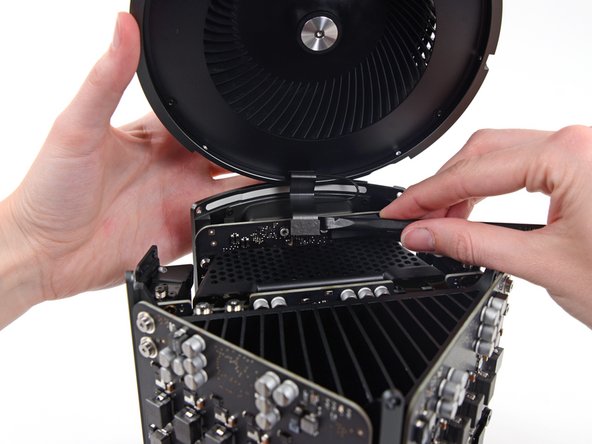
  7. Mac Pro Late 2013 Graphics Card Replacement: 步骤 7 中的图像 1,2 Mac Pro Late 2013 Graphics Card Replacement: 步骤 7 中的图像 2,2
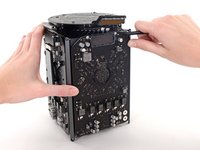
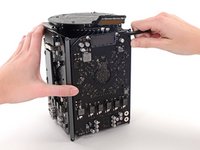
    • Use the flat end of a spudger to disconnect the fan assembly ribbon cable from the IO board.

    询问修复机器人

    添加评论

  8. Mac Pro Late 2013 Graphics Card Replacement: 步骤 8 中的图像 1,1
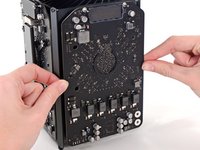
    • Disconnect the fan assembly antenna cable from the IO board.

    • Remove the fan assembly from the Mac Pro.

    添加评论

  9. Mac Pro Late 2013 Graphics Card Replacement, Lower Case: 步骤 9 中的图像 1,3 Mac Pro Late 2013 Graphics Card Replacement, Lower Case: 步骤 9 中的图像 2,3 Mac Pro Late 2013 Graphics Card Replacement, Lower Case: 步骤 9 中的图像 3,3
    • Flip the Mac Pro upside down, 180 degrees.

    • Remove five 5.1 mm T10 Torx screws from the outer perimeter of the lower case.

    询问修复机器人
    添加评论

  10. Mac Pro Late 2013 Graphics Card Replacement: 步骤 10 中的图像 1,2 Mac Pro Late 2013 Graphics Card Replacement: 步骤 10 中的图像 2,2
    • Carefully lift the lower case up and remove it from the Mac Pro.

    询问修复机器人
    添加评论

  11. Mac Pro Late 2013 Graphics Card Replacement, Graphics Card: 步骤 11 中的图像 1,2 Mac Pro Late 2013 Graphics Card Replacement, Graphics Card: 步骤 11 中的图像 2,2
    • Use the flat end of a spudger and a twisting motion to gently separate one side of the graphics card data connection.

    询问修复机器人

    添加评论

  12. Mac Pro Late 2013 Graphics Card Replacement: 步骤 12 中的图像 1,3 Mac Pro Late 2013 Graphics Card Replacement: 步骤 12 中的图像 2,3 Mac Pro Late 2013 Graphics Card Replacement: 步骤 12 中的图像 3,3
    • Gently separate the other side as well.

    • Flip the connector up and out of the way of the graphics card.

    询问修复机器人

    添加评论

  13. Mac Pro Late 2013 Graphics Card Replacement: 步骤 13 中的图像 1,1
    • Remove the two 6.6 mm T8 Torx Security screws securing the GPU to the Mac Pro.

    • These screws fit into power cables behind the GPU. Be careful not to over-tighten and twist the cables.

    添加评论

  14. Mac Pro Late 2013 Graphics Card Replacement: 步骤 14 中的图像 1,1
    • Remove the four 8.4 mm T10 screws from the GPU heat sink bracket.

    询问修复机器人

    添加评论

  15. Mac Pro Late 2013 Graphics Card Replacement: 步骤 15 中的图像 1,1
    • Remove the GPU heat sink bracket.

    询问修复机器人

    添加评论

  16. Mac Pro Late 2013 Graphics Card Replacement: 步骤 16 中的图像 1,3 Mac Pro Late 2013 Graphics Card Replacement: 步骤 16 中的图像 2,3 Mac Pro Late 2013 Graphics Card Replacement: 步骤 16 中的图像 3,3
    • The graphics card is now held onto the central heat sink by thermal compound.

    • You may need to pry very gently with a spudger to separate the card from the heat sink.

    • Remove the graphics card from the heat sink.

    询问修复机器人

    添加评论

  17. Mac Pro Late 2013 Graphics Card Replacement: 步骤 17 中的图像 1,1
    • During reassembly, be sure to clean off and replace the thermal compound. Use our Applying Thermal Paste guide if you require assistance.

    • Repeat this procedure if you wish to remove the secondary graphics card.

    询问修复机器人

    添加评论

结论

To reassemble your device, follow these instructions in reverse order.

取消:我没有完成这个指南。

50等其他人完成本指南。

团队

iFixit iFixit 的会员

Staff

122 名成员

创作了26,511篇指南

20指南评论

hey! is it possible to upgrade the GPU or is this just for replacing exactly the same part?

Ben - 回复 分享

I am guessing you can upgrade them with OEM parts, but where would we find them?

Fernando Bernardino - 回复 分享

Yes. I recently swapped out D300 pairs for D700 pairs without a blip. I did an NVRAM reset afterwards just to be safe.

Technology Research - 回复 分享

I have the D300s, and would like to upgrade to the D500s or D700s. Where might I find the replacement graphics cards? Also, any recommendations on service providers who would do this procedure?

Chris M Balz - 回复 分享

I'd love to know this as well. The only reason I picked up the ,ad pro was the potential for upgrades. As it turns out D300s are crap. I can't even run boot camp properly.

jerimiahy - 回复 分享

添加评论

浏览统计数据:

过去 24 小时: 12

过去 7 天: 77

过去 30 天: 417

总计 116,450