跳转到主内容
加入维修社区 - 创建账户

Mac Mini 2012晚期硬碟更換

浏览量: 85万

浏览统计数据:

过去24小时
55
过去 7 天:
476
过去 30 天:
2,140
总计
848,281
评论: 377

296 comments on steps, 81 guide comments.

Go to guide comments
已完成: 558

558 人已将本指南标记为“已完成”。你会是下一个完成的人吗?

收藏: 228

228 人已收藏(并订阅)本指南。你会是下一个吗?

所需时间: 30 - 45 分钟
难度: 中等
Mac Mini 2012晚期硬碟更換

按照這個指南來完整更換掉你的硬碟。

你所需要的

修复工具包

本套装包含完成指南所需的所有零件和工具。

配件

工具

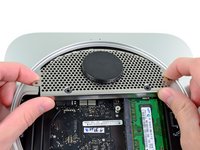
    1. Mac Mini 2012晚期硬碟更換, 底壳: 步骤 1 中的图像 1,2 Mac Mini 2012晚期硬碟更換, 底壳: 步骤 1 中的图像 2,2
      • 将您的拇指放在底盖的凹陷处。

      • 逆时针旋转底盖,直到底盖上的白点与外壳上刻的环对准。

      • 在转动时,您不需要向下施加很大的压力。

      添加评论

    2. Mac Mini 2012晚期硬碟更換: 步骤 2 中的图像 1,1
      • 倾斜mini,使底盖从外壳上脱落。

      • 取下底盖,放置在一边。

      添加评论

    1. Mac Mini 2012晚期硬碟更換, 风扇: 步骤 3 中的图像 1,1
      • 移除電路上固定風扇的兩顆 11.3 mm T6 Torx 固定螺絲,這在靠近天線的電路板處。

      添加评论

    2. Mac Mini 2012晚期硬碟更換: 步骤 4 中的图像 1,1
      • 將風扇靠近RAM的一側翹起。

      • 拆掉支架螺絲不用將風扇整個卸下,只需要提高、翹起就可以做到。

      添加评论

    3. Mac Mini 2012晚期硬碟更換: 步骤 5 中的图像 1,3 Mac Mini 2012晚期硬碟更換: 步骤 5 中的图像 2,3 Mac Mini 2012晚期硬碟更換: 步骤 5 中的图像 3,3
      • 將風扇抬高,到清楚看見連接器。

      • 抓住線端,輕輕向上直拉,將插頭從電路板插座分離。

      • 不要按到插座,這樣會把它從電路板上扯斷。

      • 移除風扇

      添加评论

    1. Mac Mini 2012晚期硬碟更換, 整流罩: 步骤 6 中的图像 1,1
      • 从散热器附近移除固定整流罩的一颗 3.5 mm T6 Torx螺丝。

      添加评论

    2. Mac Mini 2012晚期硬碟更換: 步骤 7 中的图像 1,1
      • 将整流罩从天线板的那一端提起。

      • 提起整流罩,将其从mini中移除。

      添加评论

    1. Mac Mini 2012晚期硬碟更換, 无线接收器金属网: 步骤 8 中的图像 1,1
      • 卸下下列固定天线板的螺丝。

      • 两颗6.6 mm T8 Torx 螺丝。

      • 两颗5.0 mm T8 Torx螺丝或者2.0 mm Hex screws 任意一把螺丝刀都会起作用。

      • 当装回的时候:

      • 将会很难将硬盘与天线板正确对齐。 如果螺丝孔没有与硬盘上的对齐,请确保后方的两颗螺丝与天线板上的孔对齐,在第二个硬盘壳上。

      • 天线板直接与硬盘相连(红色位置),因此与硬盘连接的天线板可以与硬盘移动,并松开硬盘与逻辑板的连接。

      添加评论

    2. Mac Mini 2012晚期硬碟更換: 步骤 9 中的图像 1,2 Mac Mini 2012晚期硬碟更換: 步骤 9 中的图像 2,2
      • 在RAM附近稍微的提起天线板。

      • 小心的将天线板拉离金属外壳。

      • 切勿现在拆下天线板,它仍与AirPort/蓝牙板相连。

      添加评论

    3. Mac Mini 2012晚期硬碟更換: 步骤 10 中的图像 1,1
      • 用尖锐的工具或者撬棒小心地将天线连接器从 AirPort /蓝牙板上的插座上撬开。

      添加评论

    4. Mac Mini 2012晚期硬碟更換: 步骤 11 中的图像 1,1
      • 从 mini 上移除天线板

      添加评论

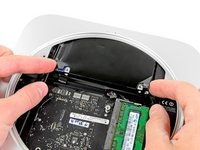
    1. Mac Mini 2012晚期硬碟更換, 硬盘: 步骤 12 中的图像 1,1
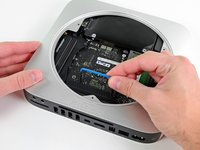
      • 使用撬棒扁平的一端来将硬盘连接器从逻辑板上的插座中移除。

      添加评论

    2. Mac Mini 2012晚期硬碟更換: 步骤 13 中的图像 1,1
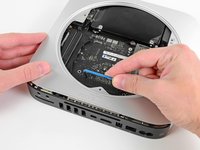
      • 使用撬棒尖端来将IR传感器的连接头从逻辑板上的插座中拔出。

      • 该连接器非常脆弱——请轻轻地均匀用力抬起。

      添加评论

    3. Mac Mini 2012晚期硬碟更換: 步骤 14 中的图像 1,1
      • 移除下列三颗螺丝。

      • 一颗5.0 mm T8 Torx 或者 2.0 mm Hex screw

      • 一颗16.2 mm T6 Torx screw

      • 一颗26 mm T6 Torx 螺丝

      添加评论

    4. Mac Mini 2012晚期硬碟更換: 步骤 15 中的图像 1,3 Mac Mini 2012晚期硬碟更換: 步骤 15 中的图像 2,3 Mac Mini 2012晚期硬碟更換: 步骤 15 中的图像 3,3
      在这个步骤中使用的工具:
      Mac mini Logic Board Removal Tool
      $4.99
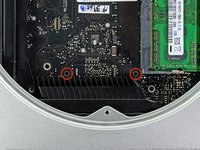
      • 要卸下逻辑板,就需要将Mac mini 逻辑板拆卸工具插入图中标红的的孔中。 将仪器插入标注的孔外的区域将有可能损坏逻辑板。

      • 将 Mac mini 逻辑板拆卸工具 插入标红的两个孔中。再继续进行下一步时请 确保,工具与逻辑板下的外壳顶部接触。

      • 小心的将工具拉向I/O板。 此时逻辑板和I/O板组件应该稍微滑出外壳。

      • 当发现I/O板与外壳明显分离时请停止撬动。

      • 移除 Mac mini 逻辑板拆卸工具。

      添加评论

    5. Mac Mini 2012晚期硬碟更換: 步骤 16 中的图像 1,1
      • 同时将I/O板最左侧和右侧的两个塑料卡推向中间,然后将I/O板拉离外壳。

      • 直到I/O板边缘远离外壳边缘大约0.5英寸时将逻辑板从外壳拉出。

      添加评论

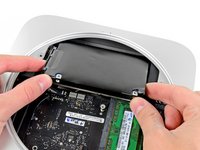
    6. Mac Mini 2012晚期硬碟更換: 步骤 17 中的图像 1,2 Mac Mini 2012晚期硬碟更換: 步骤 17 中的图像 2,2
      • 将硬盘从前边缘中移开,并将其从外壳中取出。

      添加评论

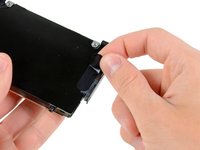
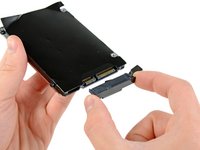
    1. Mac Mini 2012晚期硬碟更換, 硬盘连接插头: 步骤 18 中的图像 1,2 Mac Mini 2012晚期硬碟更換, 硬盘连接插头: 步骤 18 中的图像 2,2
      • 将硬盘上与硬盘线缆的胶带移除。

      • 移除硬盘线缆,请直接将其拔下即可。

      添加评论

    1. Mac Mini 2012晚期硬碟更換, 硬盘: 步骤 19 中的图像 1,1
      • 卸下硬盘驱动器电缆。

      • 此电缆与硬盘驱动器之间可能贴有标签。如果有,请在尝试卸下电缆前先撕掉该标签!

      • 从硬盘驱动器侧面卸下两颗 6.2毫米 T8 Torx 螺丝。

      添加评论

    2. Mac Mini 2012晚期硬碟更換: 步骤 20 中的图像 1,1
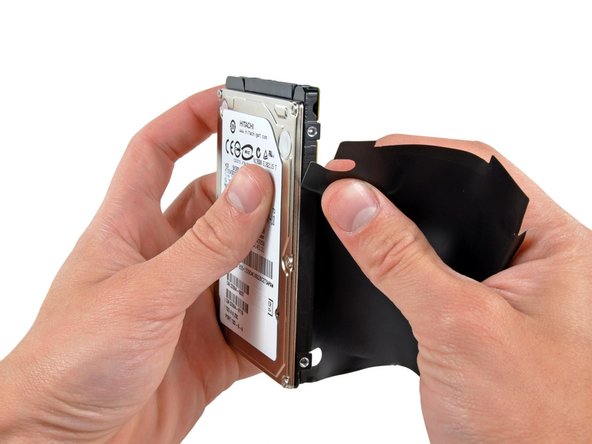
      • 小心的将硬盘上的保护层撕掉

      • 硬盘仍然在

      • 如果您安装一块新的硬盘,参考我们的教程安装。安装Mac OS X 10.5 Leopard

      添加评论

结论

如果要重新裝回你的設備,以相反順序操作以下步驟。

取消:我没有完成这个指南。

558等其他人完成本指南。

由衷感谢以下译者:

en zh

100%

这些译者帮助我们修补全世界! 您也想加入吗?
开始翻译 ›

团队

iFixit iFixit 的会员

Staff

121 名成员

创作了72,907篇指南

81指南评论

no need to remove the logic board! the disk comes out after step 12.

Also you do not really need to disconnect the antenna. Just be carefull no to break the wire.

robert - 回复 分享

i replaced 5400 rpm hdd with Samsung SSD 840 Pro

I did it Rober's way - thanks - no disconnecting antenna in step 10

Stopping after step 12 and replacing hard drive there without removing logic board

I put the sheet that was around the old hard drive over the new one - not sure if its needed?

After it is all done i did Command + R to do internet recovery and get OS X mountain lion on the blank drive

Last thing to do is go here to enable trim: http://www.groths.org/?page_id=322

royl123 - 回复 分享

Very helpful guide, thanks! As many have said before, I would not detach the fan or antenna, just move it out of the way.

One very trivial tip: slide a piece of paper over the logic board as soon as you've removed the fan, as a protection against accidentally touching the components with your fingers or tools.

I did not reinstall the plastic cover on the HDD. This is only to protect the logic board of the HDD, which ofcourse is very well protected in SSD's.

Hans Erik Hazelhorst - 回复 分享

That depends which position the hard drive is in. If it's in the upper slot (ie at the 'top' of the enclosure when it's in use) then you will need to remove the logic board.

Roger Houghton - 回复 分享

Dismantling the Mini was simple, but the two hardest steps when installing a new hard drive were sliding the drive back in aligned correctly, and replacing the antenna grill.

Even with the logic board pushed out, I found it difficult to line up the screws on the hard drive and get it seated properly. As for the grill, it would not line up with the screw holes. I had to use the Mac Mini tool hooked into a hole in the grill as a lever to lift it up and in towards the lip of the rim it was sitting on. There was an audible snap as it settled into place.

FinnCrisp888 - 回复 分享

添加评论

浏览统计数据:

过去 24 小时: 55

过去 7 天: 476

过去 30 天: 2,140

总计 848,281