简介
This guide will show you how to remove key parts to access the SSD. The SSD provides the laptop with external storage for performance.
SSDs have a limited lifespan, and over time, the factory-installed SSD in a laptop will age and eventually run out of usable storage. You would have to change the SSD. Getting extra data/storage provides the laptop with better performance power and space to render applications. This process should only take a maximum of 20 minutes to complete.
你所需要的


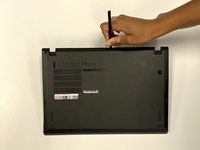
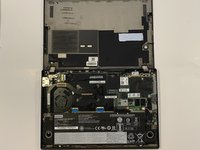


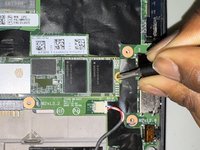
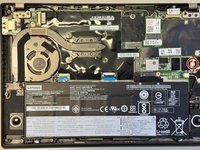

To reassemble your device, follow the above steps in reverse order.
Take your e-waste to an R2 or e-Stewards certified recycler.
Repair didn’t go as planned? Try some basic troubleshooting or ask our Answers community for help.


团队

University of North Texas, Team 3-7, Coppersmith Fall 2024 University of North Texas, Team 3-7, Coppersmith Fall 2024 的会员
UNT-COPPERSMITH-F24S3G7
4 名成员
创作了4篇指南
