简介
Use this guide to help you remove and replace the Solid State Drive (SSD) in your ThinkPad T490. This process is often done to upgrade the SSD when your computer starts running at a slower capacity, allowing for better overall running performance. Keep in mind that a thermal pad helps the SSD manage heat more efficiently. Be sure to save the original thermal pad or have a new one on hand.
Before starting this repair, back up the data on your current SSD if possible. If you’re replacing the SSD that has your operating system installed, consider using a disk cloning unit to easily transfer your data to the new SSD.
你所需要的
-
-
Loosen the screws from the base plate.
-
Using a Philips #1 screwdriver fully loosen the six screws on the back cover.
-
-


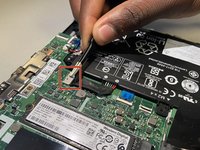
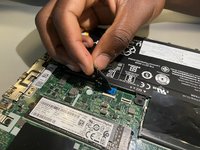


To reassemble your device, follow the above steps in reverse order.
Take your e-waste to an R2 or e-Stewards certified recycler.
Repair didn’t go as planned? Try some basic troubleshooting or ask our Answers community for help.
另外一个人完成了本指南。



团队

University of North Texas, Team 3-4, Coppersmith Fall 2024 University of North Texas, Team 3-4, Coppersmith Fall 2024 的会员
UNT-COPPERSMITH-F24S3G4
4 名成员
创作了5篇指南
1指南评论
Strongly recommend reading Lenovo's own "T490 and P43s Hardware Maintenance Manual", particularly section "1020 Base cover assembly" which gives a recommended order for prying open the clips. It's pretty easy to apply too much pressure in the wrong place and snap a clip, especially now the plastics in these laptops are getting older.
(It's also possible to remove power by changing a setting in the BIOS instead of unplugging the battery, Lenovo's guide also explains how to do this.)
projectgus - 回复
