跳转到主内容
加入维修社区 - 创建账户

Interconnect Cable Removal

仅作为前提条件
本指南仅提供前提条件!本指南是另一个程序的一部分,不能单独使用。

你所需要的

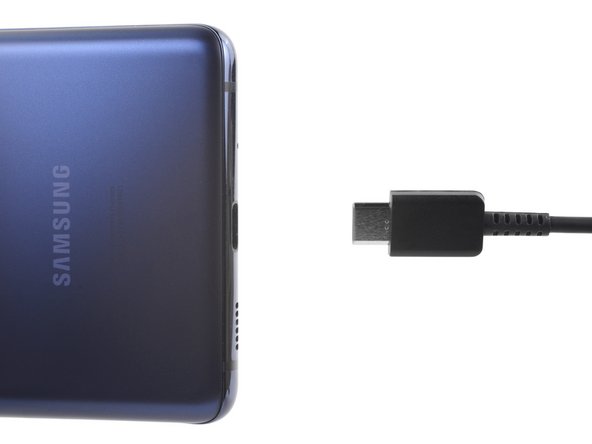
  1. Interconnect Cable Removal, Before you begin: 步骤 1 中的图像 1,2 Interconnect Cable Removal, Before you begin: 步骤 1 中的图像 2,2
    • Before you begin, let your battery drain below 25%—a charged lithium-ion battery can be dangerous if accidentally punctured.

    • Power off your phone and unplug any cables.

  2. Interconnect Cable Removal, Heat the bottom edge: 步骤 2 中的图像 1,1
    • Heat an iOpener and apply it to the bottom edge of the back cover for two minutes.

    • You can also use a hair dryer—but be careful, as extreme heat will warp the back cover.

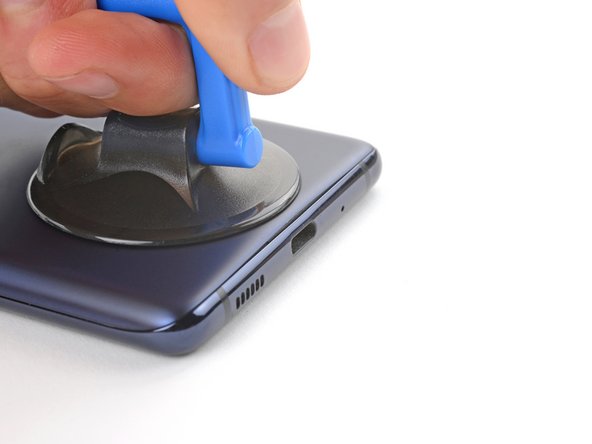
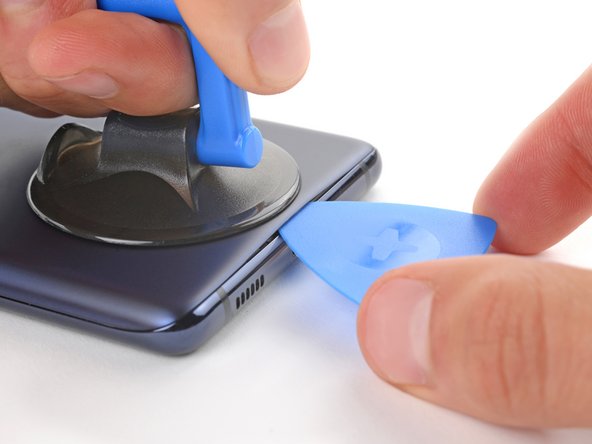
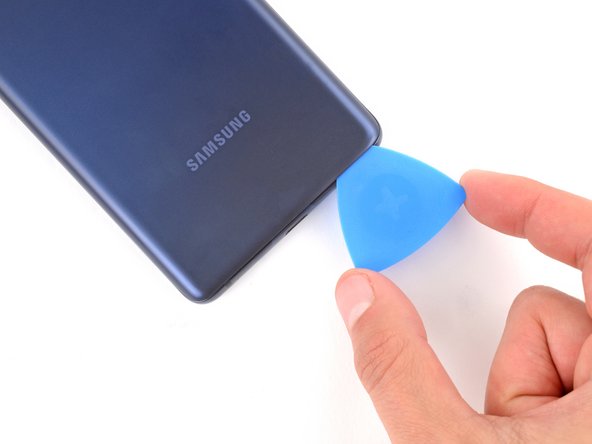
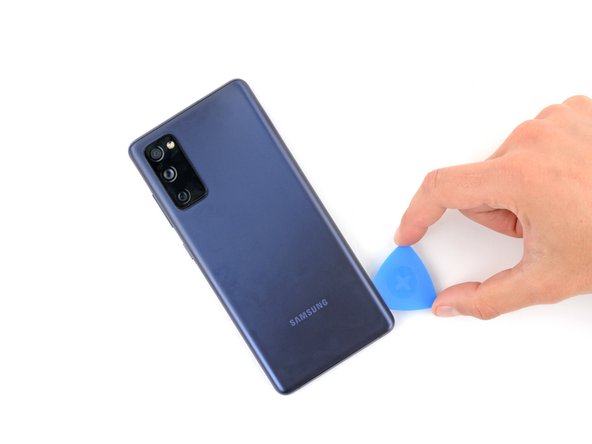
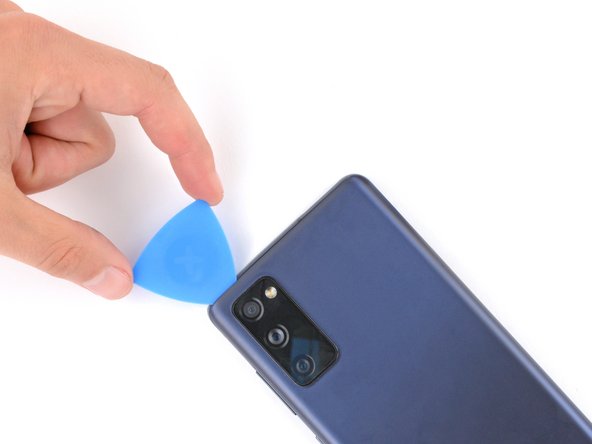
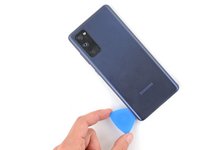
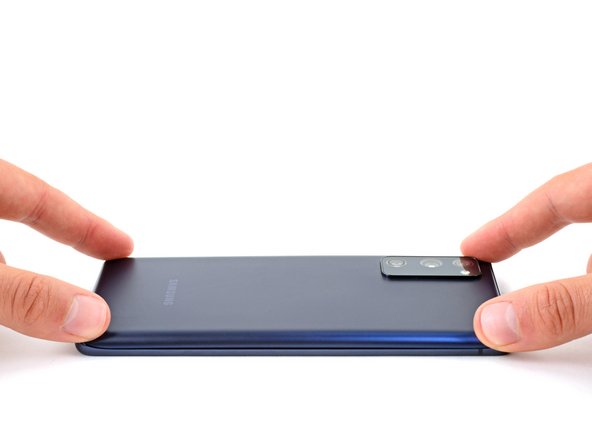
  3. Interconnect Cable Removal, Insert an opening pick: 步骤 3 中的图像 1,3 Interconnect Cable Removal, Insert an opening pick: 步骤 3 中的图像 2,3 Interconnect Cable Removal, Insert an opening pick: 步骤 3 中的图像 3,3
    • Apply a suction cup to the center of the back cover's bottom edge, as close to the edge as possible.

    • Pull up on the suction handle with strong, steady force to create a gap between the cover and frame.

    • This will require significant force. If you're having trouble, apply more heat and try again.

    • Insert an opening pick in the gap.

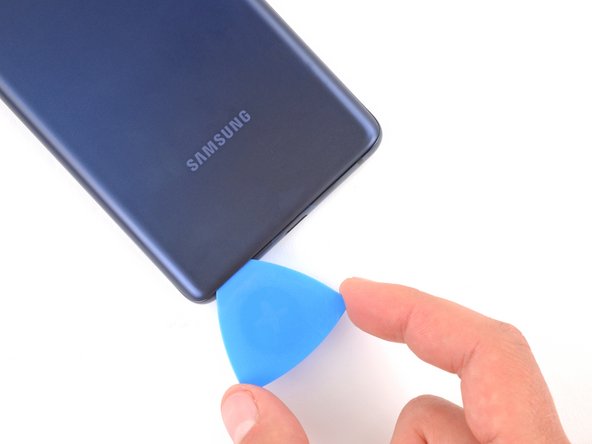
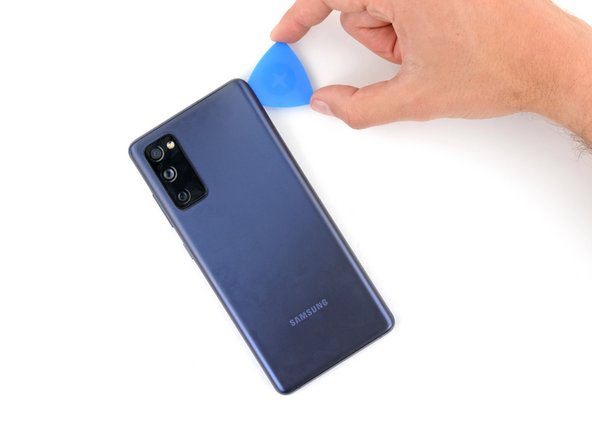
  4. Interconnect Cable Removal, Slice the bottom adhesive: 步骤 4 中的图像 1,3 Interconnect Cable Removal, Slice the bottom adhesive: 步骤 4 中的图像 2,3 Interconnect Cable Removal, Slice the bottom adhesive: 步骤 4 中的图像 3,3
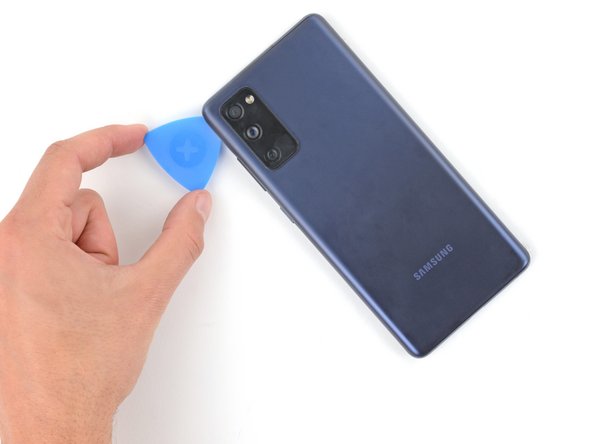
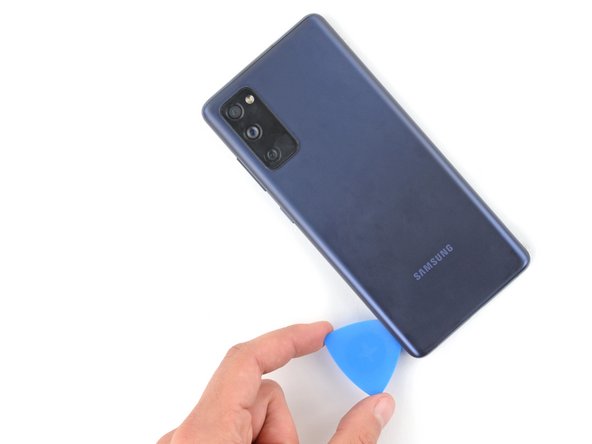
    • Slide the opening pick along the bottom edge to slice the adhesive securing the back cover.

    • Leave the opening pick inserted in the bottom right corner to prevent the adhesive from resealing.

  5. Interconnect Cable Removal, Heat the right edge: 步骤 5 中的图像 1,1
    • Apply a heated iOpener to the right edge of the back cover for two minutes.

    • You can also use a hair dryer—but be careful, as extreme heat will warp the back cover.

  6. Interconnect Cable Removal, Slice the right adhesive: 步骤 6 中的图像 1,3 Interconnect Cable Removal, Slice the right adhesive: 步骤 6 中的图像 2,3 Interconnect Cable Removal, Slice the right adhesive: 步骤 6 中的图像 3,3
    • Slide the opening pick around the bottom right corner and all the way up the right edge to slice the adhesive.

    • Leave the opening pick inserted in the top right corner.

  7. Interconnect Cable Removal, Heat the top edge: 步骤 7 中的图像 1,1
    • Apply a heated iOpener to the top edge of the back cover for two minutes.

    • You can also use a hair dryer—but be careful, as extreme heat will warp the back cover.

  8. Interconnect Cable Removal, Slice the top adhesive: 步骤 8 中的图像 1,2 Interconnect Cable Removal, Slice the top adhesive: 步骤 8 中的图像 2,2
    • Slide the opening pick around the top right corner and along the top edge to slice the adhesive.

    • Leave the pick inserted in the top left corner.

  9. Interconnect Cable Removal, Heat the left edge: 步骤 9 中的图像 1,1
    • Apply a heated iOpener to the left edge of the back cover for two minutes.

    • You can also use a hair dryer—but be careful, as extreme heat will warp the back cover.

  10. Interconnect Cable Removal, Slice the left adhesive: 步骤 10 中的图像 1,3 Interconnect Cable Removal, Slice the left adhesive: 步骤 10 中的图像 2,3 Interconnect Cable Removal, Slice the left adhesive: 步骤 10 中的图像 3,3
    • Slide the opening pick around the top left corner and all the way down the left edge to slice the remaining adhesive.

  11. Interconnect Cable Removal, Remove the back cover: 步骤 11 中的图像 1,2 Interconnect Cable Removal, Remove the back cover: 步骤 11 中的图像 2,2
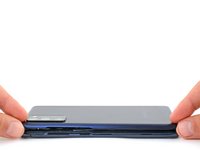
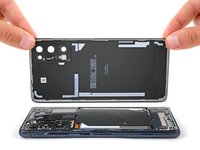
    • Remove the back cover.

    • If the back cover is still stuck to the frame, slide an opening pick around the perimeter to separate any remaining adhesive.

  12. Interconnect Cable Removal, Reassembly information: 步骤 12 中的图像 1,3 Interconnect Cable Removal, Reassembly information: 步骤 12 中的图像 2,3 Interconnect Cable Removal, Reassembly information: 步骤 12 中的图像 3,3
    • During reassembly, this is a good point to power on your device and test all functions before sealing it up. Be sure to power it back down completely before you continue working.

    • If you're reinstalling your old back cover:

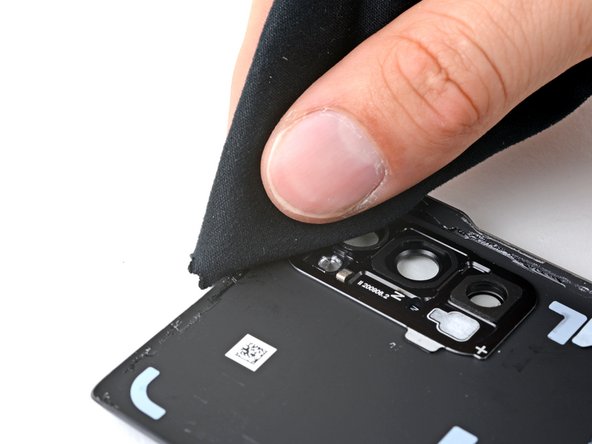
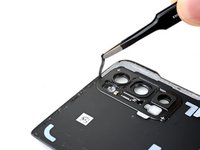
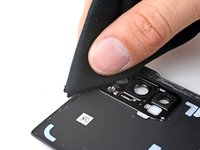
    • Use tweezers or your fingers to peel off the old adhesive from the back cover and frame.

    • Use highly-concentrated isopropyl alcohol (over 90%) and a microfiber cloth to remove any remaining adhesive residue.

    • Follow this guide to apply new custom-cut adhesive.

    • If you're installing a new back cover, peel off the liners and press firmly around the perimeter to secure the back cover to the frame.

  13. Interconnect Cable Removal, Unfasten the wireless charging assembly: 步骤 13 中的图像 1,3 Interconnect Cable Removal, Unfasten the wireless charging assembly: 步骤 13 中的图像 2,3 Interconnect Cable Removal, Unfasten the wireless charging assembly: 步骤 13 中的图像 3,3
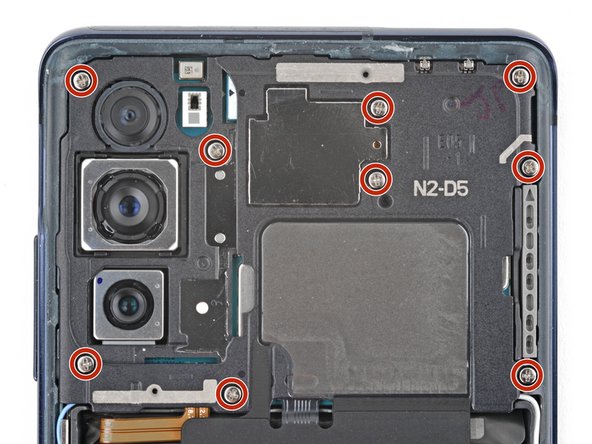
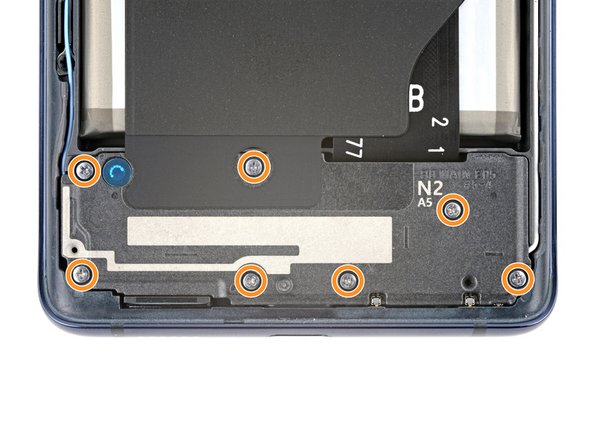
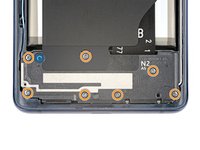
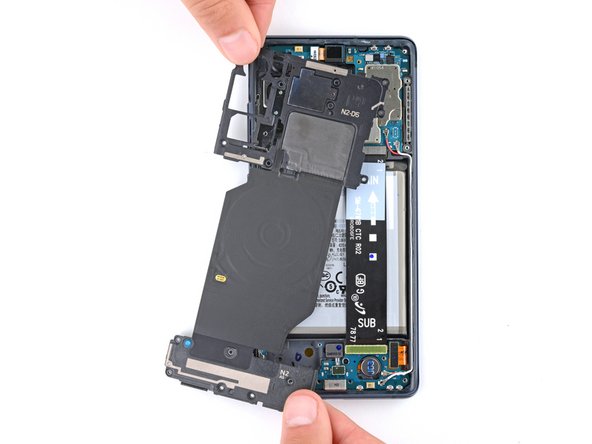
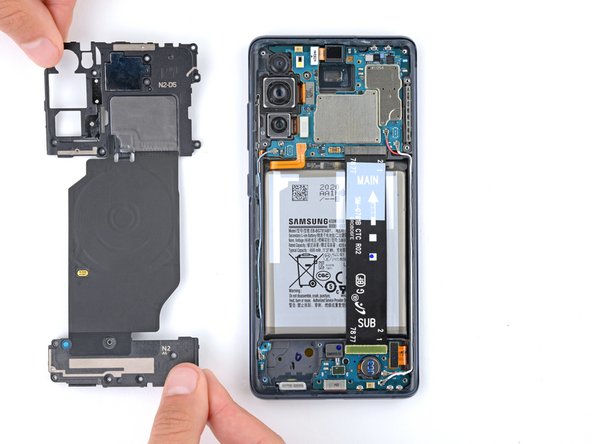
    • The wireless charging assembly includes the motherboard cover, wireless charging coil, and loudspeaker. They're held together with graphite tape and should be removed as one piece.

    • Use a Phillips screwdriver to remove the 16 screws securing the wireless charging assembly:

    • Nine 4 mm-long screws securing the motherboard cover

    • Seven 4.5 mm-long screws securing the loudspeaker

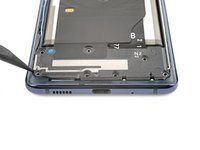
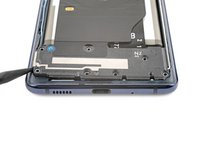
  14. Interconnect Cable Removal, Unclip the motherboard cover: 步骤 14 中的图像 1,3 Interconnect Cable Removal, Unclip the motherboard cover: 步骤 14 中的图像 2,3 Interconnect Cable Removal, Unclip the motherboard cover: 步骤 14 中的图像 3,3
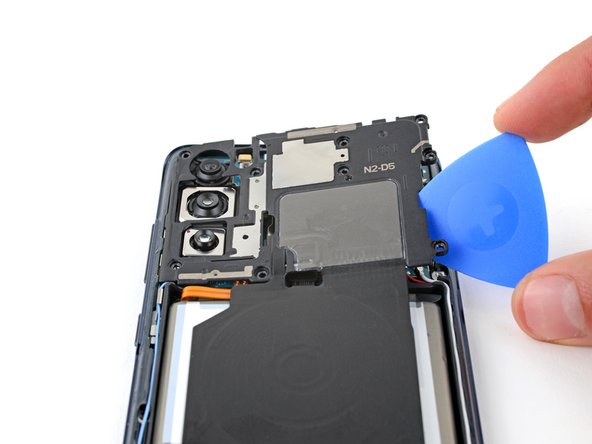
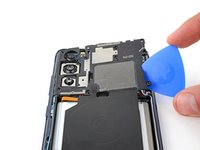
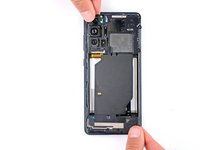
    • Insert a pick under the bottom right edge of the motherboard cover.

    • Twist the pick to release the clips securing the cover.

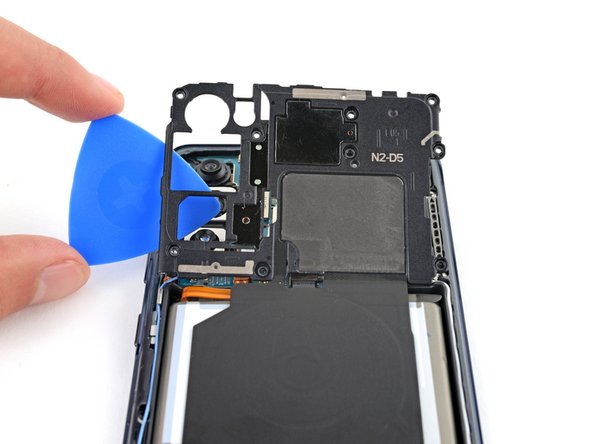
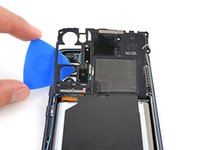
    • Insert and twist the opening pick on the bottom left edge of the cover to release the remaining clips.

    • During reassembly, press down firmly around the perimeter of the motherboard cover to engage the clips.

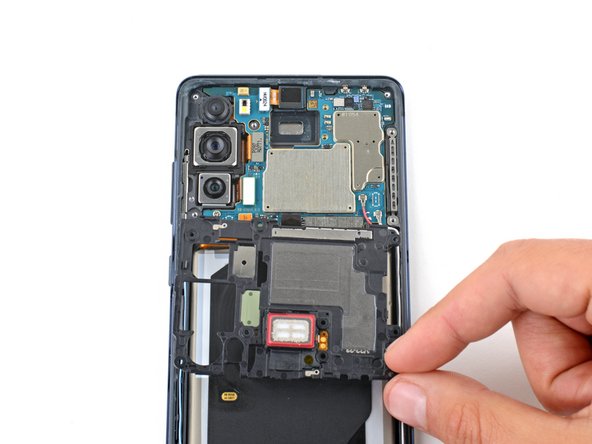
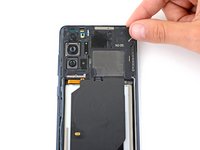
  15. Interconnect Cable Removal, Reposition the motherboard cover: 步骤 15 中的图像 1,2 Interconnect Cable Removal, Reposition the motherboard cover: 步骤 15 中的图像 2,2
  16. Interconnect Cable Removal, Disconnect the battery: 步骤 16 中的图像 1,3 Interconnect Cable Removal, Disconnect the battery: 步骤 16 中的图像 2,3 Interconnect Cable Removal, Disconnect the battery: 步骤 16 中的图像 3,3
    • Use the flat end of a spudger to pry up and disconnect the battery and wireless charging press connectors from the motherboard.

    • To re-attach press connectors like this one, carefully align and press down on one side until it clicks into place, then repeat on the other side. Don't press down in the middle. If the connector is misaligned, the pins can bend and cause permanent damage.

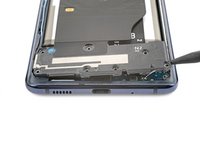
  17. Interconnect Cable Removal, Unclip the loudspeaker: 步骤 17 中的图像 1,3 Interconnect Cable Removal, Unclip the loudspeaker: 步骤 17 中的图像 2,3 Interconnect Cable Removal, Unclip the loudspeaker: 步骤 17 中的图像 3,3
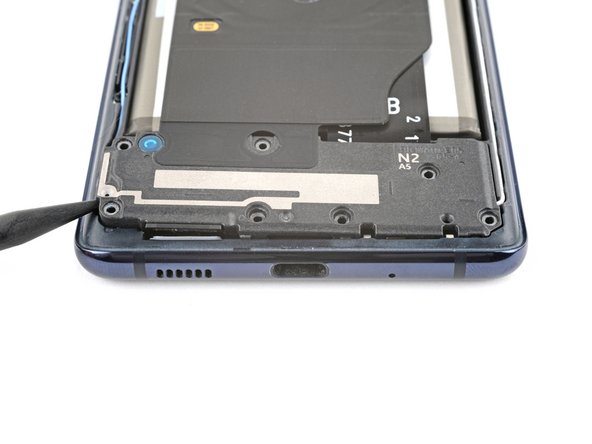
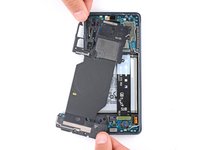
    • Insert the point of a spudger between the bottom left corner of the loudspeaker and the frame.

    • Pry up to release the clips securing the left edge of the loudspeaker.

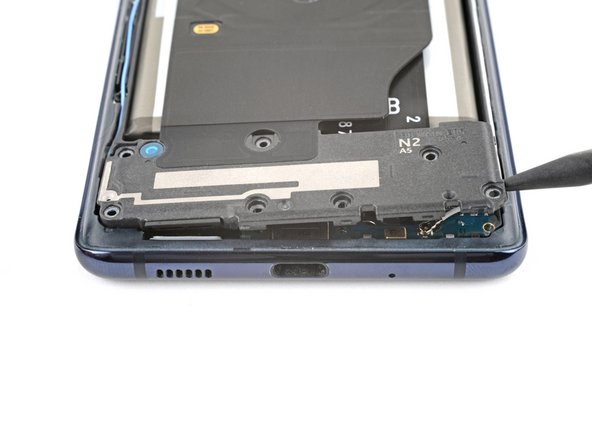
    • Pry up the bottom right corner of the loudspeaker to release the remaining clips.

    • During reassembly, press down firmly around the perimeter of the loudspeaker to engage the clips.

  18. Interconnect Cable Removal, Remove the wireless charging assembly: 步骤 18 中的图像 1,3 Interconnect Cable Removal, Remove the wireless charging assembly: 步骤 18 中的图像 2,3 Interconnect Cable Removal, Remove the wireless charging assembly: 步骤 18 中的图像 3,3
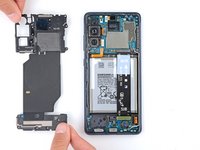
    • Remove the wireless charging assembly.

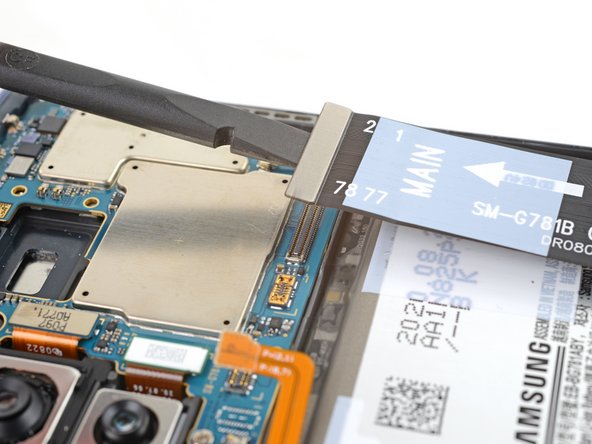
  19. Interconnect Cable Removal, Disconnect the interconnect cable: 步骤 19 中的图像 1,2 Interconnect Cable Removal, Disconnect the interconnect cable: 步骤 19 中的图像 2,2
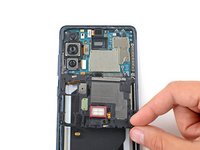
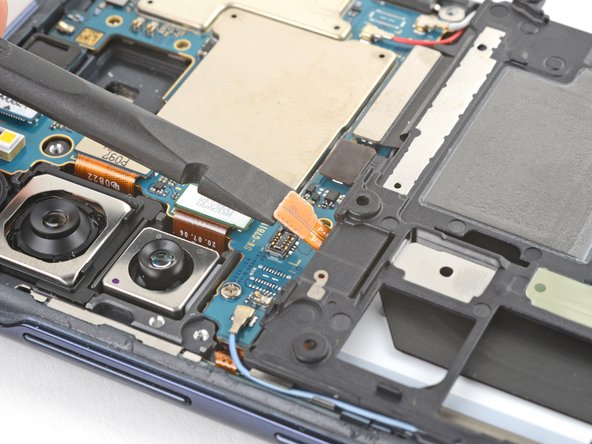
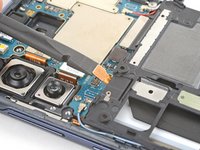
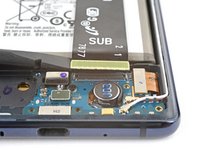
    • Use the flat end of a spudger to pry up and disconnect the interconnect cable press connector from the motherboard.

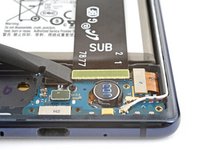
  20. Interconnect Cable Removal: 步骤 20 中的图像 1,2 Interconnect Cable Removal: 步骤 20 中的图像 2,2
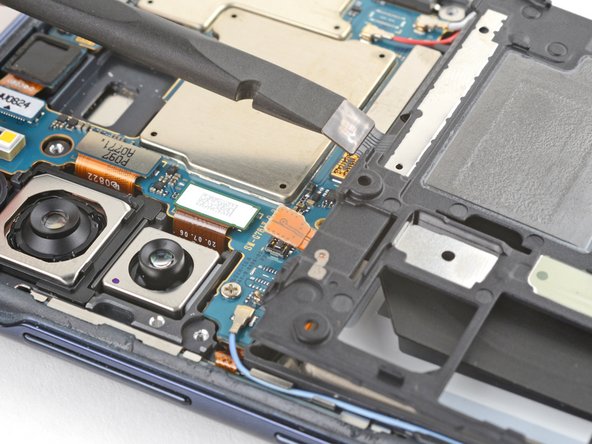
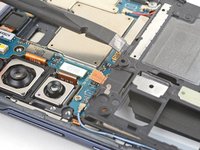
    • Disconnect the interconnect cable press connector from the charging board.

  21. Interconnect Cable Removal, Remove the interconnect cable: 步骤 21 中的图像 1,2 Interconnect Cable Removal, Remove the interconnect cable: 步骤 21 中的图像 2,2
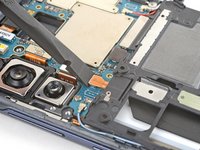
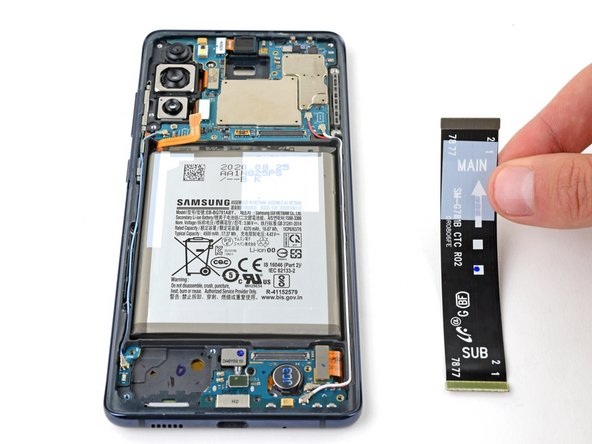
    • Remove the interconnect cable.

结论

To reassemble your device, follow these instructions in reverse order.

Spencer Day

于09/14/22注册

159,204 声望

创作了1,043篇指南

团队

iFixit iFixit 的会员

Staff

123 名成员

创作了23,927篇指南

0指南评论

添加评论

浏览统计数据:

过去 24 小时: 0

过去 7 天: 1

过去 30 天: 7

总计 58