跳转到主内容

Display and Camera Cables Disconnection

仅作为前提条件
本指南仅提供前提条件!本指南是另一个程序的一部分,不能单独使用。

你所需要的

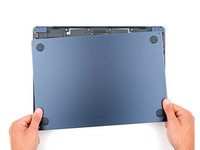
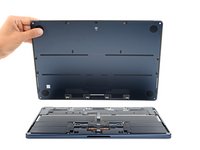
  1. Display and Camera Cables Disconnection, Prepare your Macbook Air for disassembly: 步骤 1 中的图像 1,3 Display and Camera Cables Disconnection, Prepare your Macbook Air for disassembly: 步骤 1 中的图像 2,3 Display and Camera Cables Disconnection, Prepare your Macbook Air for disassembly: 步骤 1 中的图像 3,3
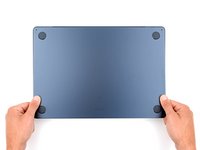
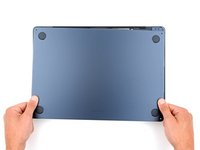
    • Allow your MacBook's battery to drain below 25% before starting this repair—a charged battery may catch fire if damaged.

    • Unplug all cables and fully power off your MacBook.

    • Close the display and lay your MacBook upside down. Keep your laptop closed until you've physically disconnected the battery.

  2. Display and Camera Cables Disconnection, Unfasten the lower case: 步骤 2 中的图像 1,2 Display and Camera Cables Disconnection, Unfasten the lower case: 步骤 2 中的图像 2,2
    在这个步骤中使用的工具:
    FixMat
    $36.95
    • Throughout this repair, keep track of each screw and make sure it goes back exactly where it came from.

    • Use a P5 pentalobe screwdriver to remove the four 6.4 mm‑long screws securing the lower case.

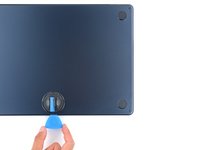
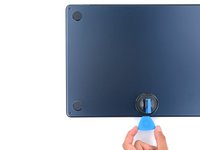
  3. Display and Camera Cables Disconnection, Insert an opening pick: 步骤 3 中的图像 1,3 Display and Camera Cables Disconnection, Insert an opening pick: 步骤 3 中的图像 2,3 Display and Camera Cables Disconnection, Insert an opening pick: 步骤 3 中的图像 3,3
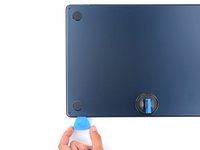
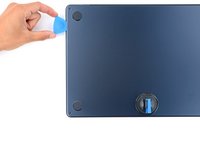
    • Apply a suction handle to the center of the lower case's front edge.

    • Pull up on the suction handle to create a gap between the lower case and the frame.

    • Insert an opening pick into the gap.

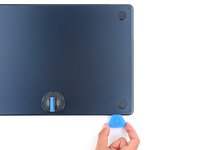
  4. Display and Camera Cables Disconnection, Release the snapping clips: 步骤 4 中的图像 1,3 Display and Camera Cables Disconnection, Release the snapping clips: 步骤 4 中的图像 2,3 Display and Camera Cables Disconnection, Release the snapping clips: 步骤 4 中的图像 3,3
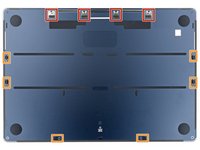
    • During the next two steps you'll feel and hear six snapping clips release. If a clip doesn't release, insert your opening pick farther and try again.

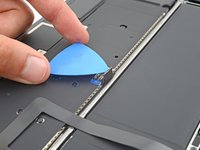
    • Slide the pick to the bottom right corner to release the first clip.

    • Slide the pick around the corner and up the right edge to release the next two clips.

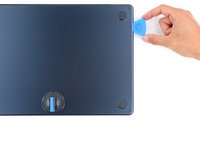
  5. Display and Camera Cables Disconnection: 步骤 5 中的图像 1,3 Display and Camera Cables Disconnection: 步骤 5 中的图像 2,3 Display and Camera Cables Disconnection: 步骤 5 中的图像 3,3
    • Insert the opening pick in the original gap created with the suction handle.

    • Slide the opening pick to the bottom left corner and up the left edge to release the three remaining snapping clips.

  6. Display and Camera Cables Disconnection, Release the sliding tabs: 步骤 6 中的图像 1,3 Display and Camera Cables Disconnection, Release the sliding tabs: 步骤 6 中的图像 2,3 Display and Camera Cables Disconnection, Release the sliding tabs: 步骤 6 中的图像 3,3
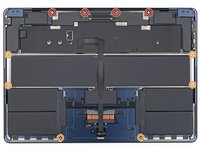
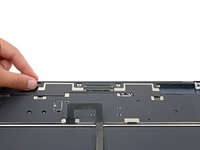
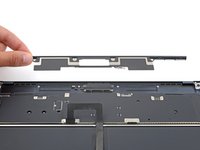
    • Four sliding tabs along the back edge of the MacBook firmly secure the lower case. Separating these tabs requires a lot of force—consider using gloves to protect your hands from the sharp edges of the lower case.

    • Keep the lower case flat to the frame and firmly slide it straight away from the back edge, one corner at a time, to disengage the sliding tabs.

    • Don't pull up until the cover is completely separated.

  7. Display and Camera Cables Disconnection, Remove the lower case: 步骤 7 中的图像 1,3 Display and Camera Cables Disconnection, Remove the lower case: 步骤 7 中的图像 2,3 Display and Camera Cables Disconnection, Remove the lower case: 步骤 7 中的图像 3,3
    • Remove the lower case.

    • During reassembly:

    • Set the lower case in place and align the sliding tabs with the screw heads they slide over. Press down and slide the lower case toward the back edge to engage the tabs—it'll stop sliding as the tabs engage.

    • When one side is engaged, it may push the other out of alignment. Check both sides as you push, there should be no gap along the back edge.

    • Once the lower case is flush with the frame, press down firmly along the perimeter to engage the six snapping clips.

    • You'll hear and feel a distinct click as each clip snaps into place.

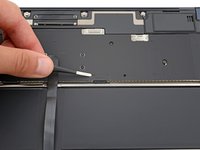
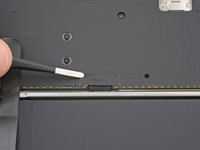
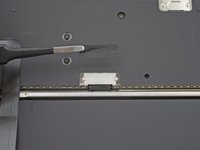
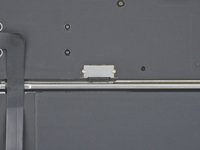
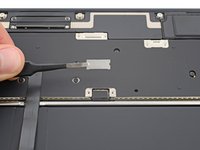
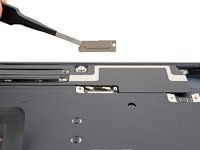
  8. Display and Camera Cables Disconnection, Remove the battery connector cover tape: 步骤 8 中的图像 1,3 Display and Camera Cables Disconnection, Remove the battery connector cover tape: 步骤 8 中的图像 2,3 Display and Camera Cables Disconnection, Remove the battery connector cover tape: 步骤 8 中的图像 3,3
    在这个步骤中使用的工具:
    Tweezers
    $4.99
    • Use blunt nose tweezers or your fingers to remove the piece of tape covering the battery connector cover.

    • During reassembly, use the leftover adhesive to secure the tape to the cover.

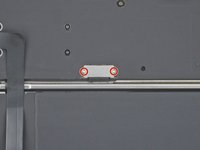
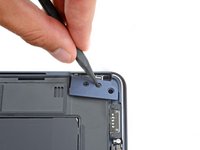
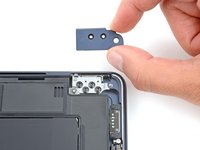
  9. Display and Camera Cables Disconnection, Remove the battery connector cover: 步骤 9 中的图像 1,3 Display and Camera Cables Disconnection, Remove the battery connector cover: 步骤 9 中的图像 2,3 Display and Camera Cables Disconnection, Remove the battery connector cover: 步骤 9 中的图像 3,3
    • Use a 3IP Torx Plus screwdriver to remove the two 1.5 mm‑long screws securing the battery connector cover.

    • Remove the cover.

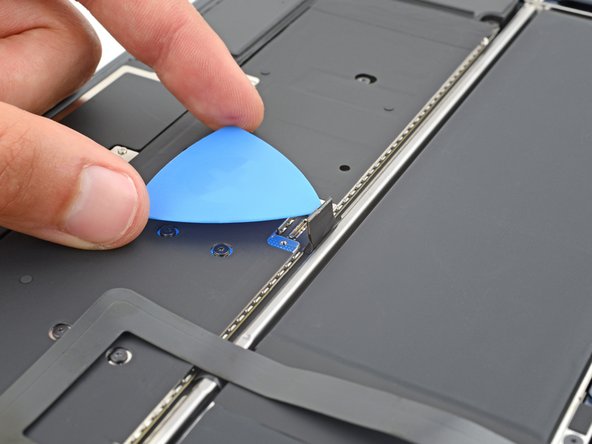
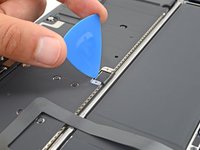
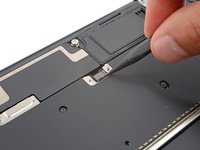
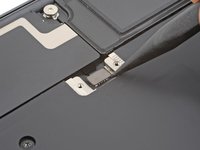
  10. Display and Camera Cables Disconnection, Disconnect the battery: 步骤 10 中的图像 1,2 Display and Camera Cables Disconnection, Disconnect the battery: 步骤 10 中的图像 2,2
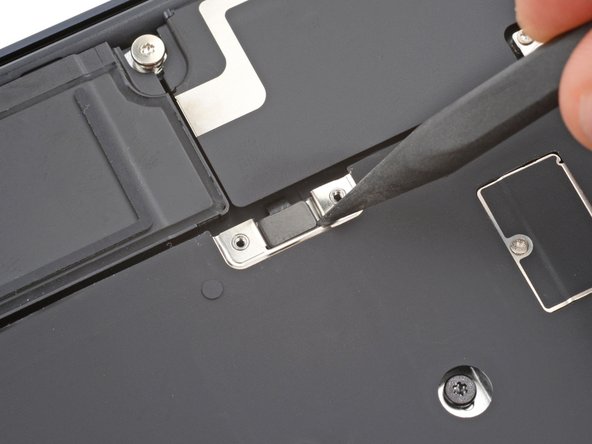
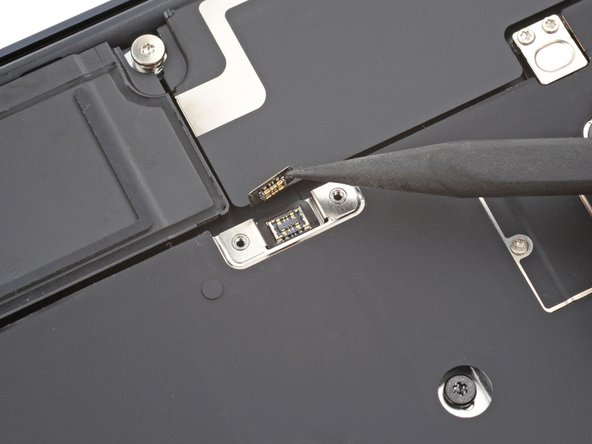
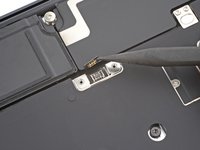
    • Use an opening pick to pry up and disconnect the battery connector.

    • To reconnect a press connector, align it over the socket and gently press down on one side until it clicks into place, then press down on the other side. It might take a few tries to align the connector.

  11. Display and Camera Cables Disconnection, Unfasten the speaker cable and hinge covers: 步骤 11 中的图像 1,2 Display and Camera Cables Disconnection, Unfasten the speaker cable and hinge covers: 步骤 11 中的图像 2,2
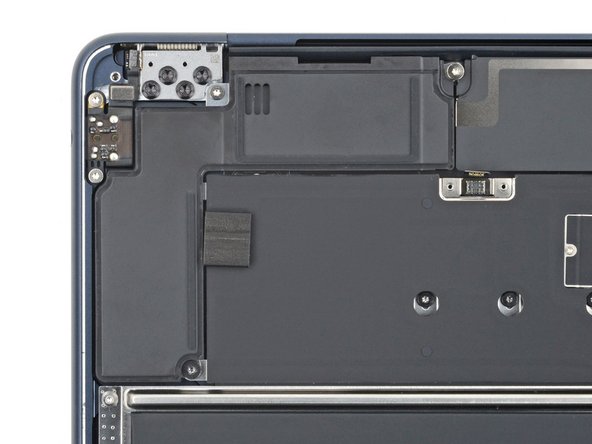
    • The right speaker will be on your left-hand side when working on the MacBook, as it's laying upside down.

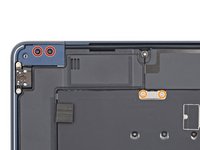
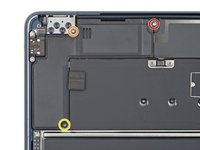
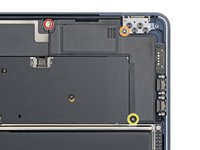
    • Use a 3IP Torx Plus screwdriver to remove the following screws:

    • Two 2.6 mm‑long screws securing the left hinge cover

    • Two 1.5 mm‑long screws securing the speaker cable cover

  12. Display and Camera Cables Disconnection, Remove the covers: 步骤 12 中的图像 1,1
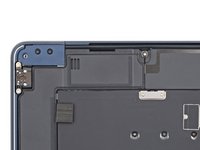
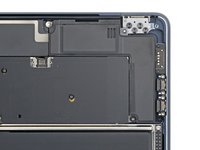
    • Remove the speaker cable cover.

  13. Display and Camera Cables Disconnection: 步骤 13 中的图像 1,3 Display and Camera Cables Disconnection: 步骤 13 中的图像 2,3 Display and Camera Cables Disconnection: 步骤 13 中的图像 3,3
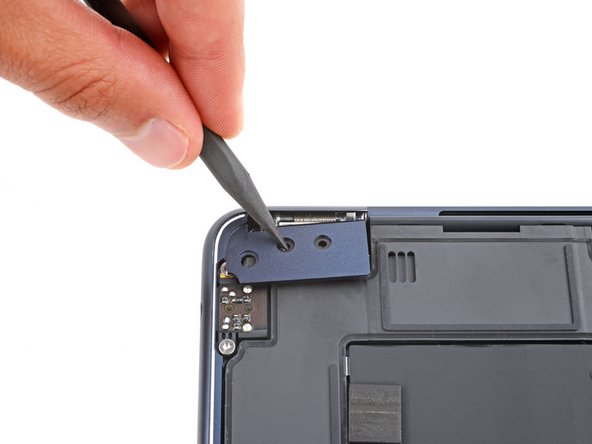
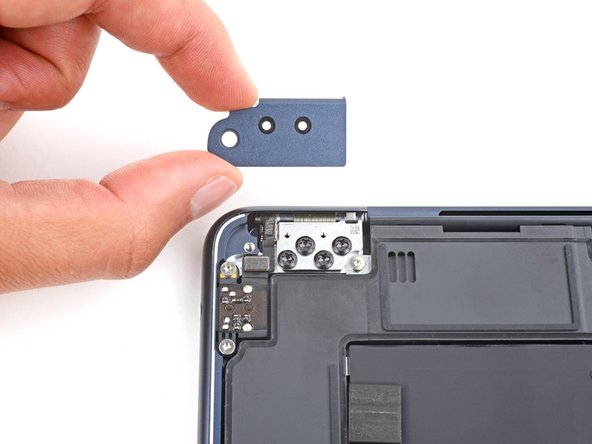
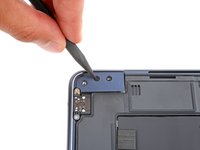
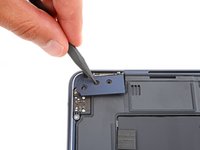
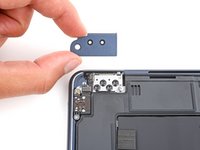
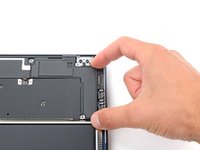
    • Insert the point of a spudger into one of the left hinge cover's screw holes.

    • Push the hinge cover away from the back edge to dislodge it.

    • Remove the hinge cover.

  14. Display and Camera Cables Disconnection, Disconnect the right speaker: 步骤 14 中的图像 1,3 Display and Camera Cables Disconnection, Disconnect the right speaker: 步骤 14 中的图像 2,3 Display and Camera Cables Disconnection, Disconnect the right speaker: 步骤 14 中的图像 3,3
    • Use the point of a spudger to pry up and disconnect the right speaker press connector.

  15. Display and Camera Cables Disconnection, Unfasten the right speaker: 步骤 15 中的图像 1,2 Display and Camera Cables Disconnection, Unfasten the right speaker: 步骤 15 中的图像 2,2
    • Remove the three screws securing the right speaker:

    • One 5.5 mm‑long 4IP Torx Plus screw

    • One 2.7 mm‑long 4IP Torx Plus screw

    • One 3.5 mm‑long 6IP Torx Plus screw

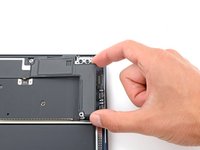
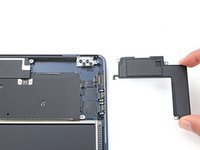
  16. Display and Camera Cables Disconnection, Remove the right speaker: 步骤 16 中的图像 1,3 Display and Camera Cables Disconnection, Remove the right speaker: 步骤 16 中的图像 2,3 Display and Camera Cables Disconnection, Remove the right speaker: 步骤 16 中的图像 3,3
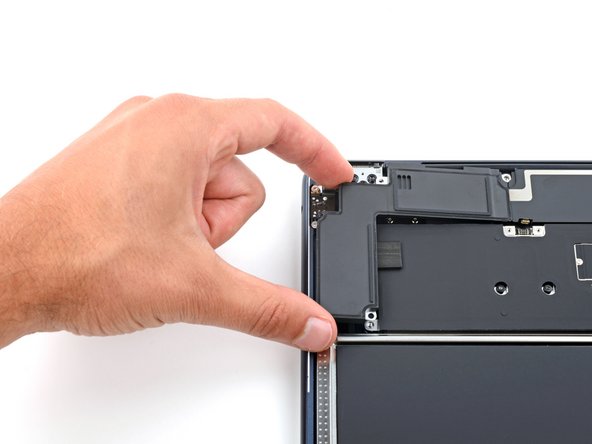
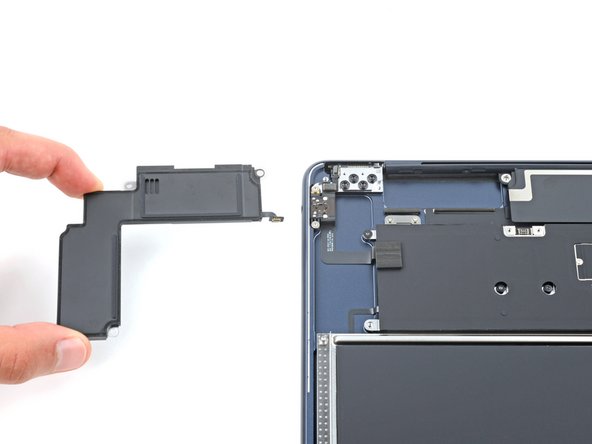
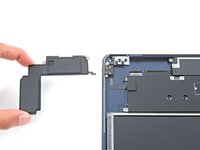
    • Make sure the cable on the top right edge of the speaker doesn't get caught on the logic board, as it may tear.

    • Lift the speaker's left edge over the frame and slide it to the left to remove it.

    • During reassembly, slide the speaker cable under the left edge of the antenna bar assembly before laying the speaker in its recess.

  17. Display and Camera Cables Disconnection, Unfasten the speaker cable and hinge covers: 步骤 17 中的图像 1,2 Display and Camera Cables Disconnection, Unfasten the speaker cable and hinge covers: 步骤 17 中的图像 2,2
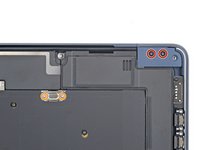
    • The left speaker will be on your right-hand side when working on the MacBook, as it's laying upside down.

    • Use a 3IP Torx Plus screwdriver to remove the following screws:

    • Two 2.6 mm‑long screws securing the right hinge cover

    • Two 1.5 mm‑long screws securing the speaker cable cover

  18. Display and Camera Cables Disconnection, Remove the covers: 步骤 18 中的图像 1,1
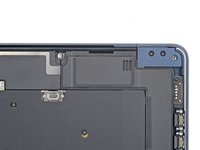
    • Remove the speaker cable cover.

  19. Display and Camera Cables Disconnection, Remove the right hinge cover: 步骤 19 中的图像 1,3 Display and Camera Cables Disconnection, Remove the right hinge cover: 步骤 19 中的图像 2,3 Display and Camera Cables Disconnection, Remove the right hinge cover: 步骤 19 中的图像 3,3
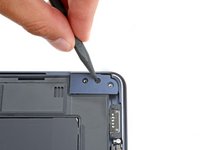
    • Insert the point of a spudger into one of the right hinge cover's screw holes.

    • Push the hinge cover away from the back edge to dislodge it.

    • Remove the hinge cover.

  20. Display and Camera Cables Disconnection, Disconnect the left speaker: 步骤 20 中的图像 1,3 Display and Camera Cables Disconnection, Disconnect the left speaker: 步骤 20 中的图像 2,3 Display and Camera Cables Disconnection, Disconnect the left speaker: 步骤 20 中的图像 3,3
    • Use the point of a spudger to pry up and disconnect the left speaker press connector.

  21. Display and Camera Cables Disconnection, Unfasten the left speaker: 步骤 21 中的图像 1,2 Display and Camera Cables Disconnection, Unfasten the left speaker: 步骤 21 中的图像 2,2
    • Remove the three screws securing the right speaker:

    • One 5.5 mm‑long 4IP Torx Plus screw

    • One 2.7 mm‑long 4IP Torx Plus screw

    • One 3.5 mm‑long 6IP Torx Plus screw

  22. Display and Camera Cables Disconnection, Remove the left speaker: 步骤 22 中的图像 1,3 Display and Camera Cables Disconnection, Remove the left speaker: 步骤 22 中的图像 2,3 Display and Camera Cables Disconnection, Remove the left speaker: 步骤 22 中的图像 3,3
    • Make sure the cable on the top left edge of the speaker doesn't get caught on the logic board, as it may tear.

    • Lift the speaker's right edge over the frame and slide it to the right to remove it.

    • During reassembly, slide the speaker cable under the right edge of the antenna bar assembly before laying the speaker in its recess.

  23. Display and Camera Cables Disconnection, Remove the antenna cables cover: 步骤 23 中的图像 1,3 Display and Camera Cables Disconnection, Remove the antenna cables cover: 步骤 23 中的图像 2,3 Display and Camera Cables Disconnection, Remove the antenna cables cover: 步骤 23 中的图像 3,3
    • Use a 3IP Torx Plus screwdriver to remove the two 1.5 mm‑long screws securing the antenna cables cover.

    • Remove the cover.

  24. Display and Camera Cables Disconnection, Disconnect the antenna bar: 步骤 24 中的图像 1,3 Display and Camera Cables Disconnection, Disconnect the antenna bar: 步骤 24 中的图像 2,3 Display and Camera Cables Disconnection, Disconnect the antenna bar: 步骤 24 中的图像 3,3
    在这个步骤中使用的工具:
    Tweezers
    $3.99
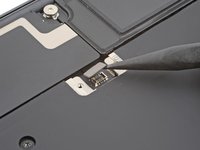
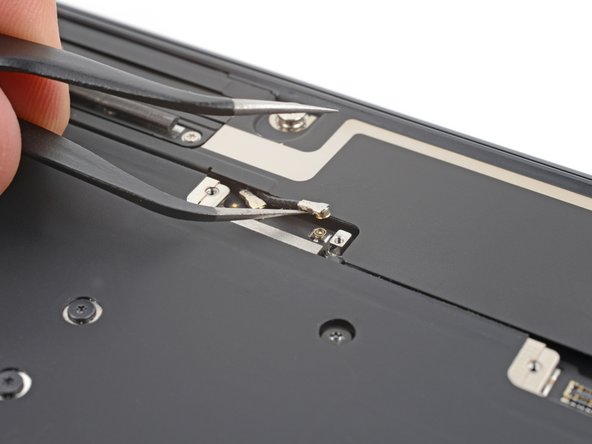
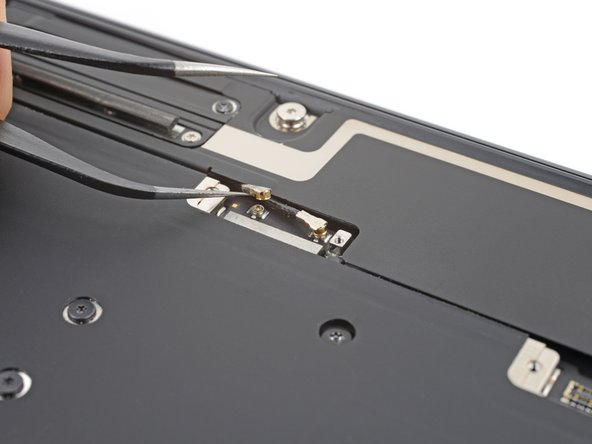
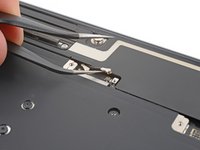
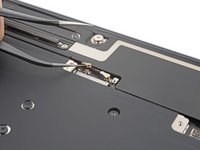
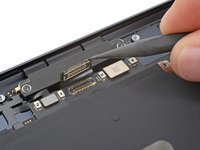
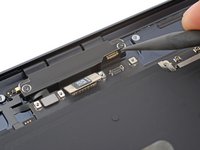
    • Insert one arm of a pair of angled tweezers under the metal neck of one of the antenna connectors and lift straight up to disconnect it.

    • Disconnect the other antenna.

    • To reconnect antenna connectors, hold each one in place over its socket and press down with the flat end of your spudger. The connector will snap into place.

  25. Display and Camera Cables Disconnection, Unfasten the antenna bar: 步骤 25 中的图像 1,2 Display and Camera Cables Disconnection, Unfasten the antenna bar: 步骤 25 中的图像 2,2
    • Use a 4IP Torx Plus screwdriver to remove the two 5.5 mm‑long screws securing the antenna bar.

  26. Display and Camera Cables Disconnection, Remove the antenna bar: 步骤 26 中的图像 1,2 Display and Camera Cables Disconnection, Remove the antenna bar: 步骤 26 中的图像 2,2
    • Remove the antenna bar.

  27. Display and Camera Cables Disconnection, Remove the foam pad: 步骤 27 中的图像 1,2 Display and Camera Cables Disconnection, Remove the foam pad: 步骤 27 中的图像 2,2
    在这个步骤中使用的工具:
    Tesa 61395 Tape
    $2.99
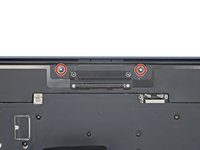
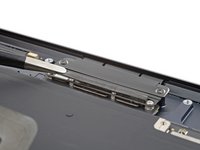
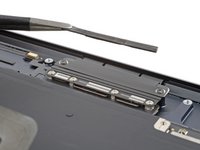
    • A foam pad hides two screws securing the display and camera cables cover. It's secured with light adhesive.

    • Use tweezers or your fingers to remove the foam pad from the cover.

    • During reassembly, use the leftover adhesive to secure the pad. If the pad doesn't stick, use double-sided tape to secure it.

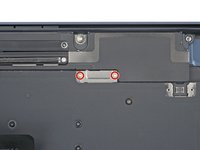
  28. Display and Camera Cables Disconnection, Unfasten the cables cover: 步骤 28 中的图像 1,3 Display and Camera Cables Disconnection, Unfasten the cables cover: 步骤 28 中的图像 2,3 Display and Camera Cables Disconnection, Unfasten the cables cover: 步骤 28 中的图像 3,3
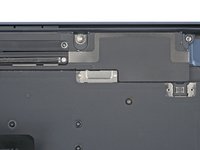
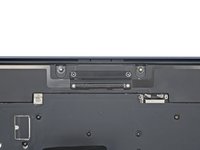
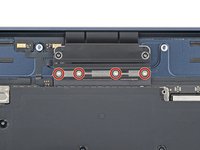
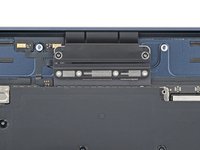
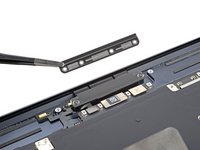
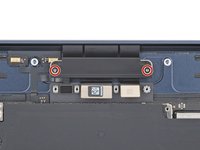
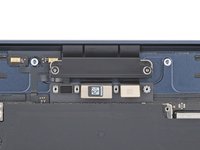
    • Use a 3IP Torx Plus screwdriver to remove the four 1.5 mm‑long screws securing the display and camera cables cover.

    • Remove the cover.

  29. Display and Camera Cables Disconnection, Disconnect the display and camera: 步骤 29 中的图像 1,3 Display and Camera Cables Disconnection, Disconnect the display and camera: 步骤 29 中的图像 2,3 Display and Camera Cables Disconnection, Disconnect the display and camera: 步骤 29 中的图像 3,3
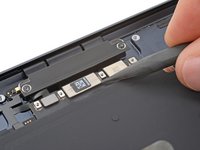
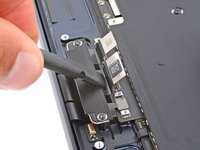
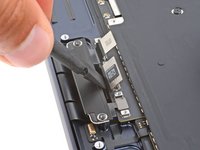
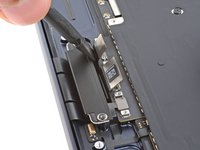
    • Use a spudger to pry up and disconnect the display and camera cable press connectors.

  30. Display and Camera Cables Disconnection, Reassembly information: 步骤 30 中的图像 1,3 Display and Camera Cables Disconnection, Reassembly information: 步骤 30 中的图像 2,3 Display and Camera Cables Disconnection, Reassembly information: 步骤 30 中的图像 3,3
    • During reassembly, use the flat end of a spudger to gently push the display and camera cables under the logic board.

  31. Display and Camera Cables Disconnection, Unfasten the display and camera cables: 步骤 31 中的图像 1,2 Display and Camera Cables Disconnection, Unfasten the display and camera cables: 步骤 31 中的图像 2,2
    • Use a 3IP Torx Plus screwdriver to remove the two 2.8 mm‑long screws securing the display and camera cables to the frame.

结论

To reassemble your device, follow these instructions in reverse order.

Spencer Day

于09/14/22注册

153,496 声望

创作了1,024篇指南

团队

iFixit iFixit 的会员

Staff

123 名成员

创作了23,735篇指南

0指南评论

添加评论

浏览统计数据:

过去 24 小时: 0

过去 7 天: 2

过去 30 天: 7

总计 70